How to configure accounts correctly during mass creation#
This guide explains how to configure accounts correctly during mass creation in Afina, so profiles immediately have a logical and stable fingerprint, and shows which browser settings should be checked after creation.
What we cover#
In this guide, we focus not on account creation itself, but on the quality of the initial setup.
We cover:
- what matters during mass account creation;
- why you should separately check timezone and languages;
- why these toggles are better left enabled;
- how to choose the platform for your operating system;
- which limits apply during mass account creation;
- what
Canvas,WebGL,Audio, andRectsmean; - what blocked ports are and what they affect;
- what else to check in browser settings.
What matters during mass account creation#
When you create accounts in bulk, the main task is not just to quickly add many profiles, but to make them look logical from the start.
In mass mode, one accidental mistake scales to all accounts at once.
That is why, before saving, you need to check not only the number of accounts and their names, but also the basic fingerprint parameters:
- operating system;
User-Agent;- timezone;
- languages;
- proxy;
Canvas,WebGL,Audio,Rects;- blocked ports;
- browser launch parameters.
Account creation limits#
Account creation limits are a system restriction that defines how many profiles can be created within a certain unit of time and how many can exist in total.
Depending on the selected plan, there are two types of rate limits:
- per-minute limit
RPM- the maximum number of accounts that can be created in one minute; - per-hour limit
RPH- the maximum number of accounts that can be created in one hour.
When a limit is exhausted, the system needs time to restore it. In this case, you need to wait until the limit updates. If the current restrictions do not fit your workflow, you can switch to a plan with higher values.
| Plan | Max users | Max profiles | Per-minute limit (RPM) | Per-hour limit (RPH) |
|---|---|---|---|---|
| Unlimited | 0 | 100 000 | 50 | 100 |
| Lite | 0 | 20 | 20 | 20 |
| Starter | 0 | 50 | 50 | 50 |
| Base | 2 | 100 | 100 | 200 |
| Standard | 5 | 300 | 100 | 1 500 |
| Max | 10 | 1 000 | 200 | 2 000 |
Timezone and languages#
During mass account creation, you need to open the Timezone and Language tabs separately.
The logic is simple:
- the browser language should match the IP country or look natural for this account;
- the timezone should match the IP country and region;
- these parameters should not conflict with each other.
For mass profiles, the best baseline logic is:
- in the Language tab, leave language selection from IP enabled;
- in the Timezone tab, leave timezone selection from IP enabled.
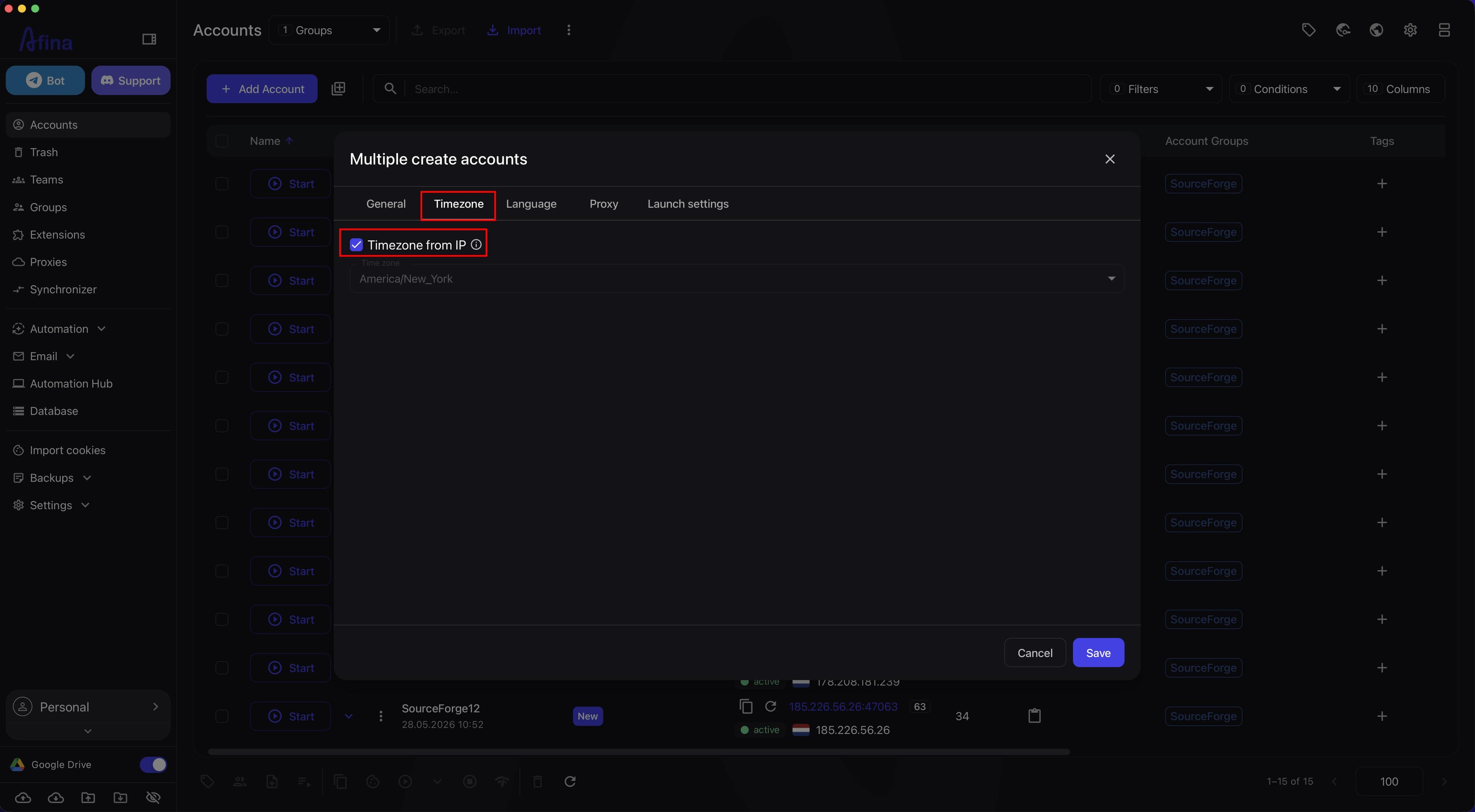
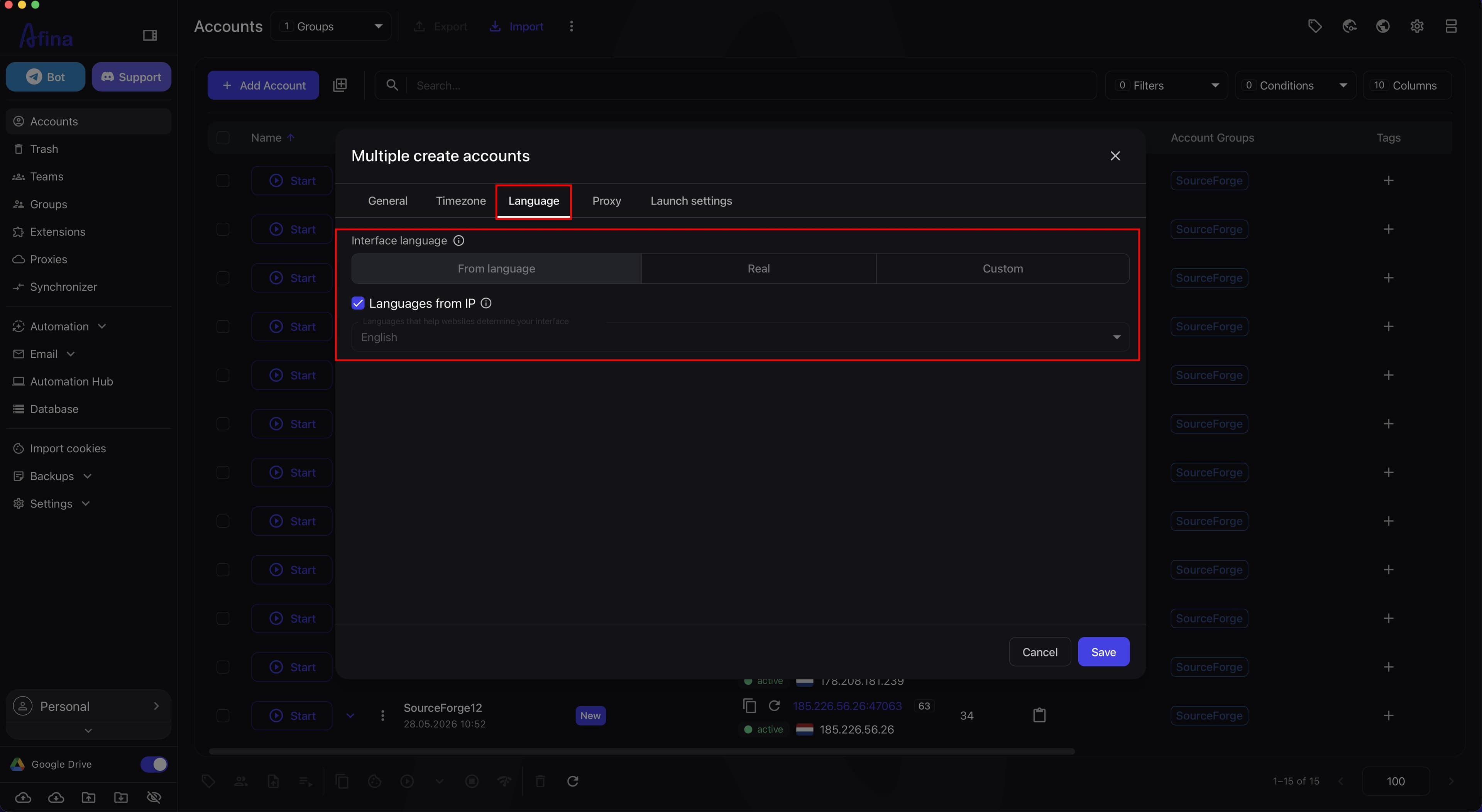
That is, these checkboxes or toggles should be selected as the working standard for mass account creation.
Why this is better:
- the profile looks more logical;
- there is a lower risk of conflict between IP, language, and timezone;
- there are fewer captcha-related issues.
For mass accounts without a separate special scenario, it is better to treat enabled Languages from IP and Timezone from IP as the standard profile state.
Platform and operating system#
The account fingerprint has a Platform parameter. It should match the operating system you choose for the profile.
Recommended logic:
- if you work with
macOS, it is better to choose a platform formacOS; - if you work with
Windows, it is better to choose a platform forWindows.
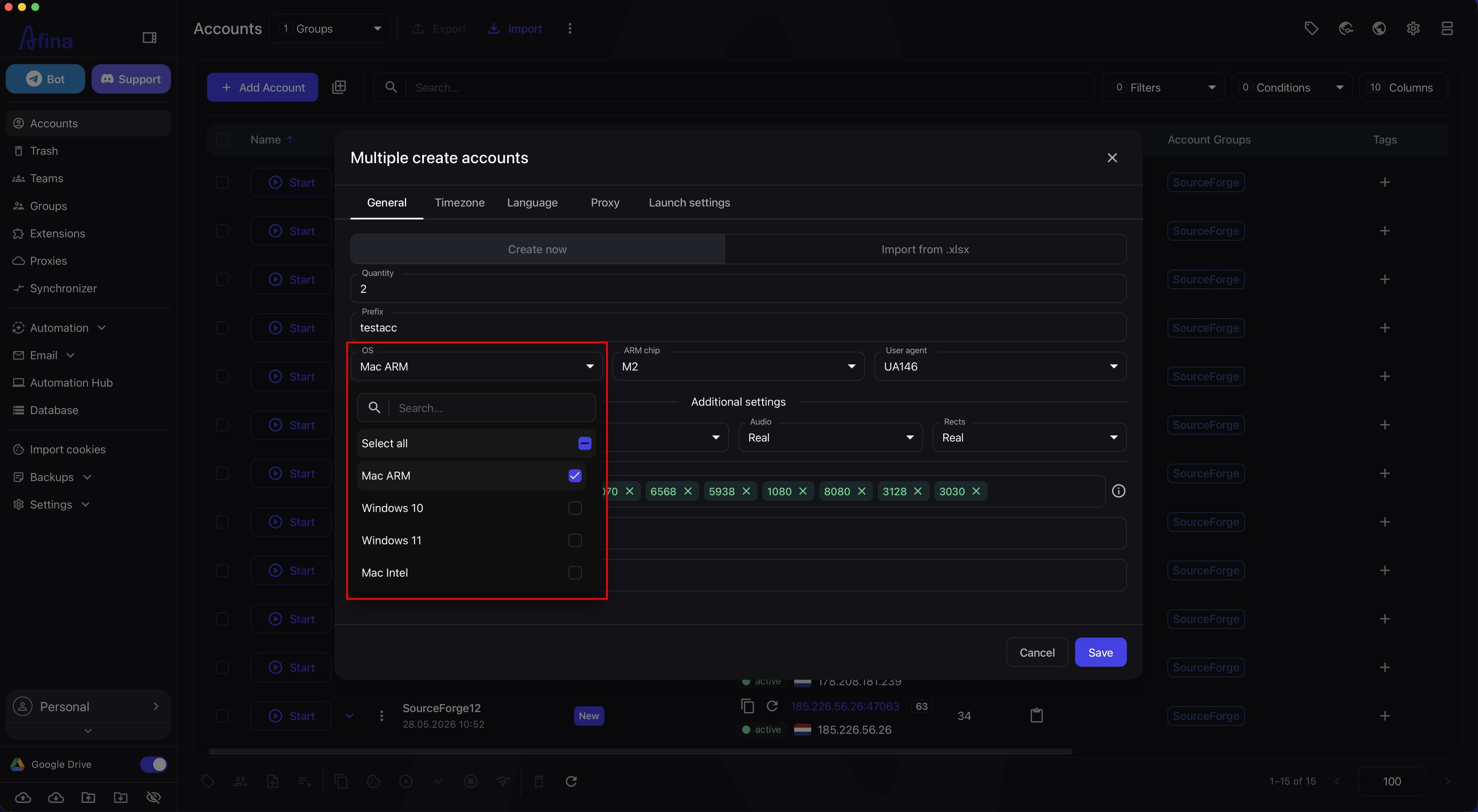
In a basic scenario, it is best to choose the same OS as on your real device. This makes the profile more natural.
The reason is simple: a website looks not at one operating system name, but at several technical signals at once. If the profile has Windows selected, but other signals look more like Mac, this can look like emulation or substitution.
For example, if you work on a real Mac but select Windows in the profile, this does not mean an automatic ban, but it creates an unnecessary risk of inconsistency.
For mass accounts, this is especially undesirable because the same mistake will be repeated across many profiles at once.
If you work on a real Mac, then for a standard mass scenario without a separate technical reason, it is safer to choose macOS in profiles rather than Windows. The same rule works in the opposite direction: if your real device is on Windows, it is better not to build mass profiles for macOS without a clear need.
What Canvas, WebGL, Audio, and Rects are#
These are parts of the browser fingerprint through which websites receive technical signals about the browser and device.
Canvasshows how the browser renders graphics.WebGLis responsible for the graphics fingerprint and is often connected to the GPU or graphics renderer.Audioforms the browser audio fingerprint.Rectsis connected to rendering elements on the page.
For a standard profile in Afina, these parameters should not be noised without a reason. This is especially true for Canvas: modern anti-fraud systems often have large databases of real Canvas fingerprints, so artificial noise on this parameter may look like an anomaly.
Why this is better:
- the profile looks like a regular browser;
- the fingerprint does not jump between sessions without a reason;
- you do not add unnecessary artificial noise where it is not needed.
The basic practical logic is:
- it is better to leave
Canvasin Real mode; - if you need to separate profiles from each other, test noise only on one of the other parameters:
WebGL,Audio, orRects; - the
1 out of 4rule: three out of four components,Canvas,WebGL,Audio,Rects, stay real, and noise is applied to only one; - there is no universal recipe because social networks, ad accounts, crypto exchanges, and other platforms have different tracking algorithms.
For mass account creation, this is especially important because a random incorrect change to Canvas, WebGL, Audio, or Rects will immediately go into all created profiles. If you test noise, do not switch it between sessions without a need, and check the result on the exact resource you work with.
What ports are and what they affect#
The Blocked ports field defines a list of ports that the browser is not allowed to connect to.
Simply put, a port is a technical channel through which a browser or another program tries to establish a connection to a specific service.
In the context of Afina, this is needed not for ordinary website navigation, but to protect the profile from unwanted or service connections.
What has already been confirmed in Afina logic:
- blocked ports are passed through
--afina-fp|portsProtection; - by default, Afina closes service ports for
RDP,VNC, and proxies; - the
CDPport of the current profile is added automatically when the account starts.
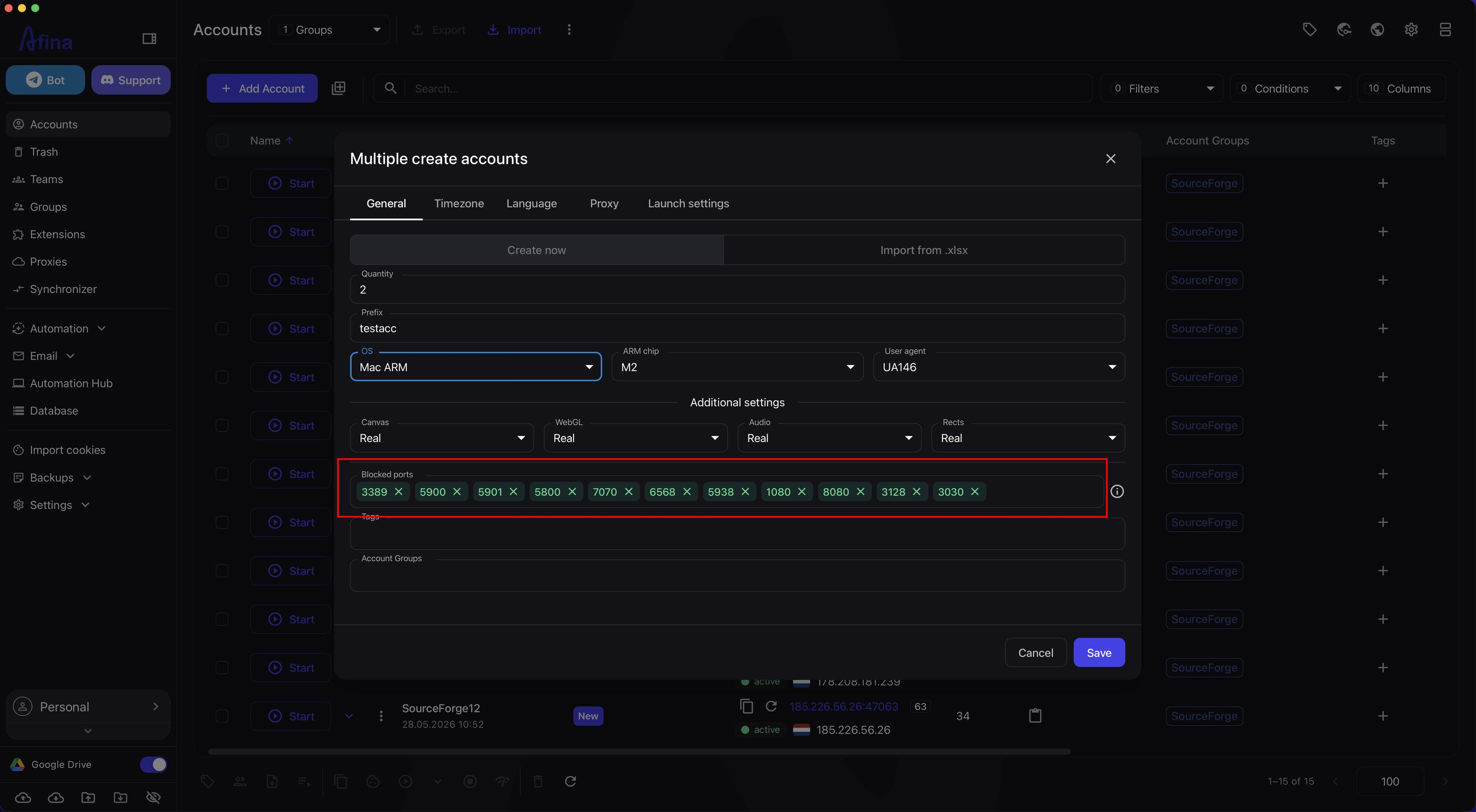
Why this is useful:
- fewer unnecessary technical access points;
- lower chance of conflicts with local services;
- more stable and safer profile operation.
Without a separate technical reason, it is better not to change the blocked ports list manually.
Which set of settings can be considered basically correct#
For most mass accounts without a specific scenario, you can use the following logic:
- the operating system matches the type of device you want to imitate;
- the platform matches this operating system;
User-Agentmatches the selected OS;- languages are pulled from IP;
- timezone is pulled from IP;
Canvasis set to Real mode;WebGL,Audio, andRectsremain real, or noise is used on no more than one of them;- service ports remain protected;
- the proxy is stable and does not change geolocation without a reason.
What else to check in browser settings#
After creating an account, it is worth separately going into settings and checking additional parameters that affect not so much the fingerprint itself, but the account's working environment.
Startup pages#
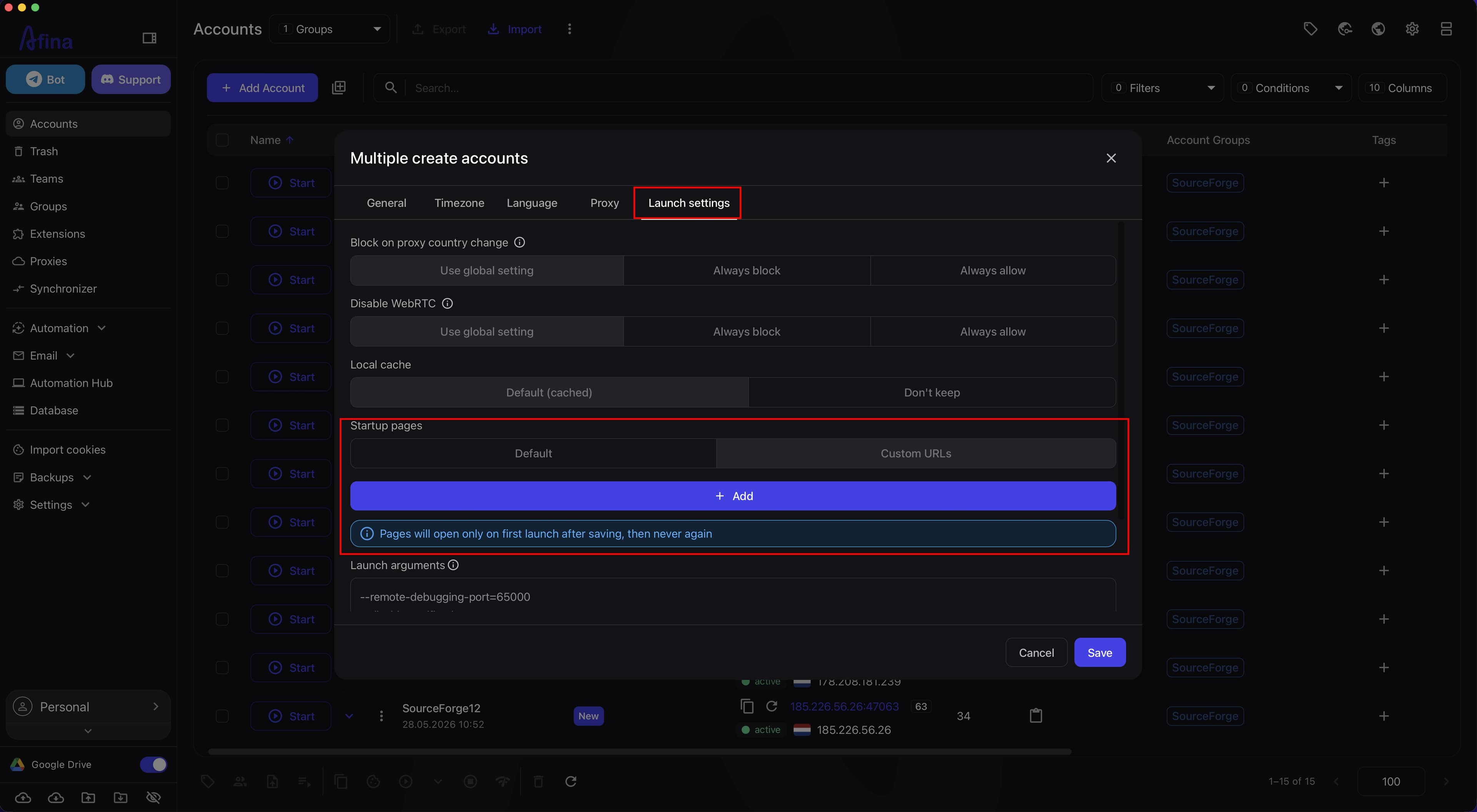
Startup pages are pages that open automatically when the browser or profile starts.
You can find this setting in the account edit or creation window, on the Launch settings tab, in the Startup pages block.
This block has two modes:
- Default;
- Custom URLs.
If you choose Custom URLs, you can manually add the required links using the Add button.
This is useful when you need:
- all accounts to start from the same service page;
- to immediately open the required site for the team's work;
- to check that profiles start in the same working scenario.
Important interface nuance: the behavior of startup pages depends on Browser restore mode. If session restore is enabled, the specified links will open only during the first launch after saving the account, and then Afina will restore the previous tabs.
This means that this block is suitable specifically for the initial profile launch scenario. If you need pages to open differently, separately check the related browser launch settings.
Launch arguments#
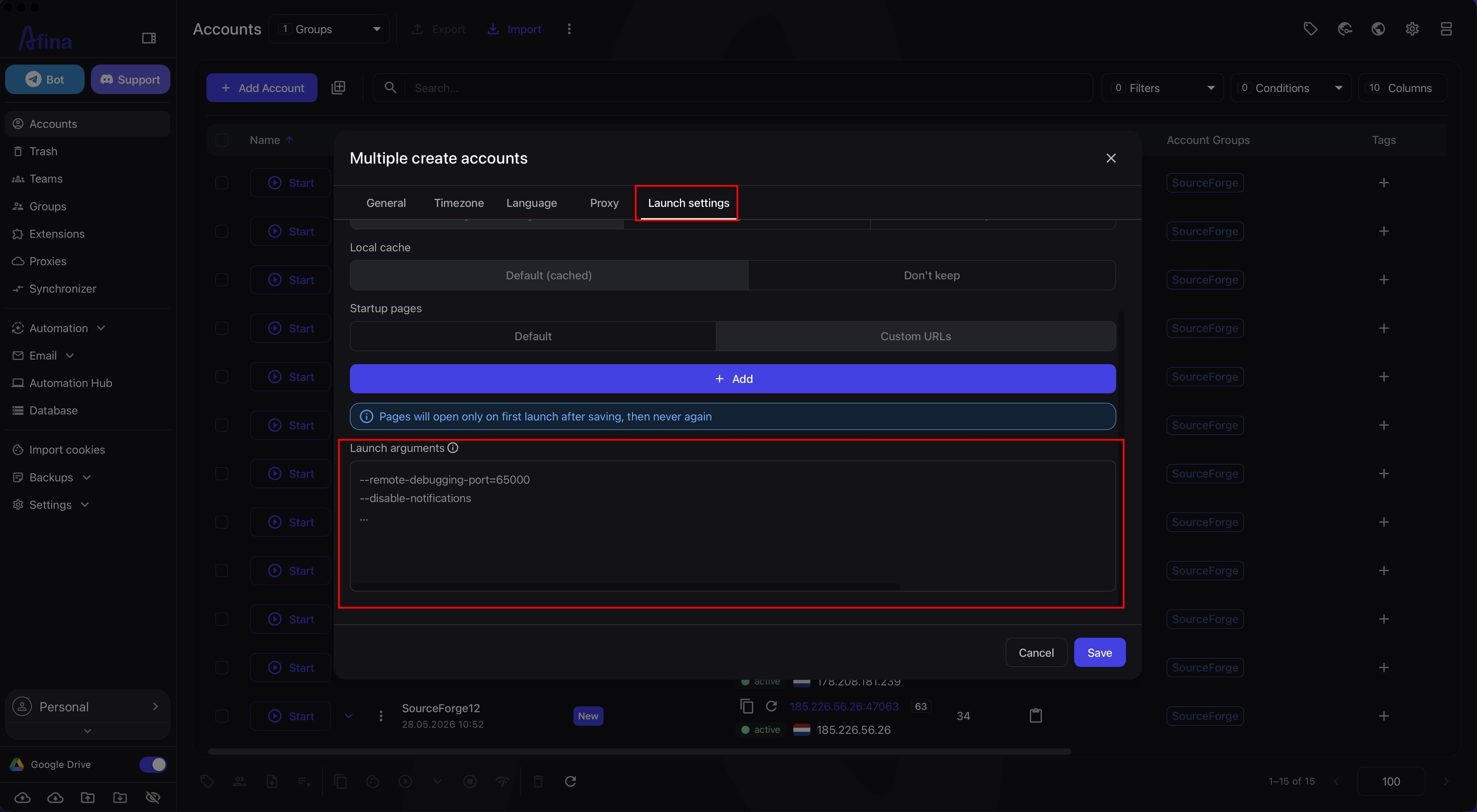
Launch arguments are additional parameters with which the browser profile starts.
They are located in the same place as startup pages:
- in the account edit or creation window;
- on the Launch settings tab;
- in the Launch arguments block.
Simply put, these are service keys that pass separate instructions to the browser during launch.
According to Afina interface logic, these are additional Chromium flags that are added to the global launch arguments.
Important rules for this field:
- one flag should be entered on a new line;
- dangerous flags related to proxies, debugging, or disabling protection are filtered out.
They should be used carefully because unnecessary or random arguments can:
- change browser behavior;
- create a non-standard environment;
- break part of the profile logic;
- make the account less natural.
So the basic rule is: if there is no clear technical reason, you should not add extra launch arguments in bulk.
Local cache#
The browser's local cache is temporary data that the browser stores on disk: parts of pages, images, scripts, and other site elements.
Why it is needed:
- pages open faster on repeated launch;
- the browser reloads the same resources less often;
- profile operation looks more natural because the browser behaves like a regular user browser.
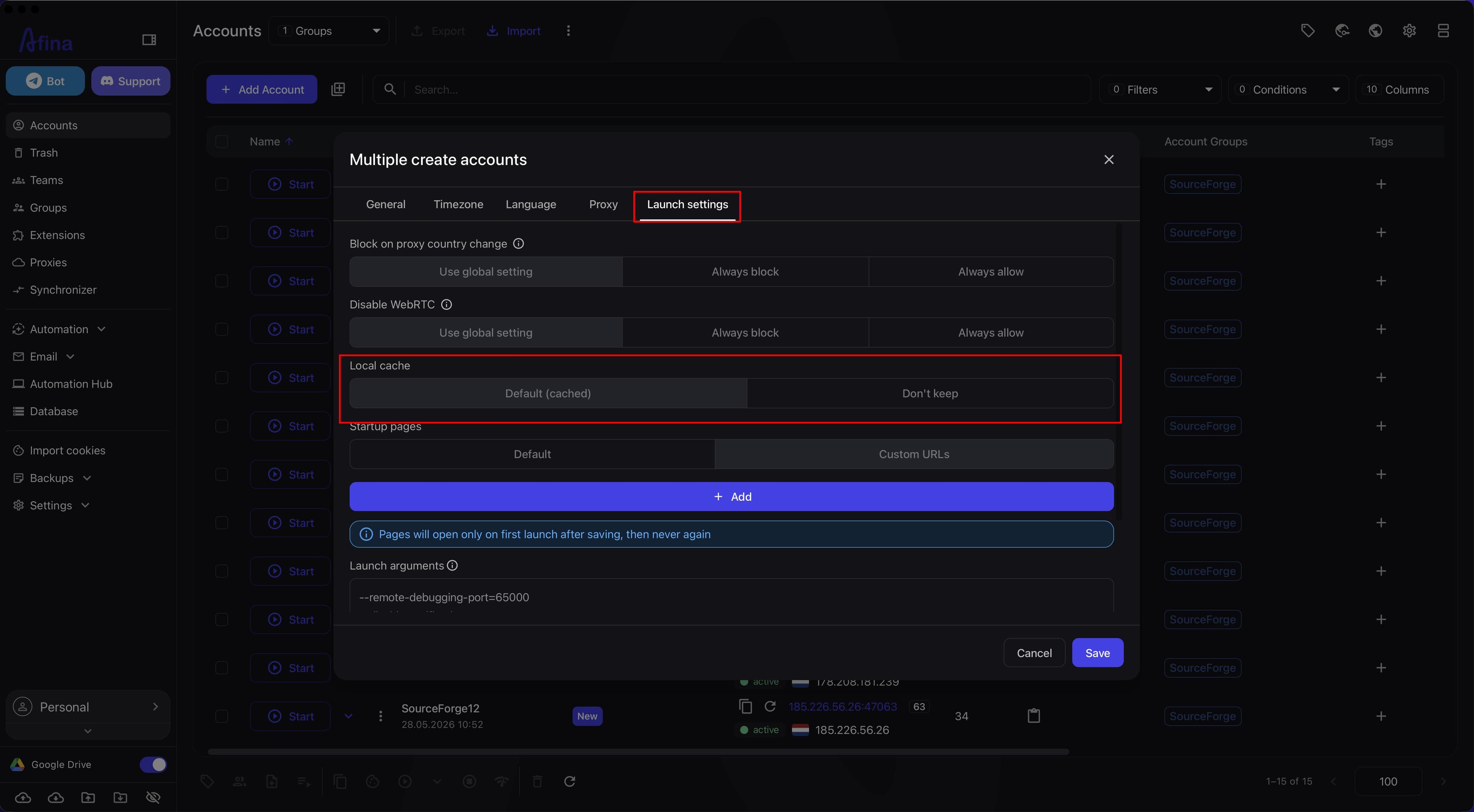
When creating or editing an account, you can choose one of two basic modes for local cache:
- Default (cached) - the browser will store cache;
- Don't keep - cache for this profile will not be stored.
In a standard scenario, Default (cached) is used more often because it is closer to normal browser behavior. The Don't keep option may be needed in specific scenarios where it is important not to accumulate local temporary data.
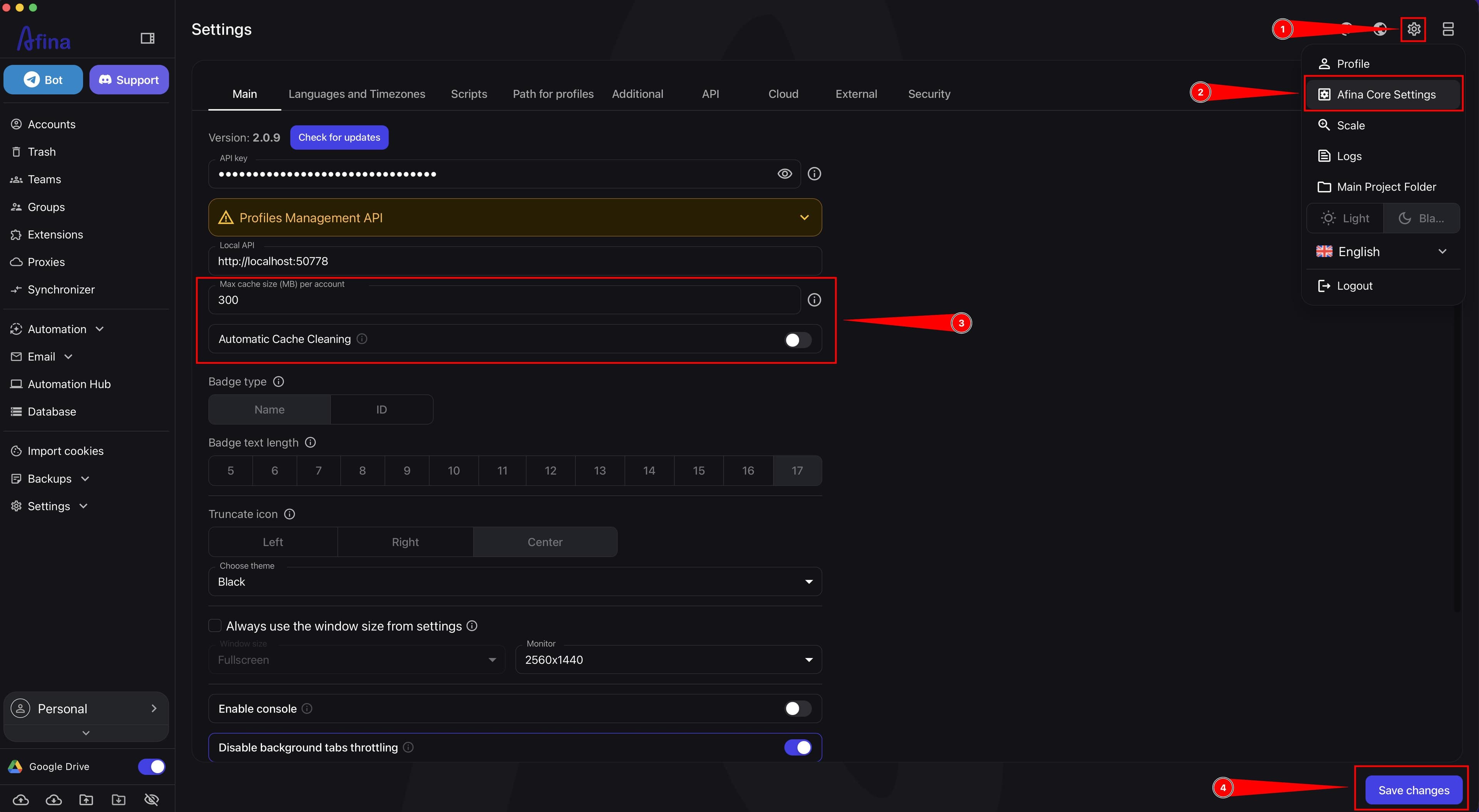
Additional cache settings can be found like this:
- open Settings;
- go to Afina Core Settings;
- open the Main tab;
- scroll down to the cache settings block.
There are two separate parameters in this block:
- Max cache size (MB) per account;
- Automatic Cache Cleaning.
Max cache size per account#
This is the disk cache limit for one specific account.
For example, if you set 300 MB, this means 300 MB for one profile, not for all accounts at once.
If you set 0, the standard default Chromium value will be used.
What this gives in practice:
- a larger cache can speed up repeated page loading;
- a larger cache takes up more disk space;
- this setting applies after restarting the browser or profile.
For mass work, it is important to understand this in advance: if there are many accounts, even a moderate cache per profile can take up a lot of disk space in total.
Automatic cache cleaning#
If this option is enabled, the cache of all profiles will be cleaned automatically every day at the specified time.
This is useful when you need to:
- regularly free up disk space;
- avoid accumulating old cache across a large number of profiles;
- maintain the same technical discipline for the whole farm or team.
But there is a trade-off here: after cleaning, some pages may open more slowly again until the browser builds a new cache.
Quick checklist before saving#
Before clicking Save during account creation, check:
- the correct operating system is selected;
- the platform does not conflict with the OS;
User-Agentmatches this OS;- language selection from IP is enabled;
- timezone selection from IP is enabled;
Canvasis set to Real mode;- of the
WebGL,Audio, andRectsparameters, noise is used on no more than one if this is needed for your scenario; - the blocked ports list has not been changed without a reason;
- the proxy matches your scenario;
- there are no unnecessary or random launch arguments;
- startup pages match your working scenario.
Common mistakes#
The most common mistakes during account creation:
- disabled Languages from IP;
- disabled Timezone from IP;
- the platform does not match the operating system;
User-Agentdoes not match the OS;- noise is applied to
Canvasor to severalWebGL,Audio, andRectsparameters at once; - ports are changed manually without understanding what this affects;
- unnecessary launch arguments are added in bulk;
- startup pages are configured without considering the browser opening method after closing;
- the same configuration is applied to accounts with different proxies and different countries without checking the logic.
Conclusion#
High-quality mass account creation is not just a quick import or form filling, but the correct starting profile template.
For most scenarios, the best baseline logic is: platform for your OS, User-Agent for this OS, languages and timezone from IP, Canvas in Real mode, noise on no more than one of WebGL/Audio/Rects only after testing, and browser launch without unnecessary manual experiments.