Bulk Account Creation#
This guide covers bulk actions in the Accounts section: how to create multiple profiles through a form at once, how to import accounts from an Excel file, and how to delete them without working with each record individually.
Why Bulk Account Import Is Needed#
Bulk import saves time when you have many accounts and creating them one by one is inconvenient.
Most common scenarios:
- starting a new farm;
- migrating accounts from a spreadsheet or internal database;
- quickly creating profiles for a team;
- preparing accounts for subsequent import of cookies, proxies, or other data.
If you have few accounts, manual creation works fine. If you have dozens or hundreds of accounts — Excel import is significantly faster and reduces the number of manual errors.
Opening the Bulk Creation Window#
1. Open the Accounts section In the left navigation panel, click Accounts. The main profiles table will open.
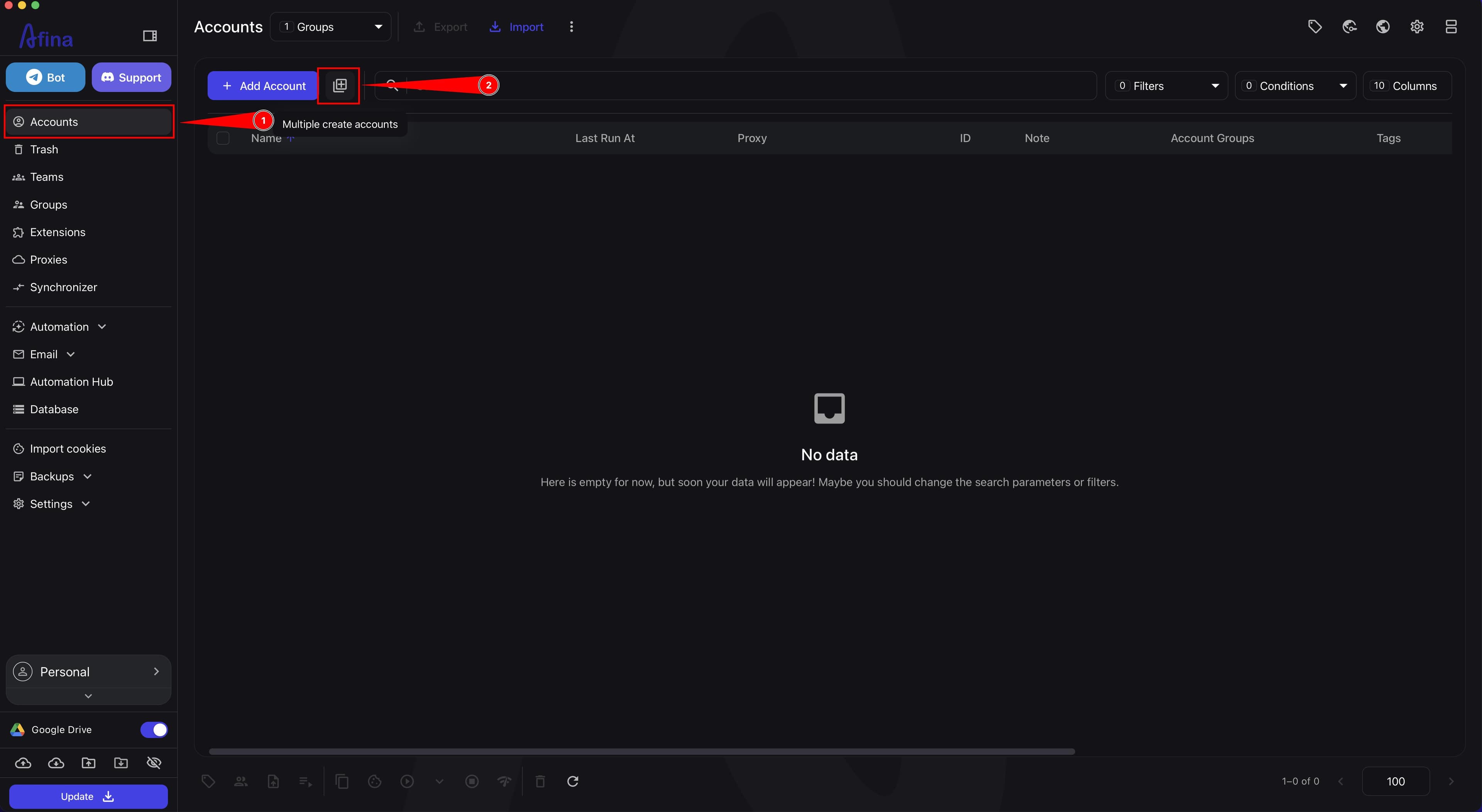
2. Open the bulk creation window On the top action bar above the table, find the Multiple create accounts icon — it is located next to the add account button. Click it.
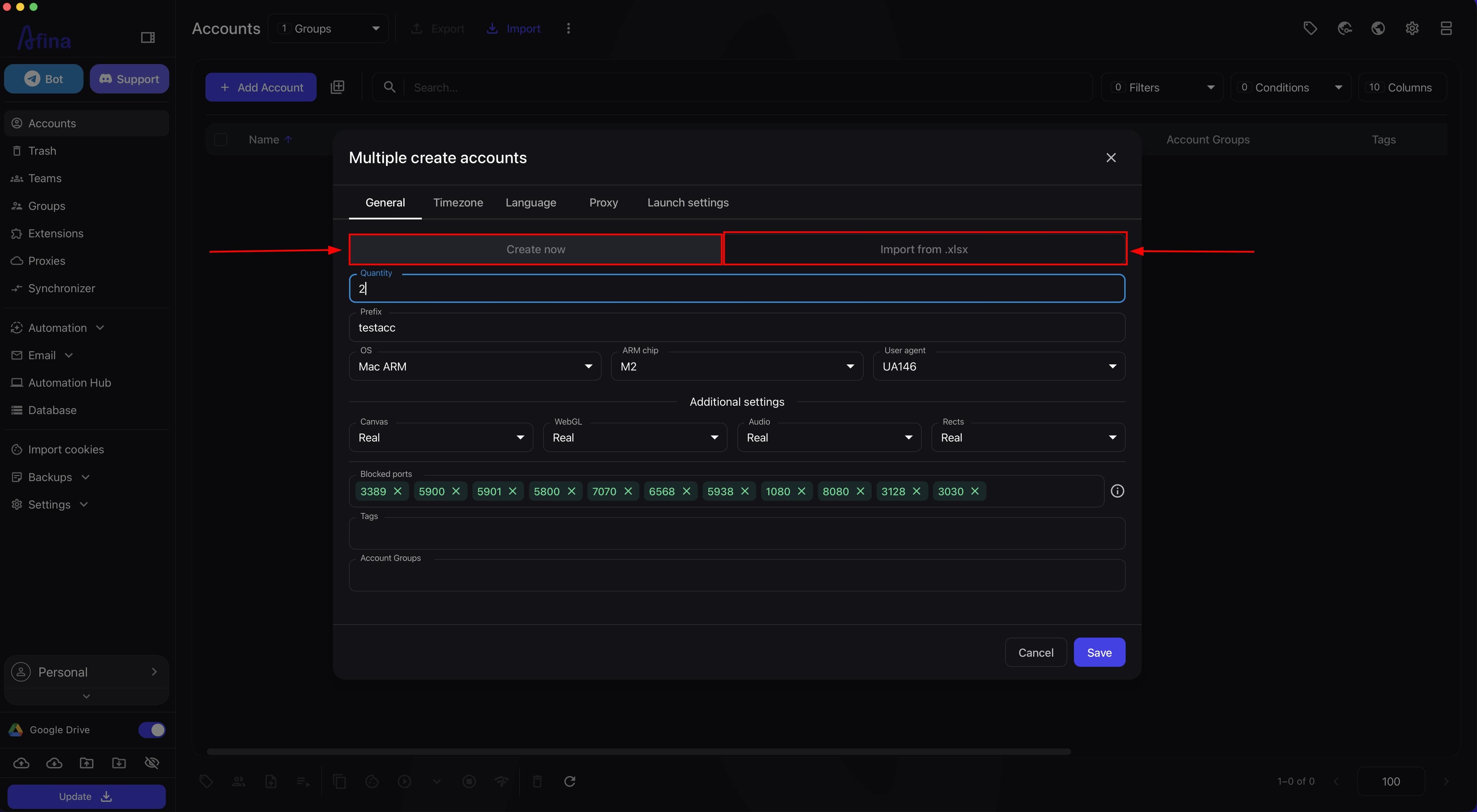
The "Multiple create accounts" modal window will open with two modes to choose from.
The screenshot below shows the Accounts section with the Multiple create accounts icon highlighted on the top panel next to the add profile button.
3. Select the operating mode In the "Multiple create accounts" window, two modes are available:
- "Create now" — suitable when you need to quickly generate several similar accounts directly in Afina;
- "Import from .xlsx" — suitable when there are many accounts and they are already prepared in a spreadsheet.
The screenshot below shows the "Multiple create accounts" window with both modes.
Creating Accounts Through the Form#
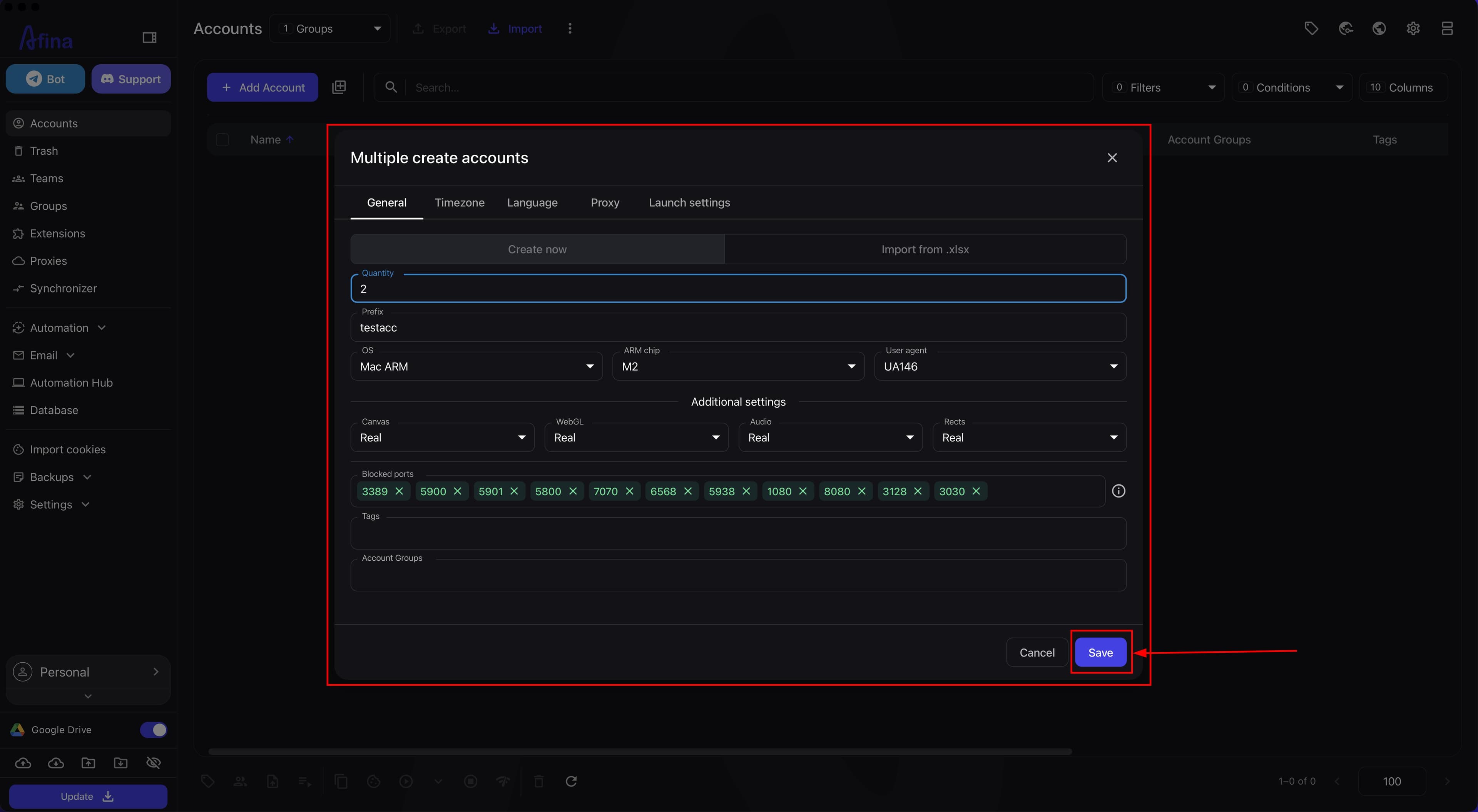
1. Keep the "Create now" tab active By default, the "Create now" tab opens — make sure it is active.
2. Fill in the fields of the "General" tab In the "General" tab, fill in the required parameters:
- "Quantity" — the number of accounts to create;
- "Prefix" — a text prefix that Afina will add to the name of each profile;
- "OS" — select the required operating system from the list;
- "User-Agent" — select the current browser core at the time of account creation.
If needed, configure additional fingerprint substitution parameters:
- "Canvas" — Canvas fingerprint substitution level;
- "WebGL" — WebGL fingerprint substitution level;
- "Audio" — audio fingerprint substitution level;
- "Rects" — element geometry substitution;
- "Blocked ports" — list of ports that will be blocked in the profile;
- "Tags" — tags for filtering accounts in the table;
- "Account Groups" — groups to which new profiles will be added.
3. Configure other tabs as needed Three more tabs are available in the window: "Timezone", "Language", "Proxy". Go to those you need for your scenario and fill in the corresponding parameters.
4. Save the accounts After filling in all the required parameters, click Save. Afina will generate the specified number of accounts with the given settings and add them to the Accounts table.
The screenshot below shows the "Multiple create accounts" window in "Create now" mode with the "General" tab fields filled in and the "Save" button.
Bulk Import of Accounts via Excel#
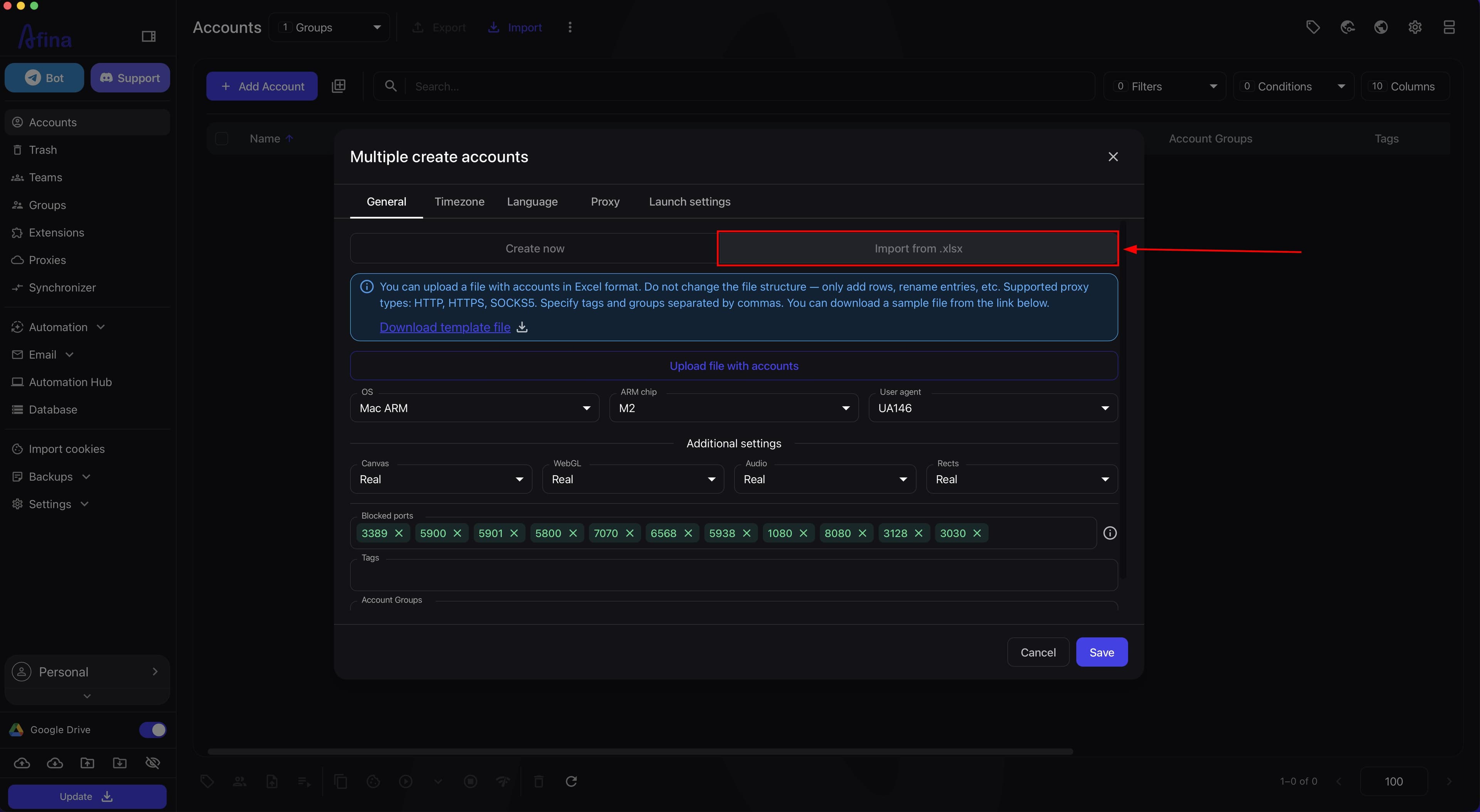
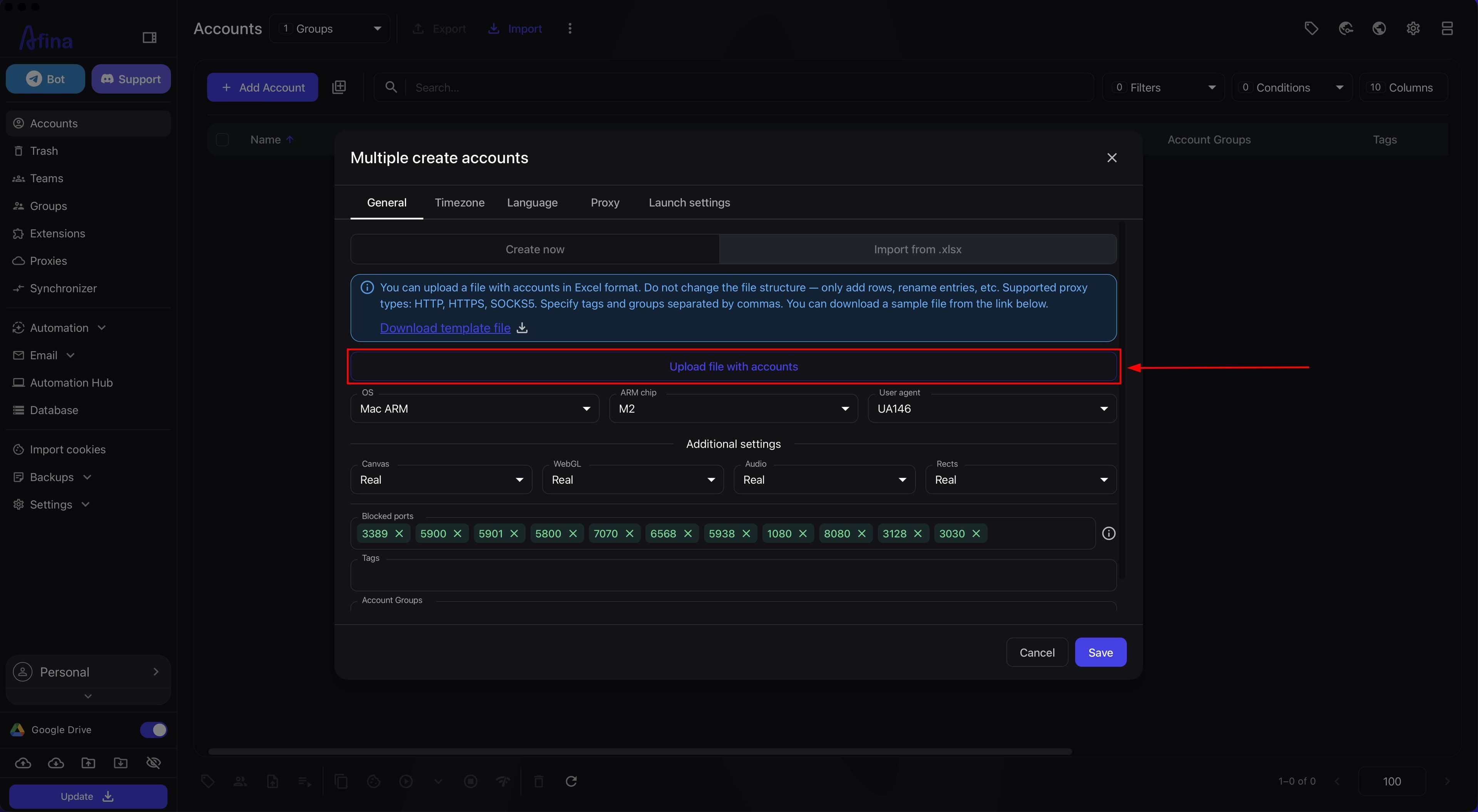
1. Select the "Import from .xlsx" mode In the "Multiple create accounts" window, click the "Import from .xlsx" tab. A block with file format instructions and buttons for downloading the template and selecting a file will open.
The screenshot below shows the "Multiple create accounts" window in "Import from .xlsx" mode with a link to the template and the file upload button.
2. Prepare the Excel file Before importing, prepare the file in the format Afina expects.
If you don't have a ready file yet, the template can be downloaded directly in the window: click Download template file and save the file to your computer.
The file structure cannot be changed. Only adding rows and filling in values in them is allowed. Do not:
- delete or rename columns;
- change the column order;
- insert your own service columns.
In the Afina import window, it is separately noted:
- the file must be in
.xlsxformat; - supported proxy types:
HTTP,HTTPS,SOCKS5; - tags and groups must be specified separated by commas;
- before bulk import, it is recommended to test the file with 1–3 accounts.
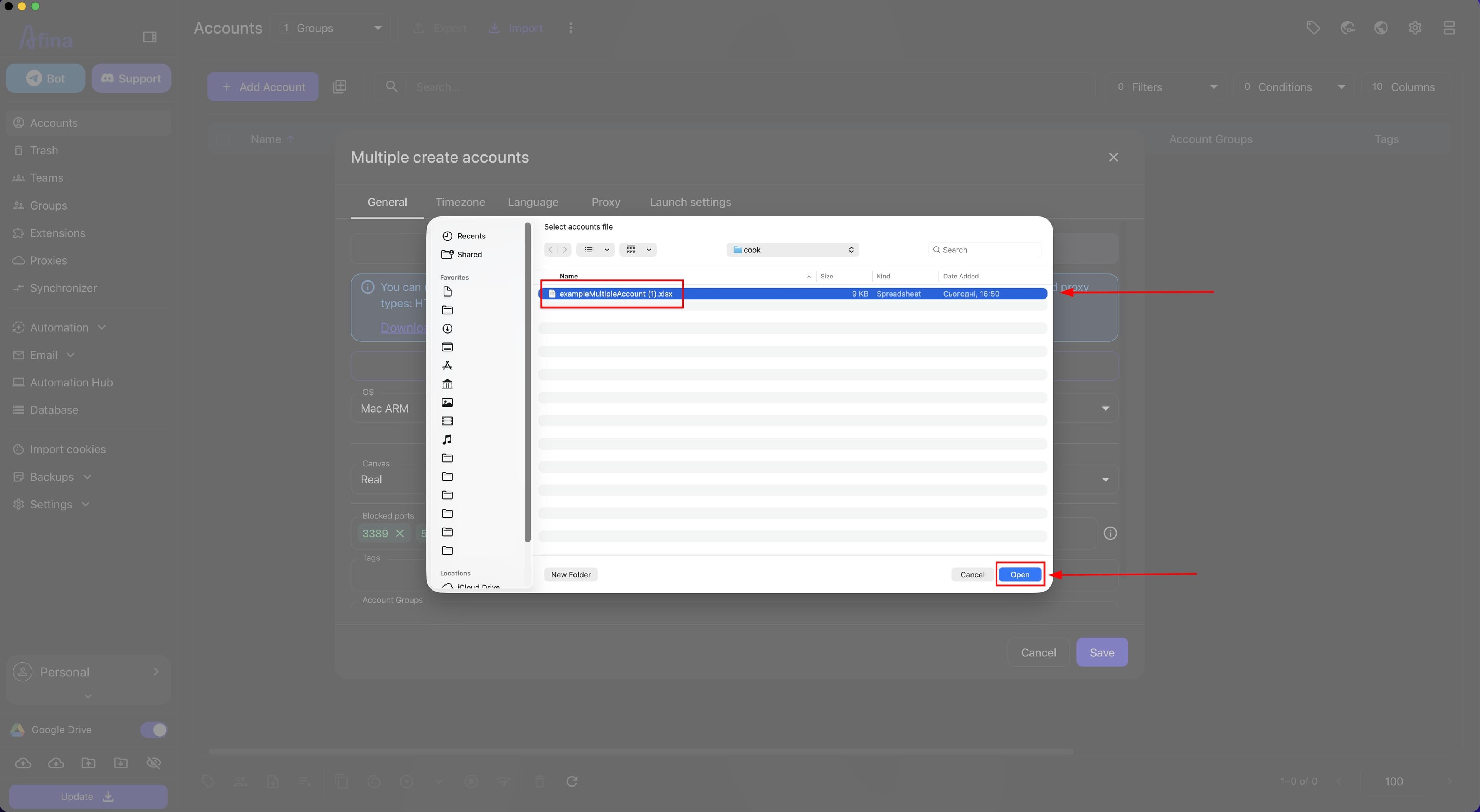
3. Upload the file Click Upload file with accounts. A system file selection dialog will open — find the prepared Excel file and double-click it.
The screenshot below shows the system file selection dialog with the Excel file selected for import.
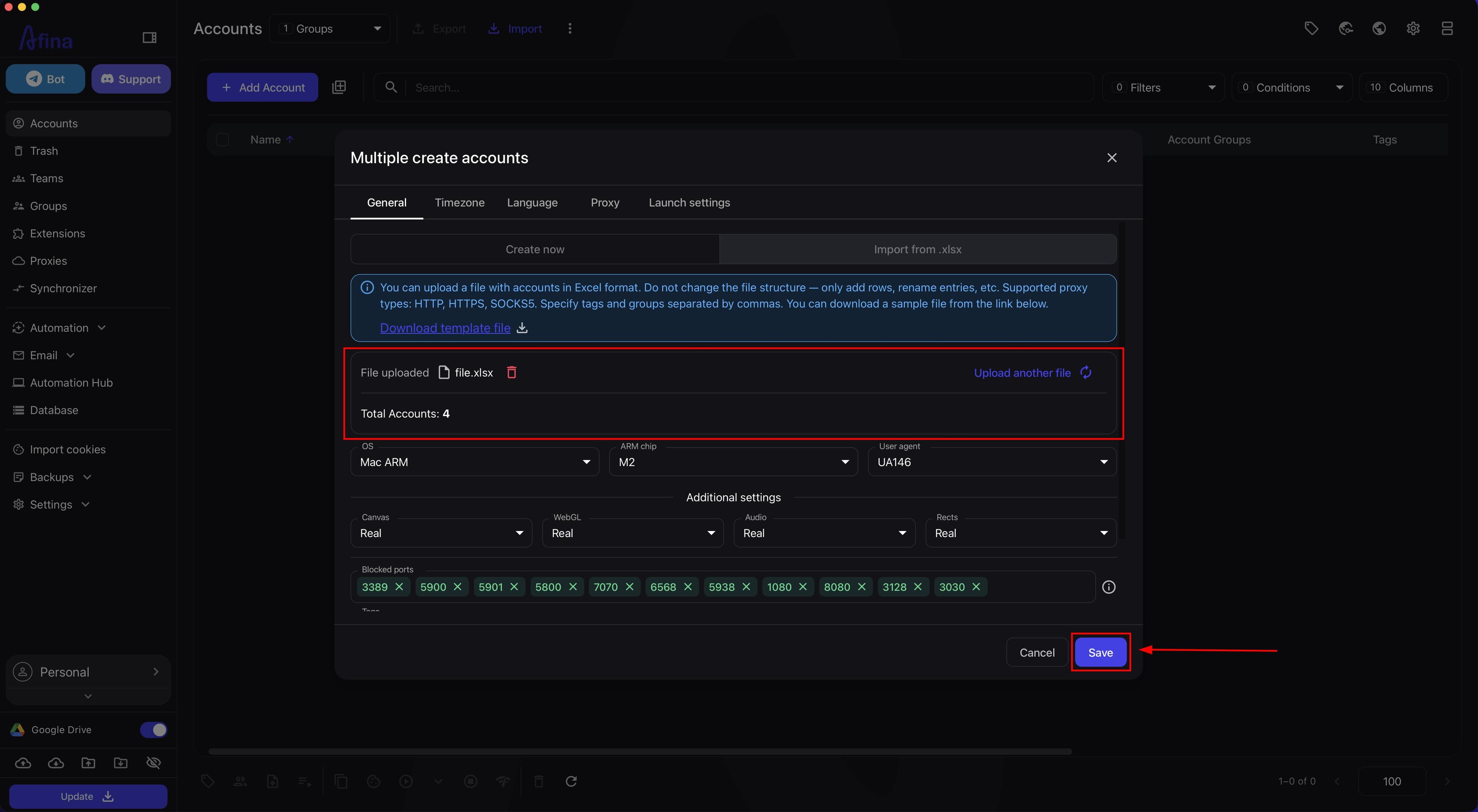
After selecting the file, the import window will display the name of the uploaded file and the number of accounts ready for import — make sure the count matches your file.
4. Start the import Click Save. Afina will read the data from the file and create accounts with the corresponding settings. After completion, a green notification "Accounts successfully created" or import statistics with the number of added profiles and errors will appear on screen.
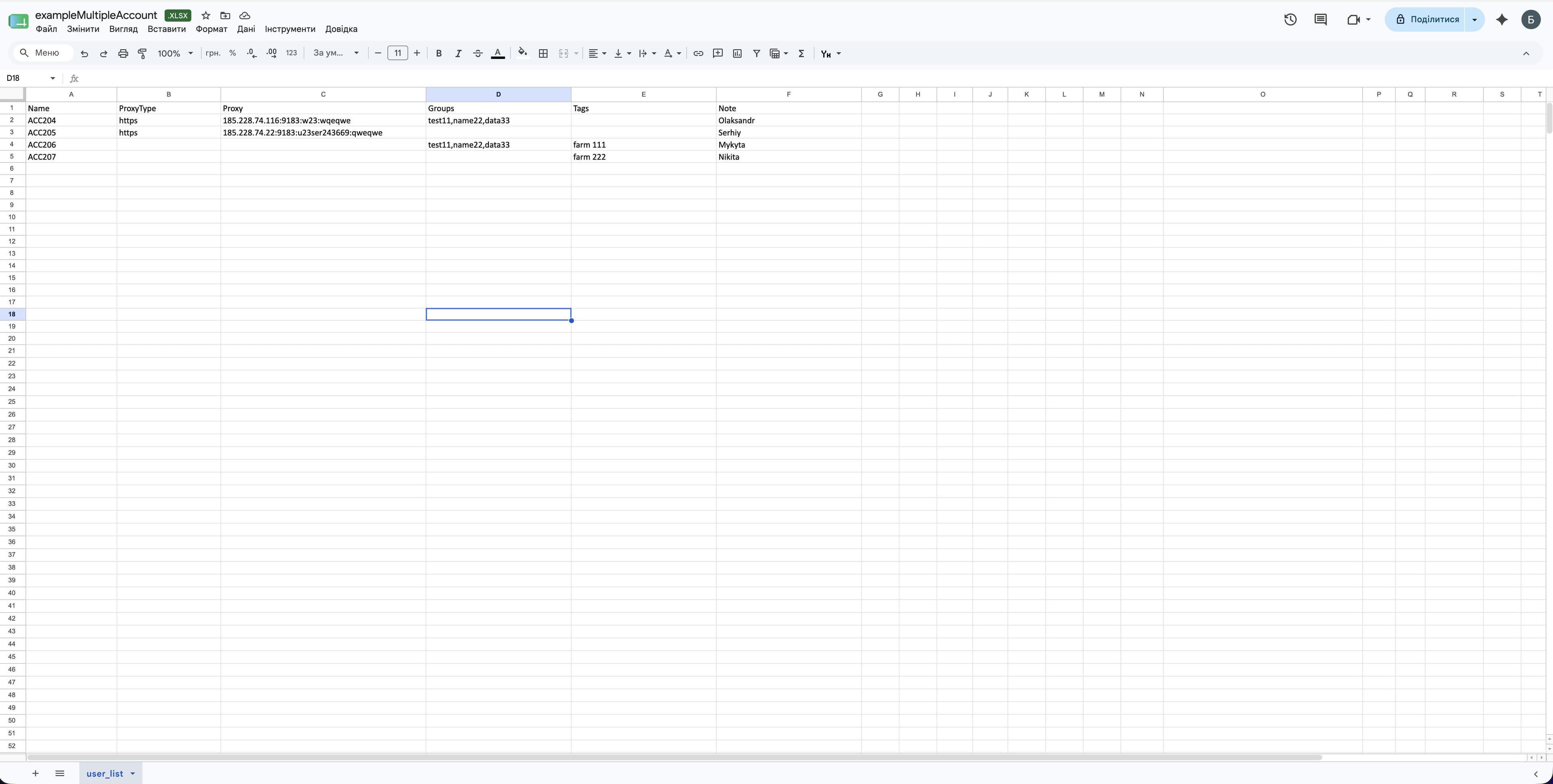
The screenshot below shows an example Excel file with columns that Afina accepts during import.
Excel File Format#
Afina accepts an Excel file only in a fixed structure. The file contains the following columns:
Name— account name;ProxyType— proxy type (HTTP,HTTPS, orSOCKS5);Proxy— proxy address in the formathost:port:user:pass;Groups— account groups (multiple values separated by commas);Tags— tags (multiple values separated by commas);Note— note.
Example of one row:
ACC204 | https | 185.228.74.116:9183:w23:wqeqwe | test11,name22,data33 | | Oleksandr
What to check before importing:
- column names are not changed;
- column order is not changed;
- proxy values are recorded in the same format throughout the file;
- groups and tags are separated by commas;
- there are no empty rows in the middle of the table.
The screenshot below shows a filled Excel file for bulk import with sample values in each column.
If you also specified tags or groups in the import window, they will not replace the data from the file, but will be added to the values already inside the document.
Why It Is Important to Follow the Format#
A fixed format is needed so that Afina correctly reads each row as a separate account and places the data in the correct fields.
If the file structure is violated, the system may:
- not see some of the values;
- create accounts with incomplete data;
- reject the import entirely;
- import only part of the rows.
Bulk Deletion of Accounts#
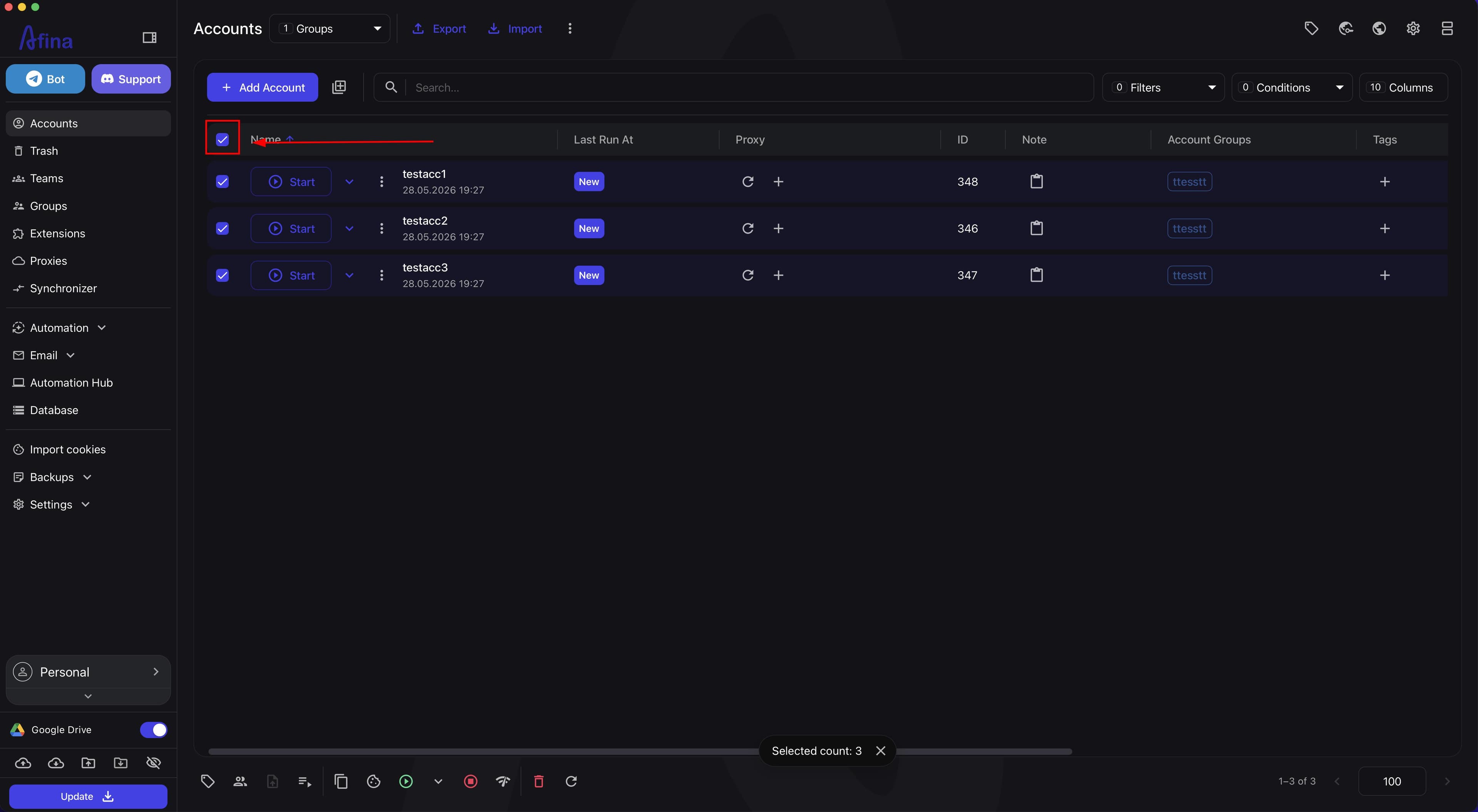
1. Select the accounts In the Accounts table, mark with checkboxes all profiles to be deleted.
The screenshot below shows the Accounts table with several profiles selected via checkboxes.
 2. Move accounts to "Trash"
After selecting accounts, the bottom action panel will display a block with the number of selected items. Click the trash icon Delete Selected Accounts.
2. Move accounts to "Trash"
After selecting accounts, the bottom action panel will display a block with the number of selected items. Click the trash icon Delete Selected Accounts.
The screenshot below shows the bottom action panel with the delete selected accounts icon active.
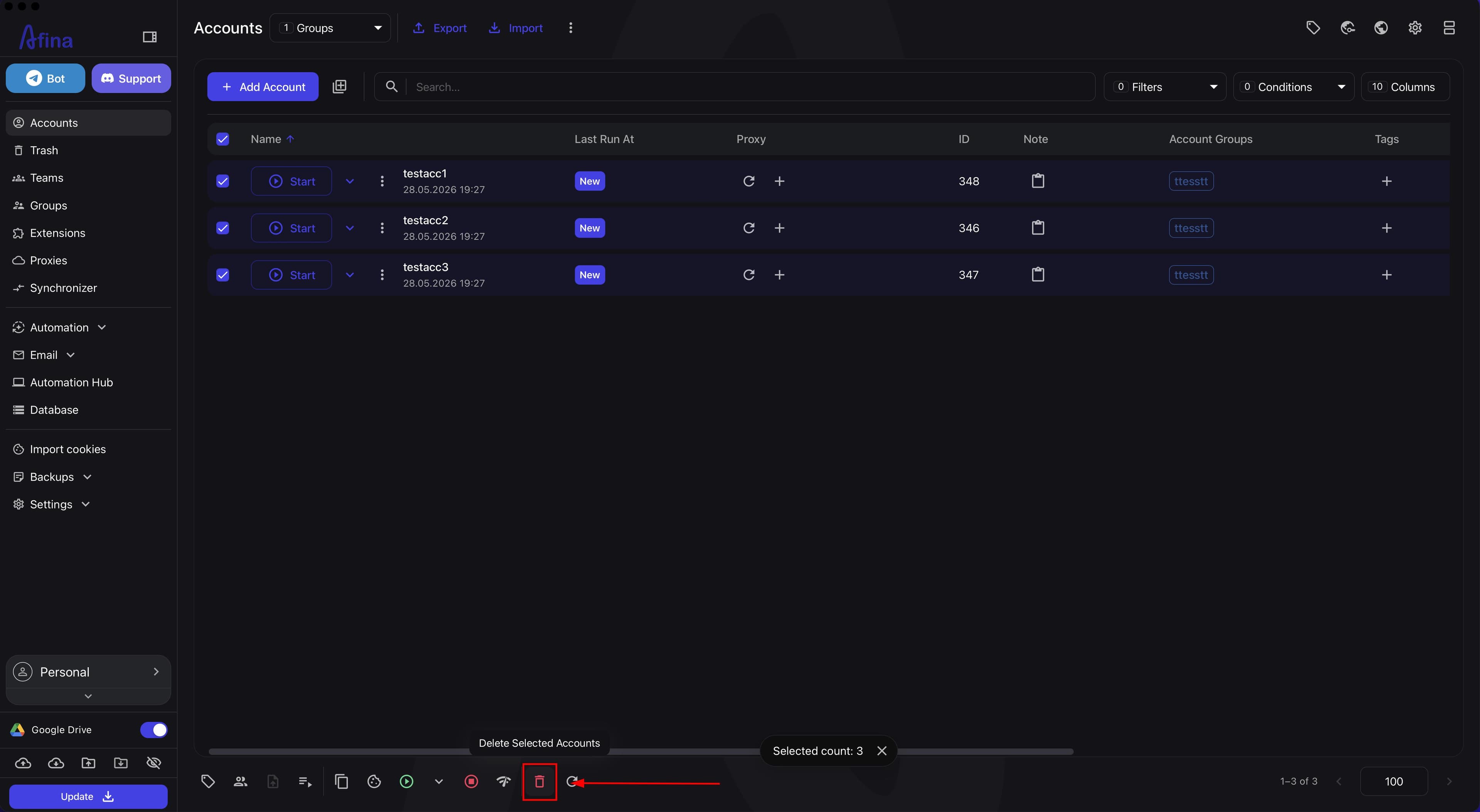
In the "Delete Selected Accounts" modal window, Afina will show the number of profiles that will be moved. Click Confirm. The selected accounts are not permanently deleted — they are moved to the Trash section, from where they can be restored.
3. Open the "Trash" section In the left navigation panel, click Trash. All accounts moved in the first deletion step are stored here.
4. Permanently delete accounts
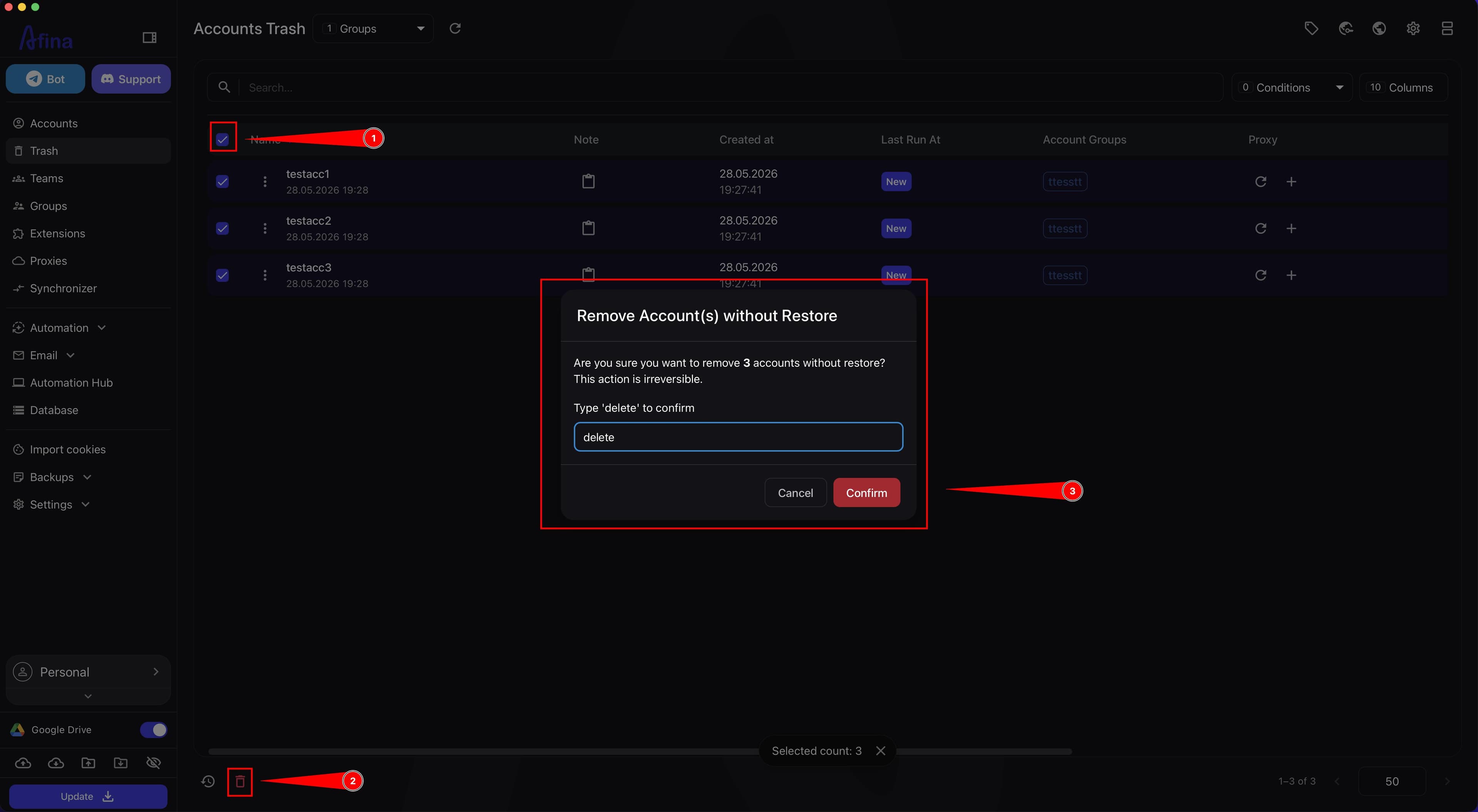
In the Trash section, mark the desired accounts with checkboxes again. Click the icon or select the option Remove without restore. In the confirmation window, type the word delete in the corresponding field and click Confirm. After this, the selected accounts will be completely and irreversibly deleted.
The screenshot below shows the permanent deletion confirmation modal window with the delete input field and the "Confirm" button.
Before permanent deletion, verify that the correct accounts are selected. After confirmation in the Trash section, recovery is impossible. If multiple people work in the team, a mistake here can lead to irreversible loss of the needed profiles.
Verification#
Form creation worked correctly if:
- Afina created the specified number of accounts;
- the new accounts have the required prefix;
- the basic parameters were applied correctly.
Bulk addition via Excel worked correctly if:
- a green notification "Accounts successfully created" appeared on screen;
- all the required accounts appeared in the table;
- the number of created accounts matches the number of rows in the file;
- profiles have no empty critical fields.
Bulk deletion worked correctly if:
- after the first deletion, accounts disappeared from the Accounts section and appeared in Trash;
- after deletion from Trash, accounts are no longer displayed anywhere;
- other accounts remained unchanged;
- after page refresh, the result does not change.
Issues and Solutions#
Afina does not accept the Excel file Check:
- whether the file format is correct (
.xlsx); - whether the file structure has not been changed;
- whether the columns
Name,ProxyType,Proxy,Groups,Tags,Notehave not been renamed; - whether there are no empty required fields;
- whether the file opens without damage;
- whether there are no extra characters, spaces, or service rows.
Not the entire table was imported This most often means that some rows are filled in incorrectly.
What to do:
- Compare the problematic rows with those that imported successfully.
- Check the required fields.
- Repeat the import with a small test file.
Accounts were created, but the parameters are not as expected Check:
- what value was specified in the "Quantity" field;
- what "Prefix" you set;
- whether "OS" and "User-Agent" are selected correctly;
- whether the additional tabs have been reviewed: "Timezone", "Language", "Proxy".
Deleted the wrong accounts If the accounts are still in Trash — do not perform the permanent deletion. Select them and click Restore to return them to the working list.
If the accounts have already been permanently deleted from Trash, check whether there is a backup, export, or other source from which the profiles can be restored.