Groups in Afina#
In this guide, you will learn how the "Groups" section works in Afina, how to manage accounts and extensions through it, and how to use the "This group will ignore other sources" option correctly. This is needed for centralized management of account sets and quick assignment of the same extensions without manually editing each item separately.
Before you start#
The "Groups" section is needed to combine accounts into separate sets and centrally manage their extensions.
A group can contain:
- name;
- description;
- selected accounts;
- selected extensions;
- the "This group will ignore other sources" rule.
This is convenient when you need to:
- assign the same extensions to several accounts at once;
- separate accounts by tasks, teams, or work type;
- manage extensions not one account at a time, but through a shared group;
- set a custom set of extensions for a group.
Each group connects two data sets: accounts and extensions. In other words, you are not just creating a folder with a name, but defining a rule: which accounts belong to the group and which extensions are attached to it.
In short, the logic is:
- You create a group.
- You add the required accounts to it.
- You add the required extensions to it.
- If needed, you enable the "This group will ignore other sources" rule.
- You save the group.
After that, the group becomes a separate management point: through it, you can quickly see which accounts belong to the set, how many extensions are linked to them, and change the composition of accounts or extensions without manually editing each item separately.
In the context of this section, a group can effectively act as an extension group: you select a list of accounts and attach a specific set of extensions to it.
This approach is useful if:
- the same extensions are needed for an entire group of accounts;
- you need to quickly replace or update a set of extensions for several accounts;
- you need to split accounts by different work scenarios.
For example, you can create separate groups for different tasks or traffic sources and assign each of them its own set of extensions.
Creating a group#
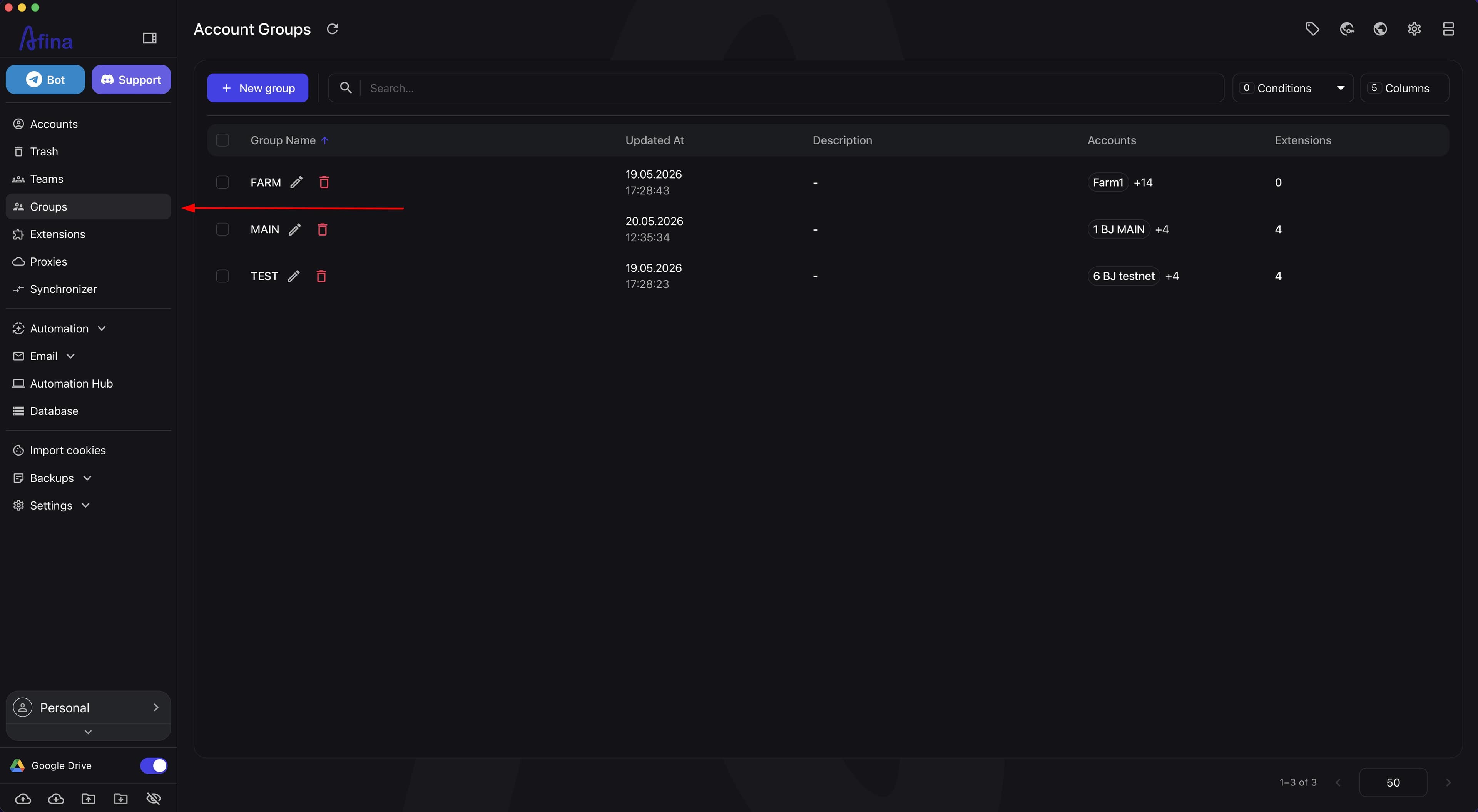
- Go to the Groups section in the left navigation panel.
The "Account Groups" page will open with a list of already created groups or an empty table if there are no groups yet.
The screenshot below shows the "Groups" section in the left navigation panel.
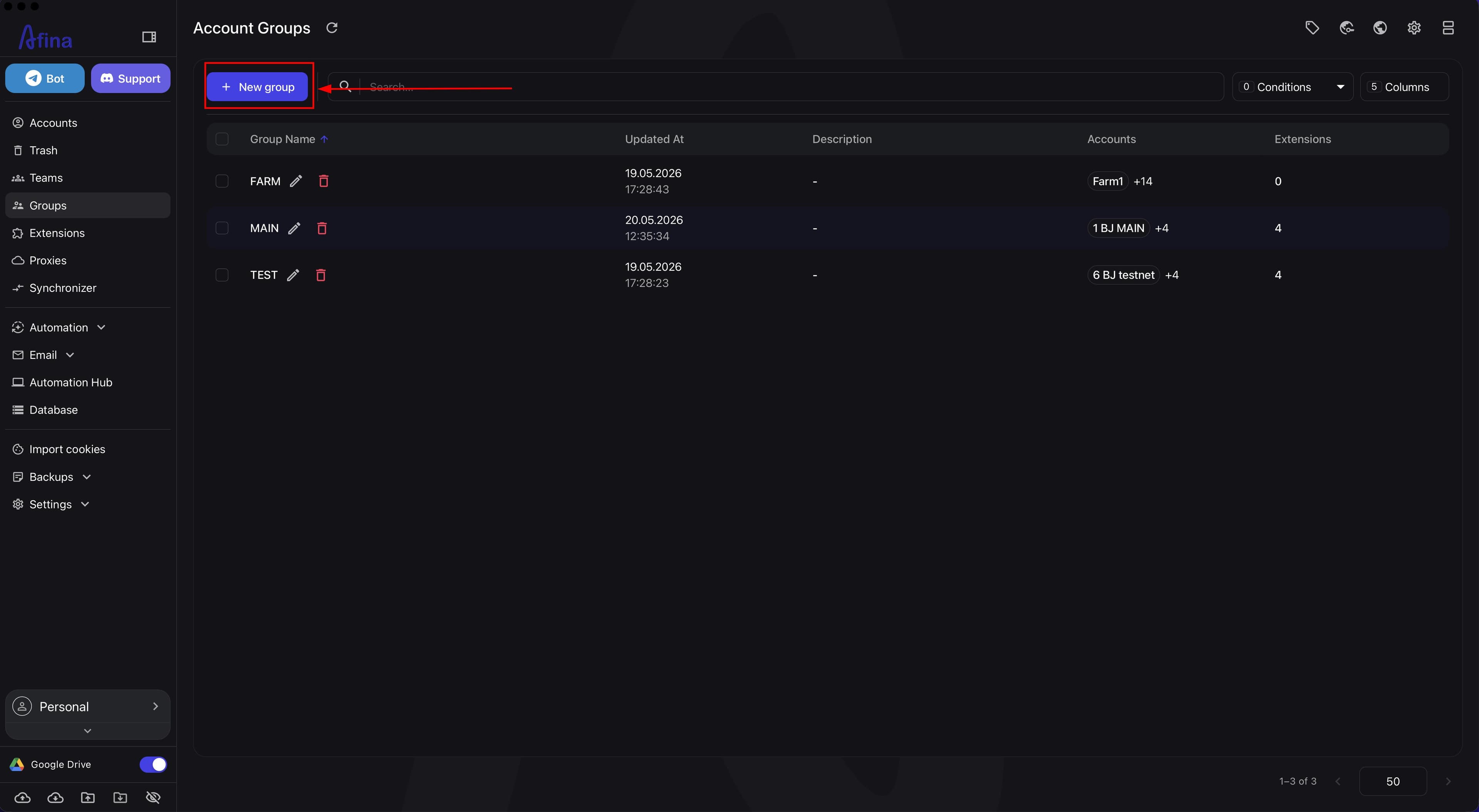
- Click + New group.
The "Create Account Group" window will open.
The next screenshot shows the "+ New group" button at the top of the "Account Groups" page.
- Check that the "Create Account Group" window contains the "Group Name", "Description", "This group will ignore other sources", "Accounts", and "Extensions" fields.
This screenshot shows the "Create Account Group" window with the main fields for configuring a new group.
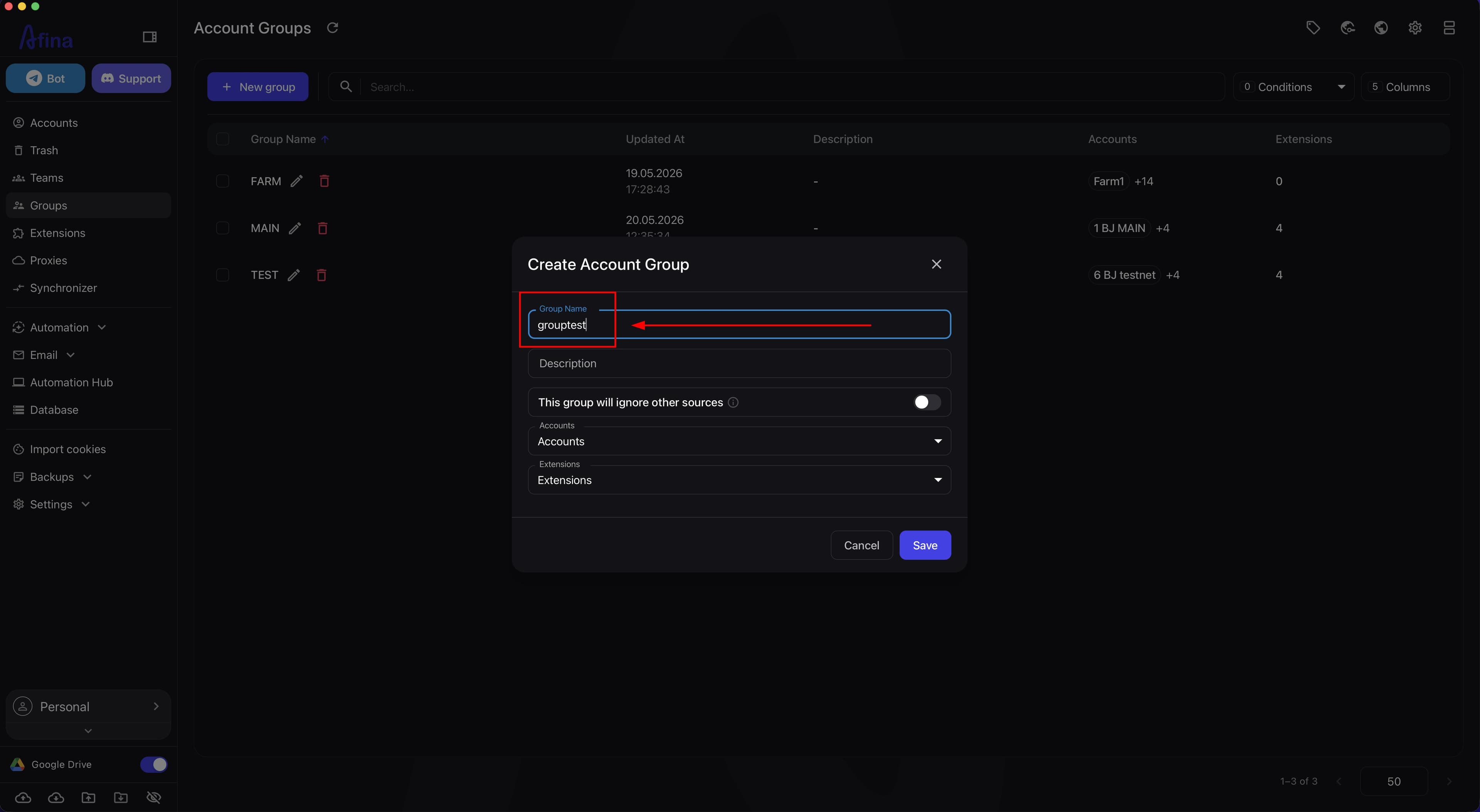
- In the "Group Name" field, enter the name of the new group.
The "Group Name" field is required. If you leave it empty, Afina will show the "Group name is required" error, and you will not be able to save the group.
-
In the "Description" field, add a short description of the group if you want to record its purpose.
-
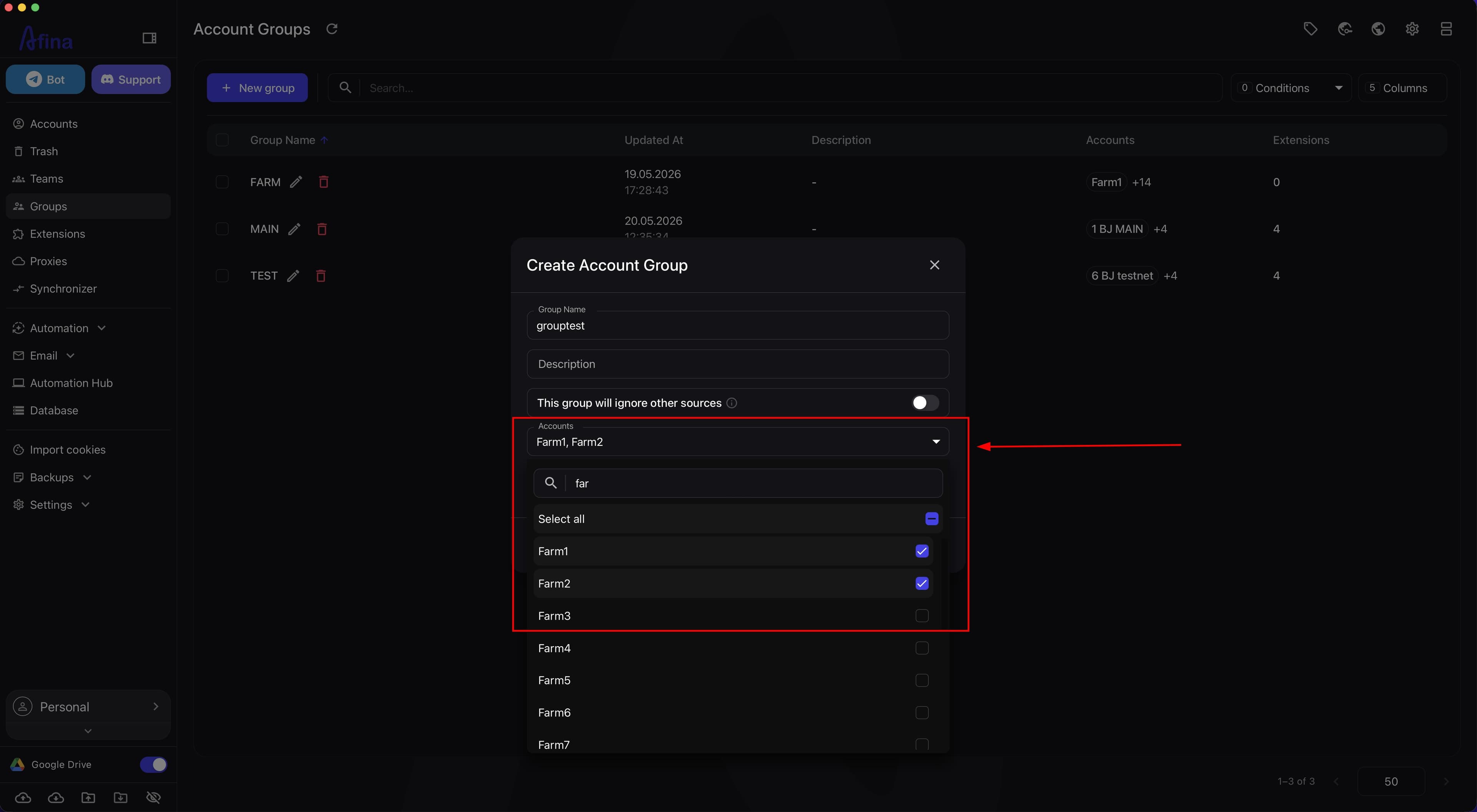
Open the "Accounts" list.
-
Select the required accounts.
Inside the list, you can:
- search for items through the "Search..." field;
- use the "Select All" action;
- select individual accounts with checkboxes.
At this stage, you define which accounts will be managed through the group being created.
The screenshot below shows the "Accounts" dropdown in the group creation window.
-
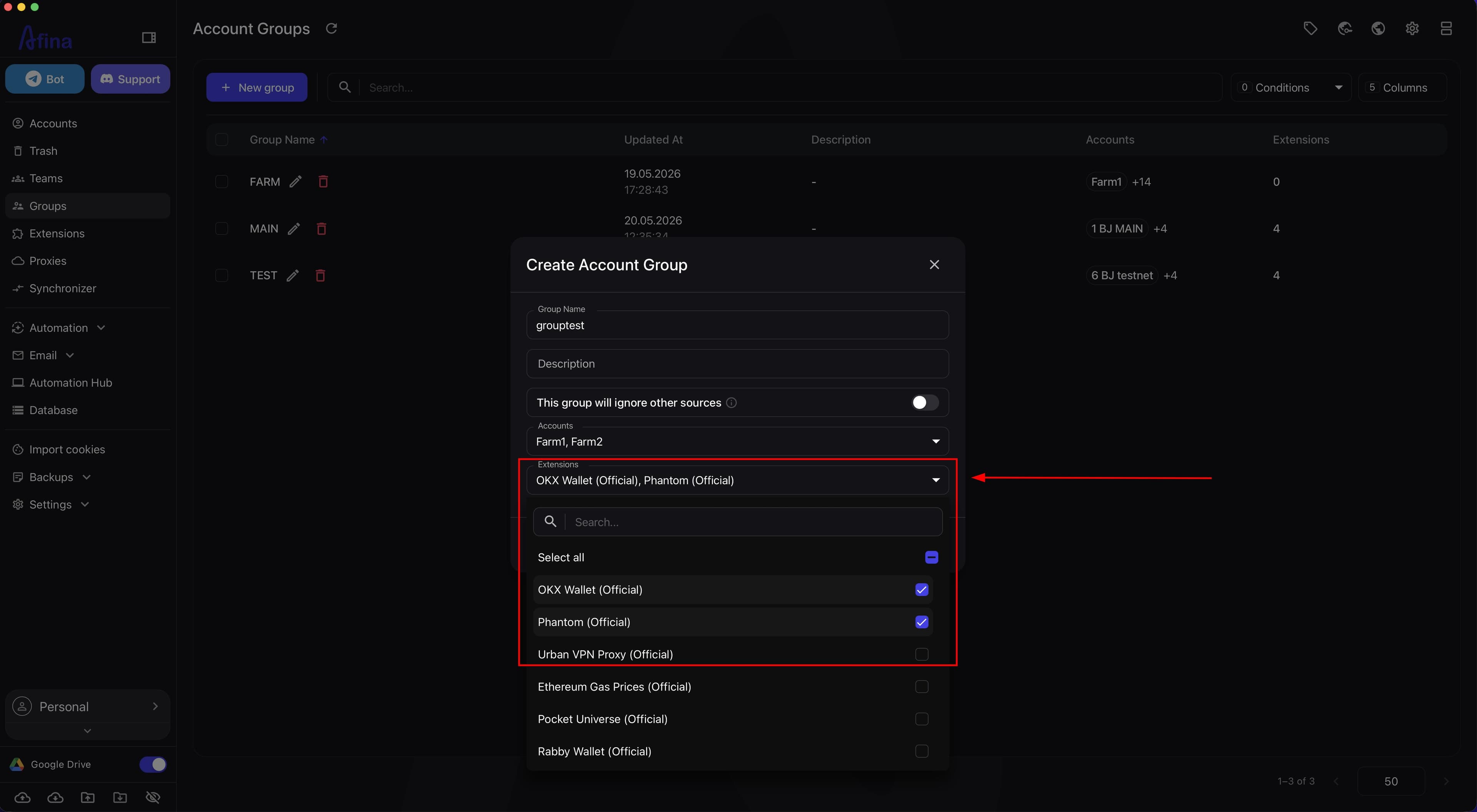
Open the "Extensions" list.
-
Select the extensions that should be attached to this group.
The logic here is the same as in the accounts list: you can search for the required items, select all, or select individual items manually.
If the group is being created specifically to manage extensions, this stage is the main one because this is where the set of extensions is formed for the selected accounts.
The next screenshot shows the "Extensions" dropdown in the group creation window.
Configuring group logic#
The "This group will ignore other sources" option determines whether accounts within the group should consider other extension sources.
If the option is disabled, the group works as another extension source that supplements other sources.
If the option is enabled, this group's selected set of extensions gets priority. In other words, the group relies on its own settings and should not pull extensions from other sources.
In extension settings, the group has the highest priority. If the "This group will ignore other sources" option is enabled, the group's extension set overrides settings from the global "Extensions" section.
You should enable this option when:
- the group needs a clearly separate set of extensions;
- extensions from other sources must not be mixed in;
- you need to strictly control which set specific accounts work with.
You do not have to enable this option if the group only supplements the existing configuration and does not need to fully isolate accounts from other extension sources.
-
Decide whether the group should work only with its own set of extensions.
-
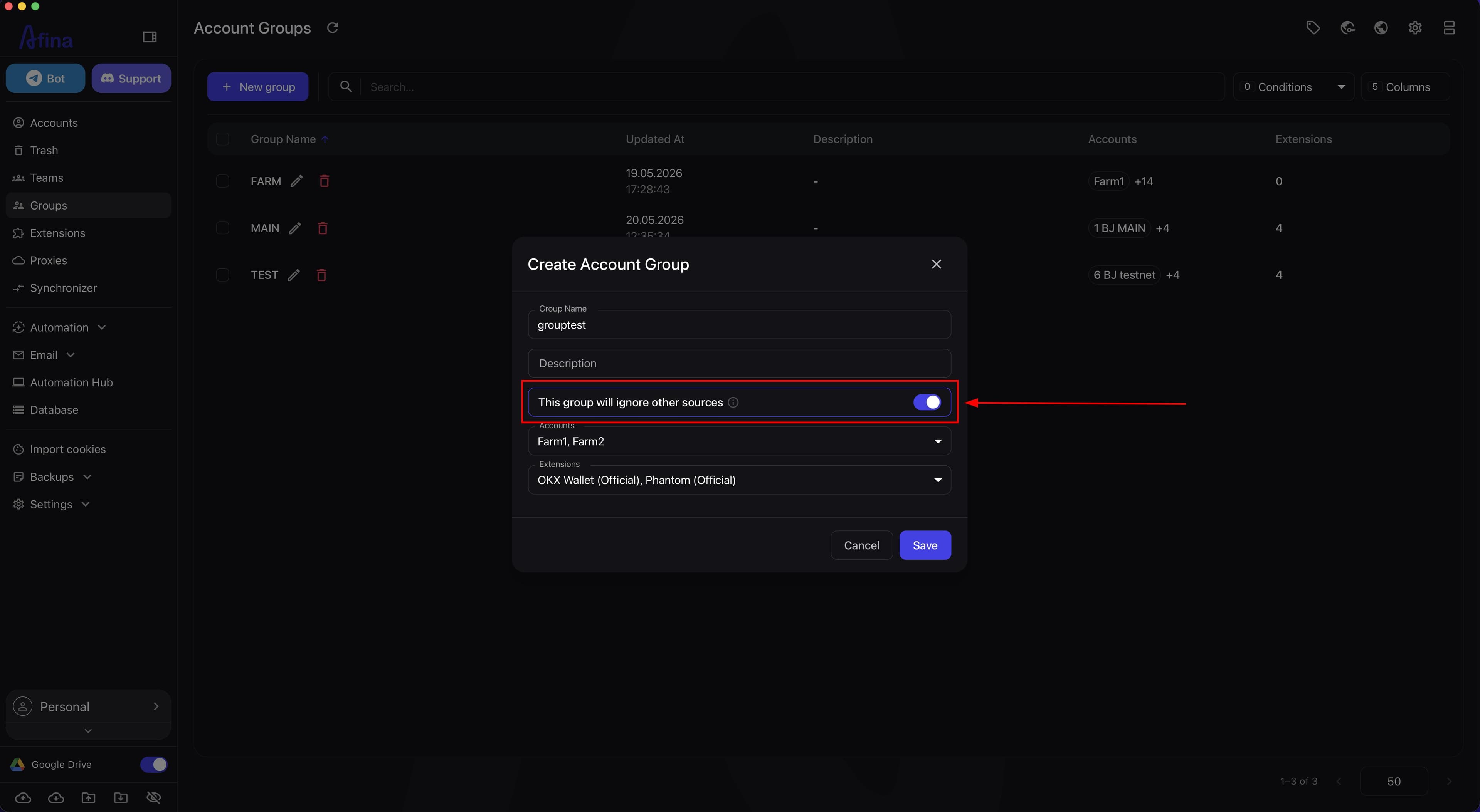
Enable the "This group will ignore other sources" toggle if this group's accounts should use only the extensions specified in it.
This toggle determines which extensions will be enabled for accounts in this group. If you enable it, only the extensions selected in the group will remain active, and the others will be disabled, even if they are enabled in the "Extensions" section.
If the same accounts belong to several groups, enabled extensions are combined. For example, if only MetaMask is selected in one group and only Rabby in another, MetaMask and Rabby will be enabled on the accounts.
Leave the option disabled if the group should be part of the general logic and should not isolate accounts from other sources.
The screenshot below shows the enabled "This group will ignore other sources" toggle in the group creation window.
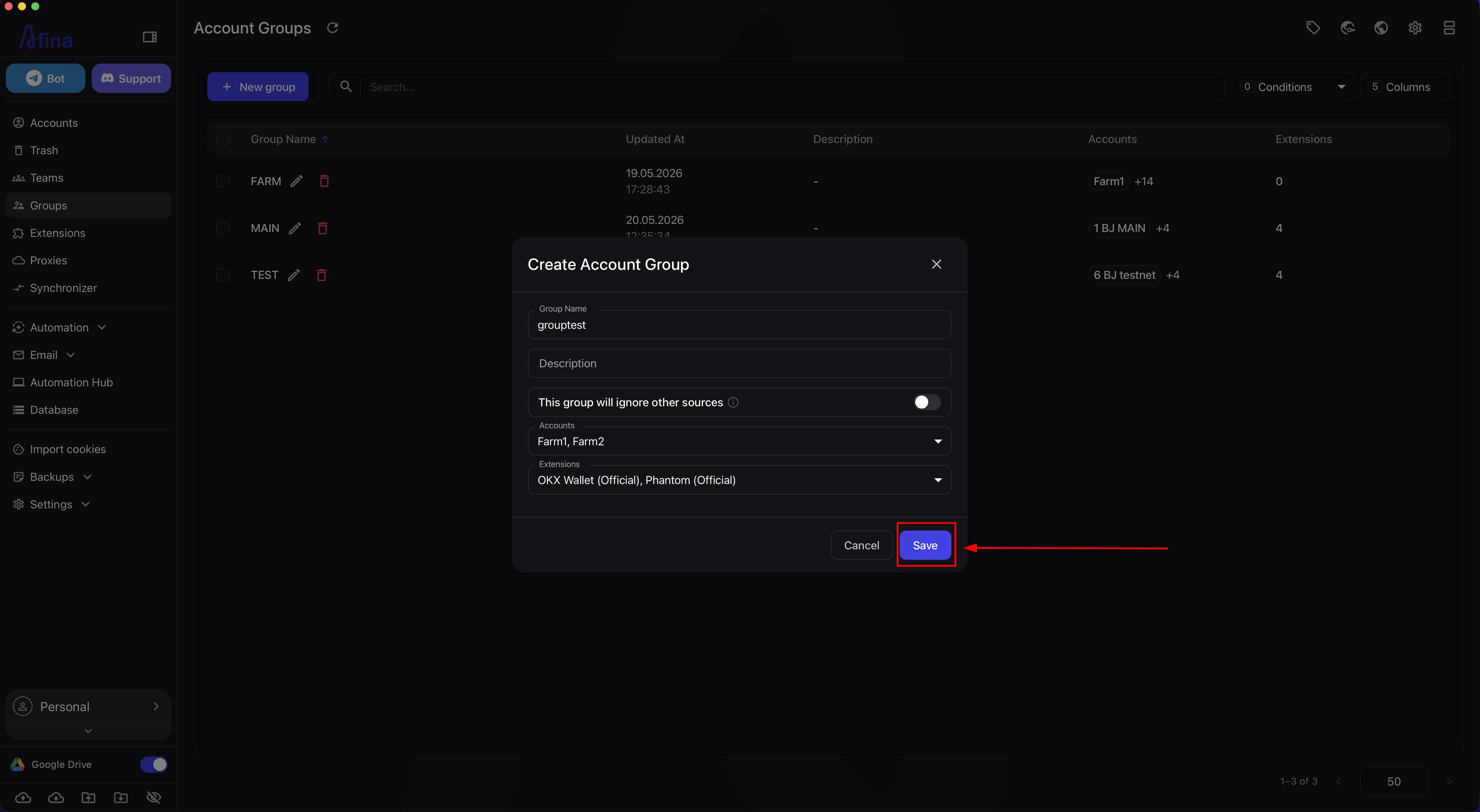
- Click Save.
After that, the group will appear in the "Account Groups" table.
The next screenshot shows the button for saving the new group.
Working with the group list#
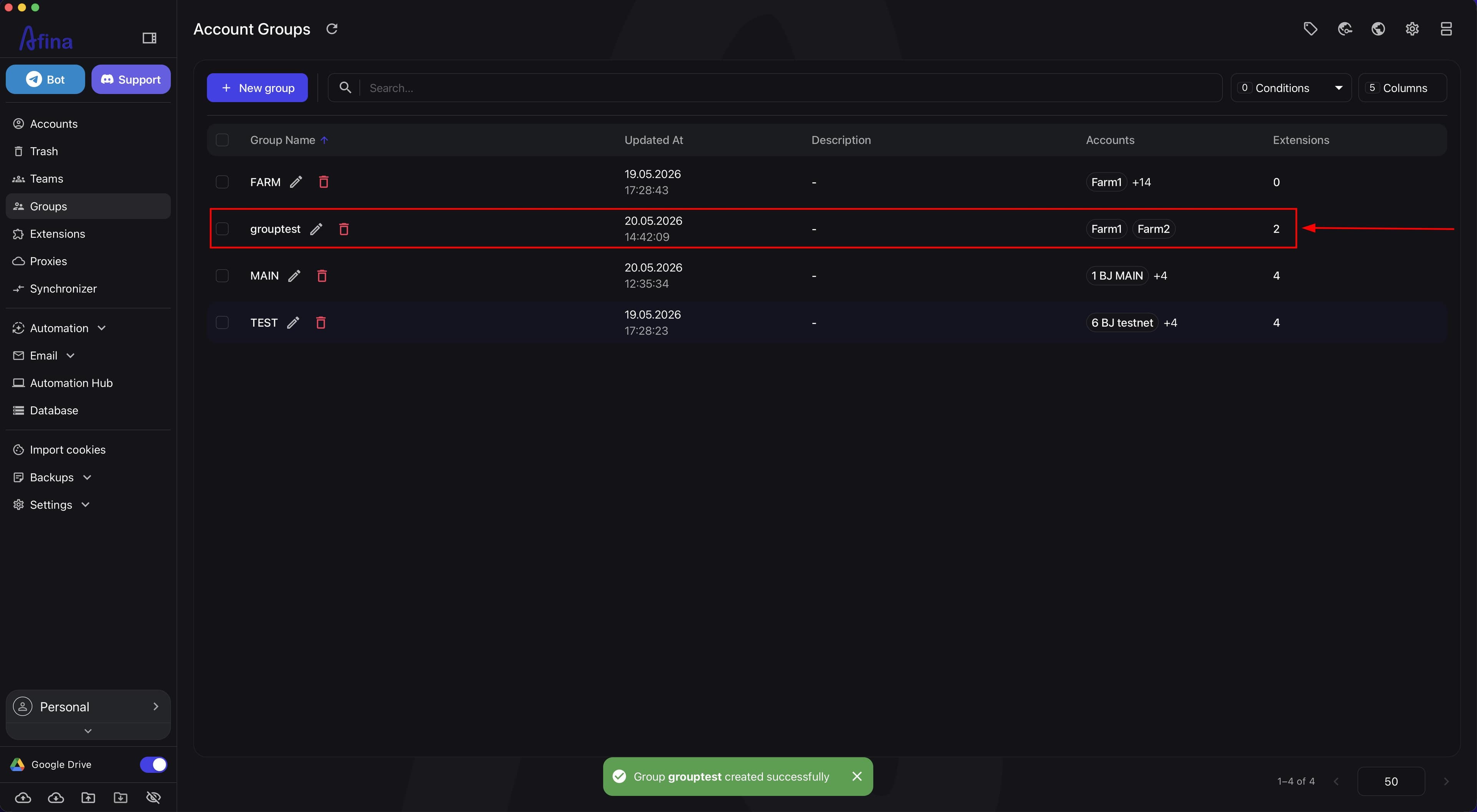
- Check the new group in the "Account Groups" table.
After creation, the group is displayed as a separate row in the table.
In the table, you can quickly check:
- group name;
- last update date;
- description;
- which accounts belong to the group;
- how many extensions are attached to it.
The "Accounts" column shows attached accounts as labels. If there are many of them, some may be hidden behind an additional items indicator.
The "Extensions" column shows the number of attached extensions. If no extensions are added, it displays "0".
The screenshot below shows the new group row in the "Account Groups" table.
-
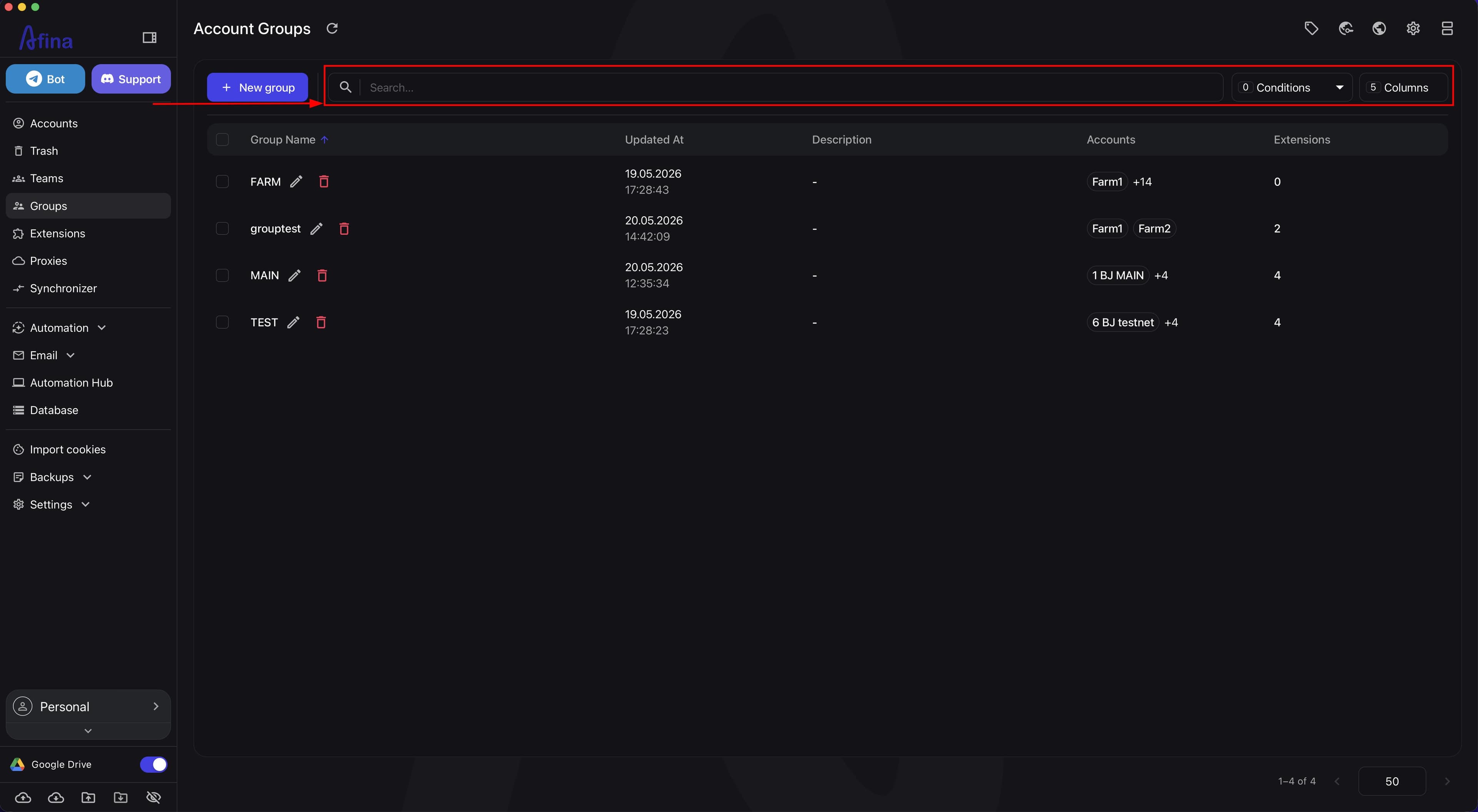
Use the "Search..." field to quickly find the required group.
-
Click Conditions if you need to filter groups by specific parameters.
-
Select a field.
-
Select an operator.
-
Enter a value.
-
Click Search.
-
Click Clear if you need to clear active conditions.
-
Click Columns if you need to change the table view.
-
Enable or disable the required columns.
-
If needed, change the order of columns by dragging.
-
Click Save.
This screenshot shows the "Search..." field, the "Conditions" button, and the "Columns" button in the top panel of the "Account Groups" section.
Editing and deleting a group#
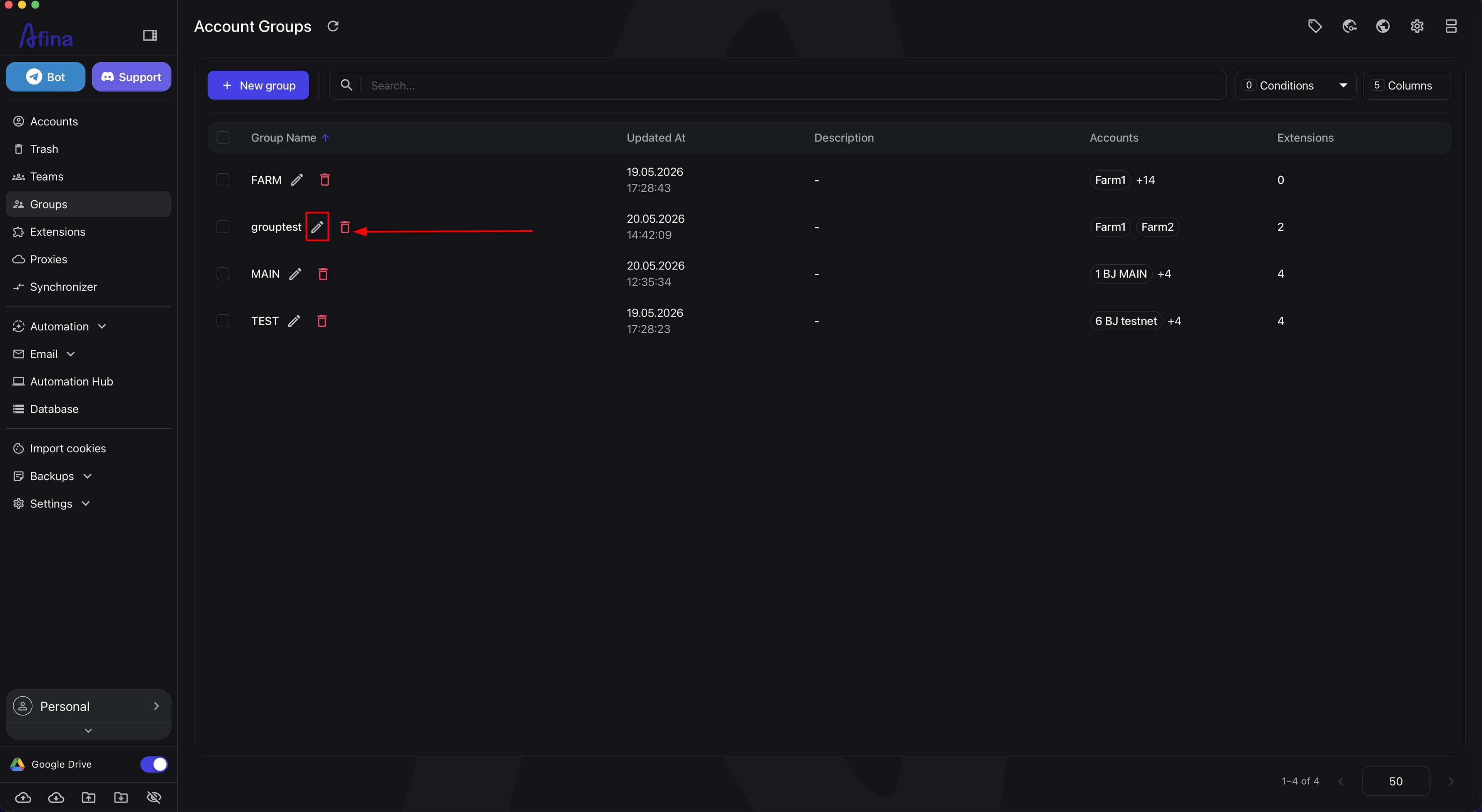
- Click the editing icon in the group row to change an already created group.
The "Edit Group" window will open.
Here you can change:
- name;
- description;
- accounts composition;
- extensions composition;
- the state of the "This group will ignore other sources" option.
Changes are applied only after clicking Save.
The screenshot below shows the group editing icon in the table row.
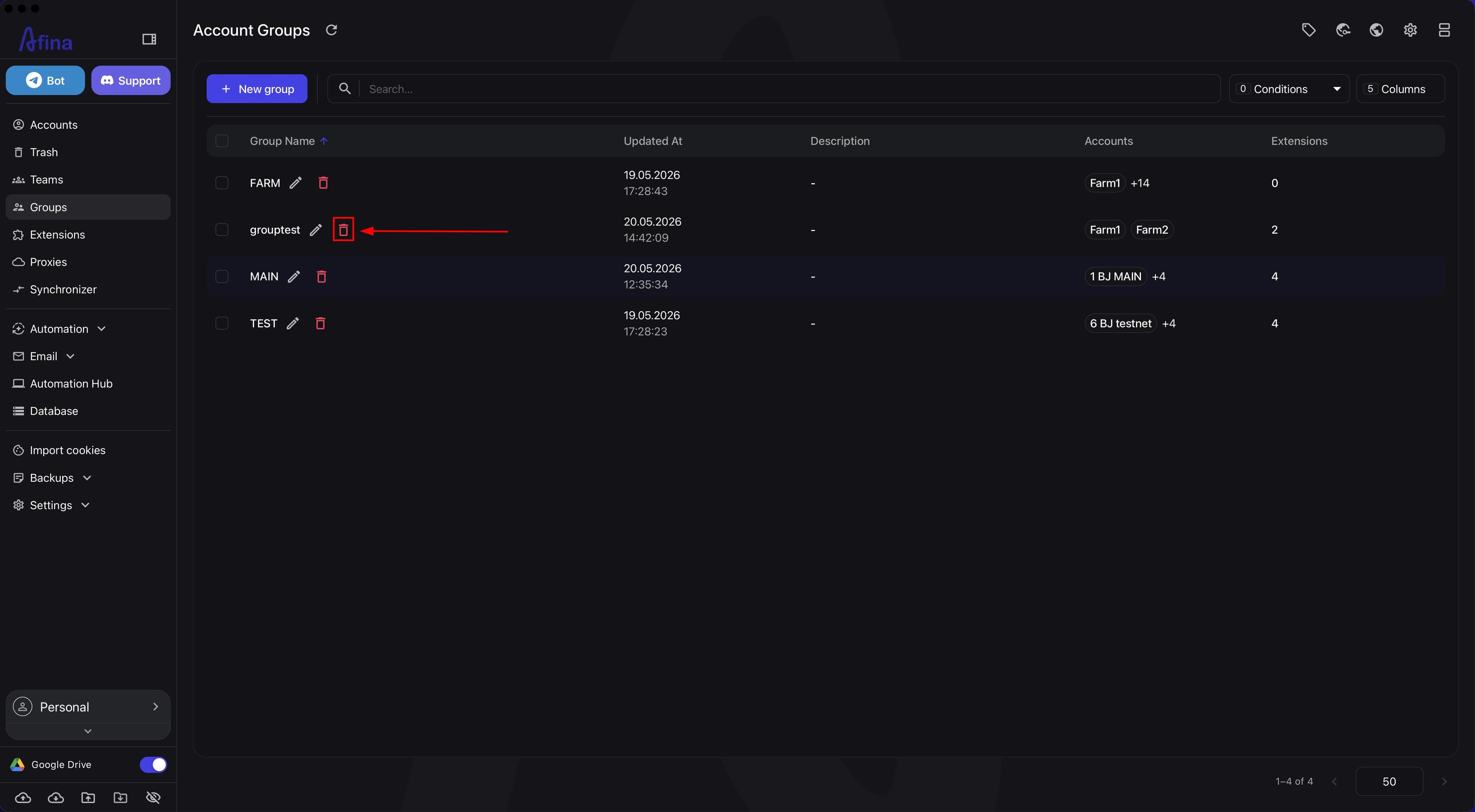
- Click the delete icon in the group row if you need to delete the group.
Afina will open the deletion confirmation window.
- Click Confirm if you really want to delete the group.
After that, the group will be permanently deleted from the list. The accounts themselves are not deleted from Afina.
Deleting a group is irreversible. After confirmation, you cannot restore it from the table, so check that the correct group is selected before deleting it.
The next screenshot shows the group delete icon in the table row.
Result#
After completing these steps, you will have a configured group in the "Account Groups" section, through which you can centrally manage selected accounts and their linked extensions. In practice, this works like this: you collect the required accounts into one group, attach a set of extensions to it, isolate it from other sources through the "This group will ignore other sources" option if needed, and then edit the group itself rather than each account separately.
Signs of a successful result
- the group is displayed in the "Account Groups" table;
- the group has the correct name;
- the required accounts have been added to the group;
- the required extensions have been added to the group;
- the "This group will ignore other sources" option is set according to the required logic;
- after editing, changes are saved and displayed in the table.
If something does not work as expected
- if you cannot create a group, check whether the "Group Name" field is filled in;
- if the required group is not visible in the table, check the "Search..." field, active filters in "Conditions", and refresh the list if needed;
- if the group has the wrong accounts or extensions, open group editing, check the "Accounts" and "Extensions" lists, and click Save again;
- if the extension logic works incorrectly, check whether the "This group will ignore other sources" option is enabled, because when active, the group should rely on its own set of extensions, not on other sources;
- if a group was accidentally deleted, you will no longer be able to restore it from the table, so you will need to create it again.