Default screen and monitor size#
Afina has two levels of browser window size control: global settings and settings for a specific profile. This page explains the difference between "Monitor", "Window size", and "Screen size", and how they work together.
What exactly is configured#
There are two configuration levels:
- global Afina settings define the default behavior for all profiles;
- settings for a specific profile let you override the global logic for a separate account.
There are also two separate parameters:
- "Monitor" is the resolution of the physical monitor where the browser will open on launch;
- "Window size" / "Screen size" is the size of the browser window.
In global settings, this parameter is labeled "Window size". In profile settings, it is labeled "Screen size". In practice, it is the same value, but it is applied at different levels.
Afina global settings#
Click the gear icon in the upper-right corner of the interface. In the drop-down menu, select Afina Core Settings. The centralized system settings page will open.
The required settings are located directly on the "Main" tab, which opens first by default. It contains three parameters:
- the "Always use the window size from settings" checkbox;
- the "Window size" field;
- the "Monitor" field.
The screenshot below shows the "Main" tab in Afina global settings. Note the location of the checkbox and the "Window size" and "Monitor" fields.
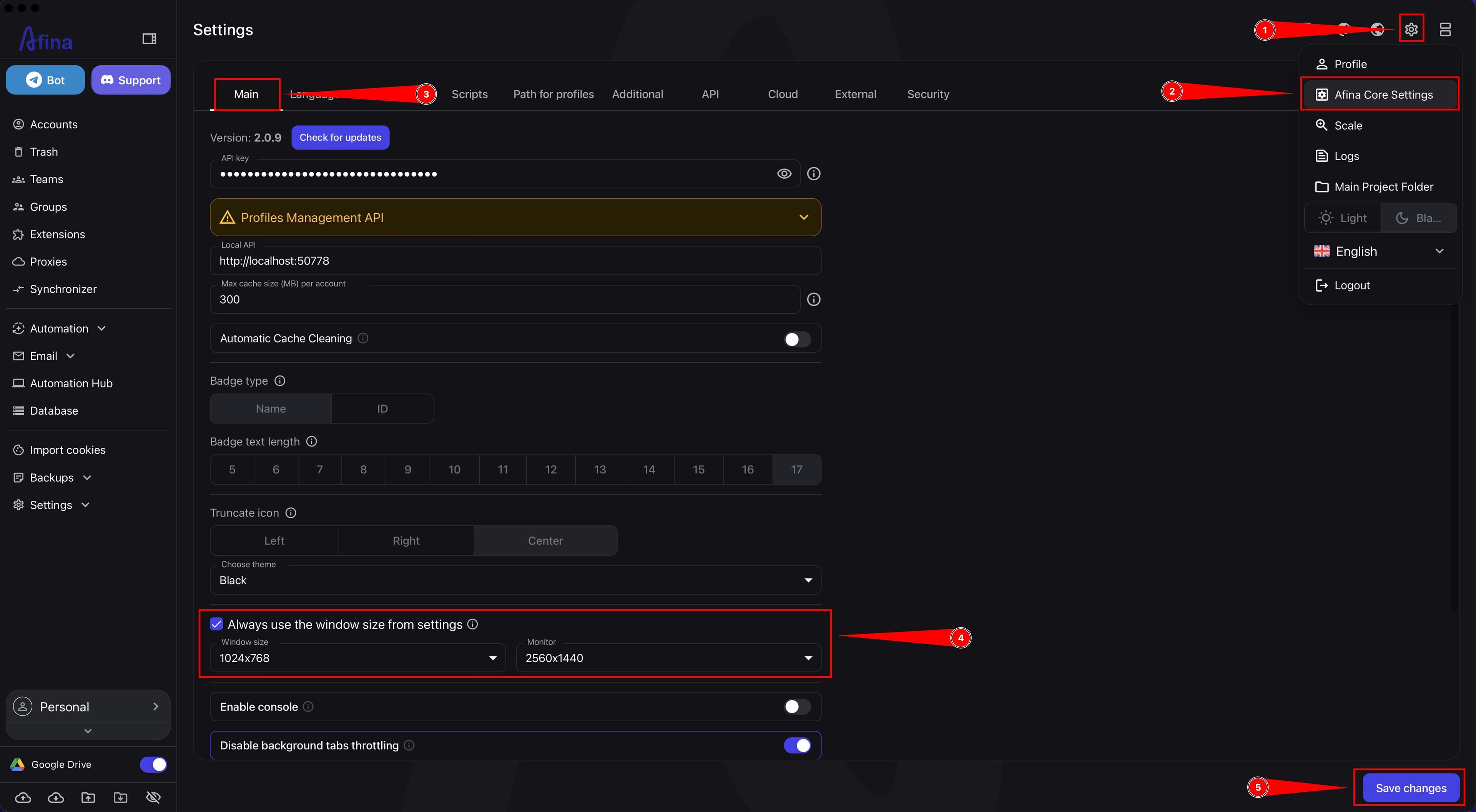
"Monitor" defines the physical display where new profiles will open. Click the "Monitor" field and select the required display from the list, for example "Primary monitor".
"Window size" defines the size with which the browser window will open.
The "Always use the window size from settings" checkbox defines launch behavior:
- if the checkbox is enabled, Afina will open the browser every time with the size specified in the "Window size" field;
- if the checkbox is disabled, the browser window will open with the same size and position it had when the profile was last closed.
After making changes, click Save changes at the bottom of the page.
Profile settings#
Go to the "Accounts" section. Find the required profile in the table. Click the ⋮ icon in the "Name" column of the corresponding row. In the drop-down menu, select Edit. The "Edit account" modal window will open.
Go to the "General" tab. It opens first by default. Find the "Additional settings" block. It contains:
- the "Use default screen" checkbox;
- the "Screen size" field.
The screenshot below shows the "Additional settings" block in the "Edit account" window with the "Use default screen" checkbox enabled.
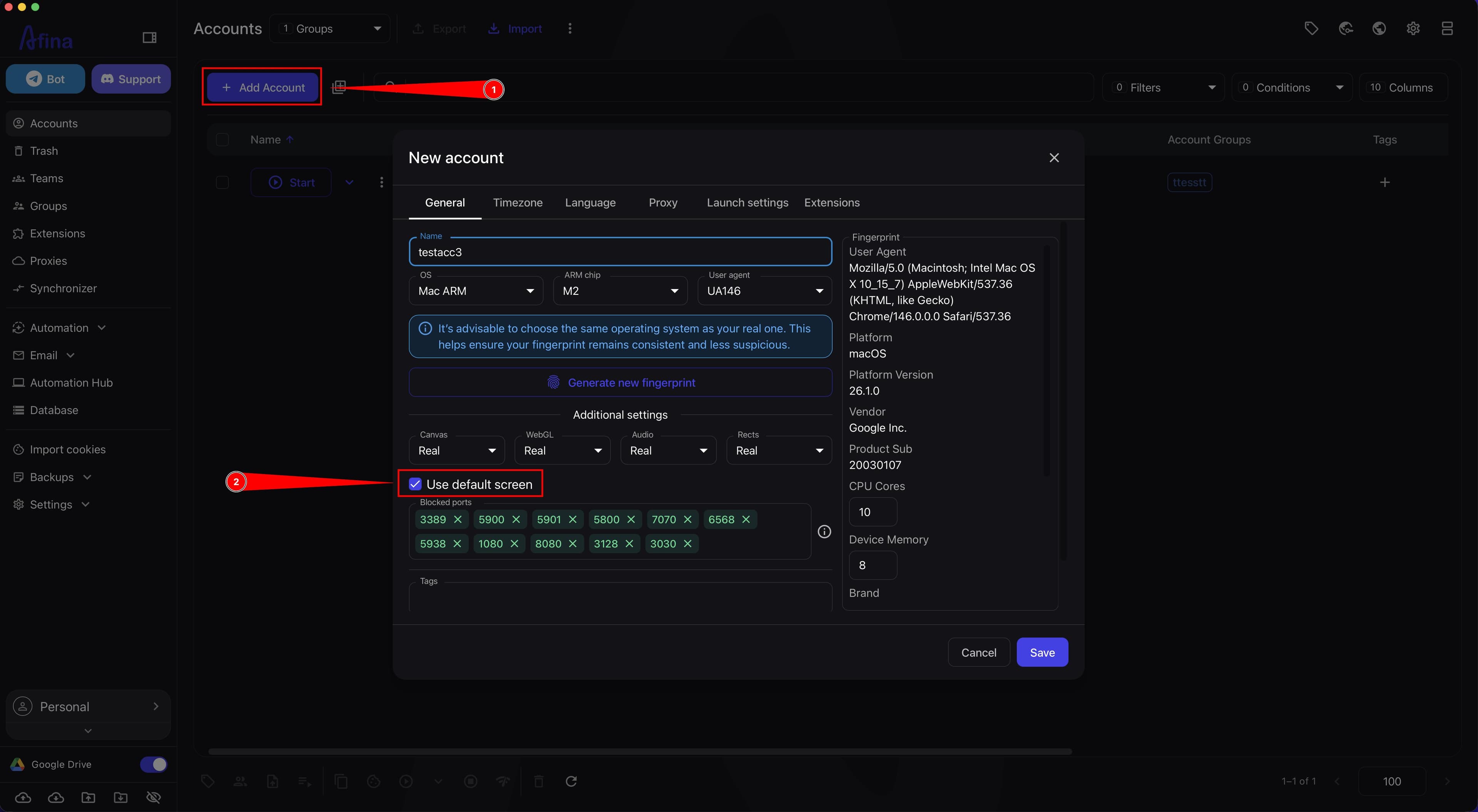
"Screen size" is the browser window size for a specific account.
If the "Use default screen" checkbox is enabled, it should turn blue, and the profile takes the window size from Afina global settings.
To set a custom size for this account:
- Clear the "Use default screen" checkbox. It should turn gray.
- Click the "Screen size" field. A list of available values will open.
- Select the required value: 1024×1024 (square), 1024×1792 (vertical), or 1792×1024 (horizontal).
- Click Save to apply the changes.
The screenshot below shows the "Edit account" window with the checkbox disabled and the "Screen size" list open with available values.
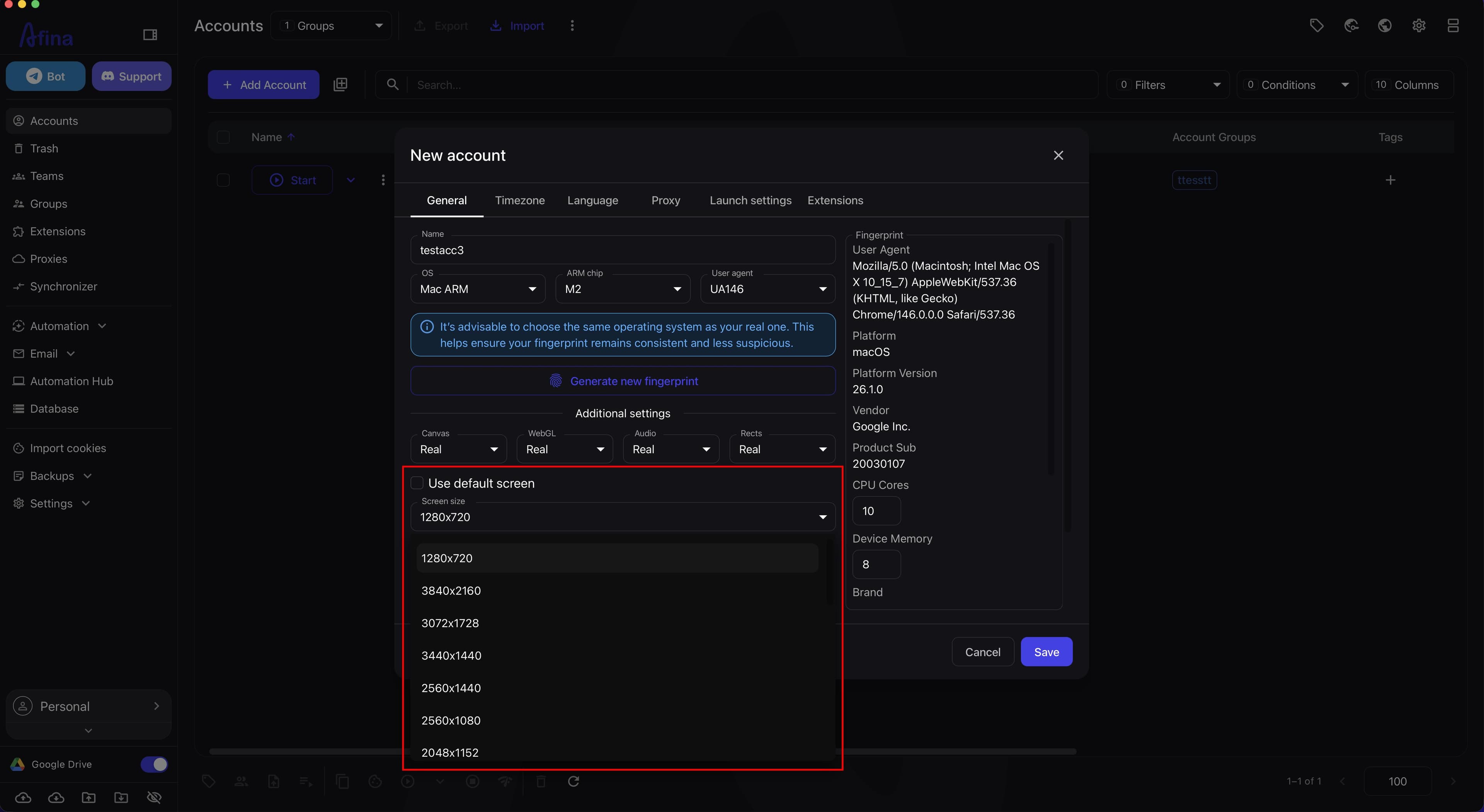
In this mode:
- the profile does not take the size from global settings;
- the manually selected value is used for the account;
- the browser window size is fixed;
- the window cannot be resized freely;
- this helps avoid unnecessary detection by antifraud systems.
If "Use default screen" is disabled in the profile, this account's custom "Screen size" takes priority over Afina global settings.
How it works together#
The logic is as follows:
- if "Use default screen" is enabled in the profile, the account uses Afina global settings;
- if "Always use the window size from settings" is enabled in global settings, the window opens with the size from the "Window size" field;
- if this checkbox is disabled in global settings, the window opens with the size it had when the browser was last closed;
- if "Use default screen" is disabled in the profile and a custom size is configured, the account works with its own separate fixed size.
What is the main difference#
The main difference is:
- Afina global settings control the default behavior for all profiles that do not have their own size;
- profile settings let you override this behavior for a specific account;
- "Monitor" is a separate parameter that should not be confused with "Window size": the monitor defines the physical display for launch, not the size of the window itself.
When to use each option#
Use global settings if:
- you need the same logic for many profiles;
- you want to manage the window size centrally;
- a separate account does not need its own fixed size.
Use a separate "Screen size" in the profile if:
- the account needs a specific fixed size;
- you do not want to depend on Afina global logic;
- it is important that the window size does not change during work.
What to keep in mind#
If you leave the "Use default screen" checkbox enabled, the profile will not have its own separate size and will work according to Afina global logic.
If you need to strictly fix the browser window size for a specific account, clear the "Use default screen" checkbox in the "Additional settings" block and manually select the required "Screen size".