Creating a Task#
Create a task for one or more accounts in the "Accounts" section: configure execution parameters, launch time, and select a script — the task will run for all selected accounts at once or on a schedule.
What It Is and What It's For#
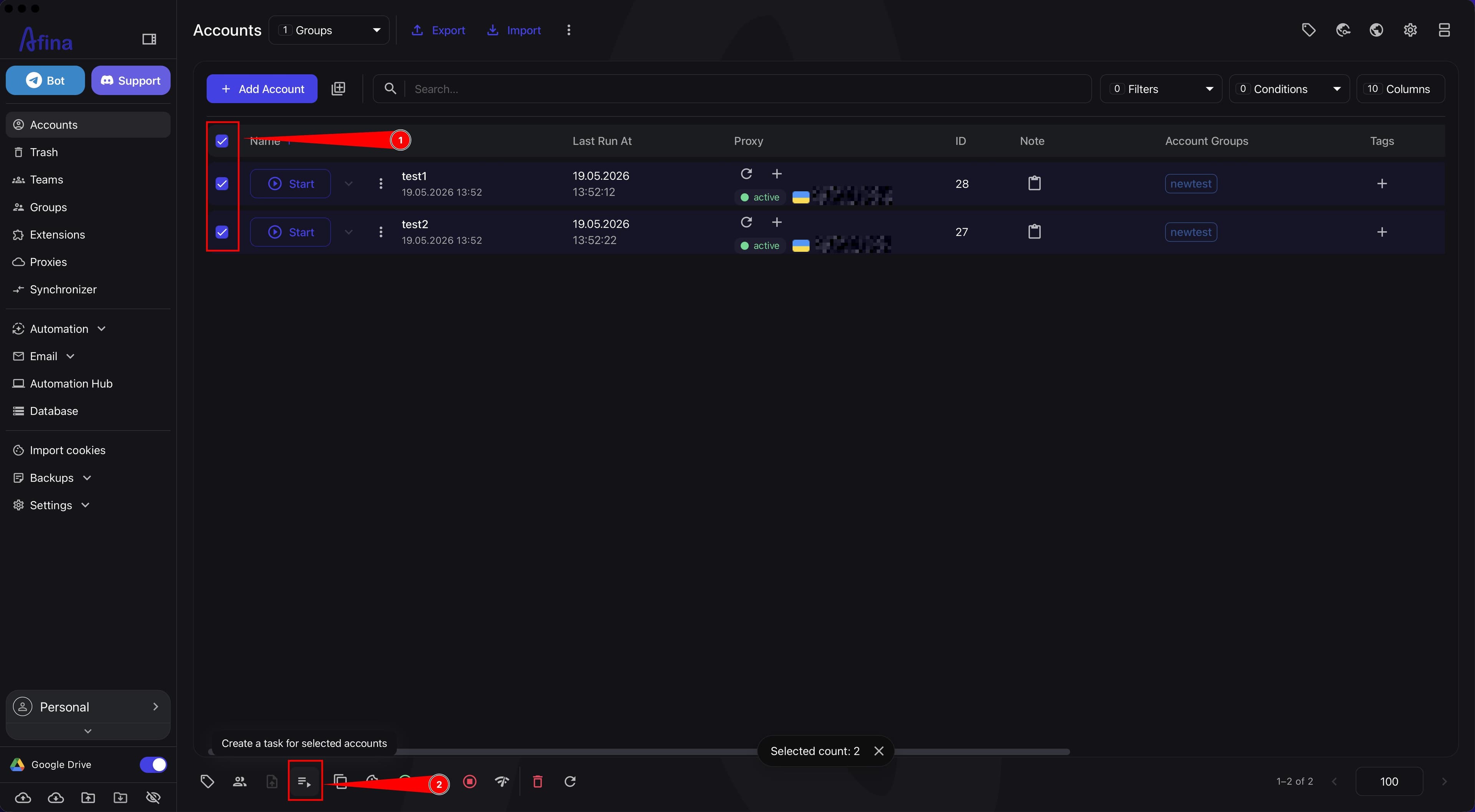
The "Create task" element is located in the bottom control panel of the "Accounts" section.
After clicking, a modal window "Create task" opens, where you can:
- specify a task group from existing ones or create a new one;
- set the script timeout and the number of active sessions;
- enable "Retry on failure", "Shuffle", and "Wait" modes;
- configure "Priority";
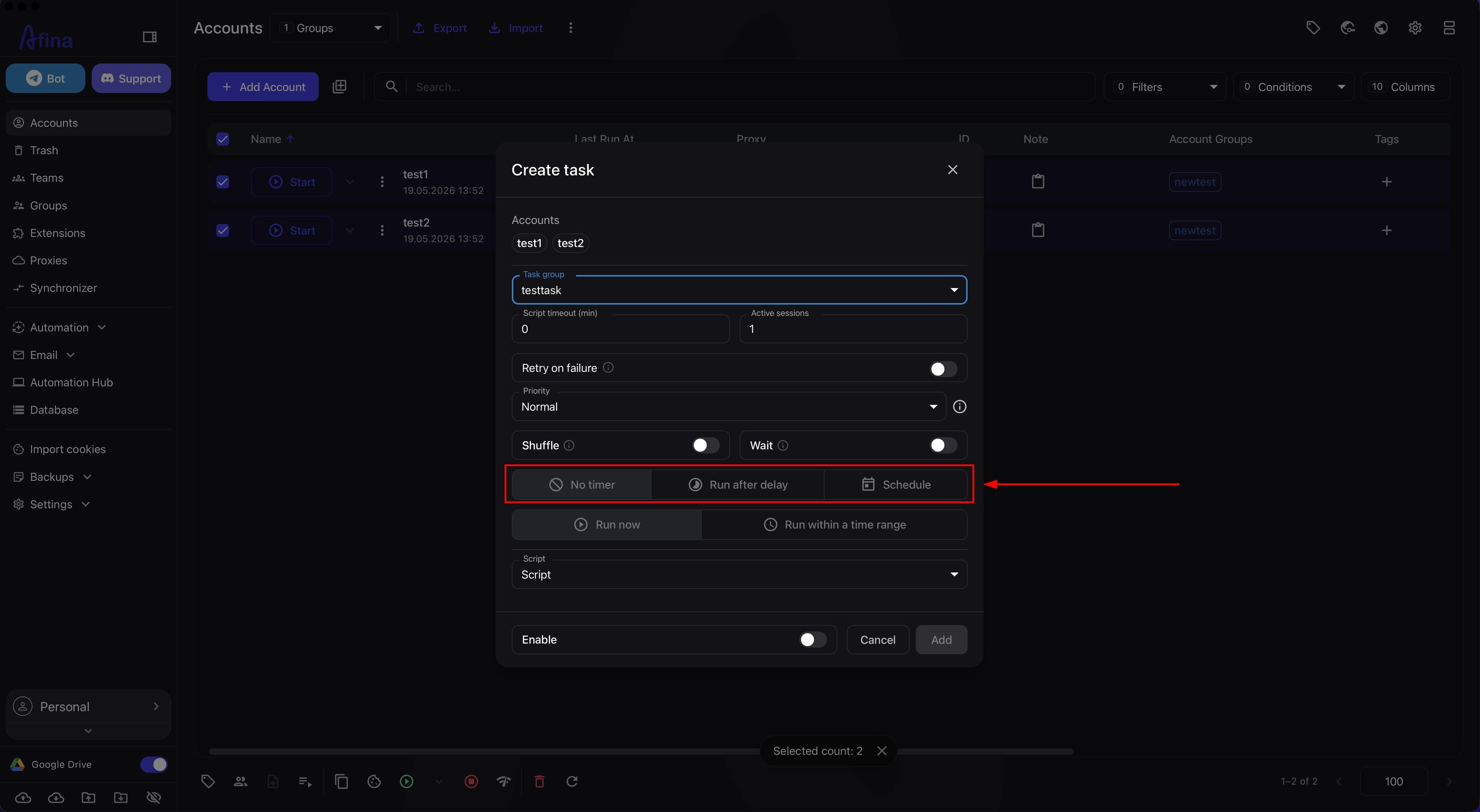
- configure the launch time: "No timer", "Run after delay", or "Schedule";
- select a script and confirm task creation.
What's in the "Create task" Window#
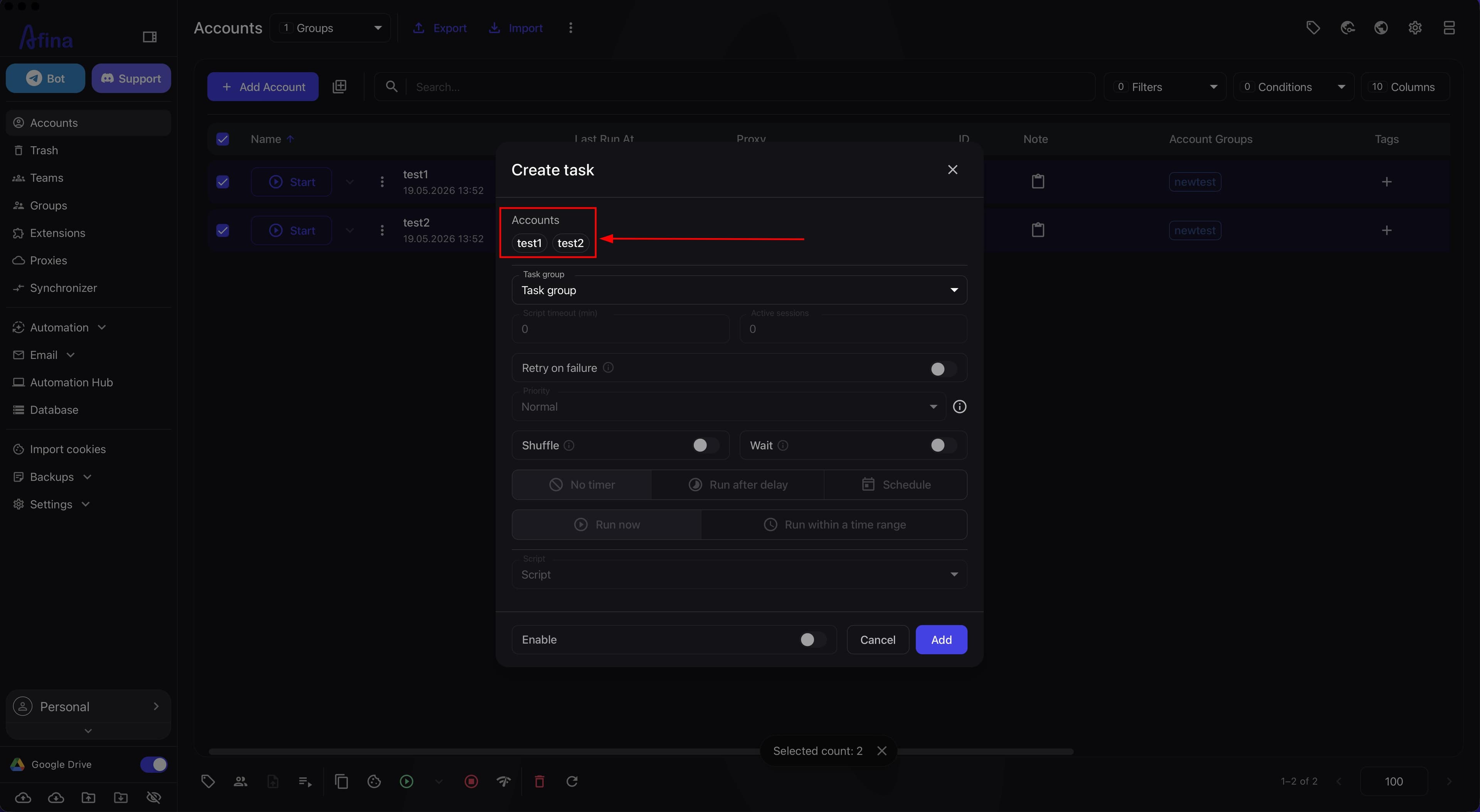
- "Selected accounts" — displays the accounts for which the task is being created.
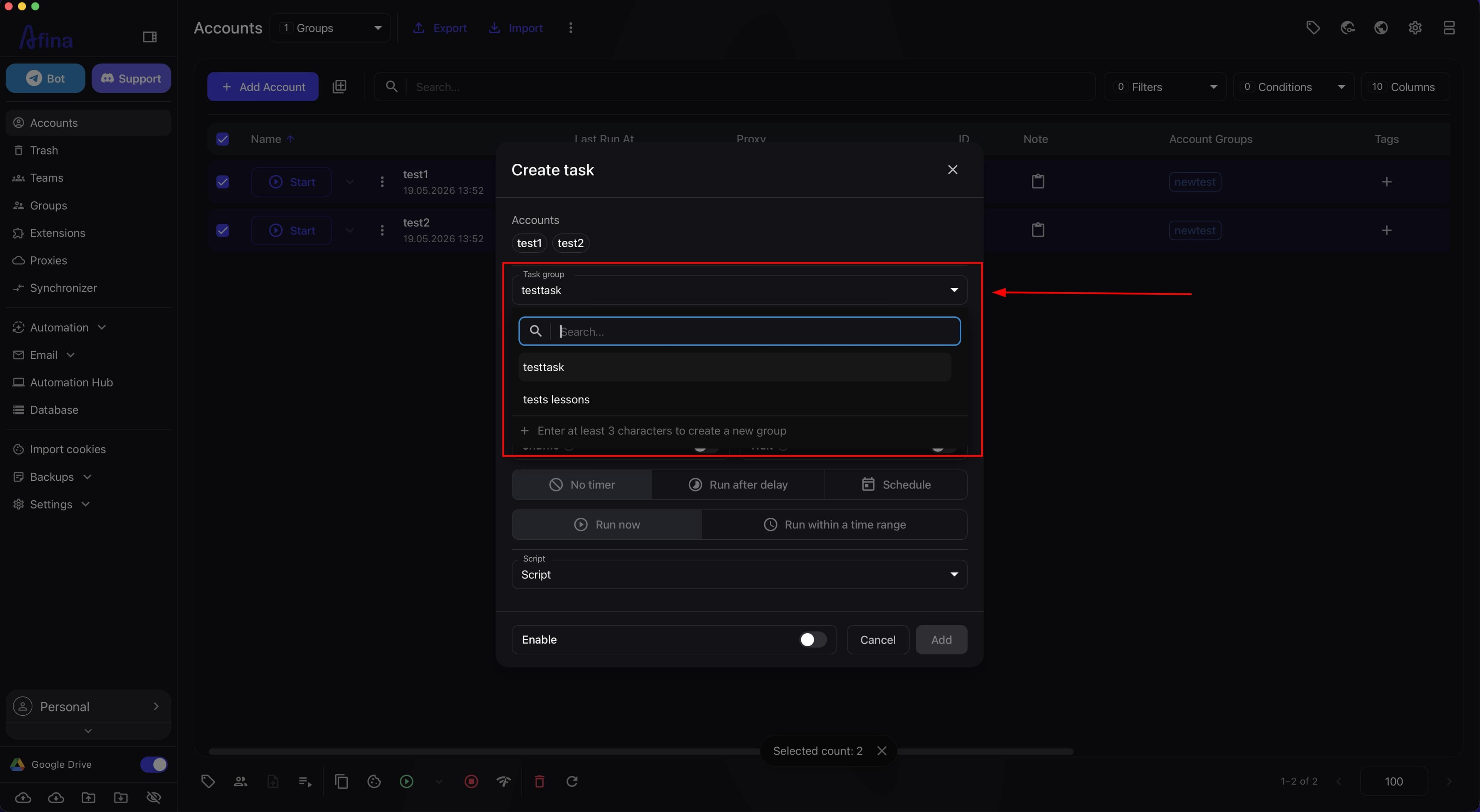
- "Task group" — select or create a task group.
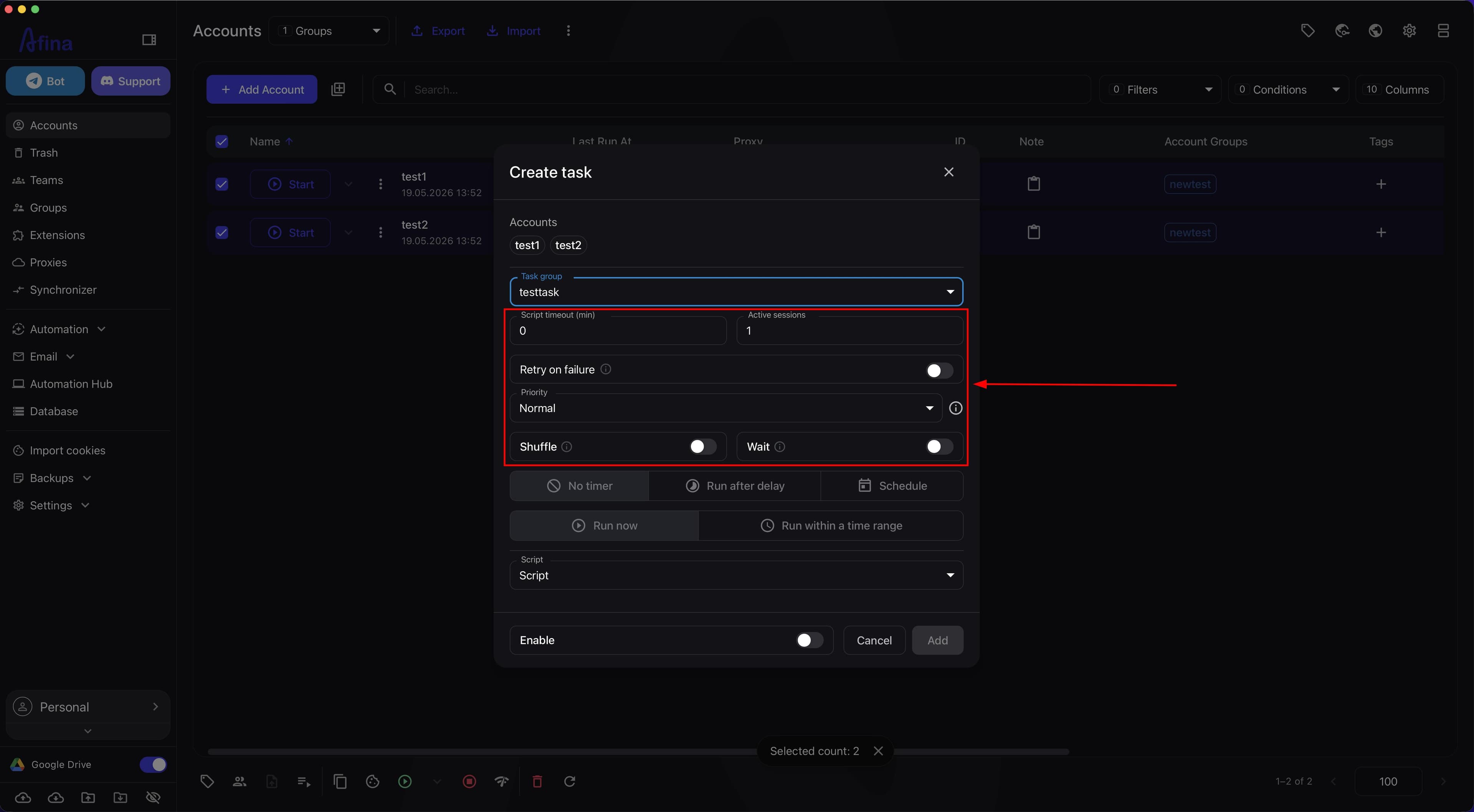
- "Script timeout (min)" — the maximum script execution duration in minutes for each account.
- "Active sessions" — the number of accounts from the list that run in parallel at the same time.
- "Retry on failure" — toggle: repeats the task after an error; after activation, the "Retry count" field appears.
- "Priority" — determines the launch order of tasks within available browser slots.
- "Shuffle" — randomizes the order of accounts.
- "Wait" — delays the launch until the previous task from the same group is completed.
- "Launch time settings" — select the task launch mode.
- "Script" — select a script to execute.
- "Enable" — launches the task immediately after creation.
Steps#
1. Select accounts
On the "Accounts" page, check the required accounts using checkboxes. Make sure at least one account is selected.
2. Open the task creation window
Click Create task in the bottom control panel of the "Accounts" section. The modal window "Create task" will open with the list of selected accounts.
3. Check the list of selected accounts
At the top of the "Create task" window, the list of selected accounts is displayed as tags with their names. This allows you to verify which accounts the task will be created for before confirming.
If there are more selected accounts than fit in one line, Afina shows an indicator like "+9", which expands the full list. To return to the compact view, click Collapse.
4. Specify the task group
The "Task group" field is used to associate the new task with an existing group or to create a new group directly in the window. Clicking opens a dropdown list with a search field.
To select or create a group:
- Click the "Task group" field — a dropdown list with a search field will open.
- Enter a name in the search field to find an existing group, then select it from the list.
- To create a new group, enter at least 3 characters — if fewer are entered, a hint "Enter at least 3 characters to create a new group" will appear at the bottom of the list, and creation will be unavailable.
- Select the desired group from the list or confirm the creation of a new one.
5. Set execution parameters
The "Script timeout (min)" field sets the maximum script execution time in minutes for each account. This is a numeric field that limits the duration of one execution session and prevents the process from hanging indefinitely.
The "Active sessions" field determines how many of the selected accounts can run in parallel at any given time. This is a numeric field that controls the system load.
The "Retry on failure" toggle enables automatic task repetition if it stops due to an error — it should turn blue. After activation, the "Retry count" field appears: enter the maximum number of automatic restart attempts. After the specified number of attempts is exhausted, the task will stop permanently.
The "Priority" field determines the launch order of tasks as soon as a browser slot becomes available. Task groups with higher priority will launch first; tasks that are already running are never interrupted. The default value is "Normal".
The "Shuffle" toggle enables randomization of the account order before creating the task — it should turn blue. This is useful when you need to avoid the same execution sequence on each run.
The "Wait" toggle enables queue mode — it should turn blue. The task will not start until the previous task from the same group is completed. This allows strict control over the execution sequence of tasks within a group.
6. Configure the launch time
The launch time configuration block allows you to select one of three modes. By default, the "No timer" mode is active — the task starts immediately after clicking Add, if the "Enable" toggle is on.
To configure the launch time:
- Select a mode: "No timer", "Run after delay", or "Schedule".
- For the "Run after delay" mode, specify the delay in hours or minutes after which the task will start. If needed, set a time range for the delay.
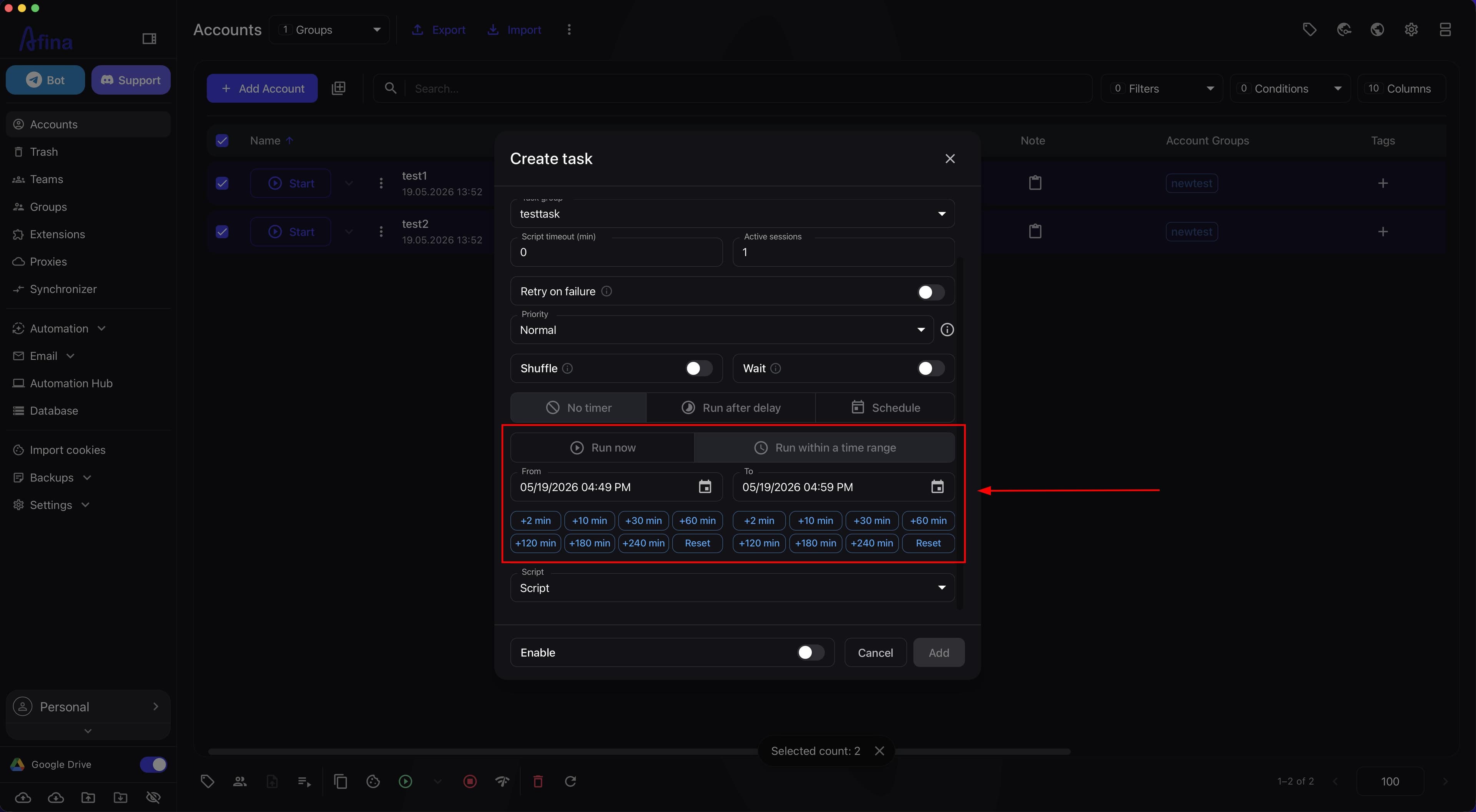
- For the "Schedule" mode, click Run within a time range and fill in the "From" and "To" fields — specify the start and end time of the range within which the system will launch the task.
The screenshot below shows the launch time mode selection block with three available options.
To set an exact time in the "From" and "To" fields: click Run within a time range, in the window that opens select a date in the calendar, set the hour and minutes, then click OK.
7. Select a script
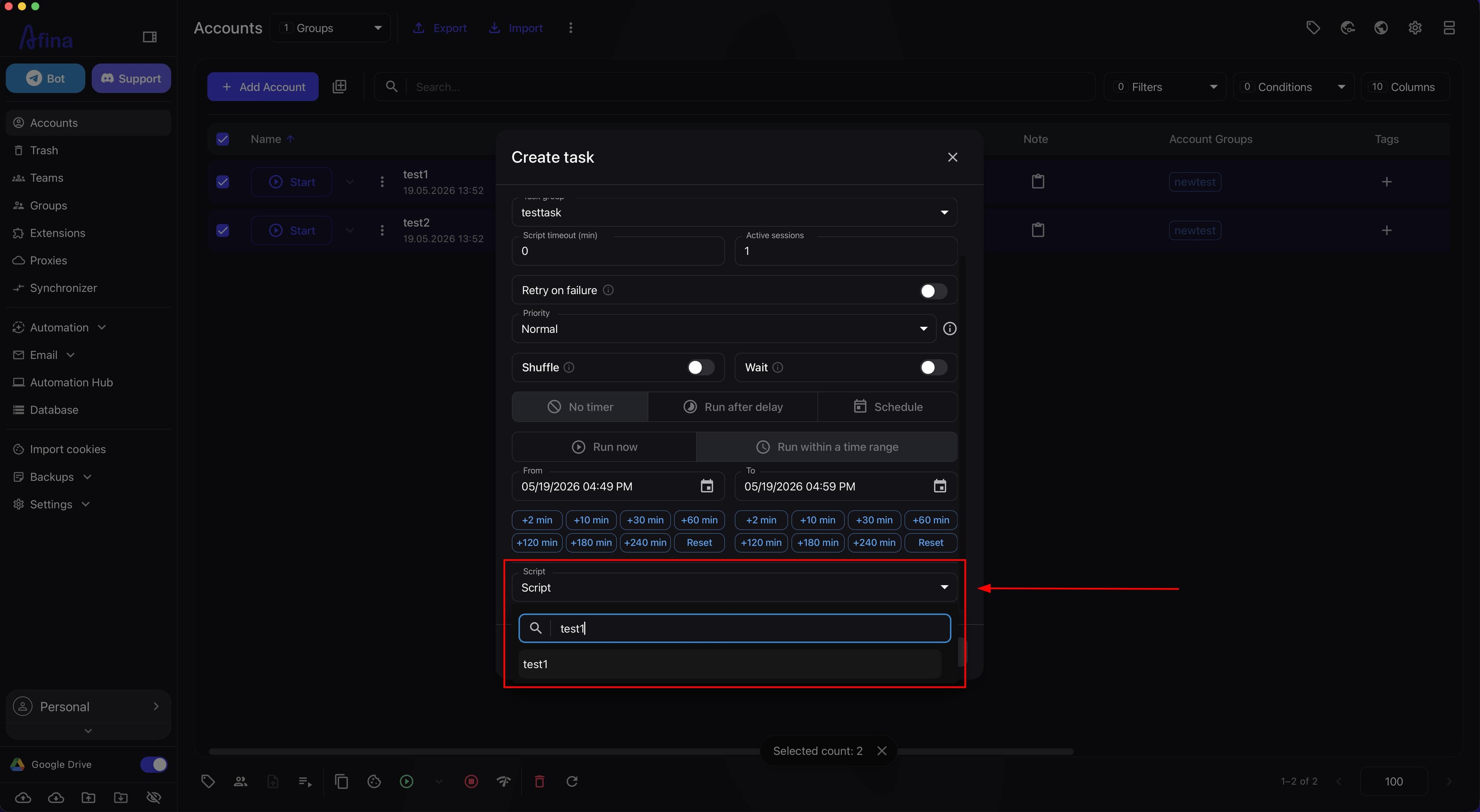
The "Script" field is used to select the script that will be executed as part of the task. Clicking opens a dropdown list with a search field among available scripts.
To select a script:
- Click the "Script" field — a dropdown list with a search field will open.
- Enter a name in the search field to find the desired script.
- Select the script from the results list.
8. Enable the task if needed
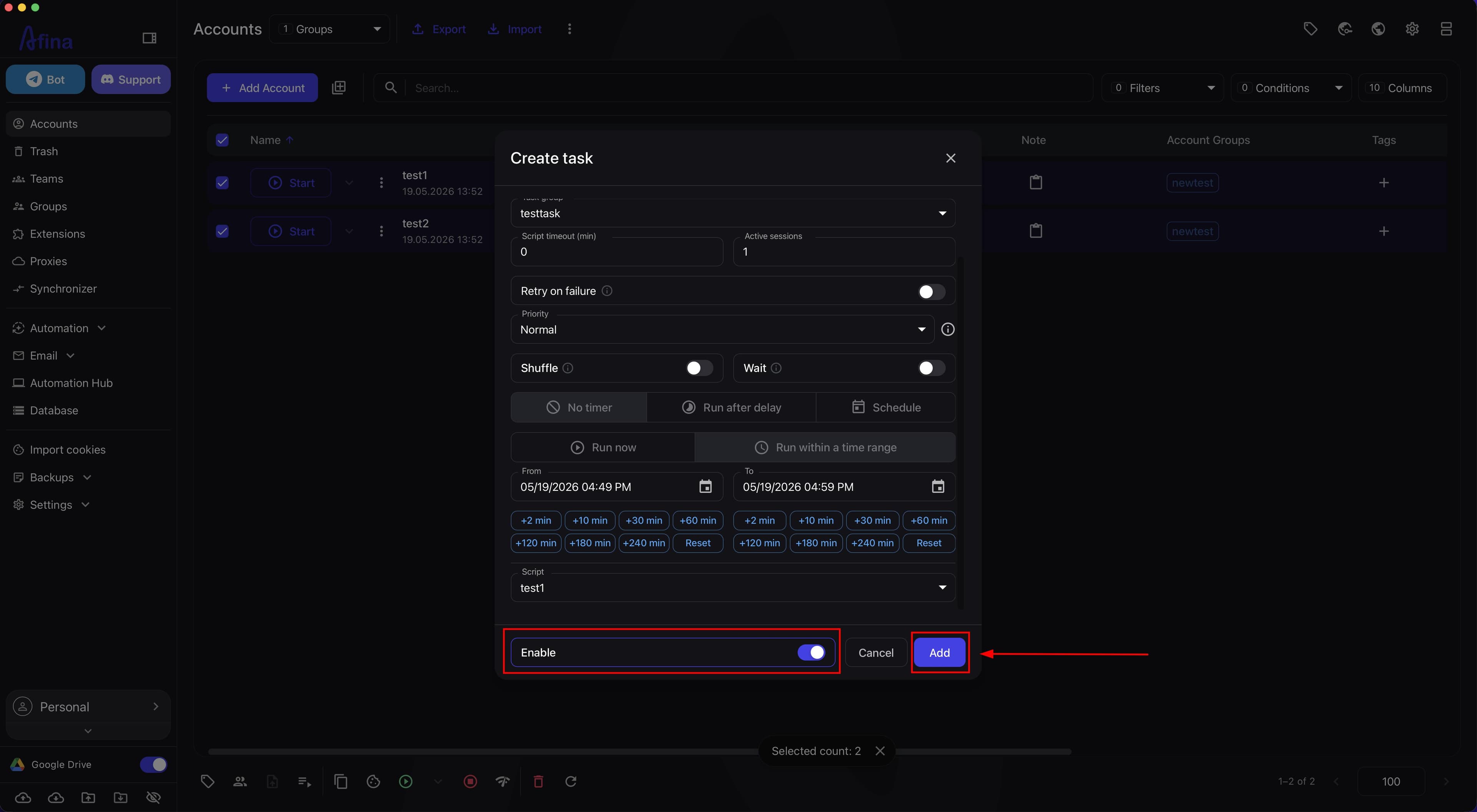
The "Enable" toggle determines whether the task starts immediately after clicking Add. Activate the "Enable" toggle — it should turn blue — so the task launches immediately after creation. If "Run after delay" or "Schedule" mode is configured, the task will start not immediately, but according to the specified time. If you want to activate the task later manually — leave the toggle off.
9. Confirm creation
Click Add. Afina will show a green message about the successful task creation, after which it will appear in the "Active tasks" section.
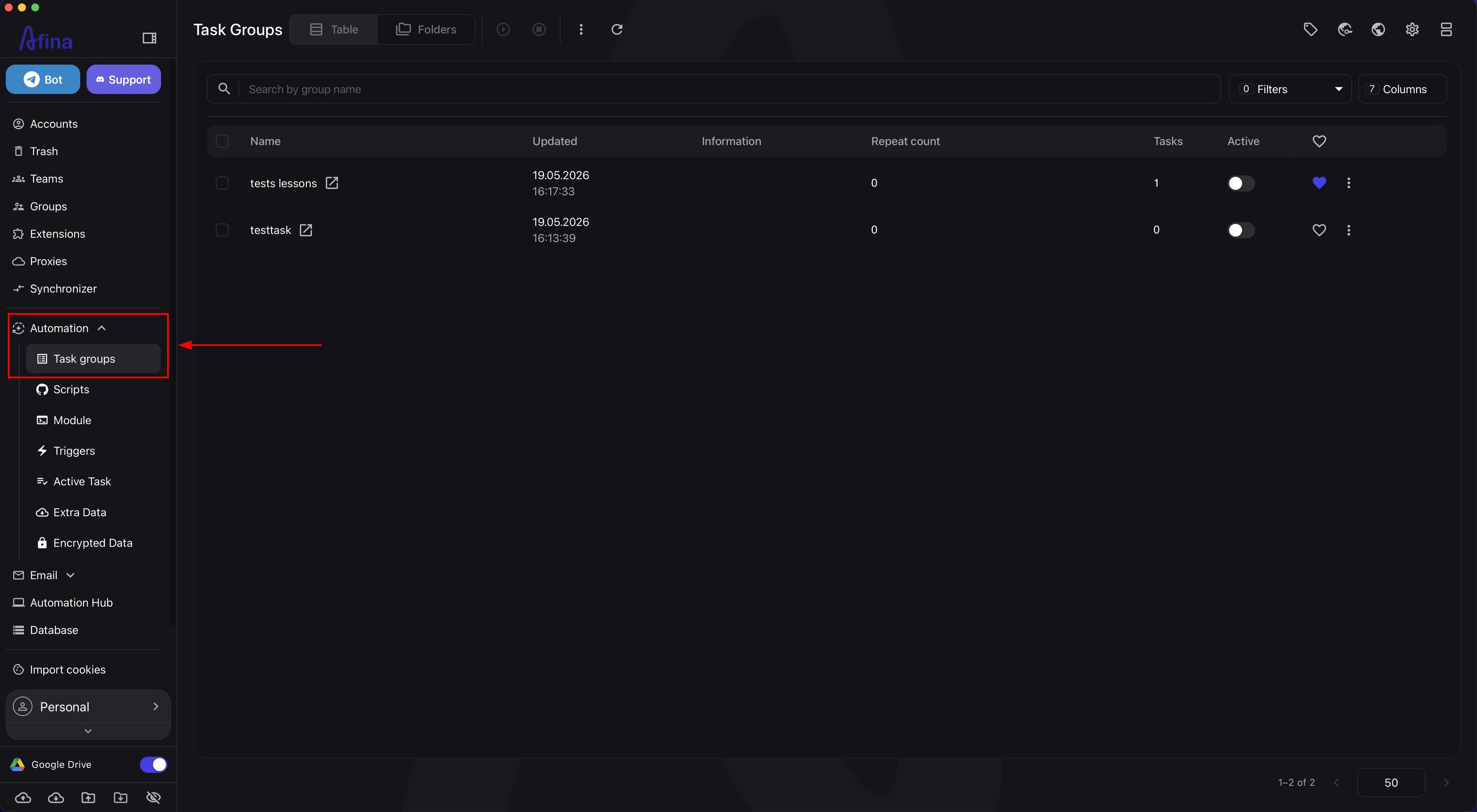
To view your tasks, go to the "Automation" section, then open "Task Groups".
After navigating to "Task Groups", you will see the newly created task with all the specified parameters.
Verification#
The task has been created correctly if:
- a successful creation message appeared in the window;
- the new task is displayed in the "Task Groups" section;
- for an enabled task, the launch occurs immediately or according to the specified time;
- the task parameters match the selected settings.
Issues and Solutions#
Cannot create a new task group
Make sure you have entered at least 3 characters in the "Task group" field. If fewer characters are entered, a hint "Enter at least 3 characters to create a new group" will appear at the bottom of the list, and creation will remain unavailable.
The task does not start immediately after creation
Check whether the "Enable" toggle is on and which launch time mode is selected. If "Run after delay" or "Schedule" is set, the task starts not immediately, but according to the configured time.
The task is in a waiting state
Check whether the "Wait" toggle is on. In this case, the task will wait for the previous task from the same group to complete.
The task restarts after an error
This is expected behavior if the "Retry on failure" toggle is on and a value is specified in the "Retry count" field. If needed, turn off the "Retry on failure" toggle or reduce the value in the "Retry count" field.