Connecting Afina Email#
This guide explains how to connect a mailbox to Afina via IMAP to read emails, find confirmation codes, and use the mailbox in automation scripts directly within the application interface.
What It Is and Why You Need It#
The Email section in Afina lets you connect a mailbox via IMAP and read emails directly in the application interface. This is needed for working with emails inside profiles: checking incoming messages, finding confirmation codes, and using email data in automation scripts.
In the left navigation panel, the Email section contains two subsections:
- Email Credential — manage connected IMAP mailboxes;
- Emails — view and filter received emails.
IMAP Setup#
To connect a mailbox, you need a special IMAP password — also known as an app password. This is a separate password generated in your email account settings and differs from the main login password. It typically looks like four separate words separated by spaces or hyphens.
For Gmail and iCloud, you cannot use the main account password — only an app password. Entering the main password will result in a connection error.
Google#
For Gmail, you first need to enable two-factor authentication in your Google account — without it, the option to create an app password will not appear. After that, open the app passwords page and generate a new password.
Official Google guide: Sign in with app passwords.
| Field | Value |
|---|---|
| your email address, e.g. afina@gmail.com | |
| Password | app password |
| IMAP Server | imap.gmail.com |
| Port | 993 |
Also, IMAP access must be enabled in Gmail web settings: open Gmail → Settings → See all settings → Forwarding and POP/IMAP and make sure IMAP access is enabled.
iCloud#
For iCloud, you need to create an app password on the Apple ID management page. In the Sign-In and Security section, generate a new app password.
Official Apple guide: Use app-specific passwords.
| Field | Value |
|---|---|
| your email address, e.g. afina@icloud.com | |
| Password | app password |
| IMAP Server | imap.mail.me.com |
| Port | 993 |
Steps#
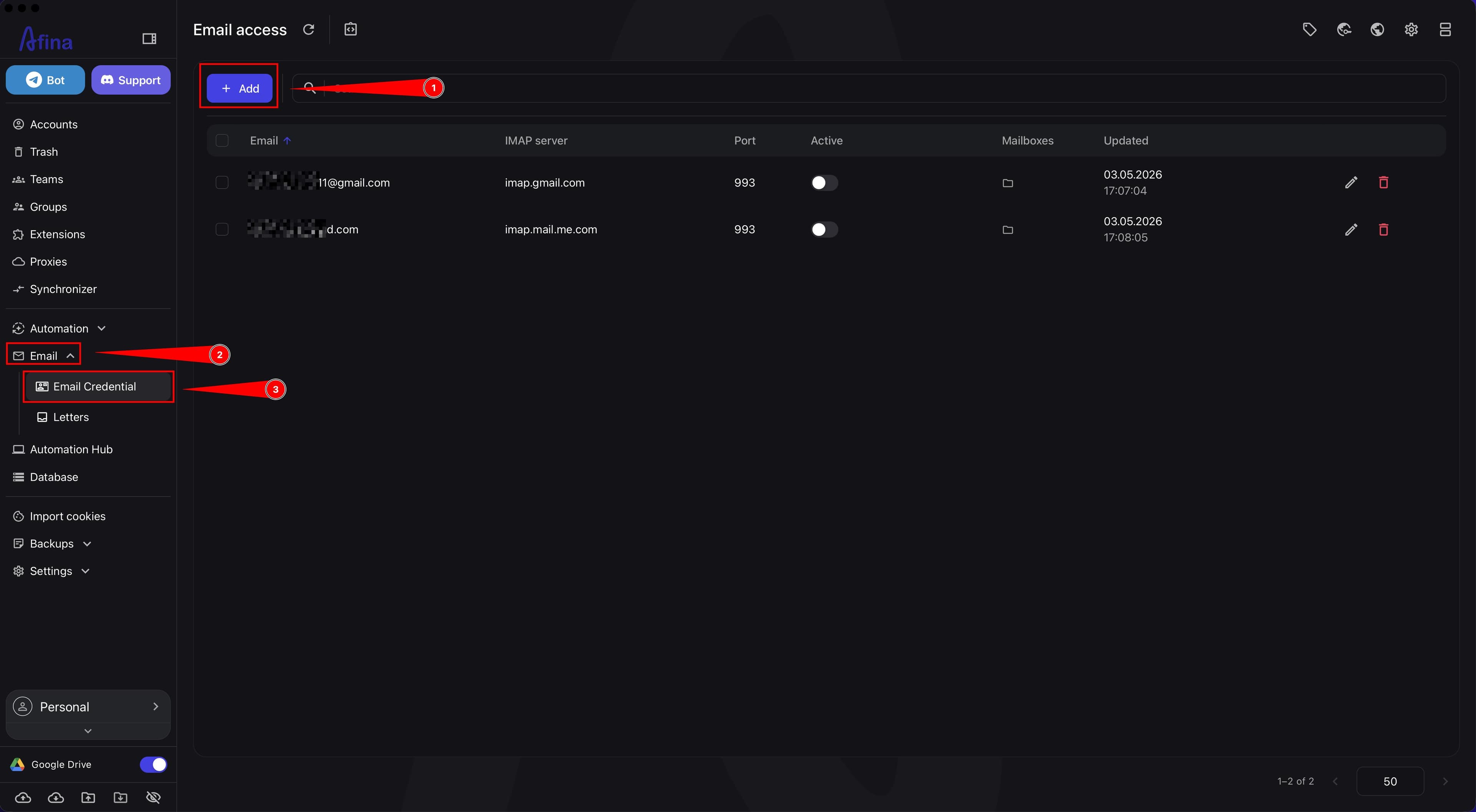
1. Open the Add Email form In the left navigation panel, click the Email group, then navigate to the Email Credential section. Click Add — the Add email access modal window will open.
The screenshot below shows the Email Credential section with the Add button at the top of the connected mailboxes table.
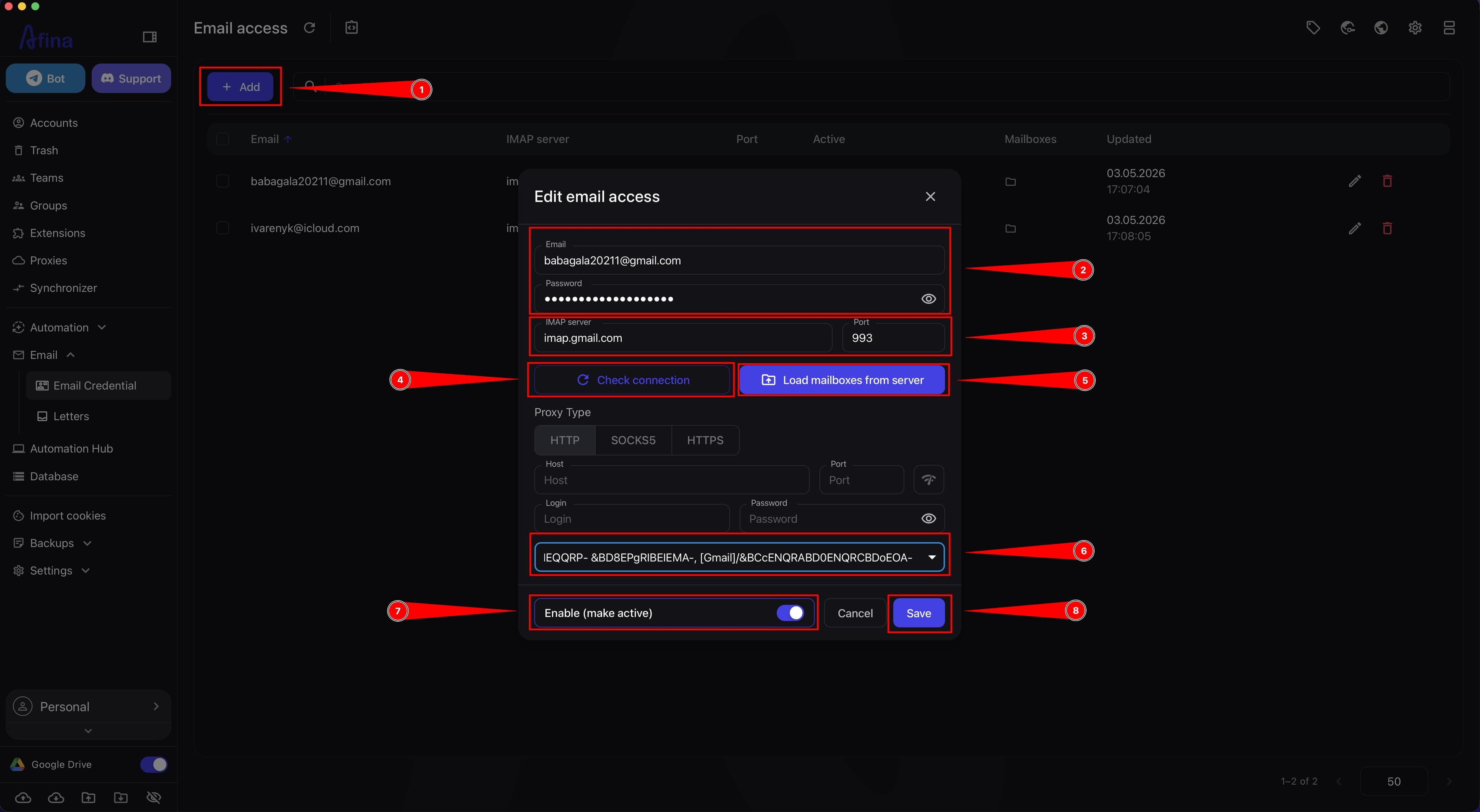
2. Enter the email address and password In the Email field, enter the mailbox address for which you created the IMAP password.
In the Password field, enter the IMAP password (app password) — not the main account password.
3. Fill in the IMAP server details In the IMAP Server field, enter the host from the relevant provider table above.
In the Port field, enter the port number from the same table.
4. Check the connection Click Check connection. The system will perform a test request to the mail server with the entered parameters. Wait for the successful verification message — only then proceed to the next step.
If the check fails, verify the email address, IMAP password, IMAP server address, and port. For Gmail and iCloud, you must use the app password, not the main account password.
5. Load and select folders Click Load mailboxes from server. The system will connect to the mail server and display a list of available folders: Inbox, Spam, Trash, and other directories in your mailbox.
Select all the folders you want to monitor. Once at least one folder is selected, the Save button will become active.
If no folder is selected, the Mailboxes are required hint will appear, and the Save button will remain inactive.
6. Activate the mailbox Turn on the Enable toggle — it should turn blue, indicating an active state. After saving, this mailbox will appear with the Active status in the Active column of the Email Credential table.
If the mailbox shows Inactive status after restarting Afina, open the Email Credential section, find it in the table, and turn on the toggle in the Active column. Confirm the action in the Change email access status window.
7. Add a proxy if needed A proxy is not required. You should configure it if you need to connect to the mail server through a different IP address, there are network restrictions, or you are using a corporate proxy.
If you don't need a proxy — leave these fields empty and proceed to saving.
To configure a proxy, fill in the fields:
- in the Proxy type field, select the protocol: HTTP, SOCKS5, or HTTPS;
- in the Host field, enter the proxy server address;
- in the Port field, enter the proxy server port;
- in the Login and Password fields, enter the proxy credentials if authentication is required.
To check the proxy, click the connection icon next to the port field in the proxy section.
8. Save the settings Click Save. The modal window will close, the new mailbox will appear in the general table of the Email Credential section, and a success message will appear on screen.
The screenshot below shows the filled connection form with the active Save button before the final save.
Email Forwarding#
When you need it Forwarding is useful if your main email is registered on one service, but you prefer to read all new messages in a different mailbox.
For example, you can set up the following scenario:
- iCloud receives emails;
- iCloud automatically forwards them to Gmail;
- Gmail is connected to Afina via IMAP.
This is convenient for consolidating email from multiple addresses in one place.
Forwarding from iCloud to Gmail and "Hide My Email"#
If you have iCloud+, you can use Hide My Email: create separate random addresses for different services and forward all emails to one main mailbox.
The logic is:
- your main email address stays private;
- a separate address can be used for each service;
- all emails are collected in one main mailbox.
You then connect this main mailbox, e.g. Gmail, to Afina via IMAP.
Email Reading Details and Security#
How Afina reads emails Afina works with email via IMAP and reads email content within the connected mailbox and selected folders.
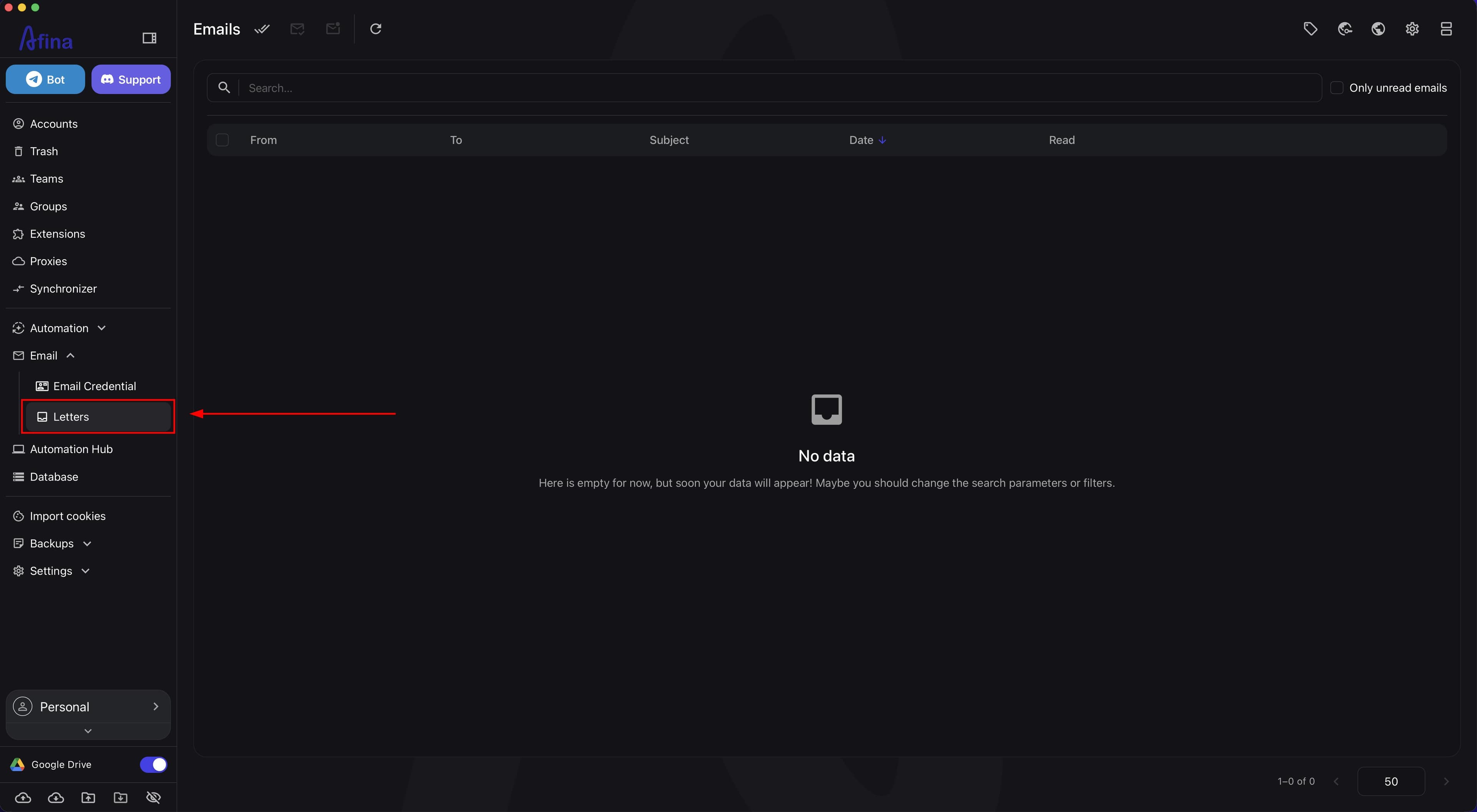
To view emails, open the Email group in the left navigation panel and navigate to the Emails section.
The screenshot below shows the Emails section with incoming messages and the search and filter panel.
You can:
- view the list of received emails;
- search for specific messages;
- filter unread emails.
To open a specific email, click the open icon next to the email subject, or open the action menu via the ⋮ icon (three dots) on the right side of the row and select Open email. The email opens in a separate modal window — it displays the subject, status, service fields, and scrollable message content. At the bottom of the window, the Close, Mark as read, and Delete email buttons are available.
How emails are displayed In practice, Afina reads emails as a standard IMAP client:
- sees folders downloaded from the server;
- reads the email subject, sender, text, and content within the access granted via IMAP;
- works with the email structure provided by the provider.
The email is displayed in plain text or safe HTML format, allowing you to work with it safely: read the text, copy a confirmation code, or open a required service link.
If the provider correctly serves mail via IMAP, emails are read normally regardless of whether it is Gmail, iCloud, or another compatible service.
Images in emails and IP protection Emails may contain external image trackers. When automatically loaded, the sender may see your IP address and the fact that the email was opened.
Therefore, images in emails are not loaded automatically in Afina. If the images in a specific email are genuinely needed, click Show Images in the email viewing window.
This is especially important when working with accounts where confirming that an email was opened or revealing the real IP address is undesirable.
Key points to keep in mind when working with emails
- for Gmail and iCloud, you typically need an app password, not the main account password;
- Afina only works with the folders you downloaded and selected during setup;
- if the mailbox becomes inactive after restarting Afina, you need to reactivate it;
- if an email looks "incomplete", first check whether external images are blocked.
Other IMAP Services#
In addition to Gmail and iCloud, you can connect other IMAP providers, including custom or niche services such as Fastmail, provided they support standard IMAP access.
For such a connection, specify:
- email;
- IMAP password (or app password if the provider requires it);
- IMAP server;
- IMAP port (usually 993).
If the service supports standard IMAP access and you have the correct server parameters, the connection should work with Afina as well.
Verification#
The mailbox is connected correctly if:
- the connection check is successful;
- folders from the server are downloaded and selected;
- the Save button was active at the time of saving;
- the mailbox in the Email Credential table shows Active status.
Troubleshooting#
Connection check fails Verify the email address, IMAP password, IMAP server address, and port. For Gmail and iCloud, you must use the app password, not the main account password.
The Save button is not active Make sure you clicked Load mailboxes from server and selected at least one folder. Until a folder is selected, the Save button remains inactive — the system displays the Mailboxes are required hint.
Mailbox became inactive after restarting Afina Open the Email Credential section, find the mailbox in the table, and turn on the toggle in the Active column. Confirm the action in the Change email access status window.
Outlook.com / Microsoft Email#
In addition to Gmail and iCloud, you can also connect Microsoft mailboxes to Afina via IMAP. This section covers @outlook.com, @hotmail.com, @live.com, and other mailboxes accessed through Outlook.com or Microsoft 365.
Official Microsoft sources:
- POP, IMAP, and SMTP settings for Outlook.com;
- How to get and use app passwords;
- Add your Outlook.com account in Outlook for Windows.
What you need to do in Outlook.com Before connecting in Afina, you need to allow IMAP access in the Microsoft mailbox itself:
- open Outlook.com and sign in to the required mailbox;
- click the settings icon in the top-right corner;
- in the "Settings" window, open the "Mail" section;
- in the mail settings list, select "Forwarding and IMAP";
- in the "POP and IMAP" block, turn on the "Let devices and apps use IMAP" toggle;
- click "Save" if Outlook shows a save button.
Without this, Microsoft may not allow Afina to connect to the mailbox via IMAP, even if the email and password are correct.
Connection details for Afina In the Afina add-email window, use the following values:
| Field | Value |
|---|---|
| full Outlook address, e.g. name@outlook.com | |
| Password | Microsoft password or app password |
| IMAP Server | outlook.office365.com |
| Port | 993 |
For IMAP, Microsoft uses SSL/TLS encryption.
Older guides or email client hints may reference the imap-mail.outlook.com server. For new setups, use the current value from the official Microsoft documentation: outlook.office365.com.
In the current mailbox connection scenario in Afina, IMAP is the key value, because Afina reads emails and loads folders specifically via it.
Password, 2FA, and app password For Microsoft email, there are two options:
- if the account accepts a regular password, enter your Microsoft account password in the "Password" field;
- if two-factor verification is enabled or the regular password is not accepted, create an app password and enter it instead.
An app password can only be created when two-factor authentication is enabled in the Microsoft account.
An app password is created in the Microsoft account security settings:
- open account.microsoft.com/security;
- go to "Advanced security options";
- find the "App passwords" section;
- click "Create a new app password";
- copy the generated password and paste it into Afina instead of the main password.
An app password is needed for apps or devices that do not support two-factor verification directly. If such a password is lost, there is no need to recover it: create a new one and use it in Afina.
If Outlook blocks the connection If Afina shows a connection error but the data is entered correctly:
- check that IMAP is enabled in "Mail" → "Forwarding and IMAP";
- check that Afina has outlook.office365.com and port 993 specified;
- try an app password instead of the main password;
- open the Microsoft account activity page;
- if there is an IMAP sign-in attempt there, confirm it was you;
- return to Afina and repeat the connection check.
After a successful connection check, load folders from the server, select the required folders, activate the mailbox, and save the settings.