Variables and 2FA: Quick Data Entry Guide#
This guide shows how to add your own values in Afina to an account's Additional Data or Encrypted Data, so you can then quickly substitute these variables and 2FA values into inputs on websites, in scenarios, and in automation.
You can use these variables for anything: logins, passwords, email, codes, 2FA, addresses, names, wallets, tokens, and any other values you need to quickly insert into inputs.
Before You Begin#
Before you start, open the Accounts section and find the account for which you want to add variables.
Opening Account Data#
- Go to Accounts.
- Find the desired account in the table.
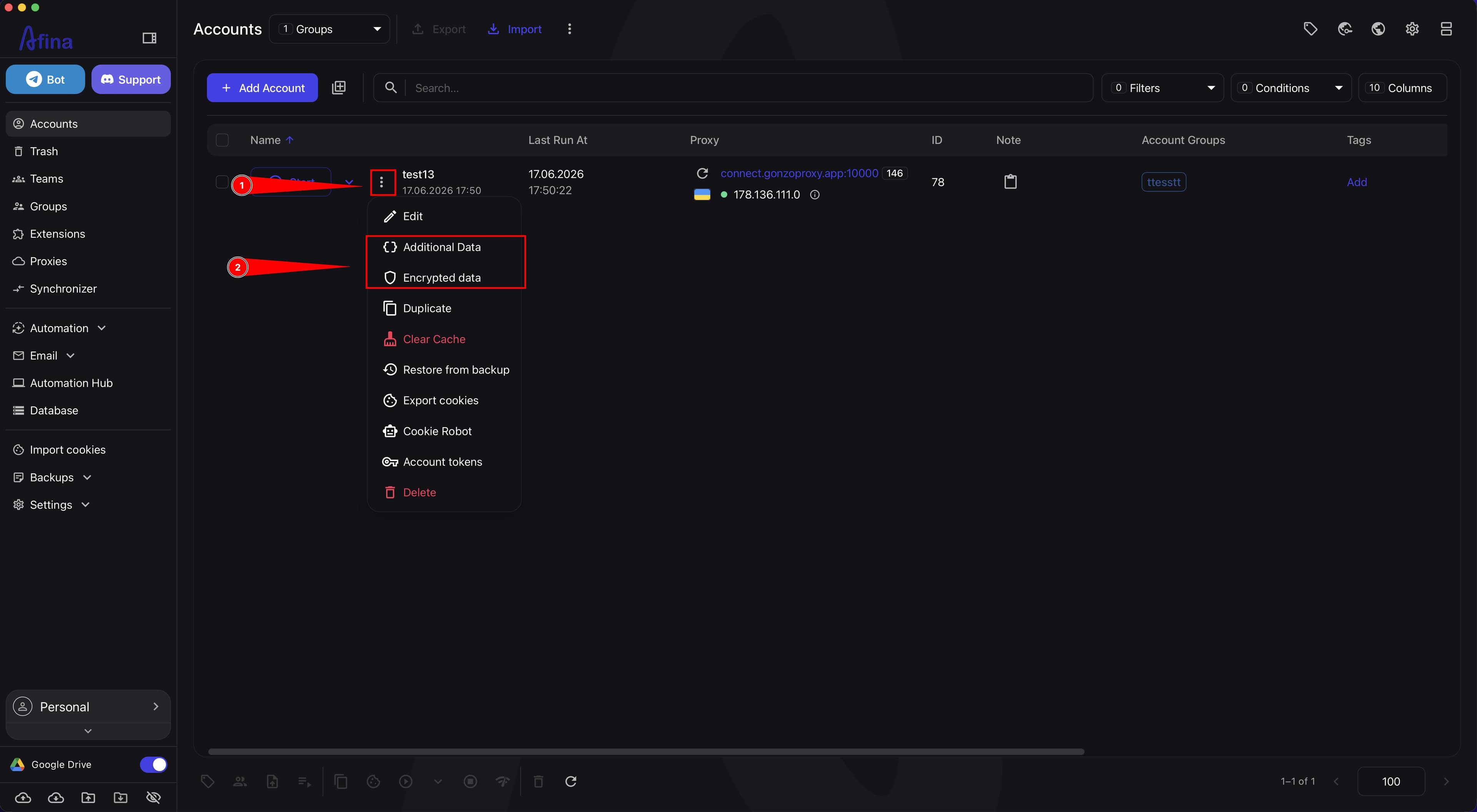
- Click the ⋮ icon in that account's row.
- In the drop-down menu, select Additional Data if you want to add regular variables.
- Or select Encrypted Data if the values need to be stored in a protected form.
The screenshot below shows the action menu in the account row. This is where the Additional Data and Encrypted Data items are available.
Adding Variables#
- In the «Assigning Additional Data to Accounts» window or in the Assign encrypted data to accounts window, click the left field of a new row.
- In the left field, enter the variable name, for example
passmetamask. - In the right field, enter the value of this variable, for example a password, code, or other text.
- If you need to add a value for 2FA, enter a name with the
2FA_prefix in the left field, for example2FA_token. - If needed, click Add more key to create the next row.
- Click Save.
The screenshot below shows the window for adding Additional Data with two pairs of fields: the key is set in the left field, and the corresponding value is entered in the right field.
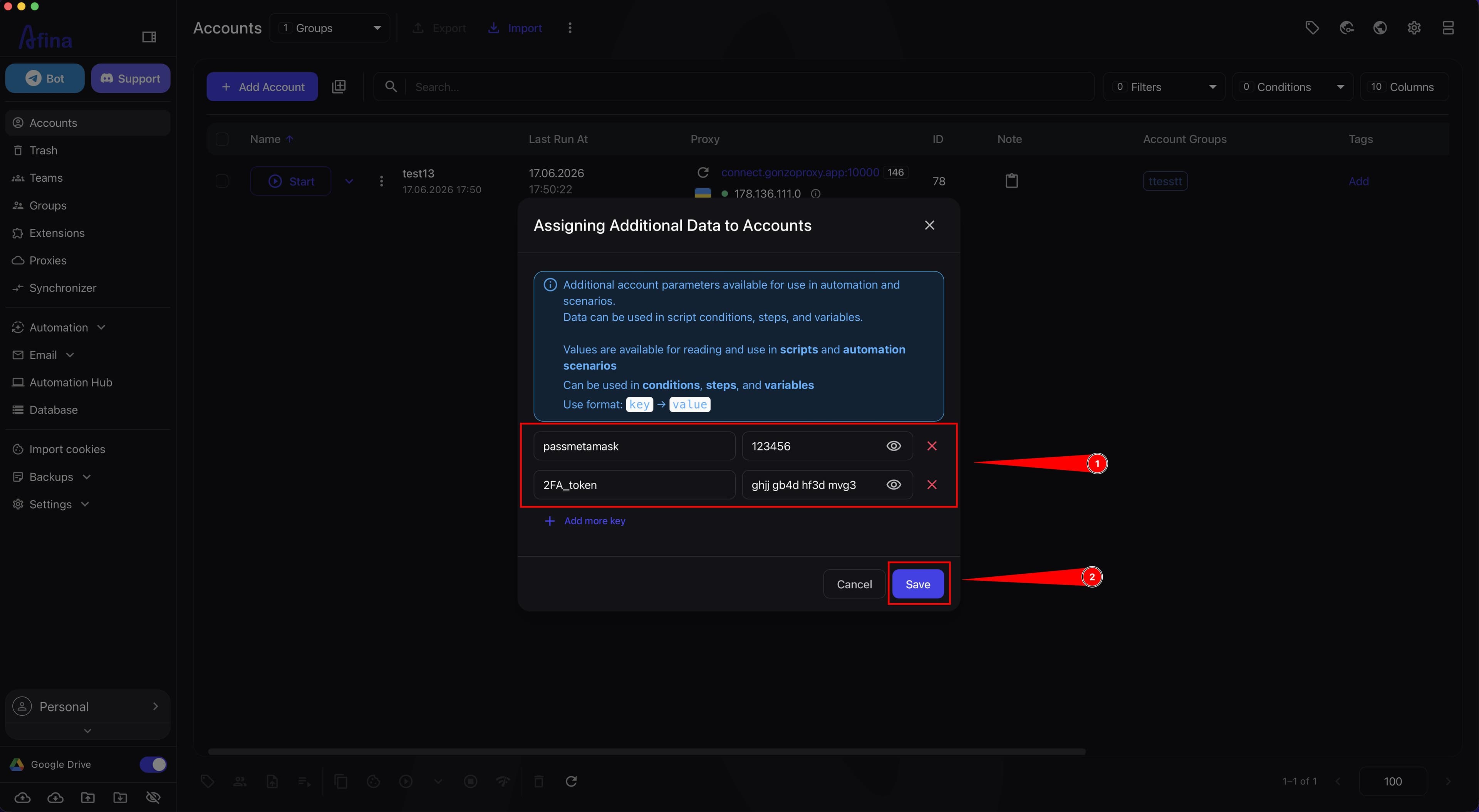
These fields use the Key -> Value format. The saved values can then be substituted into inputs on websites, as well as used in scenarios, conditions, steps, and script variables.
This mechanism is not limited to 2FA. You can use it to store and substitute logins, passwords, email, backup codes, addresses, profile names, tokens, and other values you need.
Variables for 2FA#
A separate variable naming rule applies to 2FA.
- Open the Additional Data or Encrypted Data of the desired account.
- In the left field, enter the variable name with the
2FA_prefix. - After the underscore, add your own variable name, for example
2FA_author2FA_token. - In the right field, enter the value for 2FA.
- Click Save.
The 2FA_ prefix with an underscore is mandatory. If you write the name without this prefix or without the underscore, Afina will not recognize the variable as a 2FA value.
How It Works Next#
After saving, Afina binds these variables to the selected account. If you added values to Additional Data or Encrypted Data, you can quickly use them wherever you need to substitute text into an input on a website or in automation.
For regular values, Additional Data works well. For sensitive values that need to be stored more carefully, use Encrypted Data.
Result#
After completing these steps, the selected account will have saved variables that you can quickly substitute into inputs. If you specify the 2FA_ prefix for a 2FA variable, Afina will separately recognize it as a 2FA value.