Extensions in Afina#
In this guide, you will learn how to add, enable, disable, pin, update, and delete extensions in Afina, and how to manage them through the "Extensions", "Accounts", and "Groups" sections. This is needed for centralized management of browser extensions without chaotic manual configuration of each account separately.
Before You Start#
The "Extensions" section is designed for managing browser extensions in Afina. Here you can:
- view the list of added extensions;
- add extensions by URL;
- add extensions through a
.zipfile; - enable or disable extensions;
- pin or unpin extensions in the browser;
- update extensions from
Chrome Web Store; - delete extensions from the list;
- refresh the list of extensions on the page.
In Afina, extensions can be managed from several levels:
- through the "Extensions" section - this is the main place for adding, updating, enabling, disabling, pinning, and deleting extensions;
- through the "Accounts" section - here you can manage extensions at the level of a specific account or remove extensions from accounts;
- through the "Groups" section - here you can enable or disable extensions for a group of accounts;
- through the account profile - extensions can be added directly in a running account.
The last method technically works, but it is not recommended as the main one. If you add an extension directly to the account profile, it will be tied to that account, and later you will have to delete it manually.
To work with extensions correctly, it is important to understand the difference between several actions:
- add an extension to Afina means adding it to the general list of extensions;
- enable an extension means making it active for the required accounts or groups;
- pin an extension means pinning it to the browser toolbar;
- delete extension data means removing its data from accounts, but not deleting the extension itself from the list;
- delete an extension from the list means deleting the extension itself from Afina.
It is strictly forbidden to install and enable VPN extensions inside the account profile. Such an extension fully overrides Afina proxy network settings: websites will see the IP address of the VPN extension instead of the assigned proxy, which breaks account anonymity.
Adding an Extension#
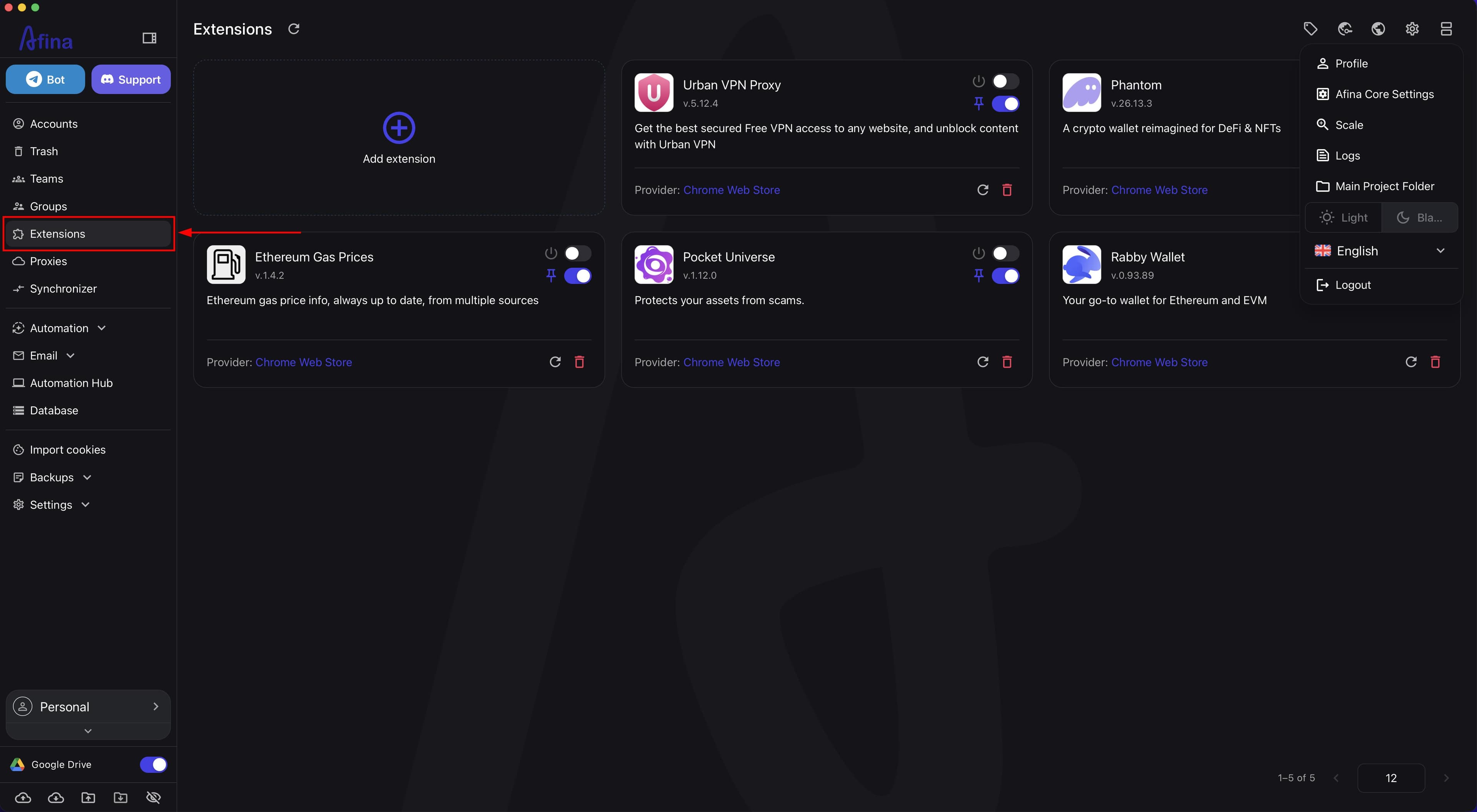
- Go to the Extensions section in the left navigation panel.
The page will display a list of all added extensions and the Add extension tile.
The screenshot below shows the left navigation panel with the "Extensions" section open and the list of extensions.
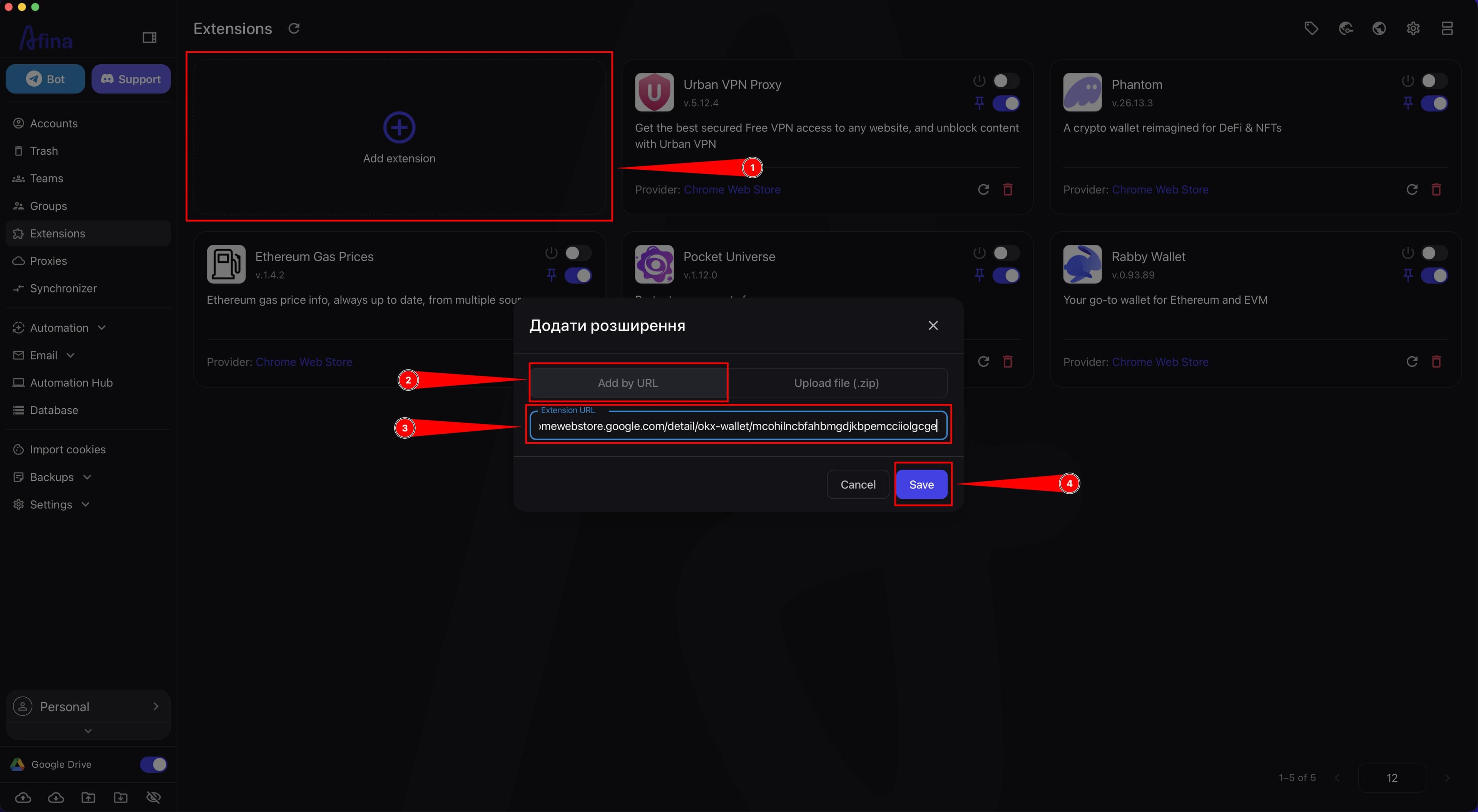
- Click the Add extension tile.
The "Add extension" modal window will open.
The next screenshot shows the "Add extension" tile and the "Add extension" modal window in URL adding mode.
-
In the "Extension URL" field, paste the link from
Chrome Web Storeif you want to add an extension by URL. -
Click Save to add the extension by URL.
After that, the extension will appear in the list.
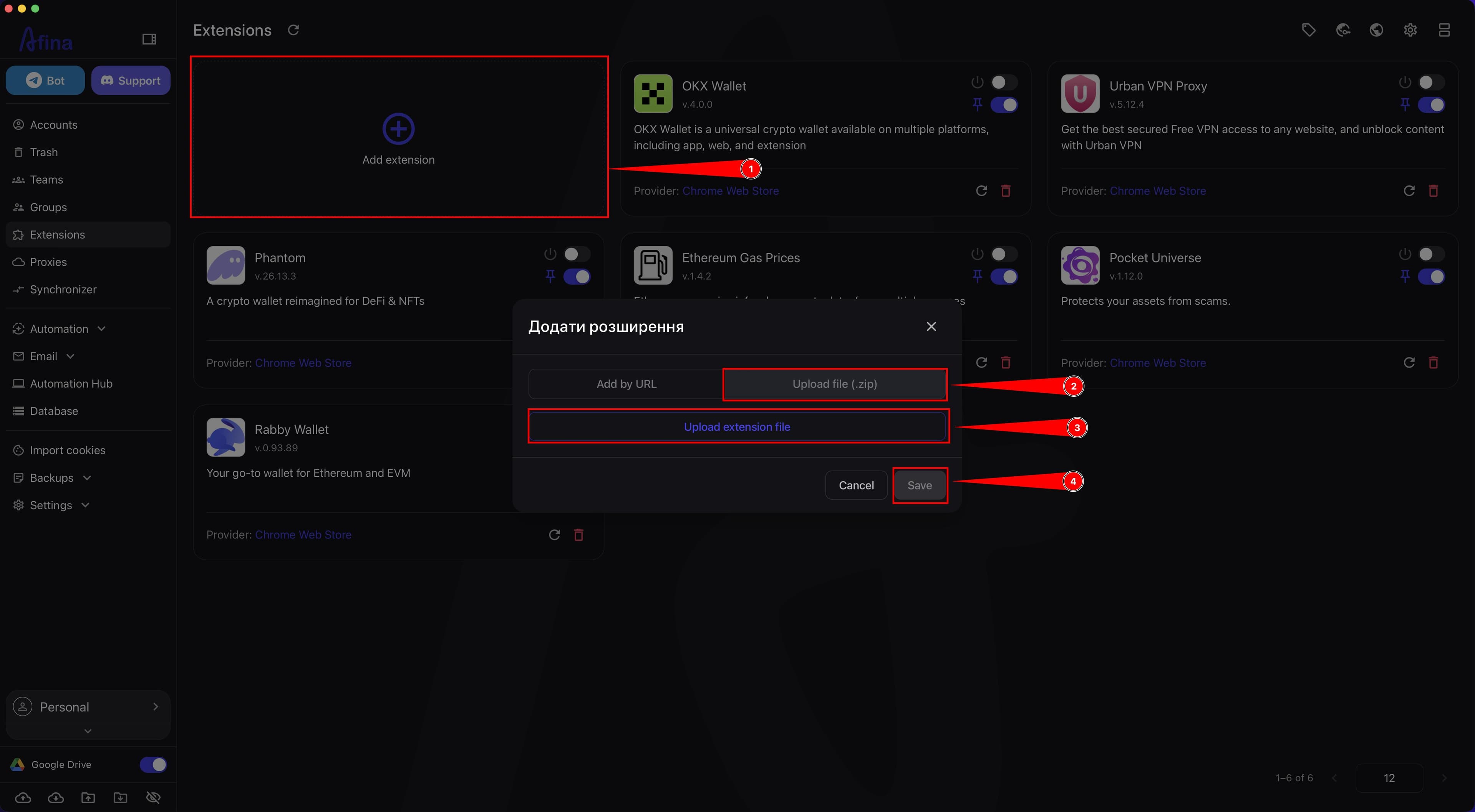
- Open the "Upload file (.zip)" mode if you need to add a local extension.
This screenshot shows the "Add extension" modal window in "Upload file (.zip)" mode.
-
Click Upload extension file.
-
Select the
.ziparchive in the system window. -
Click Save to add the local extension.
After that, the local extension will also appear in the list.
Managing the Extension Card#
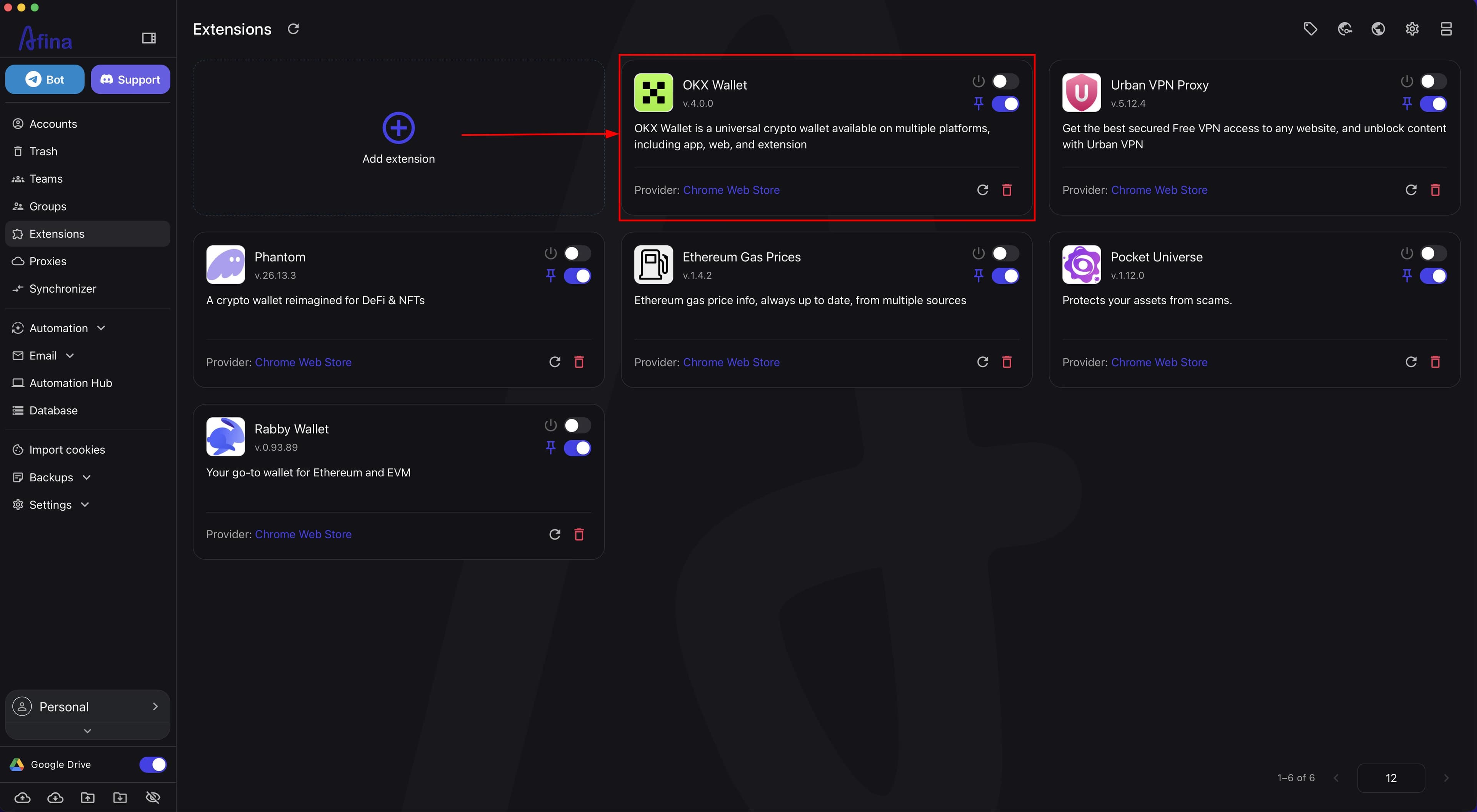
Each added extension is displayed as a separate card. In the card, you can see:
- the extension icon;
- the name;
- the version;
- the description;
- the provider;
- the enable toggle;
- the pin toggle;
- the update icon;
- the delete icon.
If an extension was added from Chrome Web Store, the "Provider" field will show Chrome Web Store. If an extension was uploaded through .zip, it will be displayed as locally added.
- Review the card of the required extension in the list.
The screenshot below shows an extension card with the main controls.
-
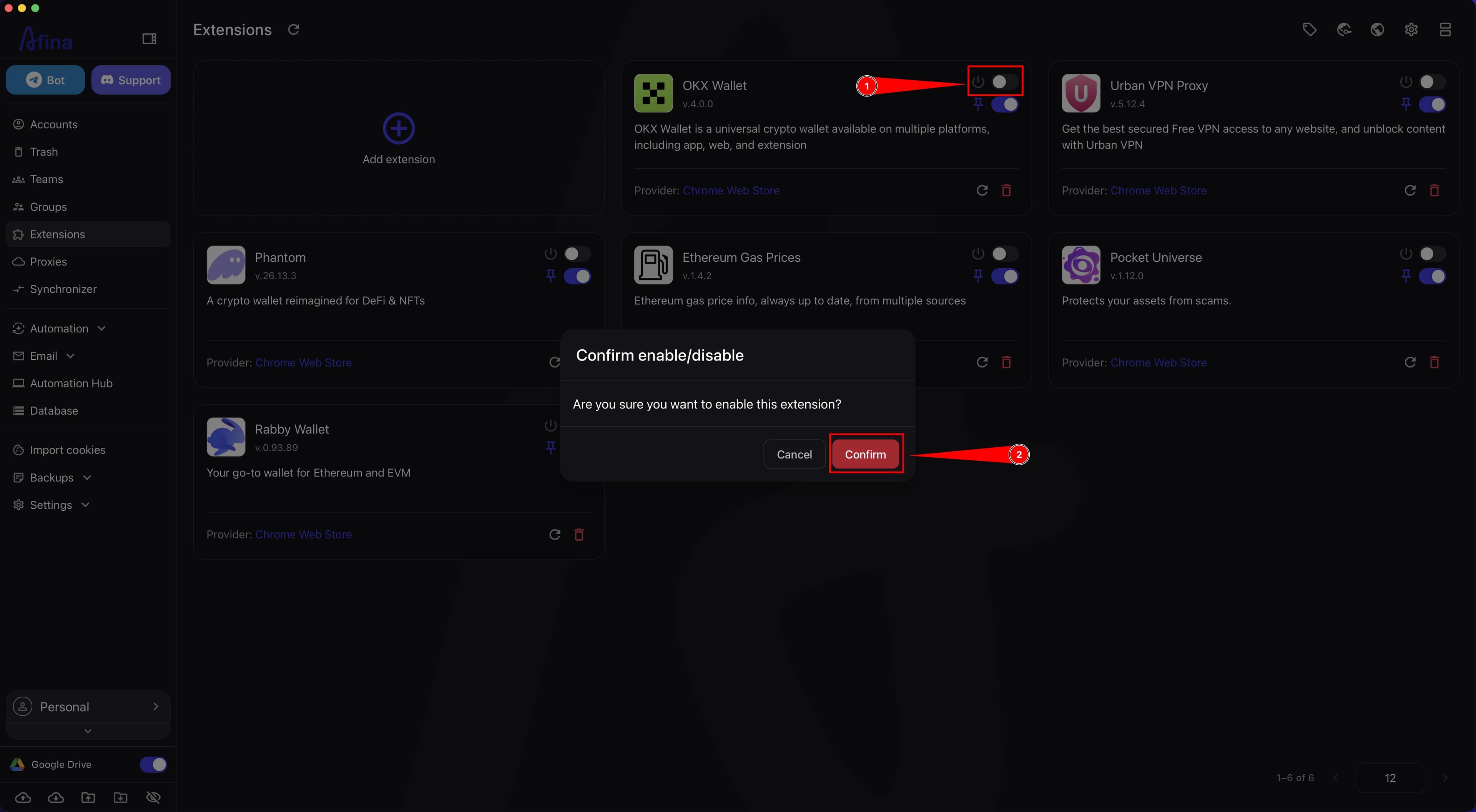
Enable or disable the extension using the toggle on the card if you need to change its state.
-
Click Confirm in the "Confirm enable/disable" window.
If you click Cancel, the change is not applied.
The next screenshot shows the enable toggle on the extension card and the state change confirmation window.
-
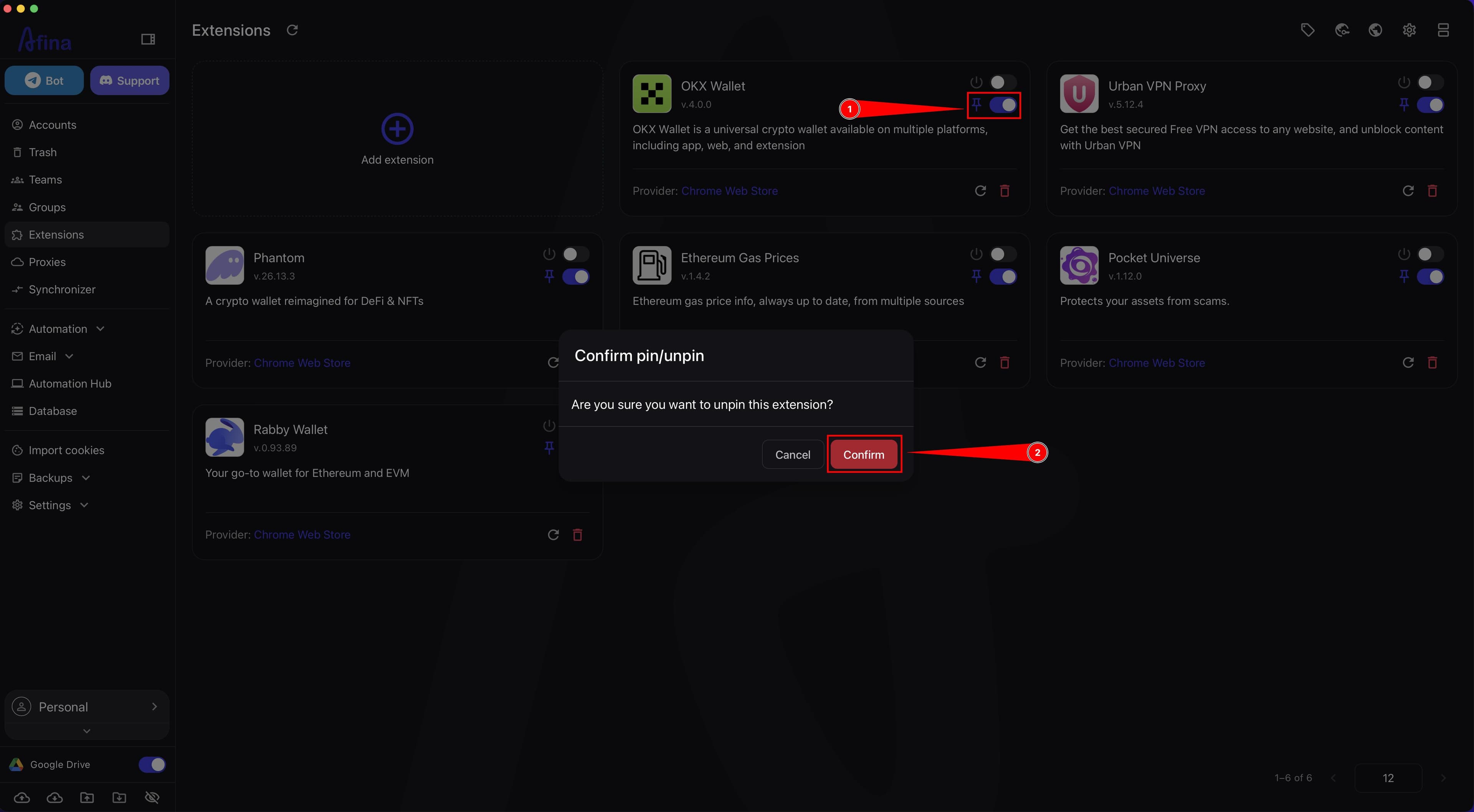
Enable or disable the pin toggle on the card if you need to pin or unpin the extension in the browser.
-
Click Confirm in the "Confirm pin/unpin" window.
After that, the extension will be pinned or unpinned in the browser.
This screenshot shows the pin toggle on the extension card and the confirmation window.
-
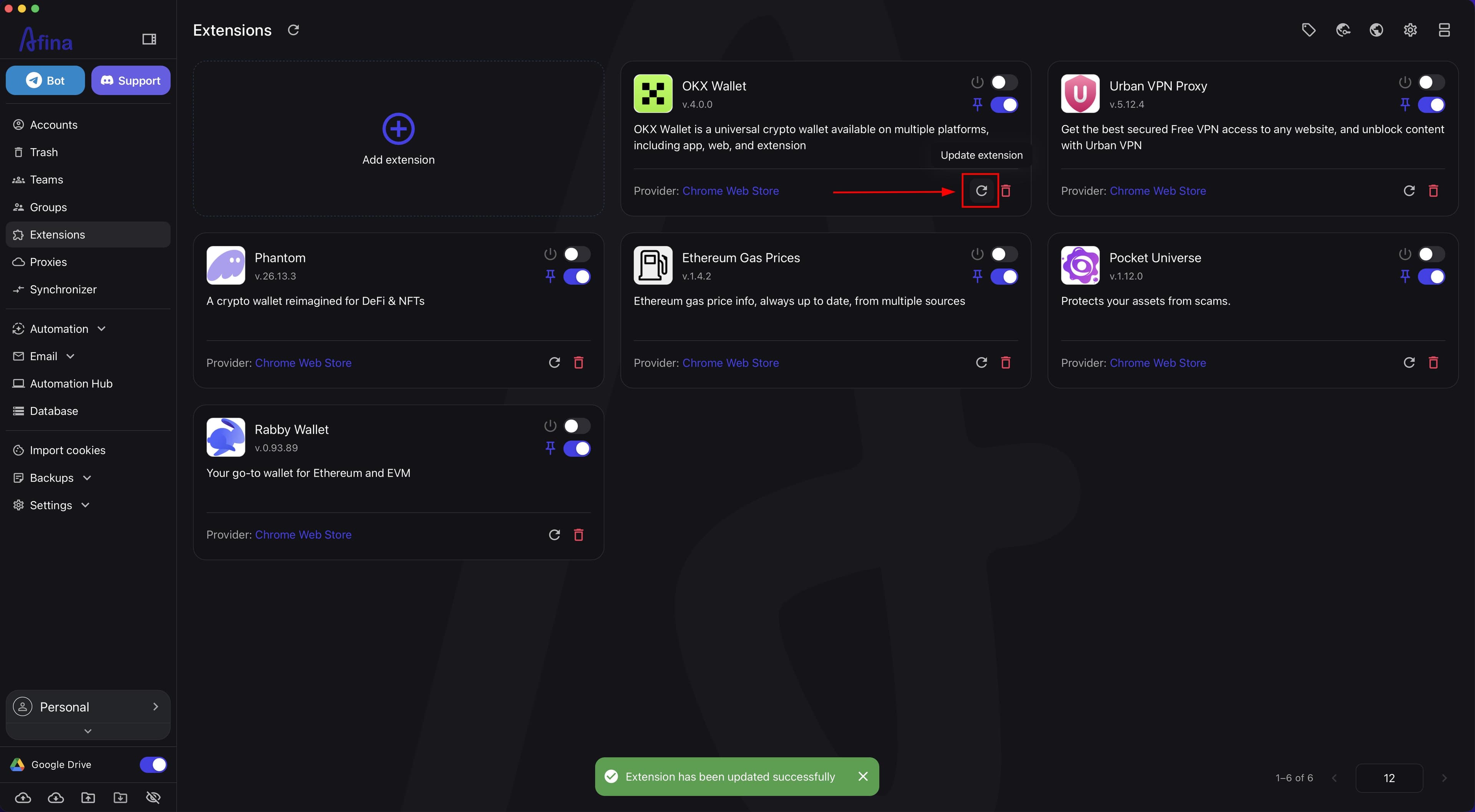
Click the Update extension icon on the card if you need to update the extension.
-
Wait for the update to finish.
After a successful update, Afina will show a message with the result.
Updating this way is available for extensions added from Chrome Web Store. For extensions that were added through .zip, the new version must be uploaded as a separate archive.
The screenshot below shows the update action on the extension card and a successful update message.
-
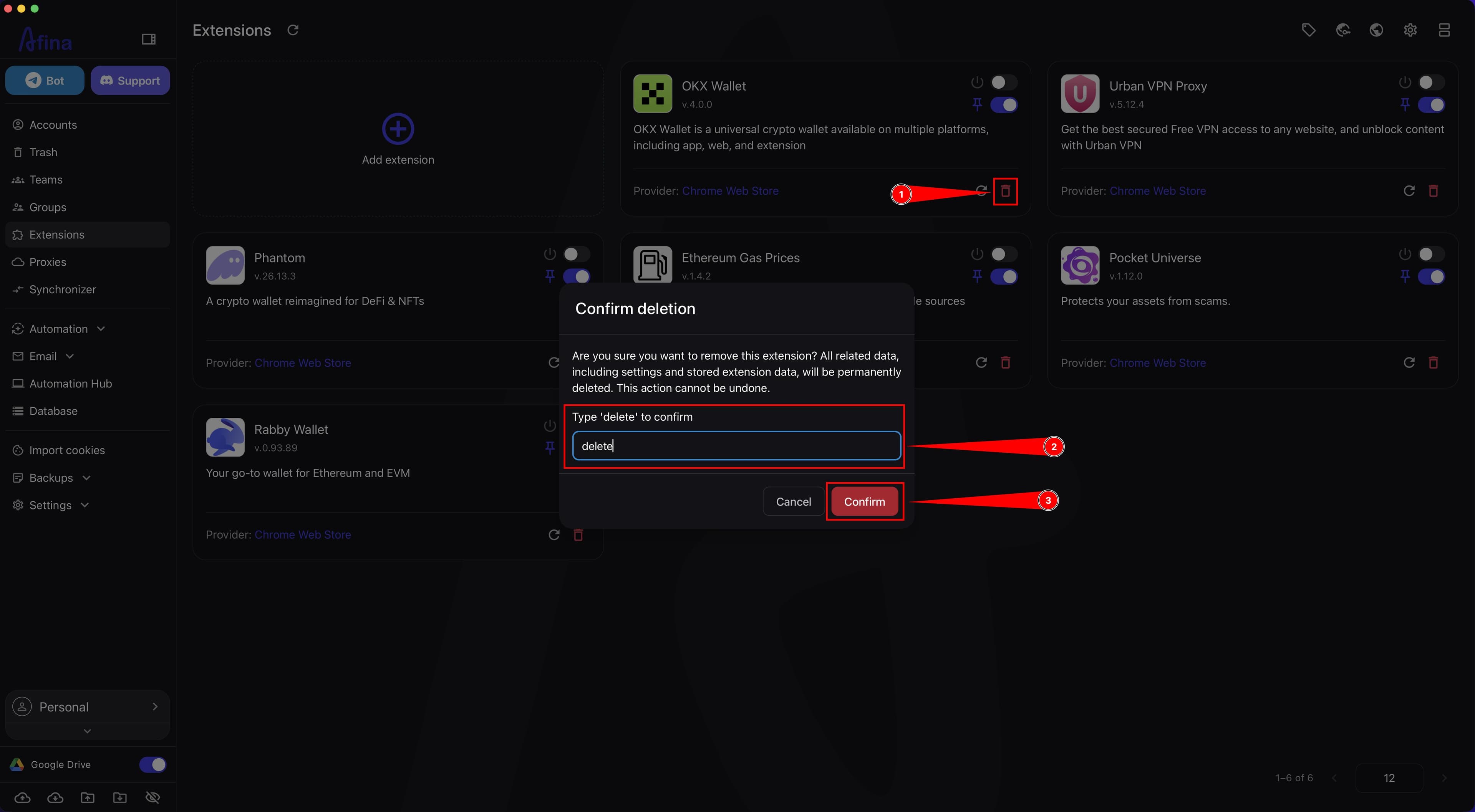
Click the Delete extension icon on the card if you need to completely delete the extension from the Afina list.
-
In the "Type 'delete' to confirm" field, enter
delete. -
Click Confirm.
After that, the extension will be deleted from the Afina list.
The next screenshot shows the delete icon on the extension card and the confirmation window with the word delete entered.
Deleting Extension Data#
It is important to distinguish between two actions:
- delete the extension itself from the "Extensions" list;
- remove extension data from accounts while leaving it in the general list.
Fully deleting an extension from the "Extensions" list does not automatically remove its data from accounts. If you need to clean up this residual data, do it separately through the "Accounts" section.
If you need to delete the extension data specifically from an account, this should be done through the "Accounts" section. In this scenario, you remove the extension data from the account, but do not delete the extension itself from the general list.
This approach is worth using if:
- the extension data is no longer needed on the account;
- the extension itself may still be needed for this account later.
-
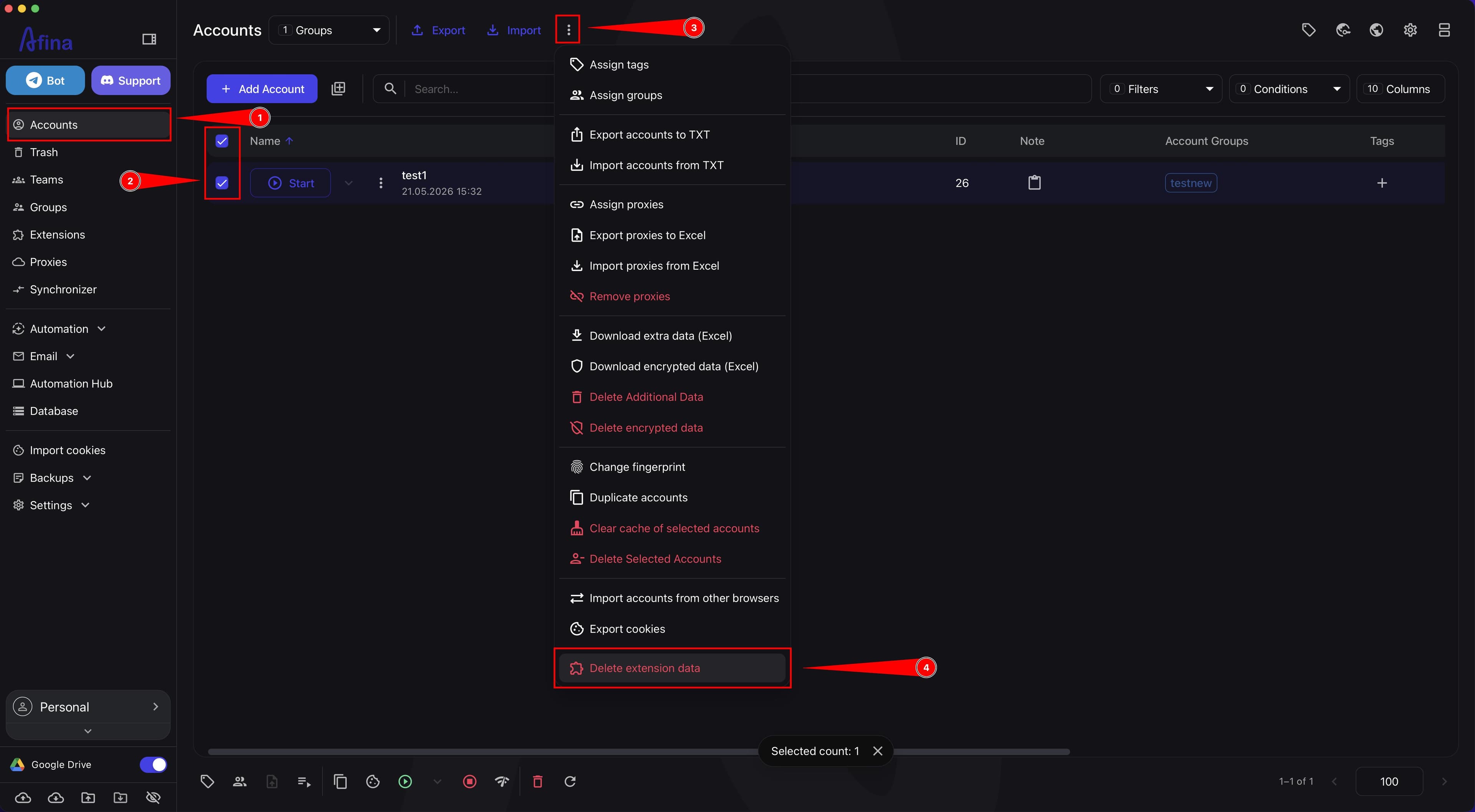
Go to the Accounts section.
-
Select the checkbox for the account or accounts from which you need to delete the extension data.
-
Click the ⋮ icon in the top action bar.
-
Select Delete extension data in the dropdown menu.
The screenshot below shows the "Accounts" section with a selected account and the "Delete extension data" action in the bulk actions menu.
-
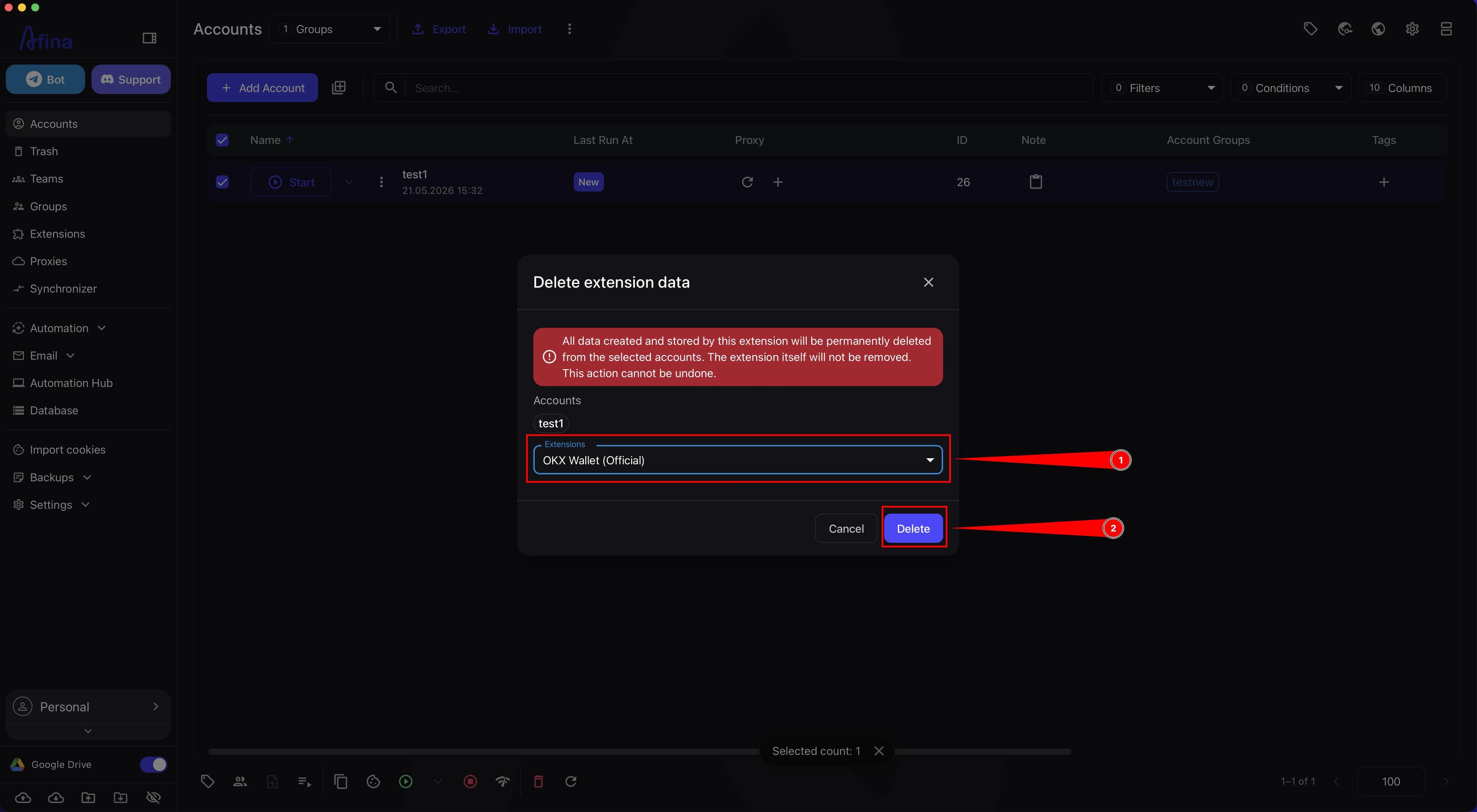
Select the required extension from the list.
-
Click Delete.
The next screenshot shows the "Delete extension data" modal window with a selected account and a dropdown list of extensions.
If the extension has already been deleted from the "Extensions" list, but its data remains on accounts, use the "Clear settings of uninstalled extensions" item in the bulk actions menu ⋮ in the "Accounts" section; it permanently removes this residual data.
Managing Through Accounts#
Through the "Accounts" section, you can manage extensions at the level of individual accounts.
In practice, this means that you can:
- enable or disable an extension next to a specific account;
- check which accounts use this extension.
This method is suitable when you need to precisely change behavior for one account or quickly disable an extension on several accounts without deleting the extension itself from Afina.
-
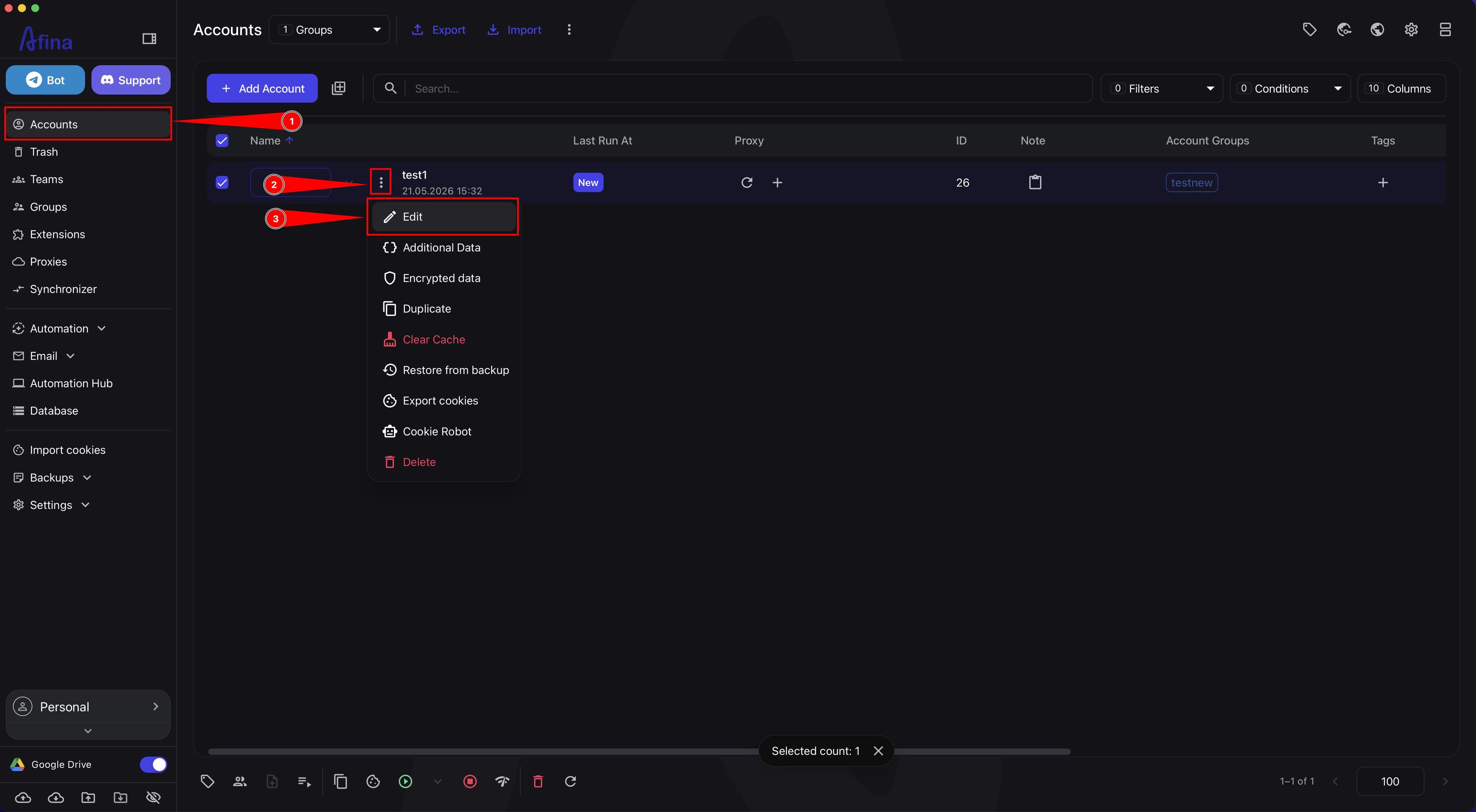
Go to the Accounts section.
-
Find the required account in the list.
-
Click the ⋮ icon next to this account.
-
Select Edit in the dropdown menu.
The screenshot below shows the "Accounts" section with the account action menu open and the "Edit" item selected.
-
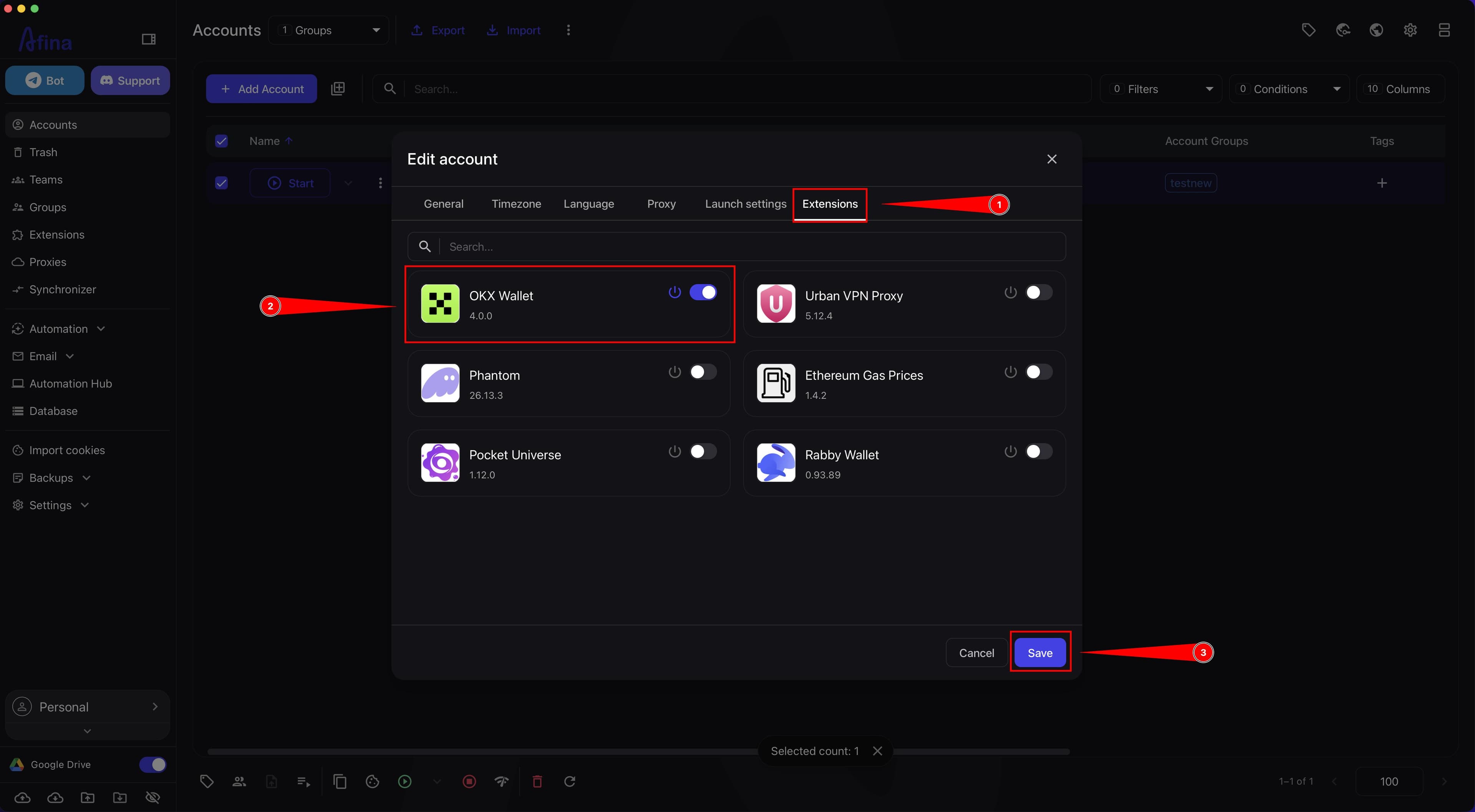
In the "Edit account" window, open the "Extensions" tab.
-
Find the required extension in the list.
-
Enable or disable it using the toggle.
-
Click Save.
This screenshot shows the list of extensions in the "Edit account" window with toggles and the Save button.
Managing Through Groups#
The "Groups" section lets you manage extensions for a group of accounts at once.
The logic is as follows:
- You open or create a group.
- Add the required accounts to it.
- Select the required extensions.
- Save the changes.
After that, the extensions are applied to the accounts that are included in the group.
Through "Groups", it is convenient to:
- enable or disable extensions for several accounts in bulk;
- centrally change the set of extensions for an entire group;
- separate different work scenarios for different accounts.
If an extension is disabled or removed through the "Groups" section, this affects the accounts included in that group.
Settings Priority in Case of Conflict#
If the same extension is configured differently at several levels at once, Afina applies the following priority:
- individual account settings on the "Extensions" tab in the "Edit account" window have the highest priority; such an account ignores the general list;
- group settings - if the "This group will ignore other sources" toggle is enabled in the group, only that group's extensions apply to the accounts in this group, and the other sources are ignored; if the toggle is disabled, the group's set of extensions only complements the current account configuration;
- the global toggle in the "Extensions" section has the lowest priority; it only defines the default behavior for accounts without their own or group settings.
If an account belongs to several groups at once, their sets of extensions are combined rather than overwriting one another.
In other words:
- if extensions are configured on an account through a group with the "This group will ignore other sources" toggle active, these settings take precedence over all others;
- if an extension is individually enabled on an account through the "Accounts" section, it will continue working even after this extension is disabled in the general list;
- groups are convenient specifically for bulk management when you do not want to edit each account separately.
Therefore, the "Groups" section is better used when you need to centrally manage the same set of extensions for several accounts.
Adding to the Account Profile#
An extension can be added not only through the general "Extensions" section, but also directly in the profile of a specific account.
In this case, Afina also adds this extension to the general "Extensions" section, but in practice it is immediately tied to the account from which it was added.
This option is not recommended for continuous work, because later such an extension will have to be deleted or disabled manually. Because of this, management becomes less convenient than with centralized adding through the "Extensions" section.
It is recommended to add extensions through the "Extensions" section and then manage their use through "Accounts" or "Groups".
Some extensions have their own operating specifics. OKX Wallet does not transfer authorization when moving an account to another computer or server; you will have to enter the seed phrase again. The synchronization option between devices inside the wallet partly helps. In Rabby Wallet, internal processes sometimes conflict, which can cause transactions to freeze.
Result#
After completing these actions, you will have a full working scenario for managing extensions in Afina: from adding by URL or .zip to enabling, pinning, updating, deleting, clearing data on accounts, and centralized management through "Accounts" and "Groups".
Signs of a Successful Result
- the required extension is displayed in the "Extensions" section;
- the extension can be enabled or disabled through the card;
- the extension can be pinned or unpinned in the browser;
- for extensions from
Chrome Web Store, updating through the card works; - extension data can be deleted separately from accounts through the "Accounts" section;
- the use of extensions can be centrally controlled through "Accounts" and "Groups".
If Something Does Not Work as Expected
- if you cannot add an extension by URL, check whether a correct link is pasted into the "Extension URL" field;
- if you cannot add an extension through a file, check whether a
.zipfile is selected; - if the enable or pin state does not change, check whether you clicked Confirm in the confirmation window;
- if the extension does not update, check whether it was added from
Chrome Web Store, because for local.zipextensions, updating through the card button is unavailable; - if an extension from
Chrome Web Storesuddenly stopped launching by itself, check the "Security" -> "Verify extension integrity" settings: if file hashes do not match, often after the extension itself auto-updates, Afina blocks launch; delete the extension and add it again; - if the extension was deleted from the list but was still used on accounts, remove it separately through the "Accounts" and "Groups" sections;
- if the extension was added directly to the account profile and is now difficult to delete, open this exact account and disable or delete it manually.