Clear Cache#
Clearing the cache helps free up disk space and fix website display issues. In Afina, this procedure does not delete cookies, sessions, or important account data, so you will not be logged out of your accounts.
The browser's local cache stores images, scripts, and other website elements on disk so pages open faster. Over time, this temporary data can take up a lot of space.
Clearing the cache does not delete cookies, sessions, or important account data. The user remains authorized.
Cache is not critical data. You can safely clear it, including before moving the main project folder to another drive or when you need to quickly free up space.
Clearing One Account#
You can clear the cache separately for a specific account directly from the table in the "Accounts" section.
- Go to the Accounts section.
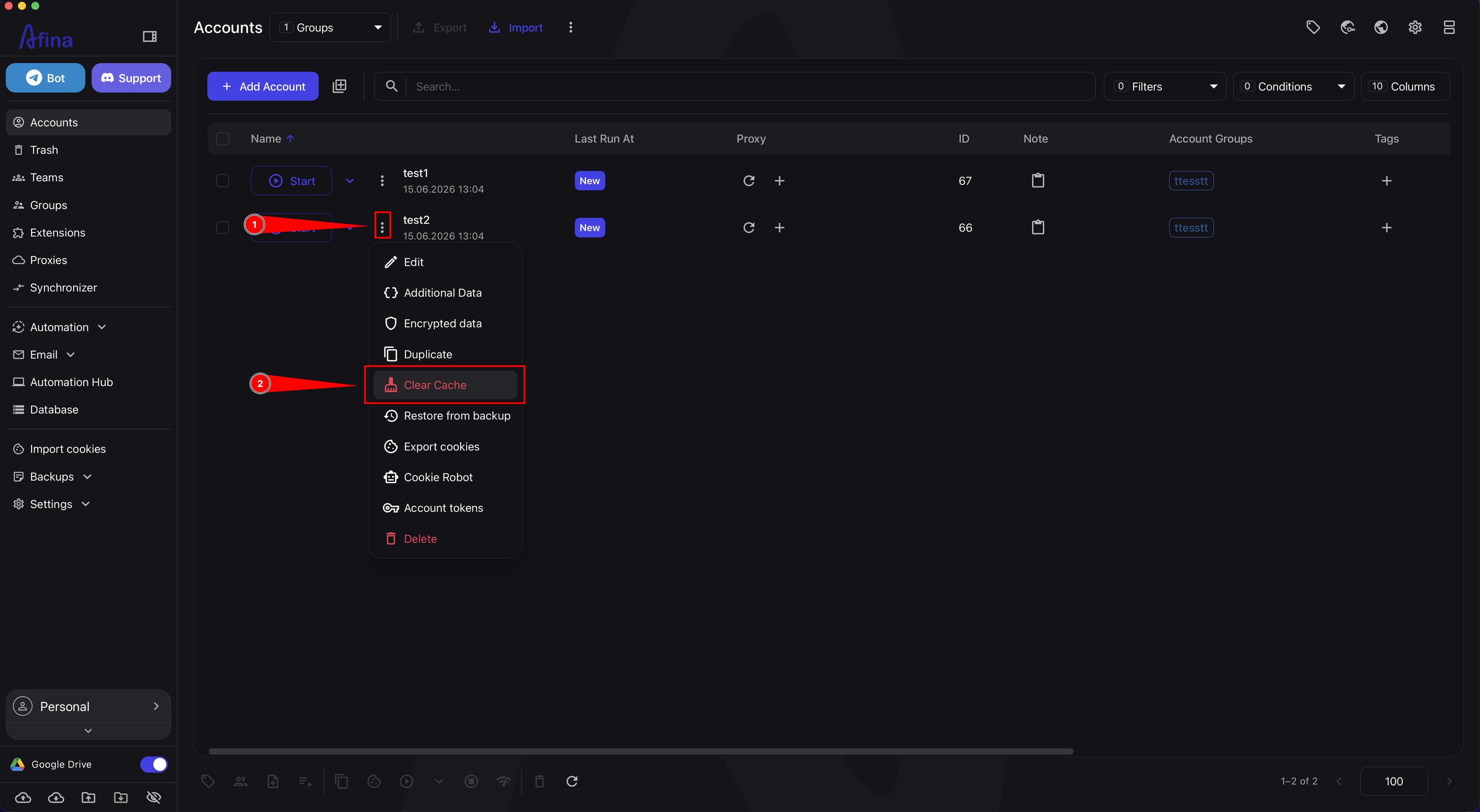
- Click the ⋮ icon in the row of the required profile.
- Select Clear cache.
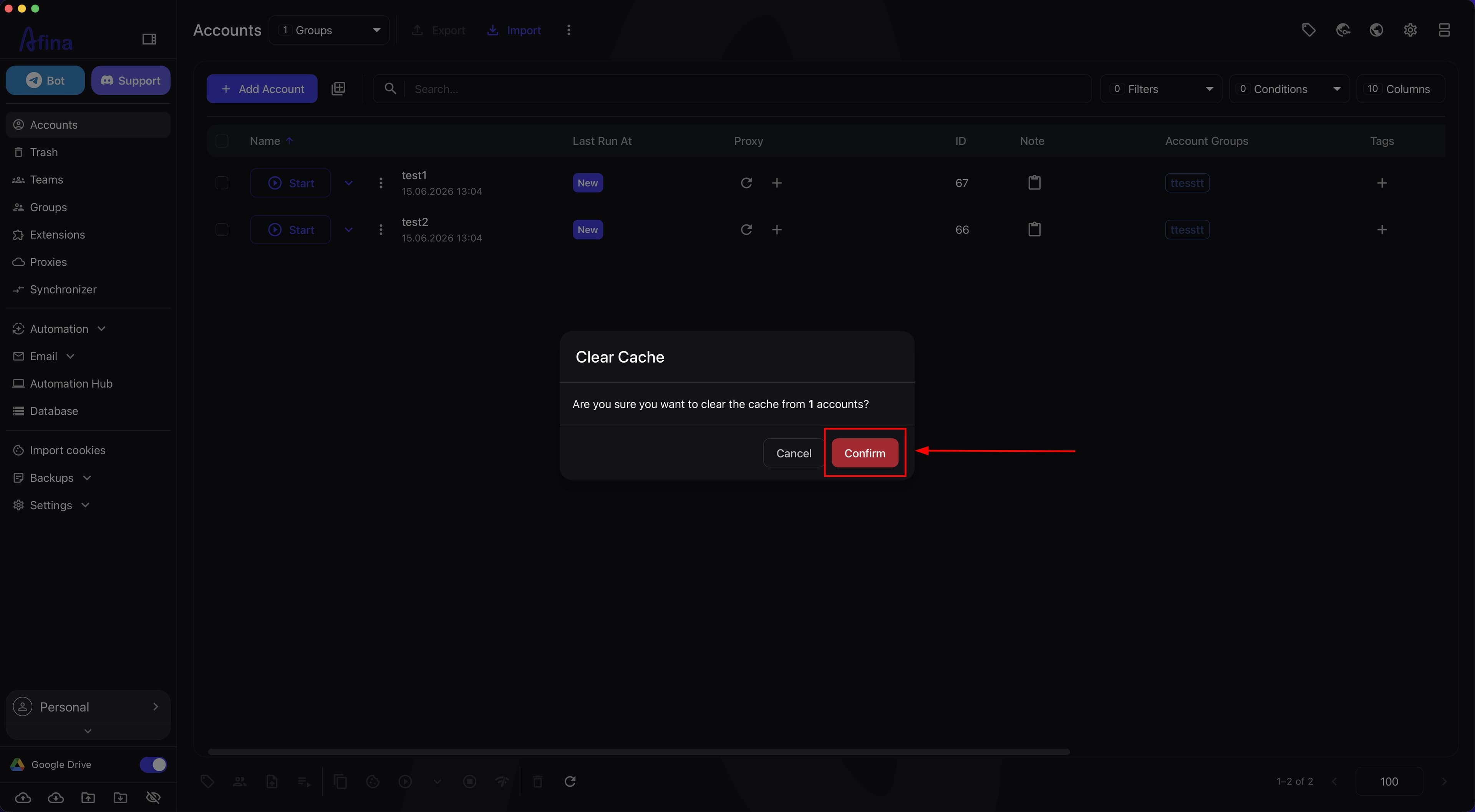
- In the modal window, click Confirm.
The screenshot below shows the action menu in the profile row in the Accounts section with the Clear cache option.
The next screenshot shows the cache clearing confirmation modal window.
Bulk Clearing#
You can clear the cache for several accounts at once through the top control panel.
- Go to the Accounts section.
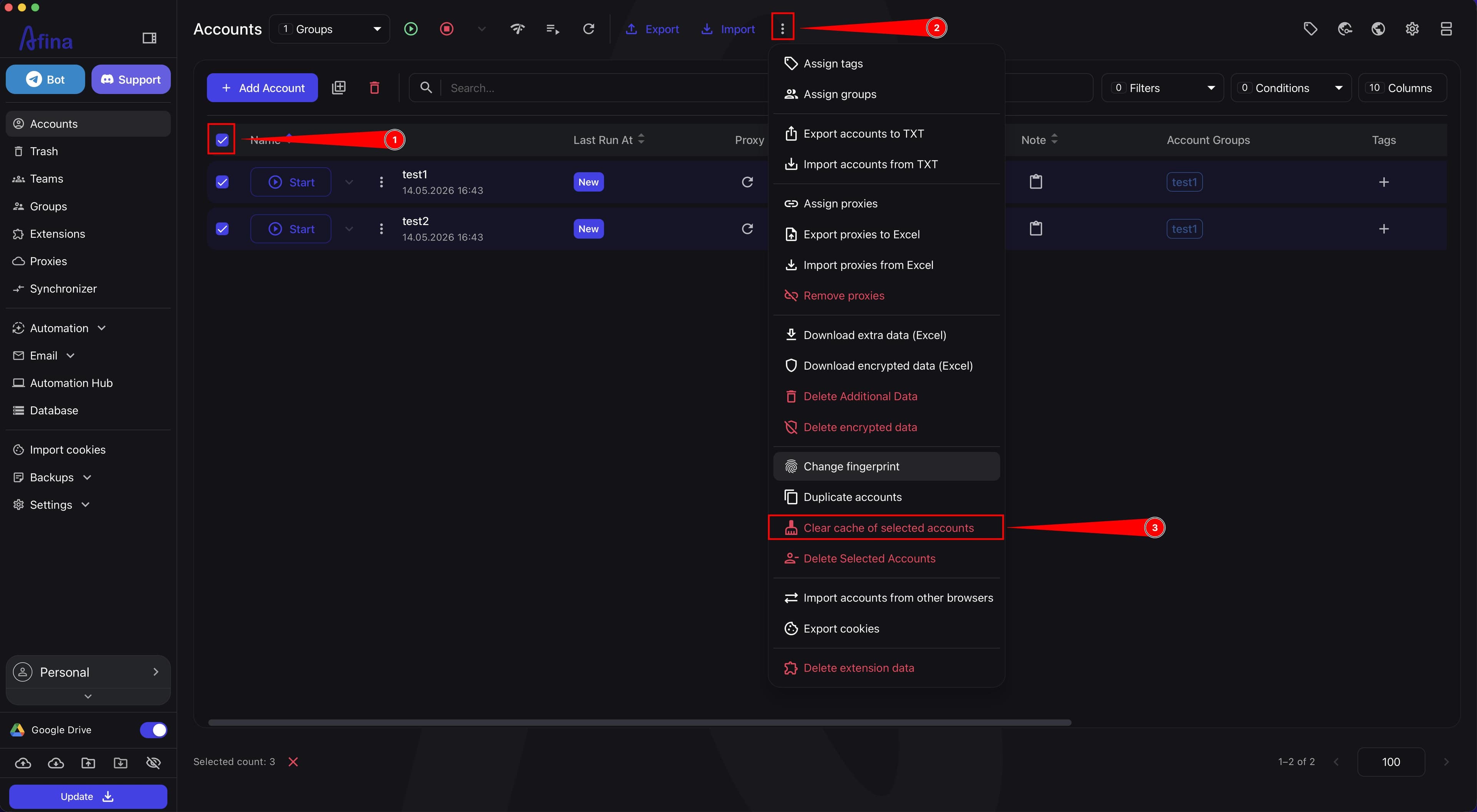
- Select the required profiles with checkboxes.
- On the top control panel, click the ⋮ icon.
- Select Clear cache of selected accounts.
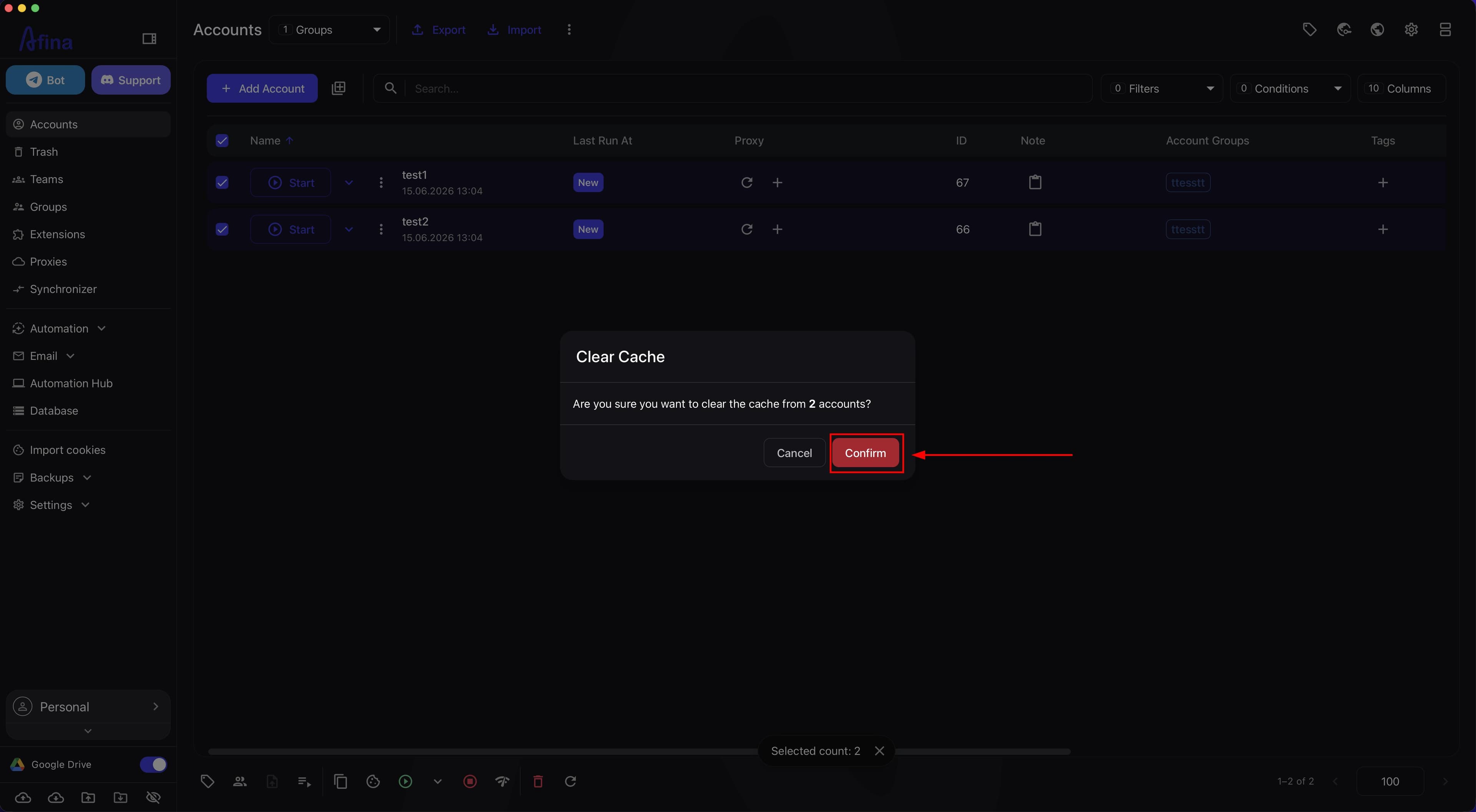
- In the modal window, click Confirm.
The screenshot below shows the top control panel with selected profiles and the additional actions menu open.
The next screenshot shows the cache clearing confirmation modal window for the selected accounts.
Automatic Clearing#
Afina can automatically delete cache on a schedule, so you do not have to do it manually.
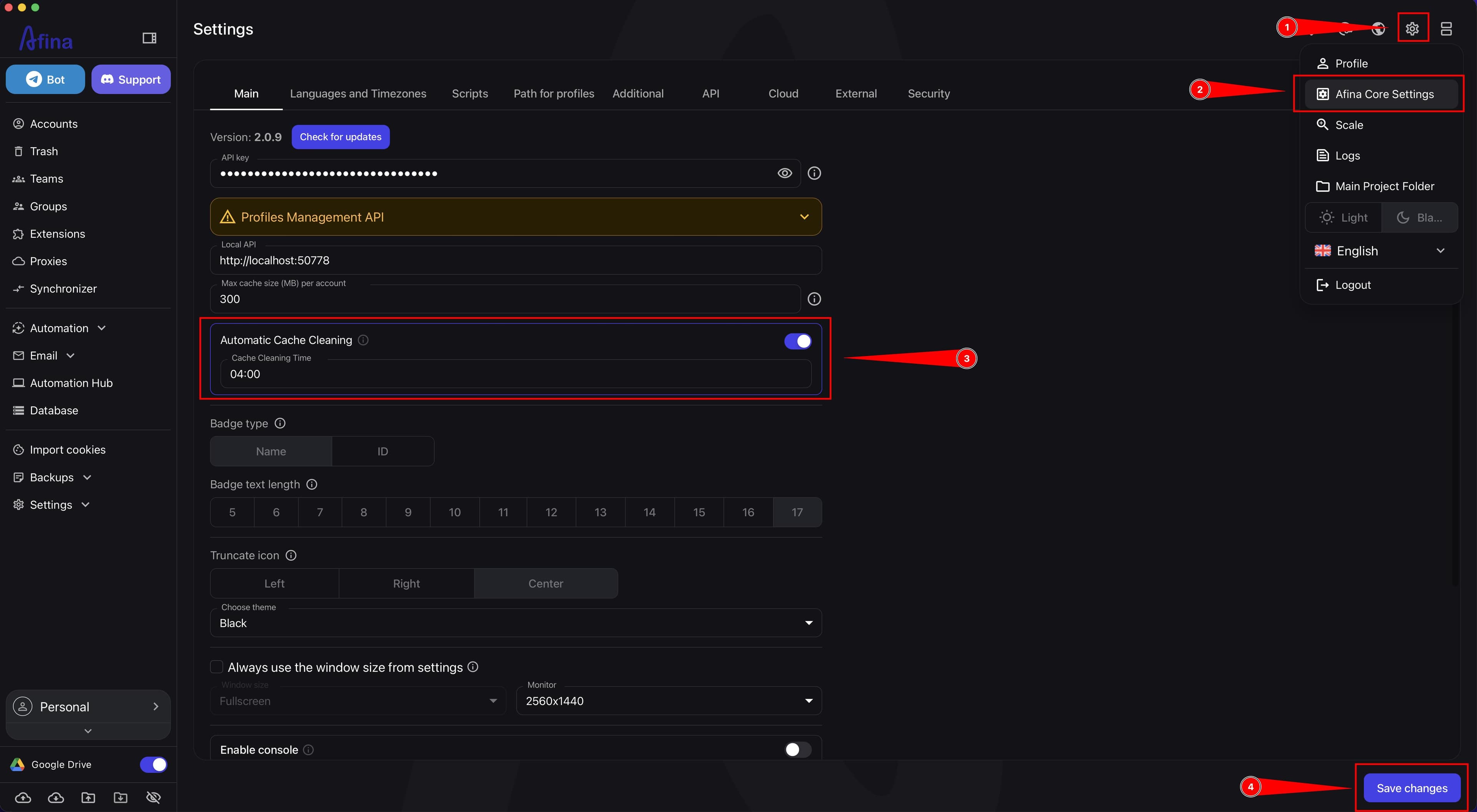
- Click the gear icon in the upper-right corner.
- Select Afina Core Settings.
- Open the "Main" tab.
- Turn on the "Automatic Cache Cleaning" switch.
- In the time field, enter the required time, for example
04:00. - Click Save changes at the bottom of the page.
The screenshot below shows the "Main" tab with "Automatic Cache Cleaning" enabled and the time field.
At the scheduled time, Afina will start deleting cache files for each account. After clearing, the first website load may be slightly slower because the browser will need to download images, scripts, and other website elements again.
Manual Deletion Through the Folder#
This method is suitable when you do not need to open the program and only need to physically delete cache files.
Before manually working with the cache folder, close Afina so the program does not use cache files during deletion.
- Click the gear icon in the upper-right corner.
- Select Main Project Folder.
- Go to the cache folder.
- Find the folder with the UUID of the required account inside it.
- Delete the contents of the required UUID folder if you need to clear the cache for only one account.
- Delete the contents of all folders in the cache directory if you need to clear the cache for all accounts.
Never delete the data folder completely if you do not have backups. It stores all your settings, scripts, and profiles.
What This Affects#
Clearing the cache affects the amount of data, the speed of the first website load after clearing, and the stability of page display.
Disk space By default, Afina limits cache to 300 MB per account. If you have 1000 accounts, cache can take up to 300 GB, and clearing it frees that space.
Speed After clearing, the first website load will be slightly slower because the browser will need to download images, scripts, and other website elements again.
Display issues If a website updated its design but you still see an old or broken version, clearing the cache may fix it.
Limits
In the "Main" tab, you can change the "Max cache size (MB) per account" parameter. If you set the value to 0, the standard Chromium limits will be used. The new limit applies after the profile is restarted.
Cache storage mode When creating or editing an account, you can choose one of the modes:
Default (cached)— the browser stores cache;Don't keep— cache does not accumulate for the profile.
Usually, Default (cached) is kept because it is closer to natural browser behavior. The Don't keep mode is suitable for scenarios where it is important to minimize local temporary data.
Automatic Cache Cleaning Automatic clearing is useful if you need to regularly free up disk space and avoid accumulating old cache across a large number of profiles.
Result#
After clearing the cache, Afina deletes temporary files and images, frees up disk space, and can remove website display issues. At the same time, cookies and sessions in accounts remain unchanged.