Using Afina on Multiple Devices#
This guide shows how to use Afina on two or more computers. You will learn when simultaneous work is possible, how to set up alternating work, and what conditions are required to open accounts correctly on different devices.
Before You Start#
- To work simultaneously on two or more computers, you need a plan with support for additional users: Base, Standard, or Max.
- If you have a solo license, you can only work in turns.
- To successfully open accounts on different devices, you need the same key file and the same master password.
If the keys are different, Afina will not be able to decrypt the data. When you try to open a profile, you will get an error and the account will not launch.
Simultaneous Work#
This option is suitable if you have a plan with support for additional users. It is the only way to work in the app in parallel with a colleague or independently from two devices without interrupting the session.
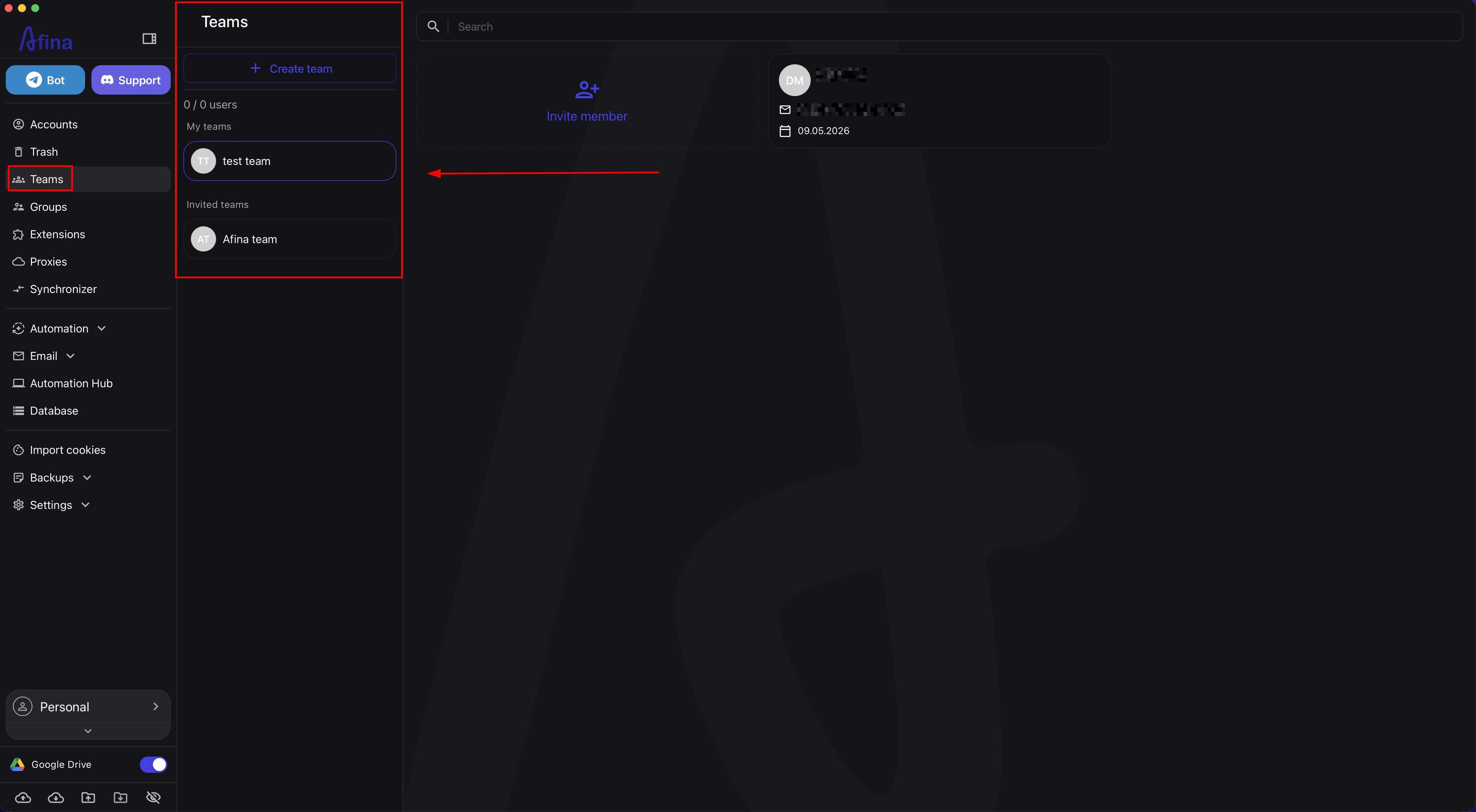
- In the left menu, go to Teams.
- Click Create team.
The screenshot below shows the Teams section in the left menu of Afina, where setup for simultaneous work on multiple devices begins.
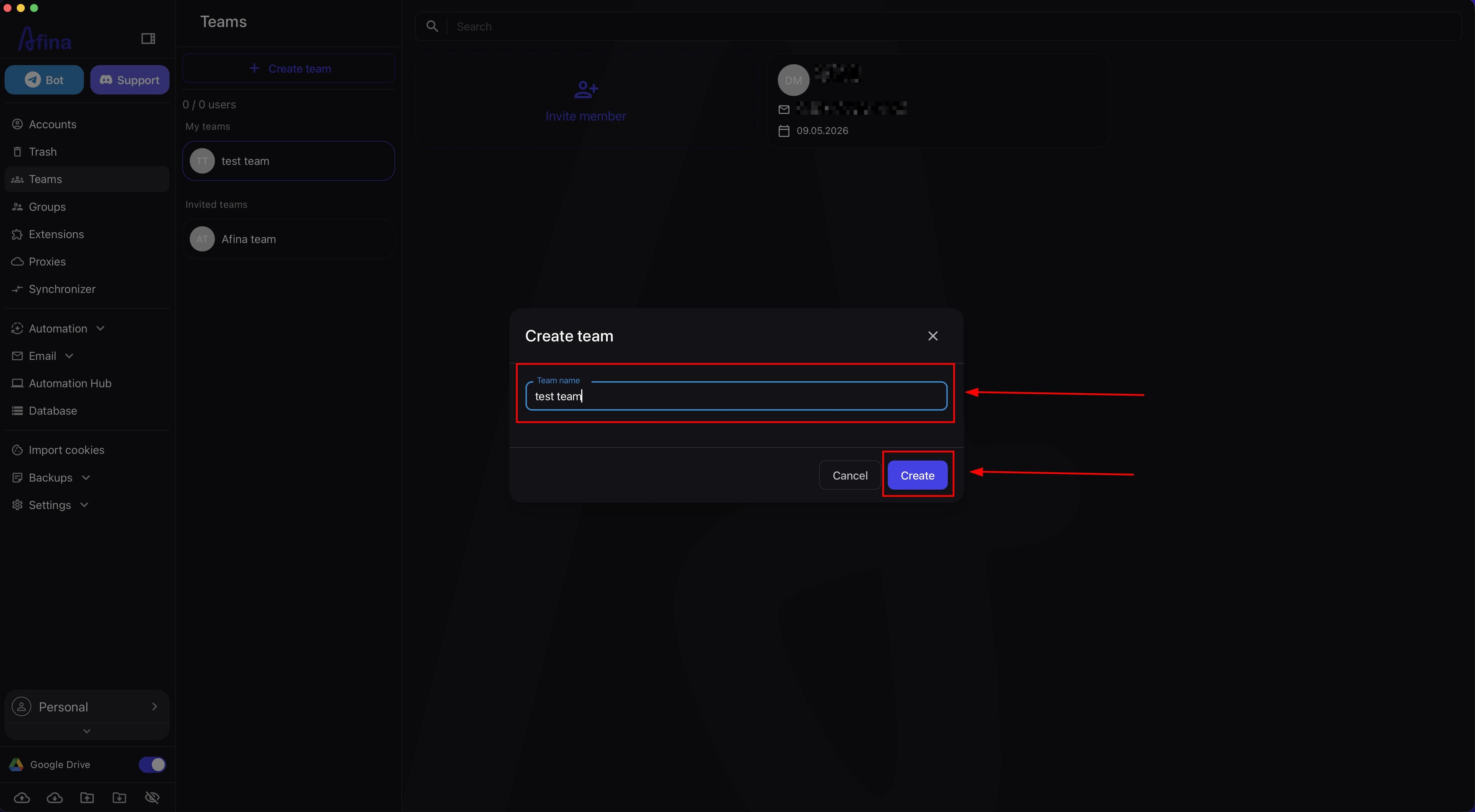
- In the "Team name" field, enter the team name.
- Click Create.
The next screenshot shows the form for creating a new team with the "Team name" field.
- Open the created team.
- Click Invite member.
- In the "Email" field, enter the second user's email address.
- In the "Role" field, select the required role.
- Grant the second user the required permissions.
- Select the "Starting/Stopping profiles" checkbox.
The screenshot below shows the member invitation form with the "Email", "Role", and "Name" fields and the list of permissions, where you need to select the "Starting/Stopping profiles" checkbox.
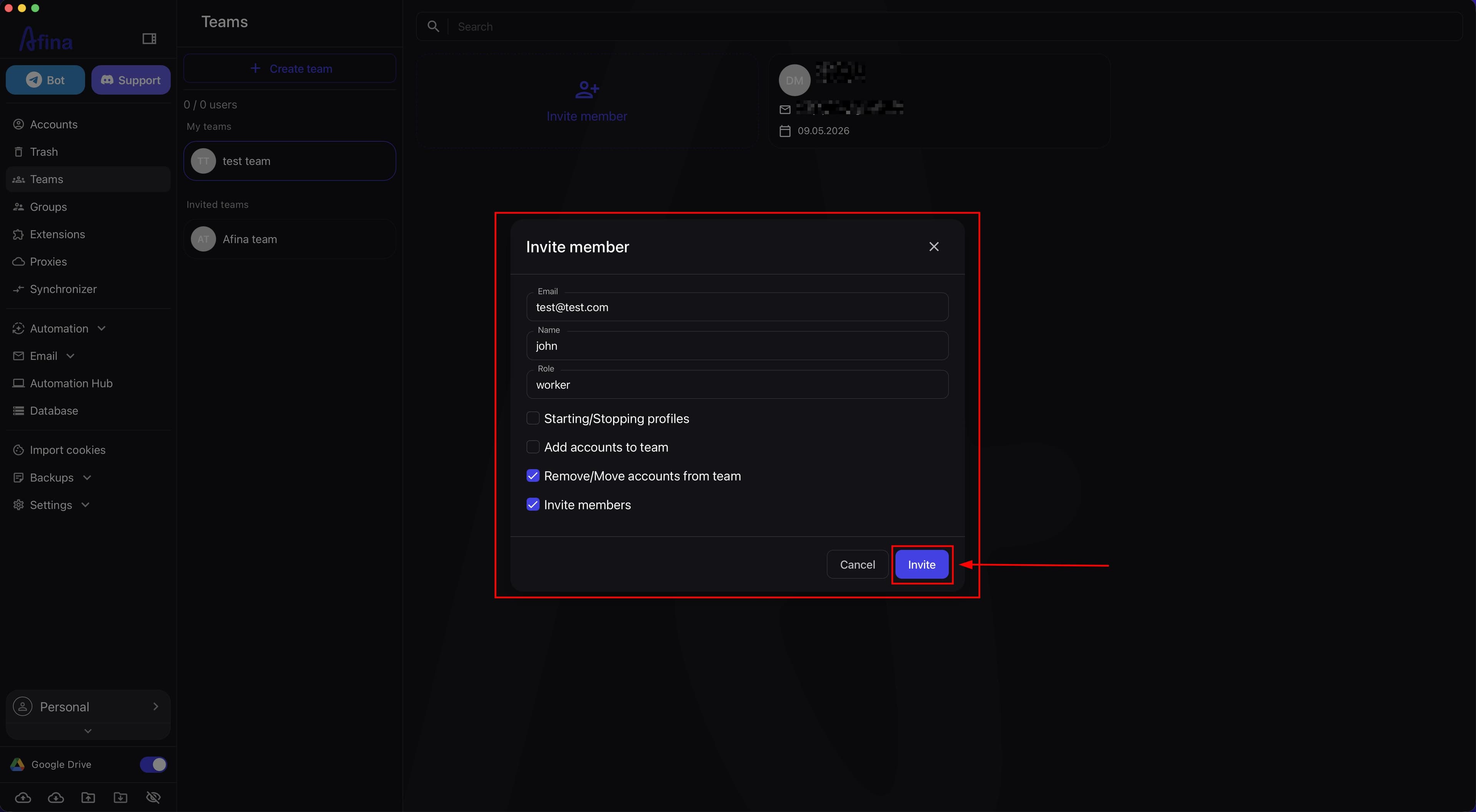
Without the "Starting/Stopping profiles" checkbox, the second user will not be able to work with accounts.
- Click Invite.
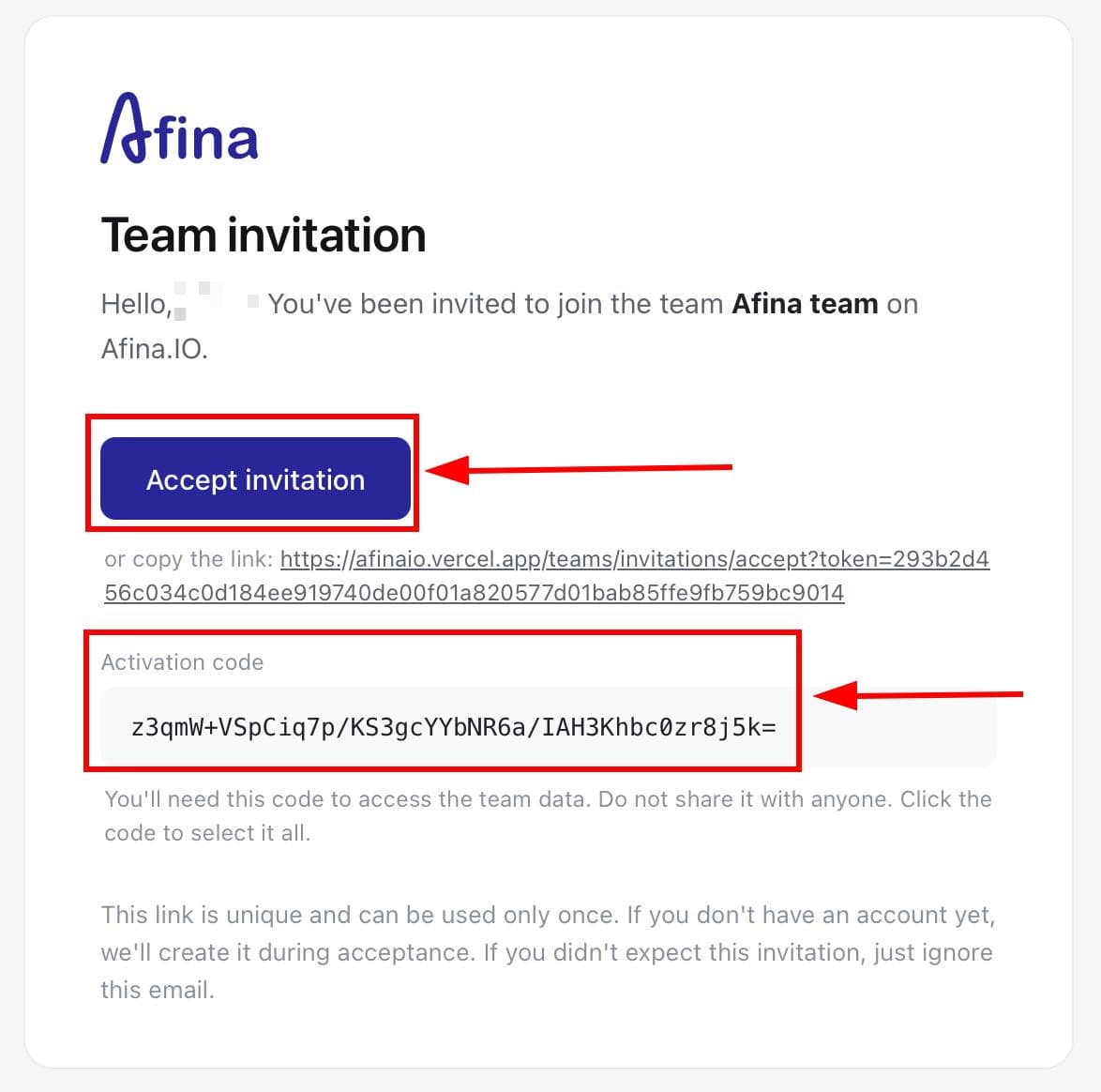
- Wait for an email from no-reply@afina.io in the second user's mailbox.
- Click Accept invitation in the email.
- Copy the Activation code.
The next screenshot shows the invitation email to the team, sent from no-reply@afina.io.
- On the second device, go to Teams.
- Select the team to which the invitation was sent.
- In the "Activation code" field, enter the copied code.
- Click Submit activation code.
The screenshot below shows the Activation code entry form in the Afina app on the second device.
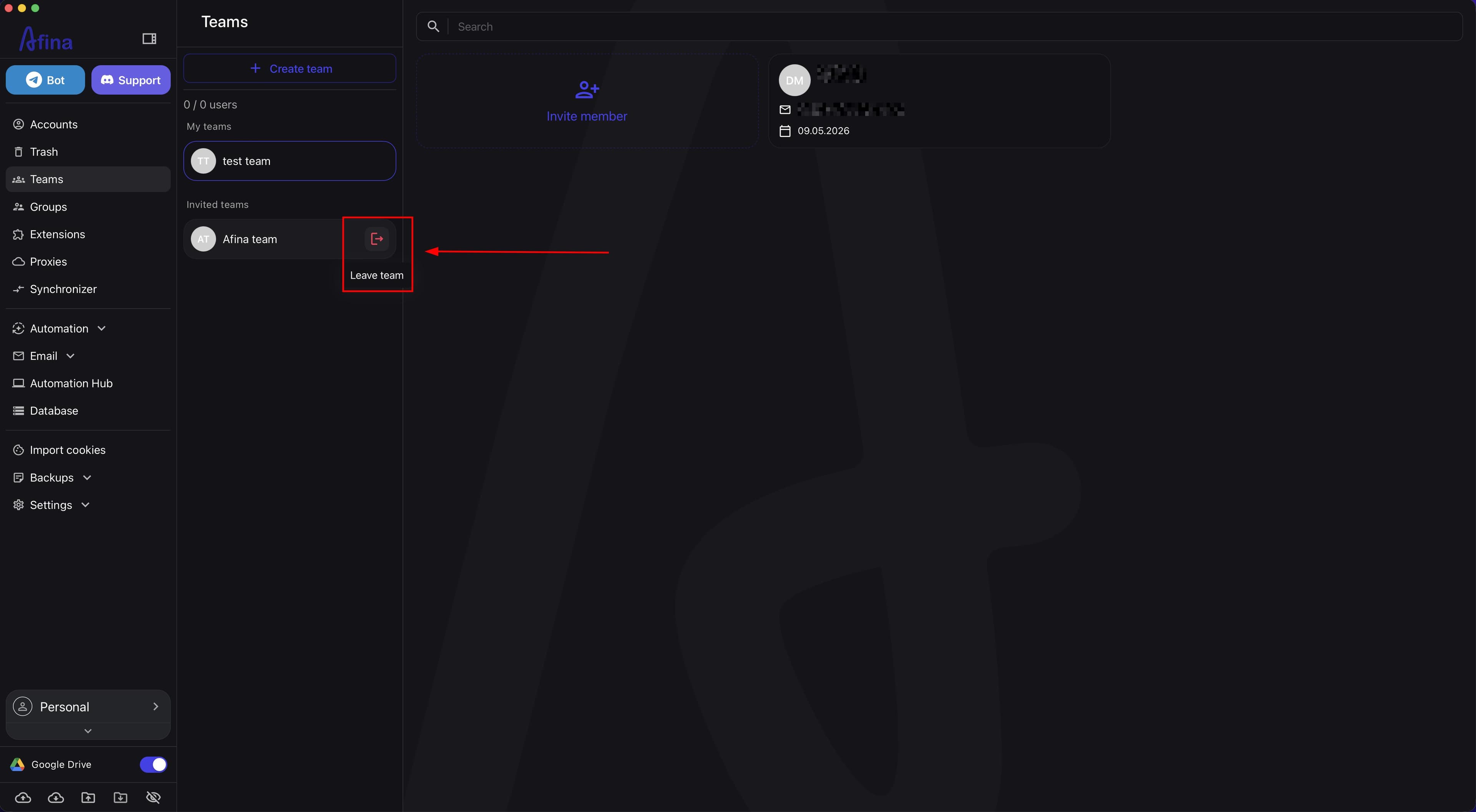
- Go to Accounts.
- Select the required accounts.
- Click Move.
- Select the name of your team.
- Click Move.
The next screenshot shows the window for moving accounts between spaces, where you need to select your team.
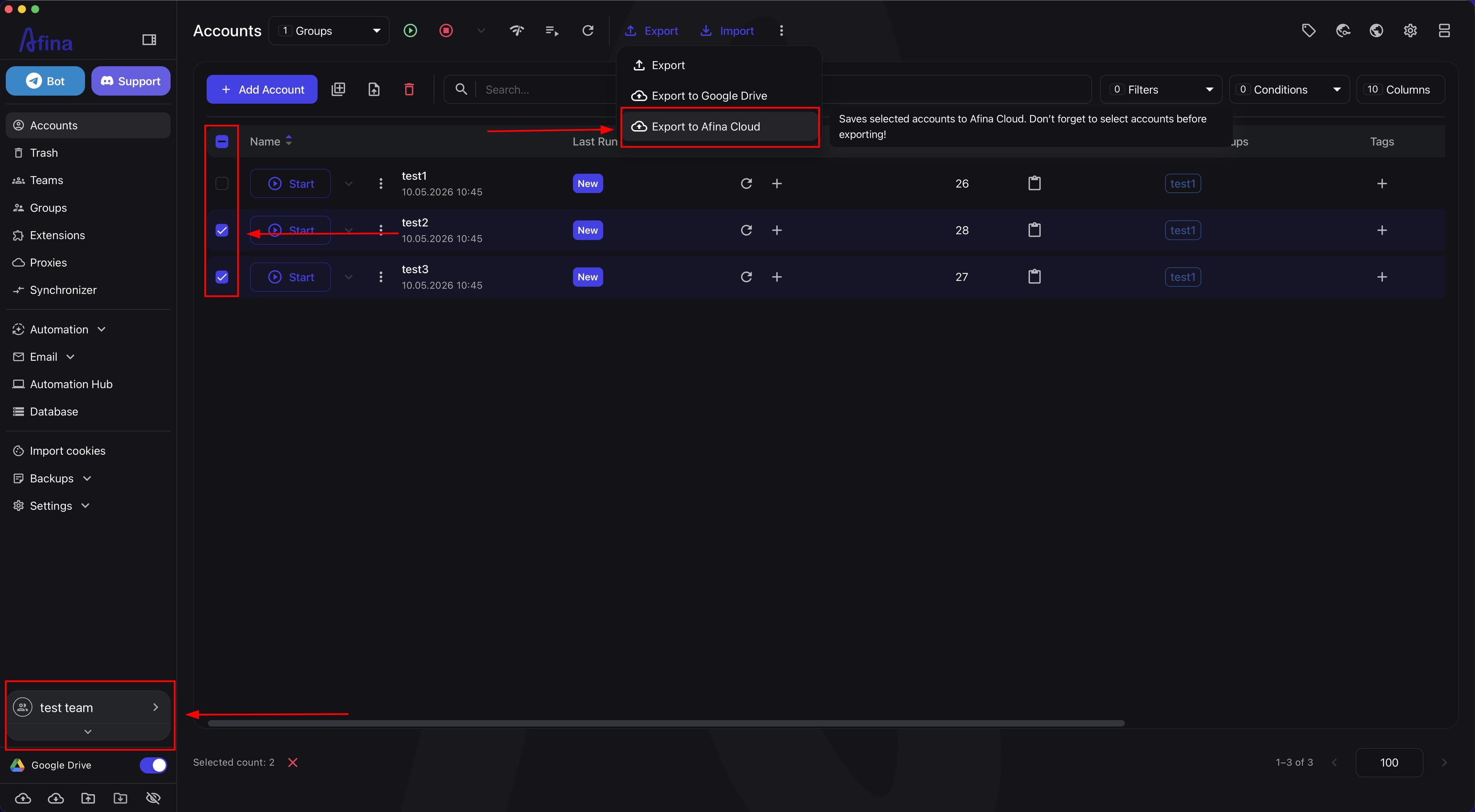
- In the team space, select the required accounts.
- Click Export to Afina Cloud.
The screenshot below shows the export of selected accounts to Afina Cloud from the team space.
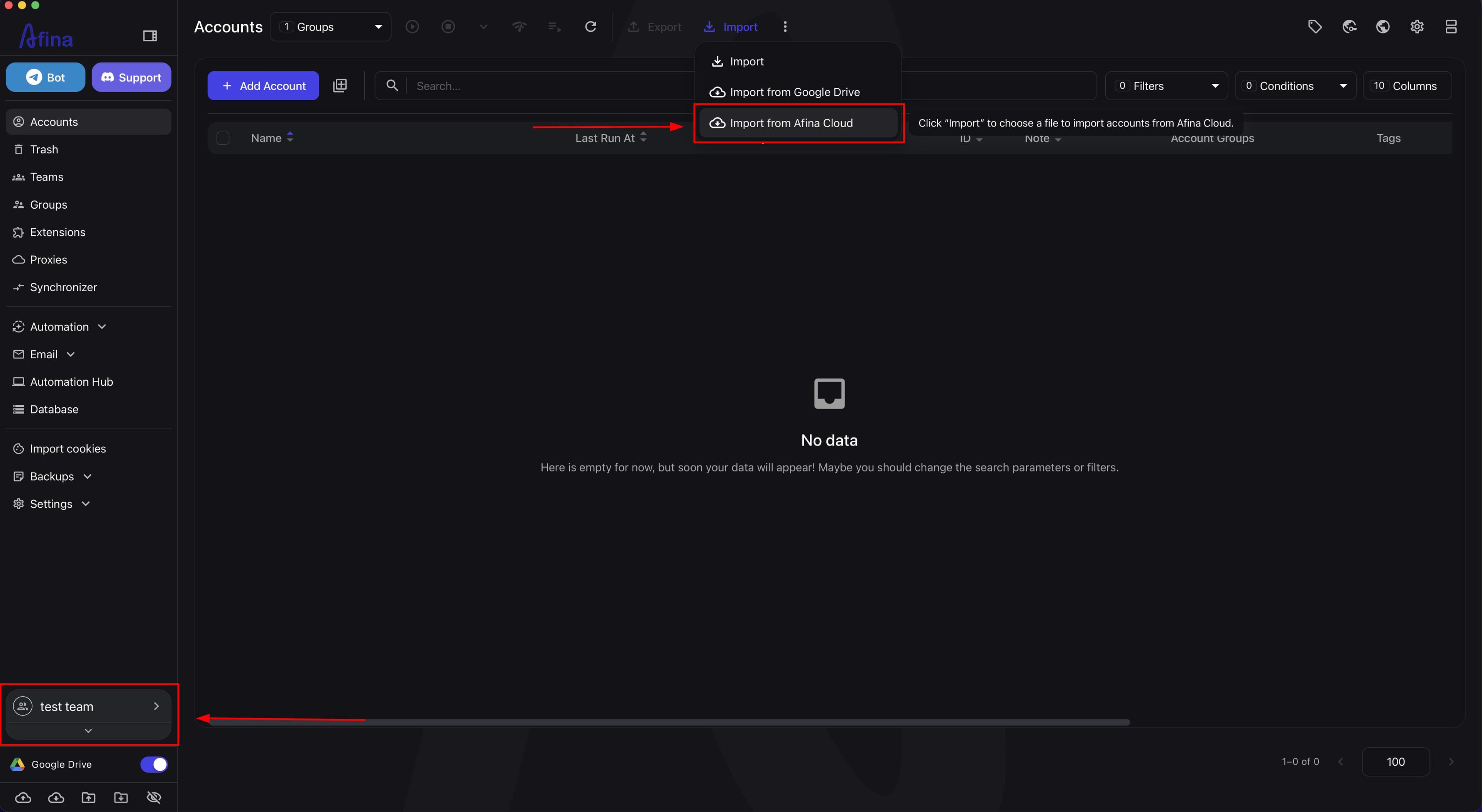
- On the second device, open Import from Afina Cloud.
- Select the required accounts in the import list.
- Click Import.
- Check the export or import status in "Backups".
The next screenshot shows the accounts selection window before importing from Afina Cloud.
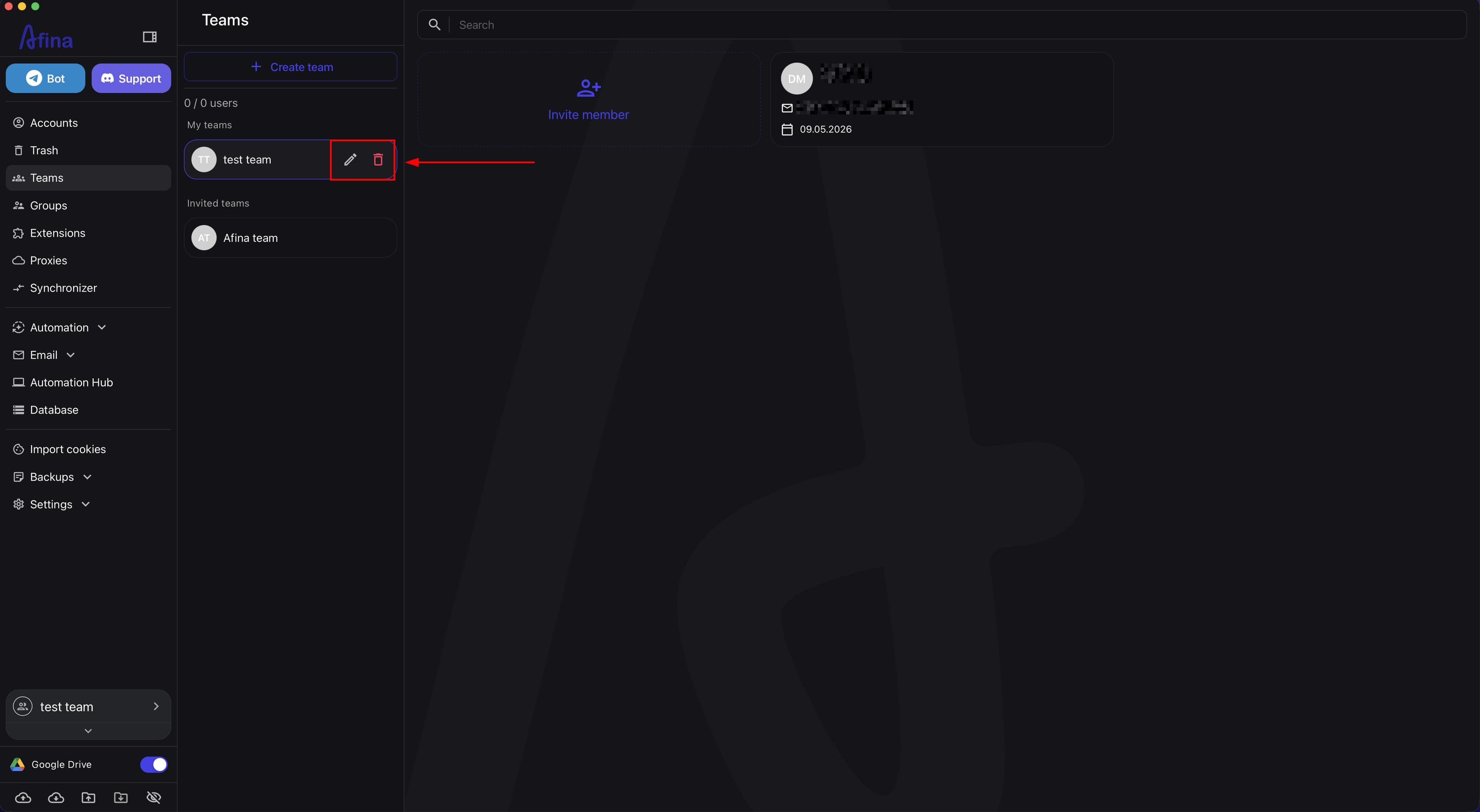
Working in Turns#
This option is suitable if you use one license on two PCs. Afina supports only one active connection at a time, so as soon as you sign in to the account on the second PC, the session on the first PC is automatically interrupted.
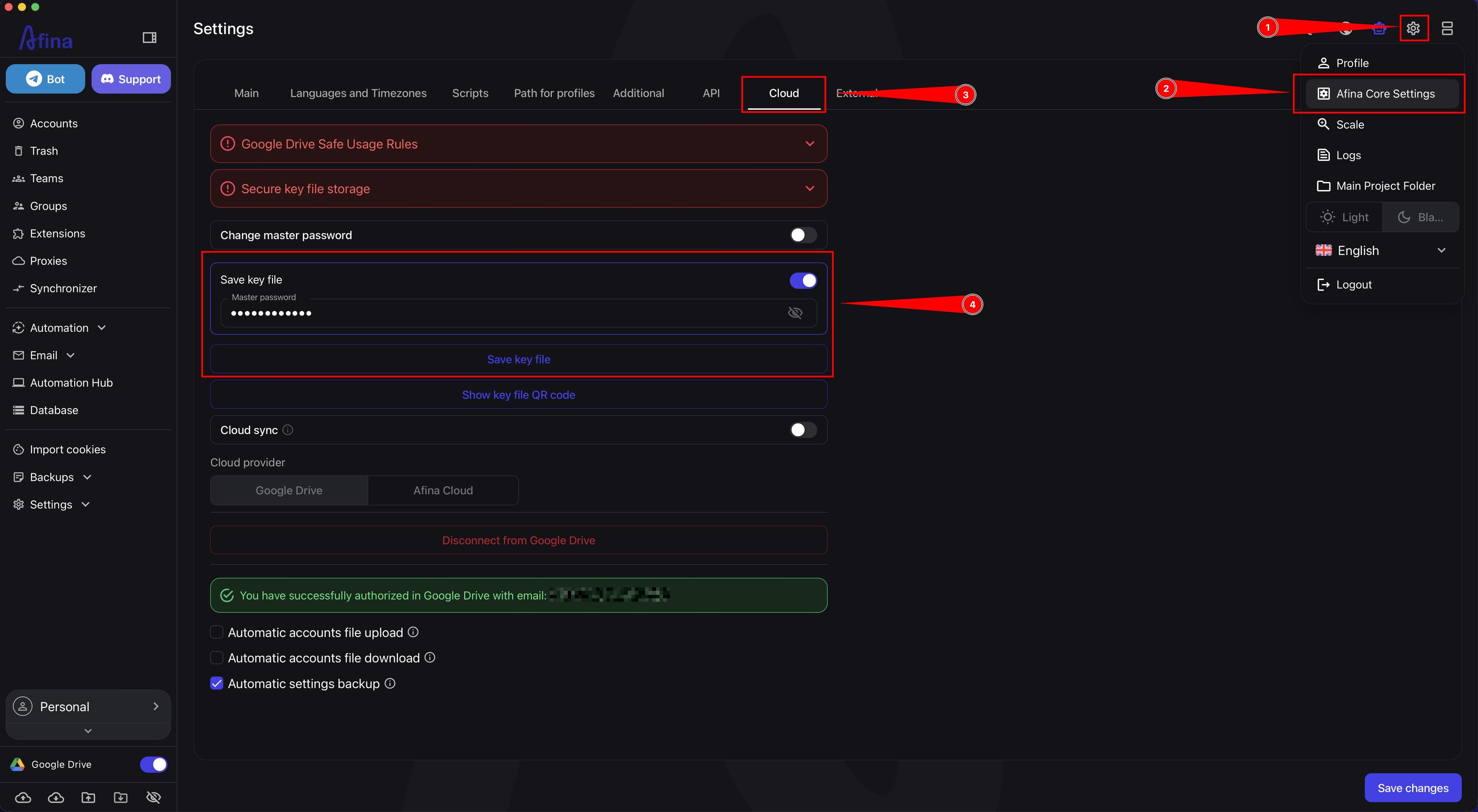
- Click the settings icon in the upper right.
- Go to Afina Core Settings.
- Go to Cloud.
- Toggle the switch for working with the key file.
- Enter the master password for this key file.
- Click Save key file.
The screenshot below shows the Cloud section, where actions with the key file are available.
- Transfer the saved key file to the second PC.
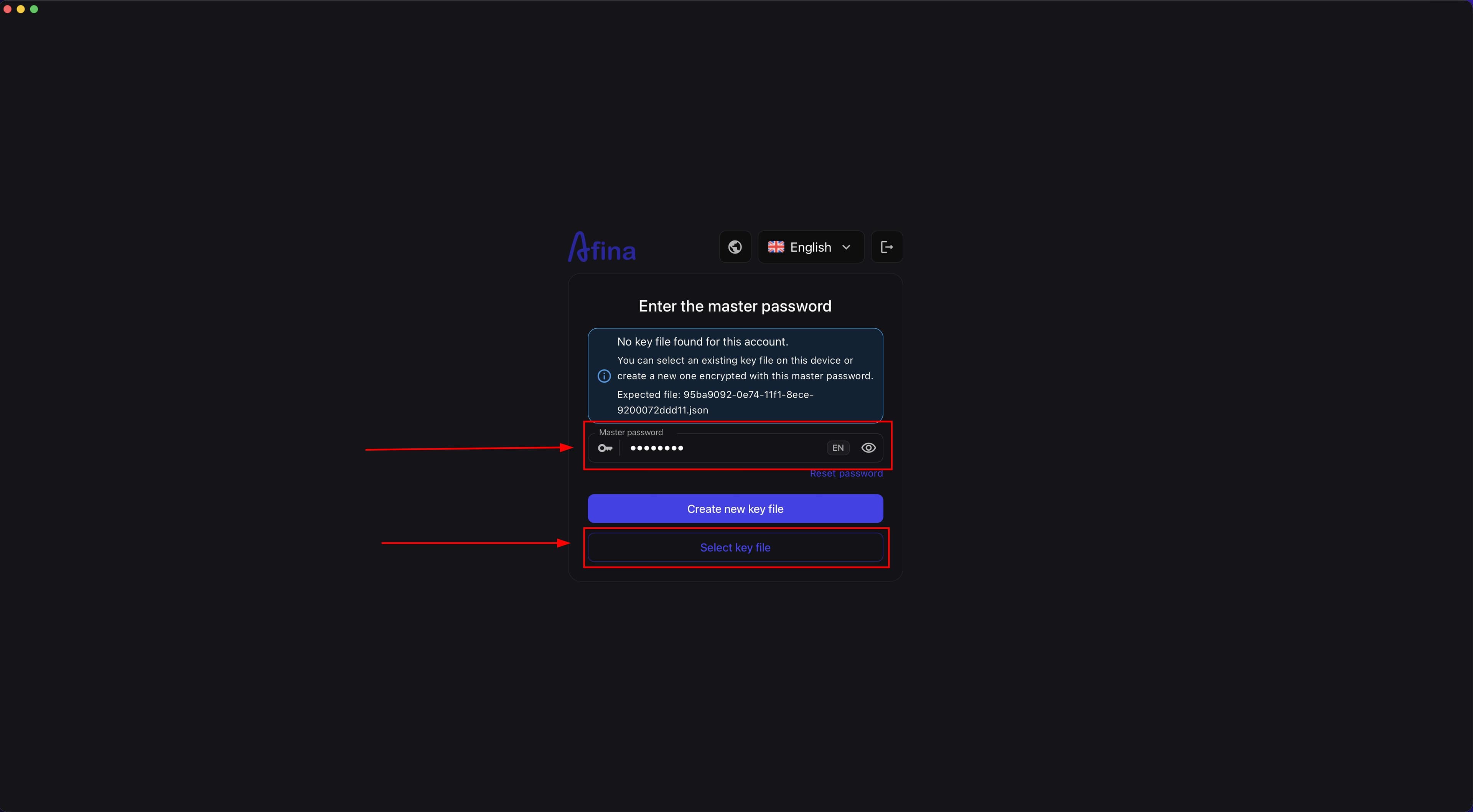
- On the new device, during the first sign-in to Afina, select Load another seed file.
- Enter the master password for this key file.
- Select the transferred key file.
The next screenshot shows the first sign-in screen on a new device, where you need to select an existing key file to transfer access.
To display the same profiles and cookies on both devices, you need to use absolutely identical key files and the same master password.
How Profiles Are Counted#
The count is calculated across the entire license, not for a specific computer.
- Active profiles are included in your plan limit.
- Profiles in "Trash" remain in the overall limit until you permanently delete them.
- Team profiles that you moved to the teams you created are also included in the overall limit of your license.
Profiles in "Trash" remain in the overall limit until you permanently delete them.
All accounts that you moved to the teams you created are included in the overall limit of the owner's license.
Deleting Team Profiles#
- If a team member deletes a profile, it returns to the "Personal" space of the license owner.
- Go to the "Personal" space of the license owner.
- Open "Trash".
- Permanently delete the required accounts if you need to free up space.
Result#
After completing this guide, you will be able to properly organize work in Afina on multiple devices: either simultaneously through Teams and Afina Cloud, or in turns through the same key file and the same master password. You will also understand how active profiles, profiles in "Trash", and team profiles are counted within the license.