Export and Import Accounts#
This guide explains how to export accounts from Afina Browser to local or cloud archives, and how to import them back from files, Google Drive, Afina Cloud, or TXT. Use this feature for backups, transferring profiles to another device, and sharing accounts within a team.
Before You Start#
- Prepare the accounts you want to export or import.
- If you plan to transfer accounts to another device, make sure both devices use the same key file and master password.
- If you will be working with Google Drive, make sure access to that storage is already configured.
For accounts, passwords, and cookies to open correctly on another device, the key file and master password must be exactly the same on both devices. If the keys do not match, Afina will not decrypt the data, or cookies will be deleted when the account is opened.
Export Accounts#
The export feature saves accounts with all data, passwords, and cookies — without unnecessary cache — into .zip or .afbk archives. All export options are available in the Accounts section on the top control bar.
Local Export
- Go to the Accounts section.
- Select the required accounts using the checkboxes in the table.
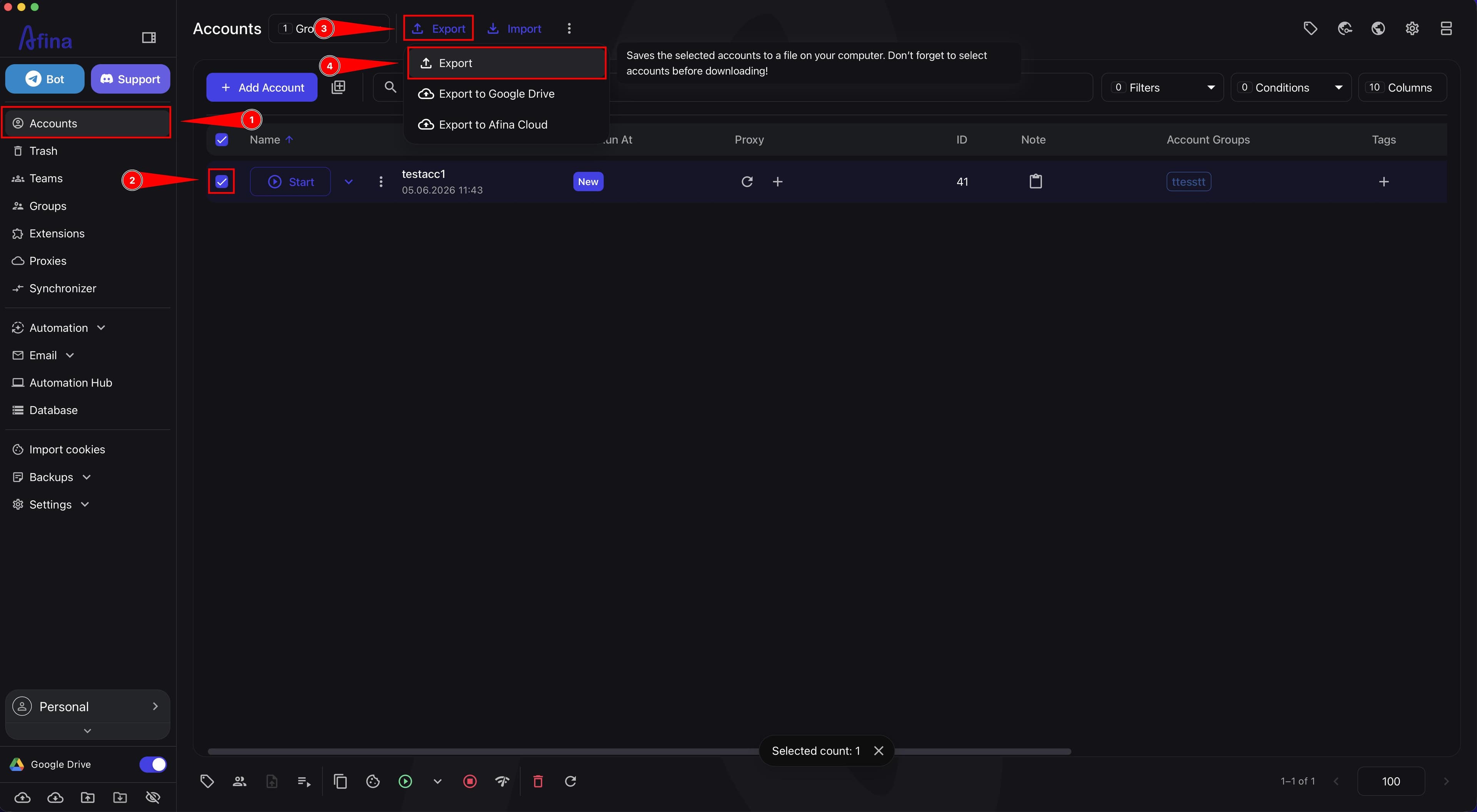
- Click the Export button to open the drop-down menu.
- In the drop-down menu, select Export.
The screenshot below shows the Accounts section with the Export button menu open, where you need to select the same-named item to save archives locally.
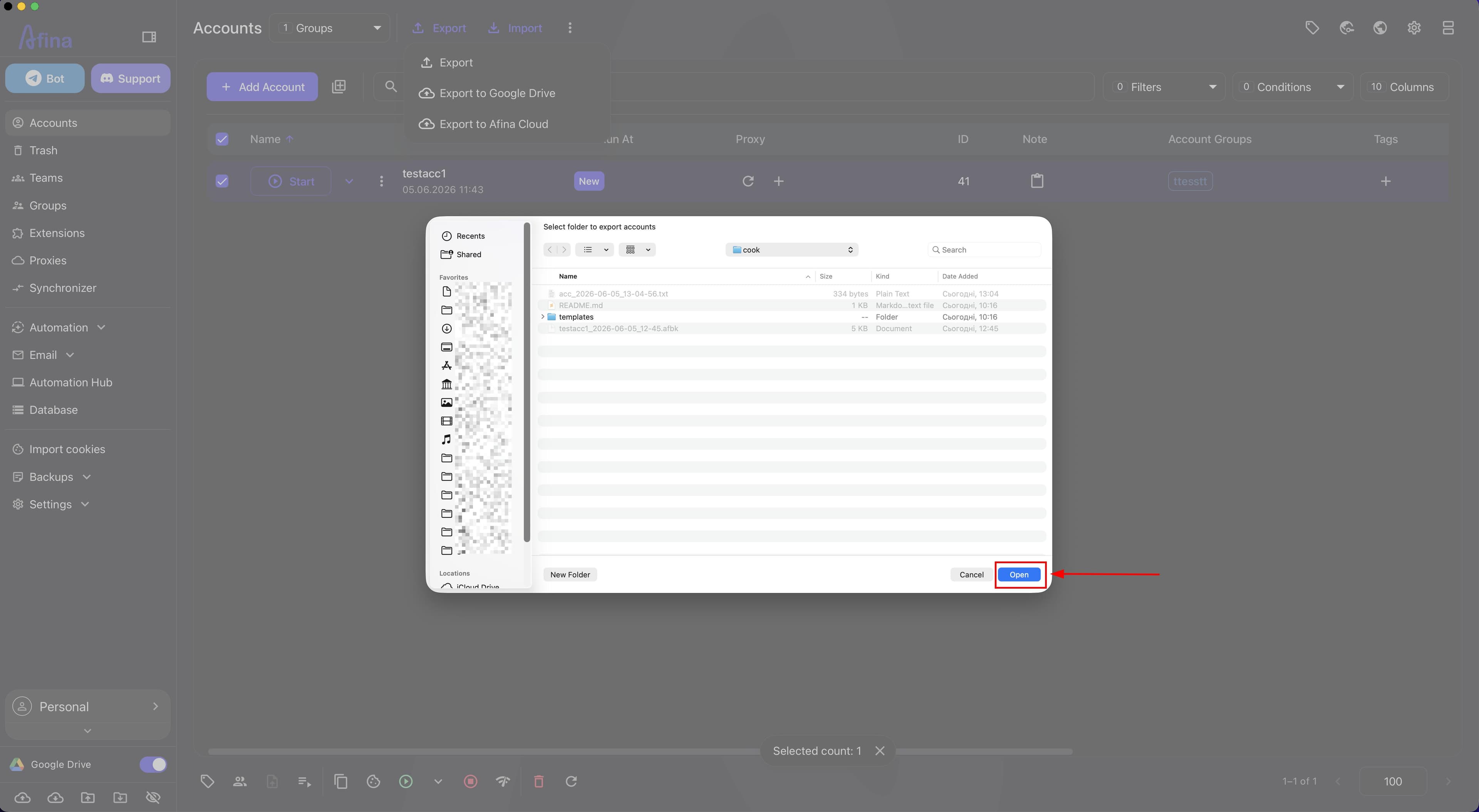
- In the system window "Select folder to export accounts", choose a folder to save the archives.
- Confirm the folder selection in the OS system window.
The next screenshot shows the "Select folder to export accounts" system window, where you need to specify a folder for local account export.
Export to Google Drive
- Go to the Accounts section.
- Select the required accounts using the checkboxes in the table.
- Click the Export button to open the drop-down menu.
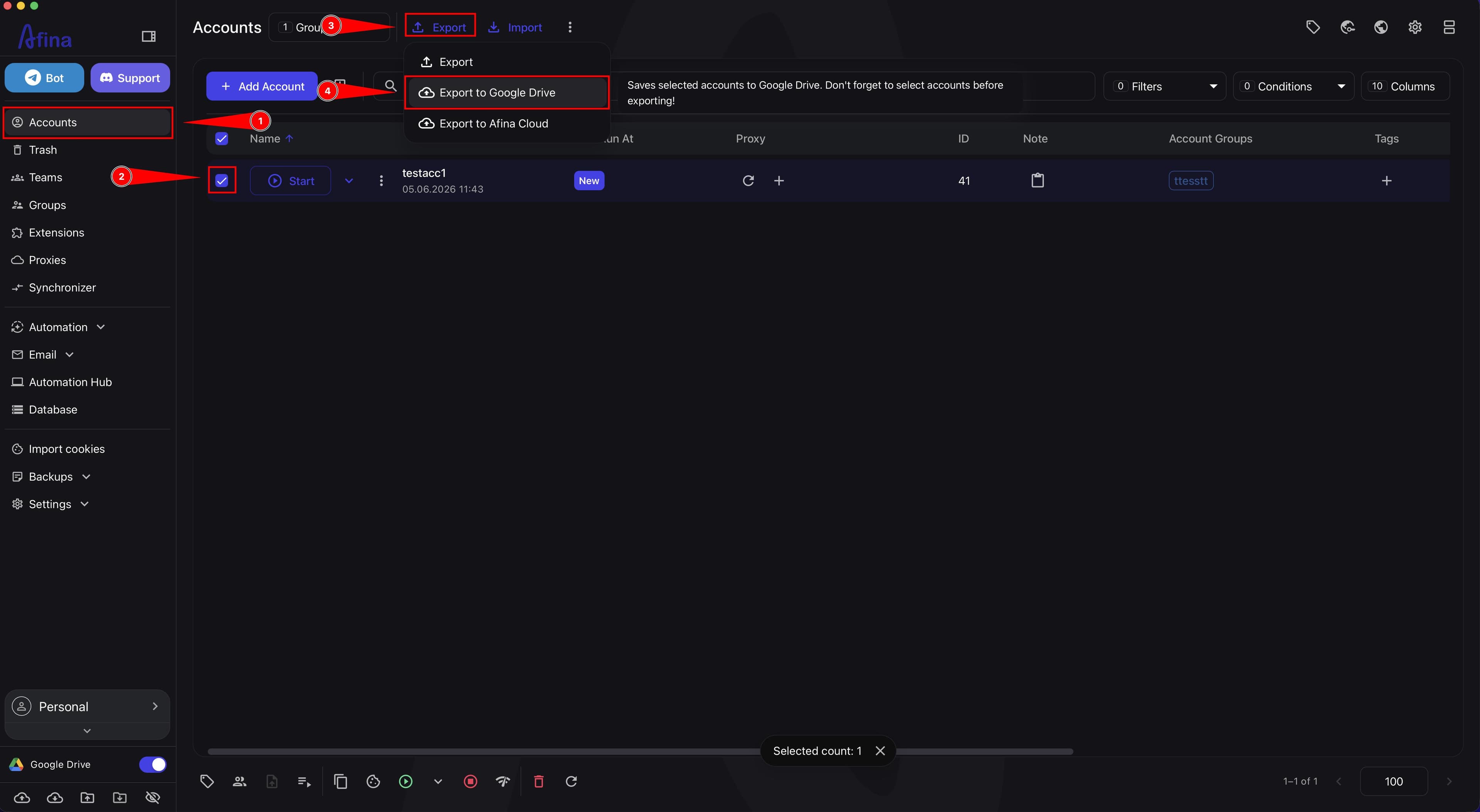
- In the drop-down menu, select Export to Google Drive.
The screenshot below shows the Export button menu with the Export to Google Drive item.
- Wait for the export task to start.
Export to Afina Cloud
- Go to the Accounts section.
- Select the required accounts using the checkboxes in the table.
- Click the Export button to open the drop-down menu.
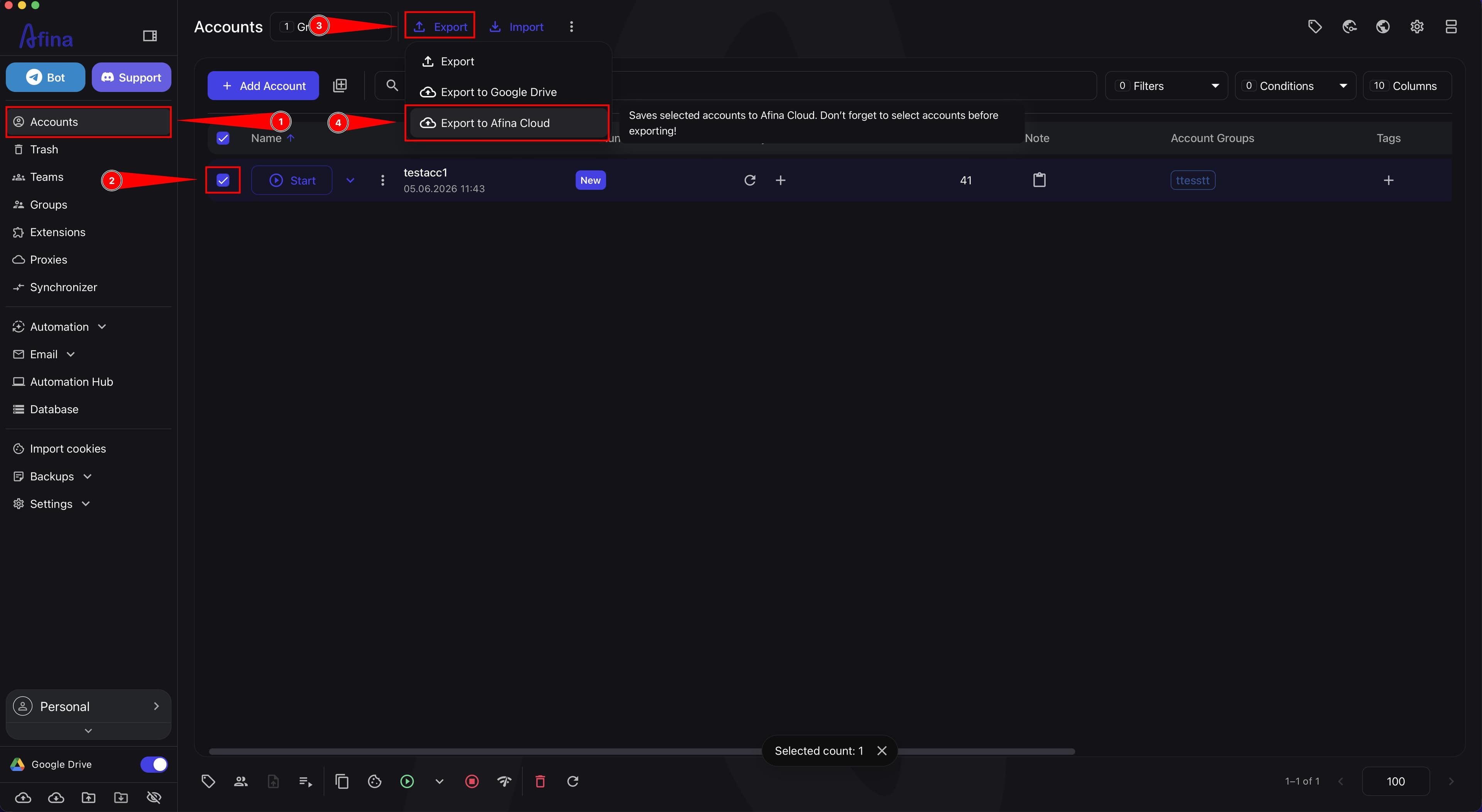
- In the drop-down menu, select Export to Afina Cloud.
The next screenshot shows the Export button menu with the Export to Afina Cloud item.
- Wait for the export task to start.
Export to TXT
- Go to the Accounts section.
- Select the required accounts using the checkboxes in the table.
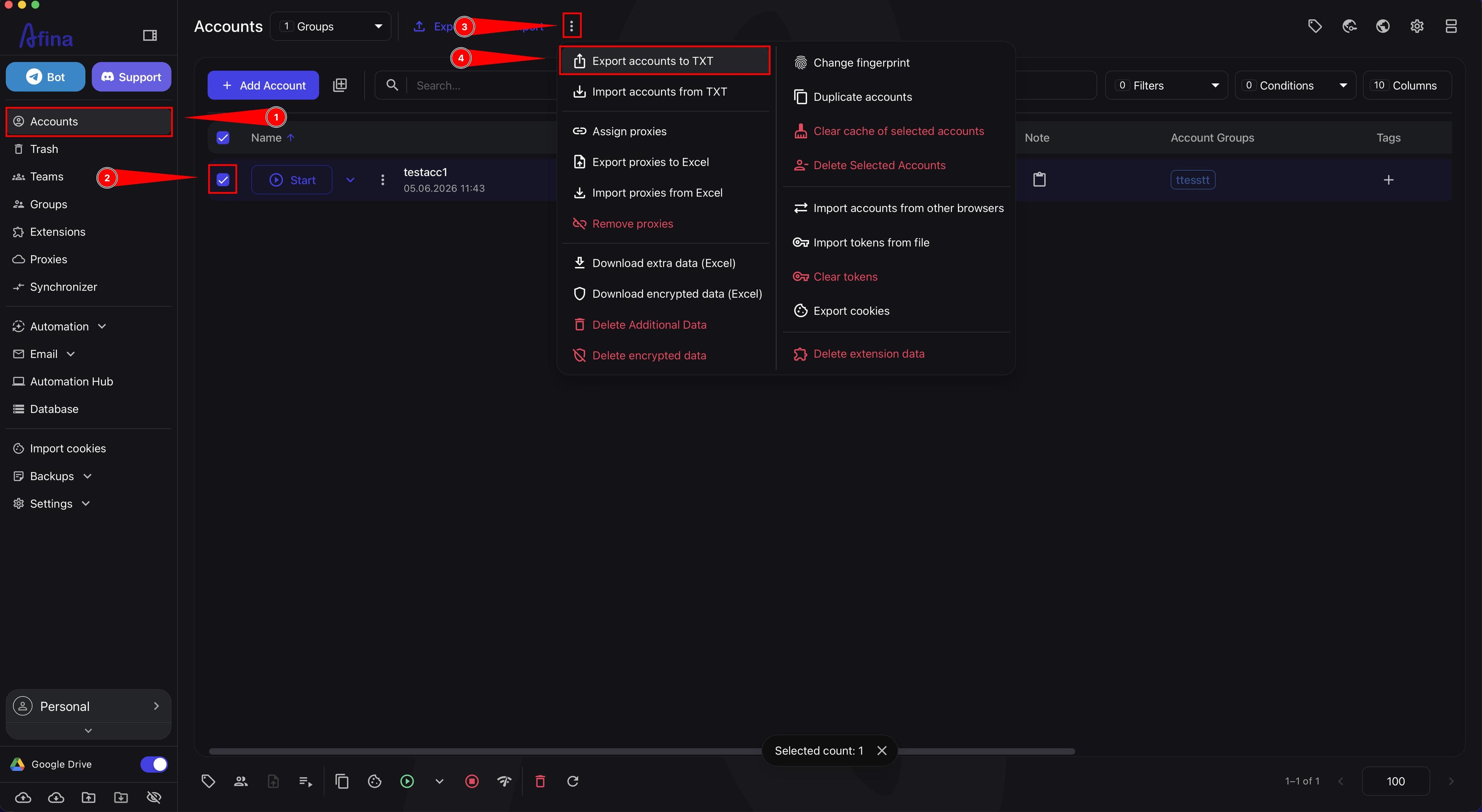
- Click the three vertical dots icon on the top control bar.
- Select the Export accounts to TXT command.
The screenshot below shows the top control bar with the three vertical dots icon menu open, where you need to select the Export accounts to TXT command.
- In the system window, choose a folder to save the TXT file.
- Confirm the folder selection using the OS system window button.
When exporting to Google Drive or Afina Cloud, no separate window with input fields opens. After selecting the command, the task is initiated automatically. Use Google Drive for solo work, and Afina Cloud for team work.
After launching any export option other than TXT, you can track the operation status in the "Backup Log" section.
Import Accounts#
The import feature allows you to restore accounts from local .afbk or .zip archives, download them from Google Drive or Afina Cloud, and import accounts from TXT. All import options are available in the Accounts section on the top control bar.
Local Import
- Go to the Accounts section.
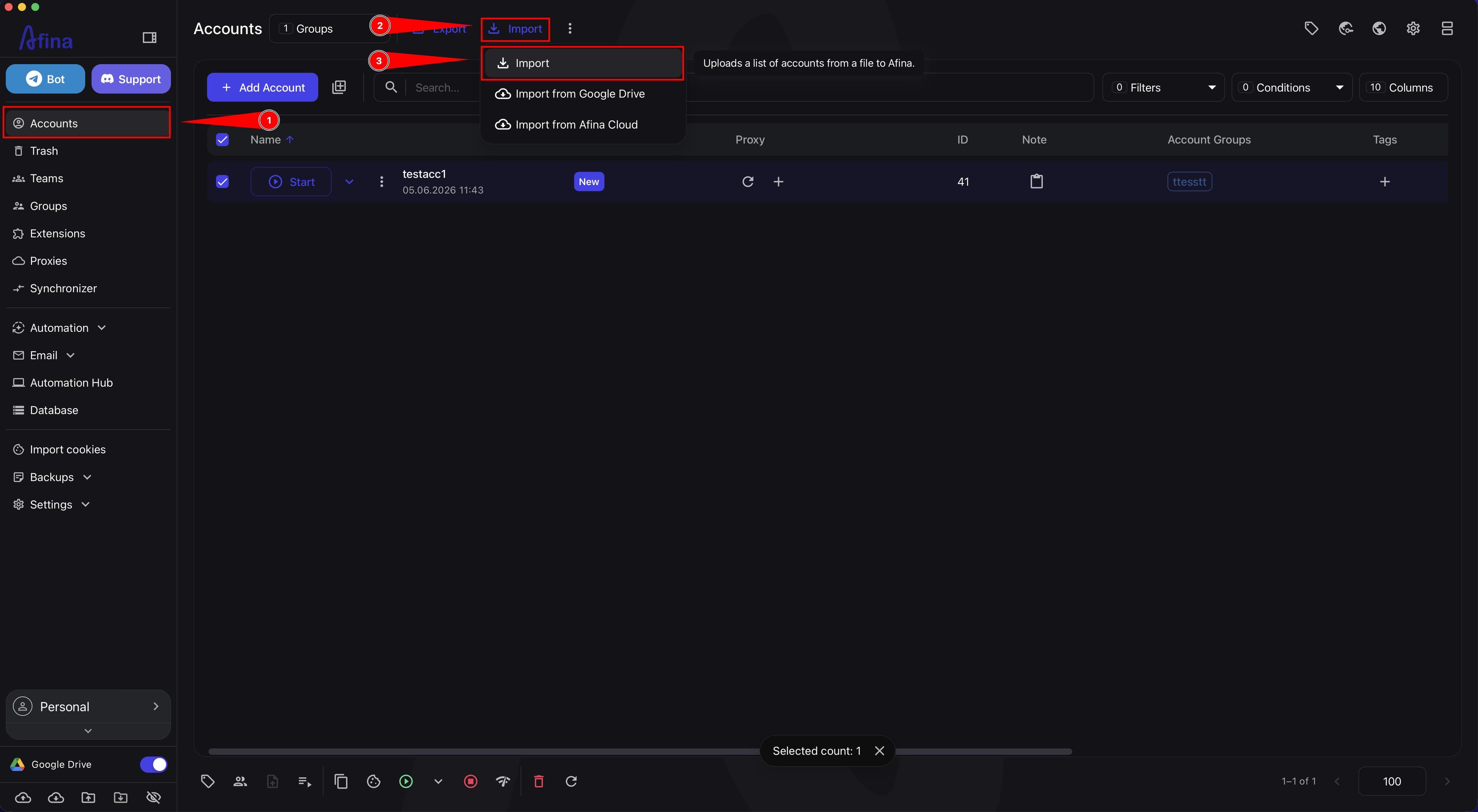
- Click the Import button to open the drop-down menu.
- In the drop-down menu, select the Import option.
The screenshot below shows the Import button menu, where you need to select the Import option to restore archives locally.
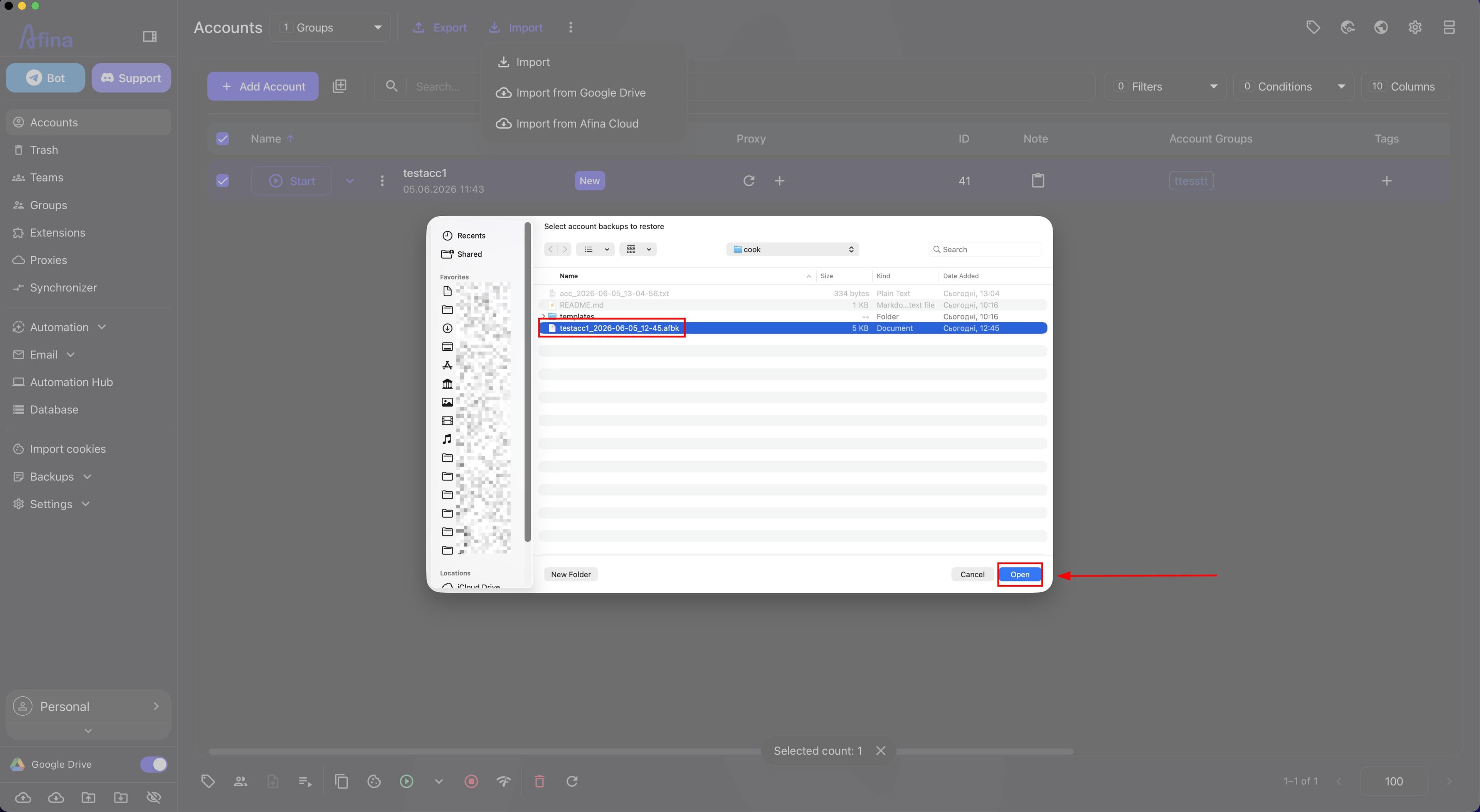
- In the system window "Select account archives to restore", select
.afbkor.zipfiles. - Click the Open button in the OS system window.
The next screenshot shows the "Select account archives to restore" system window, where you need to select .afbk or .zip archives for import.
Import from Google Drive
- Go to the Accounts section.
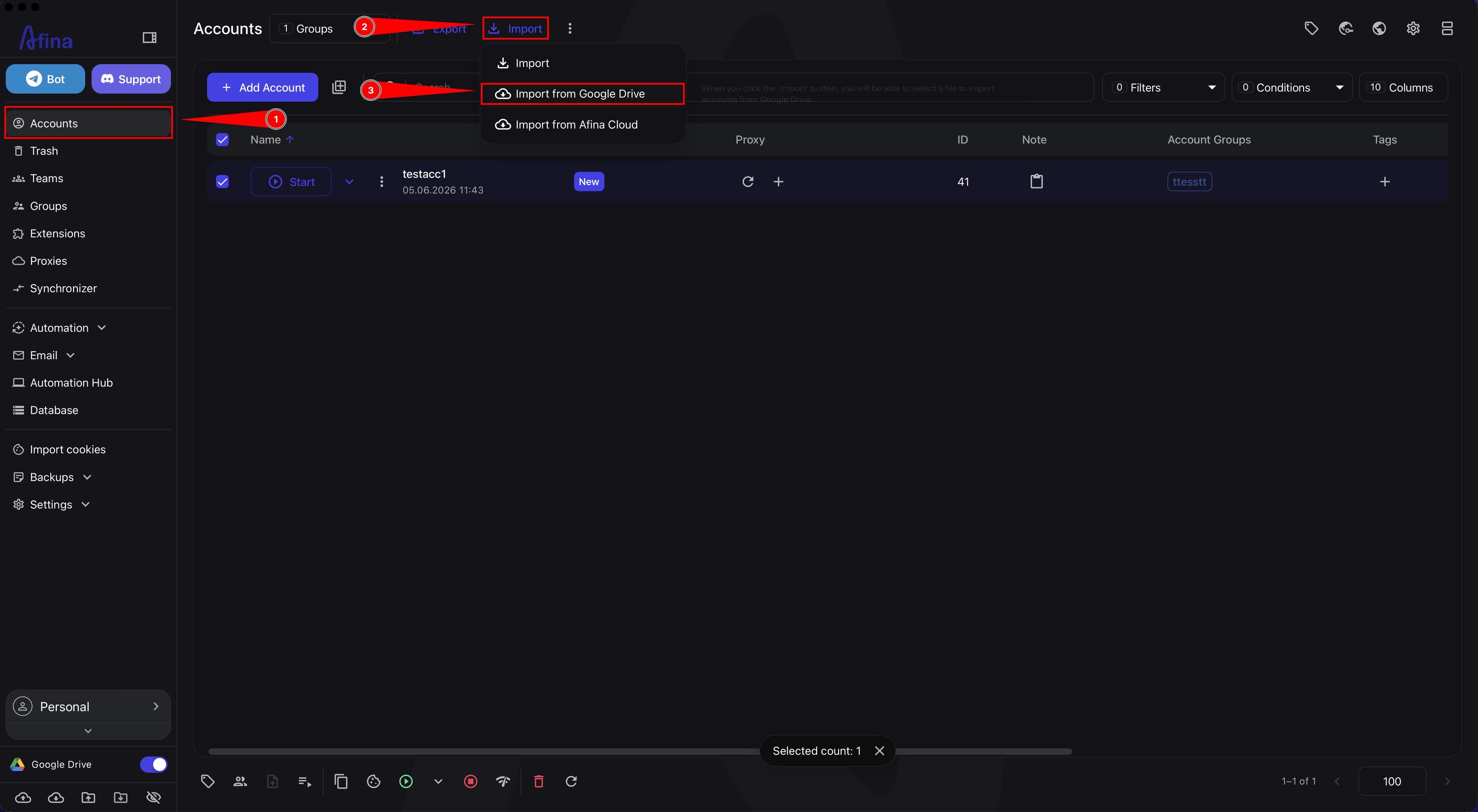
- Click the Import button to open the drop-down menu.
- In the drop-down menu, select Import from Google Drive.
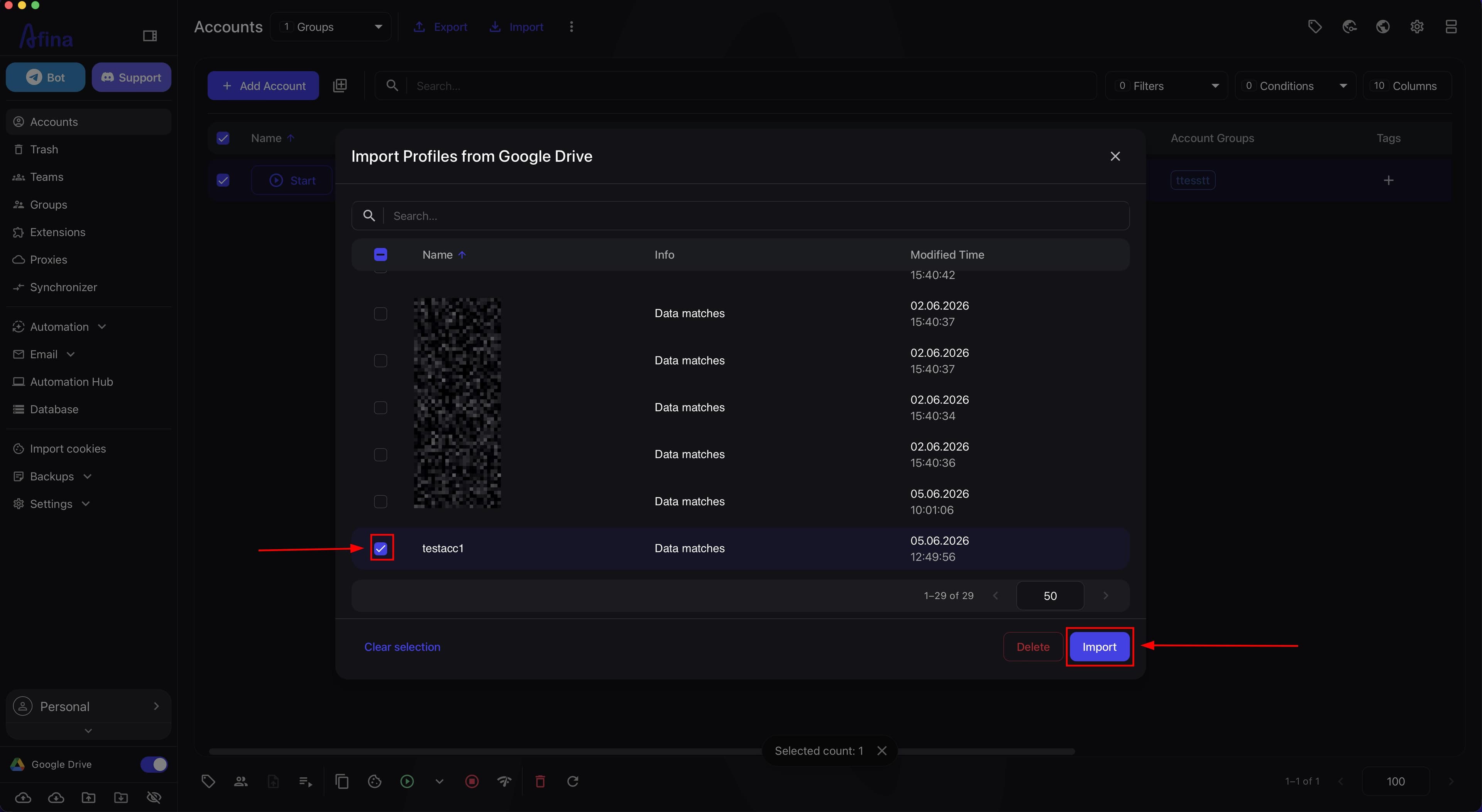
- Wait for the "Import Profiles from Google Drive" window to open.
- If needed, enter the archive name in the "Search..." field.
- Select the required archives using the checkboxes in the table.
- Click the Import button.
In the "Import Profiles from Google Drive" window, the table contains "Name" and "Modified Time" columns. For bulk selection, you can use the Select All and Clear selection buttons. To delete an archive from storage, click the Delete button.
The screenshot below shows the "Import Profiles from Google Drive" window with the list of archives, the "Search..." field, and bulk selection buttons.
Import from Afina Cloud
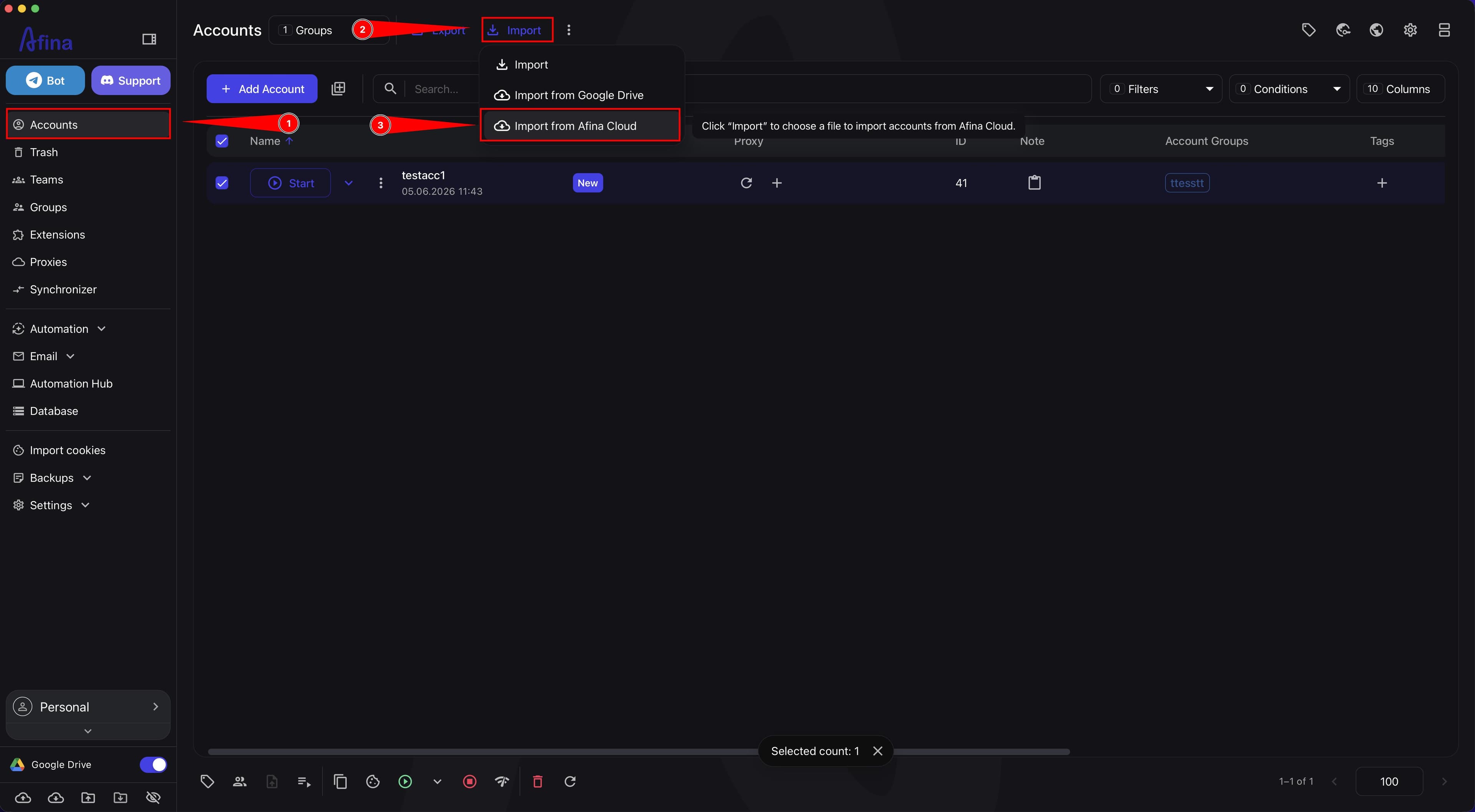
- Go to the Accounts section.
- Click the Import button to open the drop-down menu.
- In the drop-down menu, select Import from Afina Cloud.
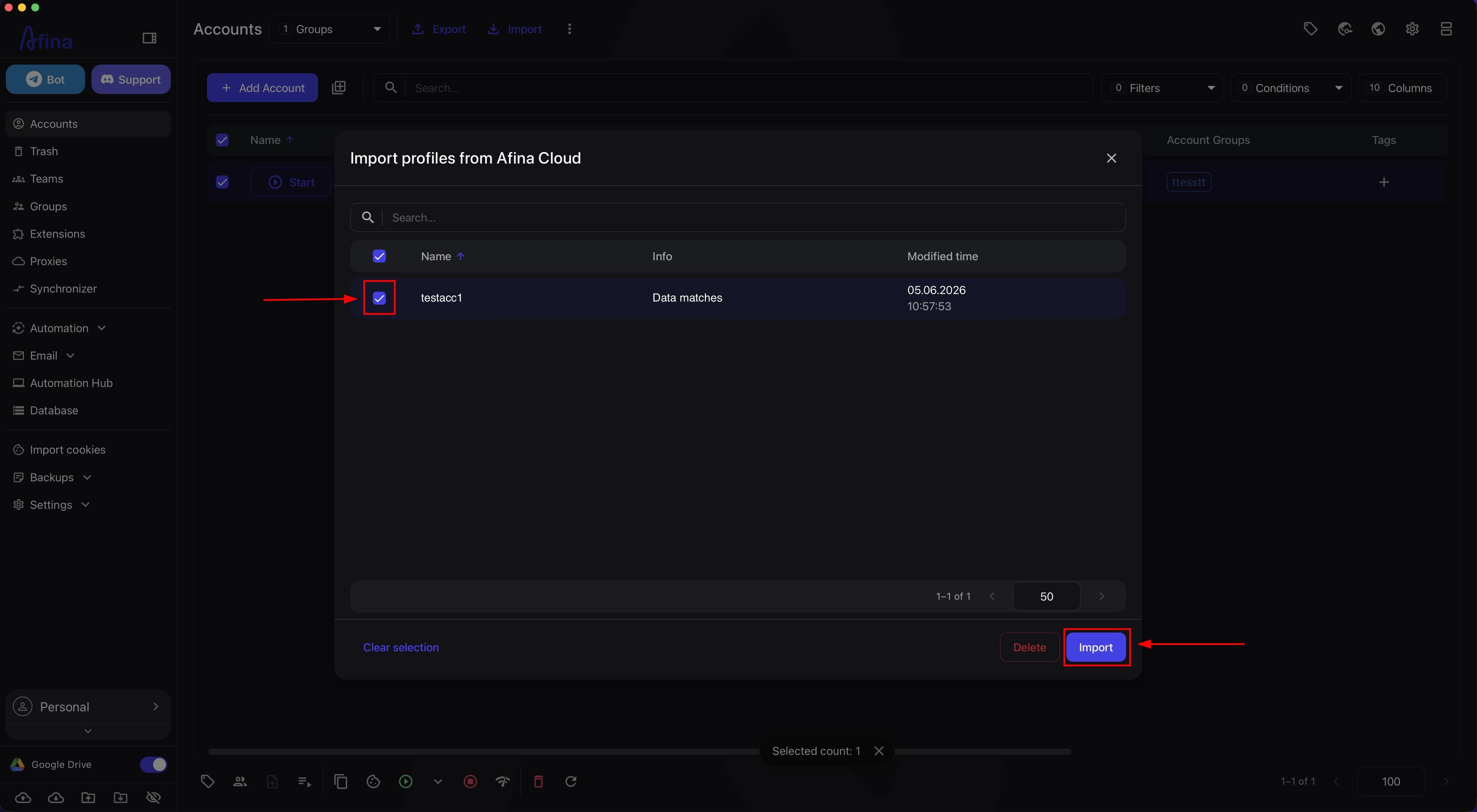
- Wait for the "Import profiles from Afina Cloud" window to open.
- If needed, enter the archive name in the "Search..." field.
- Select the required archives using the checkboxes in the table.
- Click the Import button.
In the "Import profiles from Afina Cloud" window, the table contains "Name" and "Modified Time" columns. For bulk selection, you can use the Select All and Clear selection buttons. To delete an archive from storage, click the Delete button.
The next screenshot shows the "Import profiles from Afina Cloud" window with the "Name" and "Modified Time" columns displaying available archives.
The progress of import from Google Drive and Afina Cloud can be tracked in the "Cloud File Download Log" section.
Import from TXT
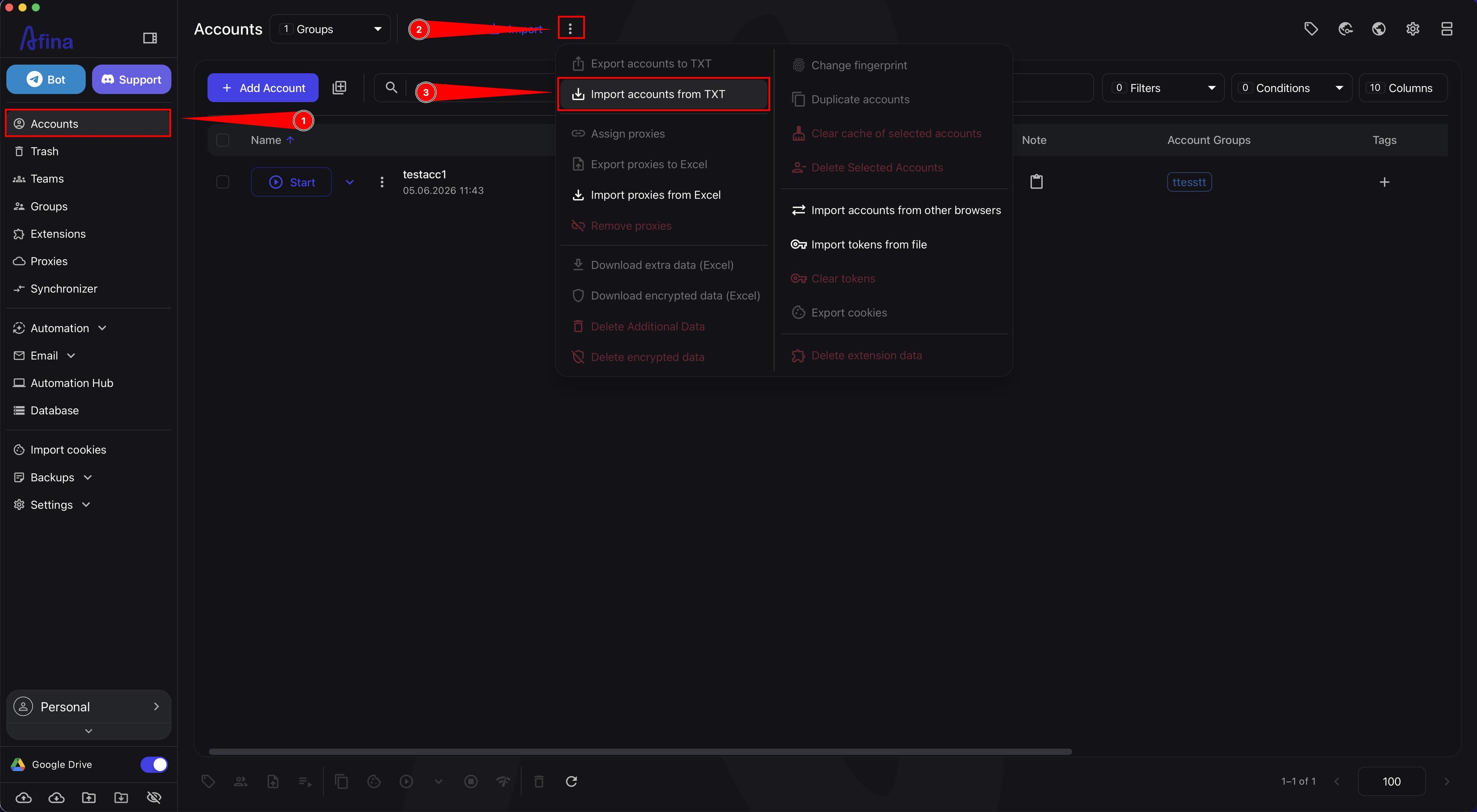
- Go to the Accounts section.
- Click the three vertical dots icon on the top control bar.
- Select the Import accounts from TXT item.
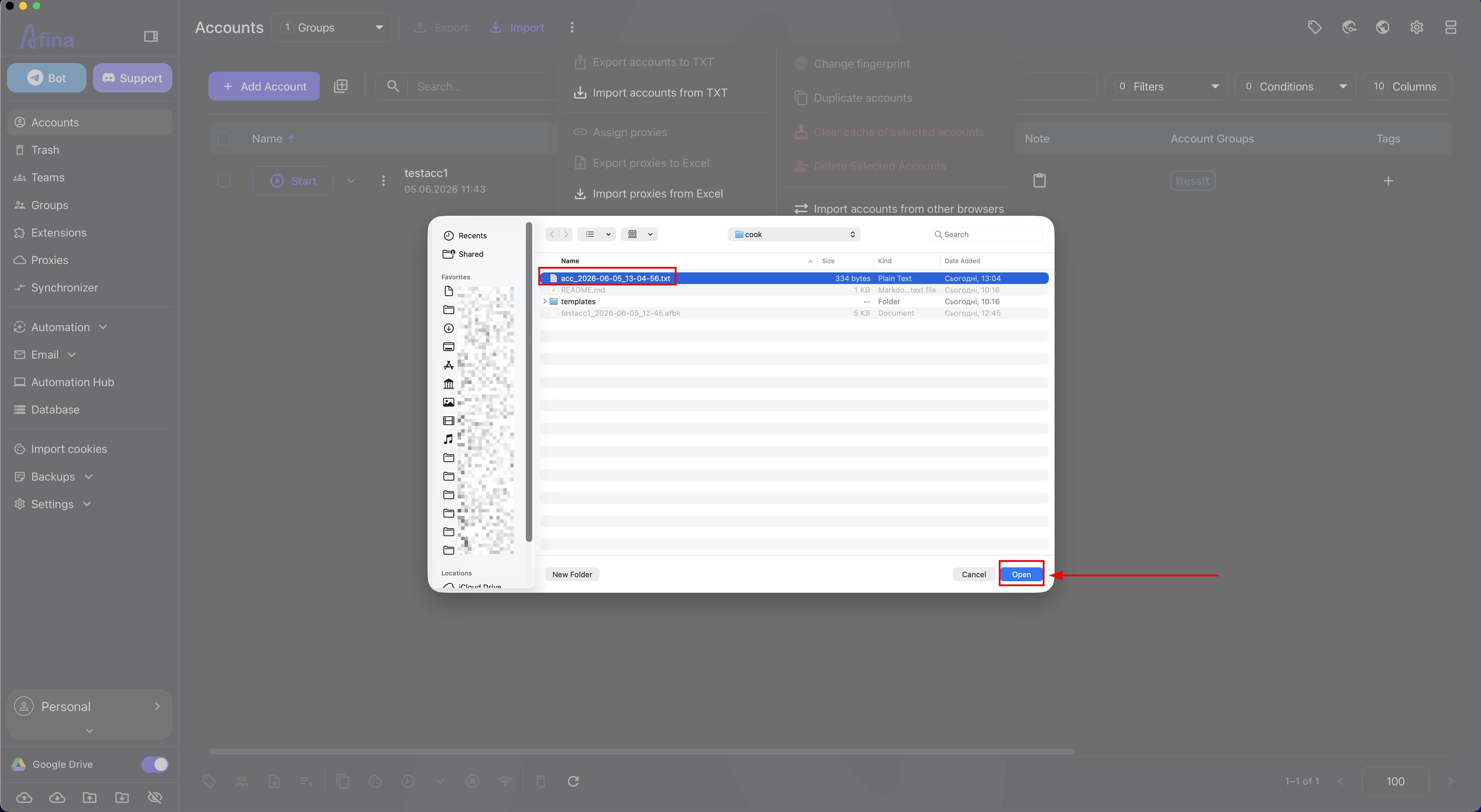
The screenshot below shows the three vertical dots icon menu with the Import accounts from TXT item.
- In the system window, select the TXT file.
- Click the Open button in the OS system window.
Result#
After completing these steps, you will be able to save accounts to local or cloud archives, restore them from .afbk, .zip, and TXT files, and transfer profiles between devices or share them via Afina Cloud. If the same key file and master password were used for the transfer, the accounts, passwords, and cookies will open correctly on the new device.