Teams in Afina#
In this guide, you will create a team in Afina, invite a member, activate access, and set up collaborative work with accounts. It also shows how to switch between workspaces, move accounts, and transfer them via Afina Cloud.
Before you start#
- Make sure your plan includes working with teams.
- Make sure the invited user has access to the email that will receive the invitation.
Member permissions can be changed later. For the first invitation, it is enough to grant only the permissions that are actually needed for work.
Creating a team#
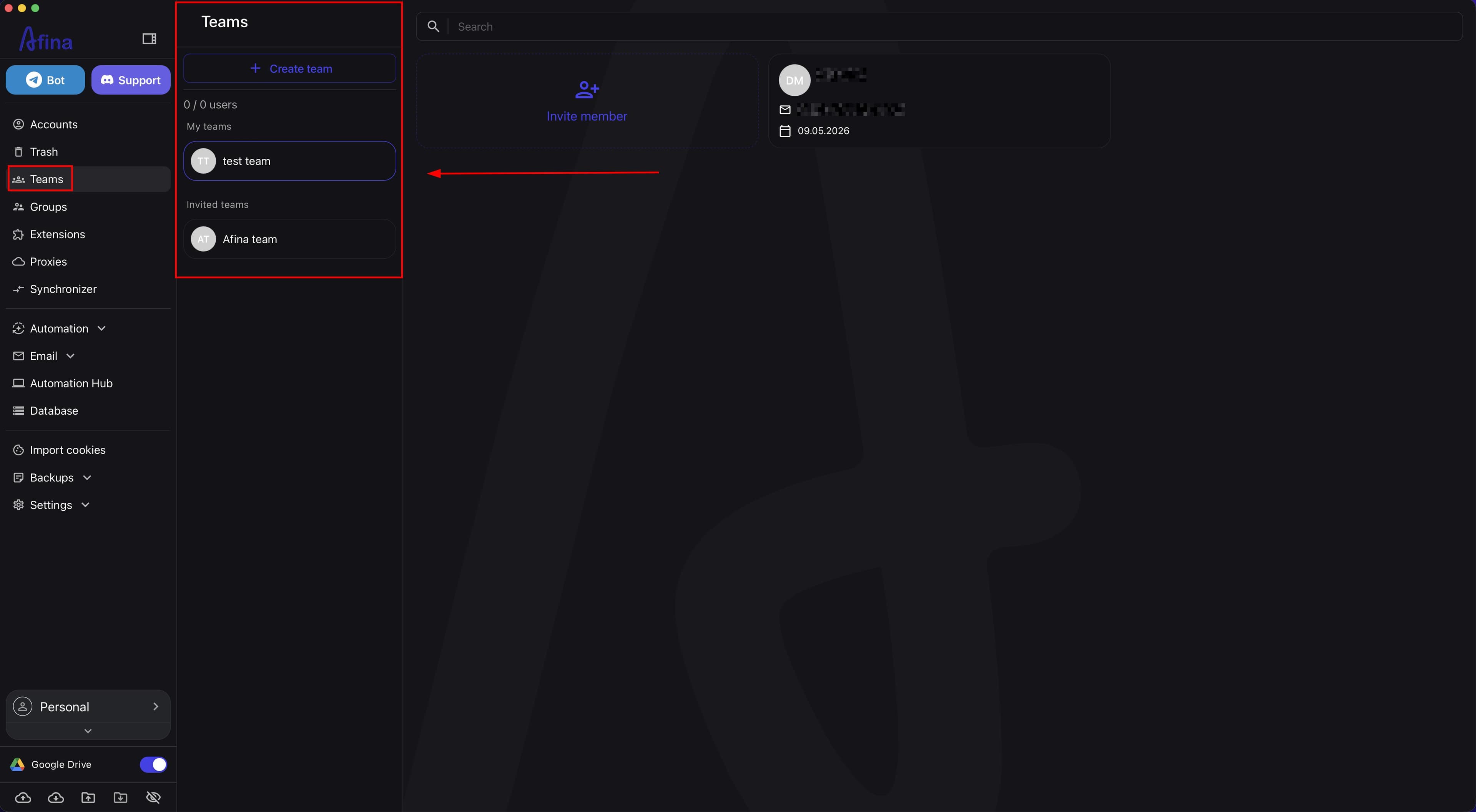
- Go to the Teams section in the left menu of Afina.
On the screenshot below, the Teams section is shown, where the created teams and the limits of the current plan are displayed.
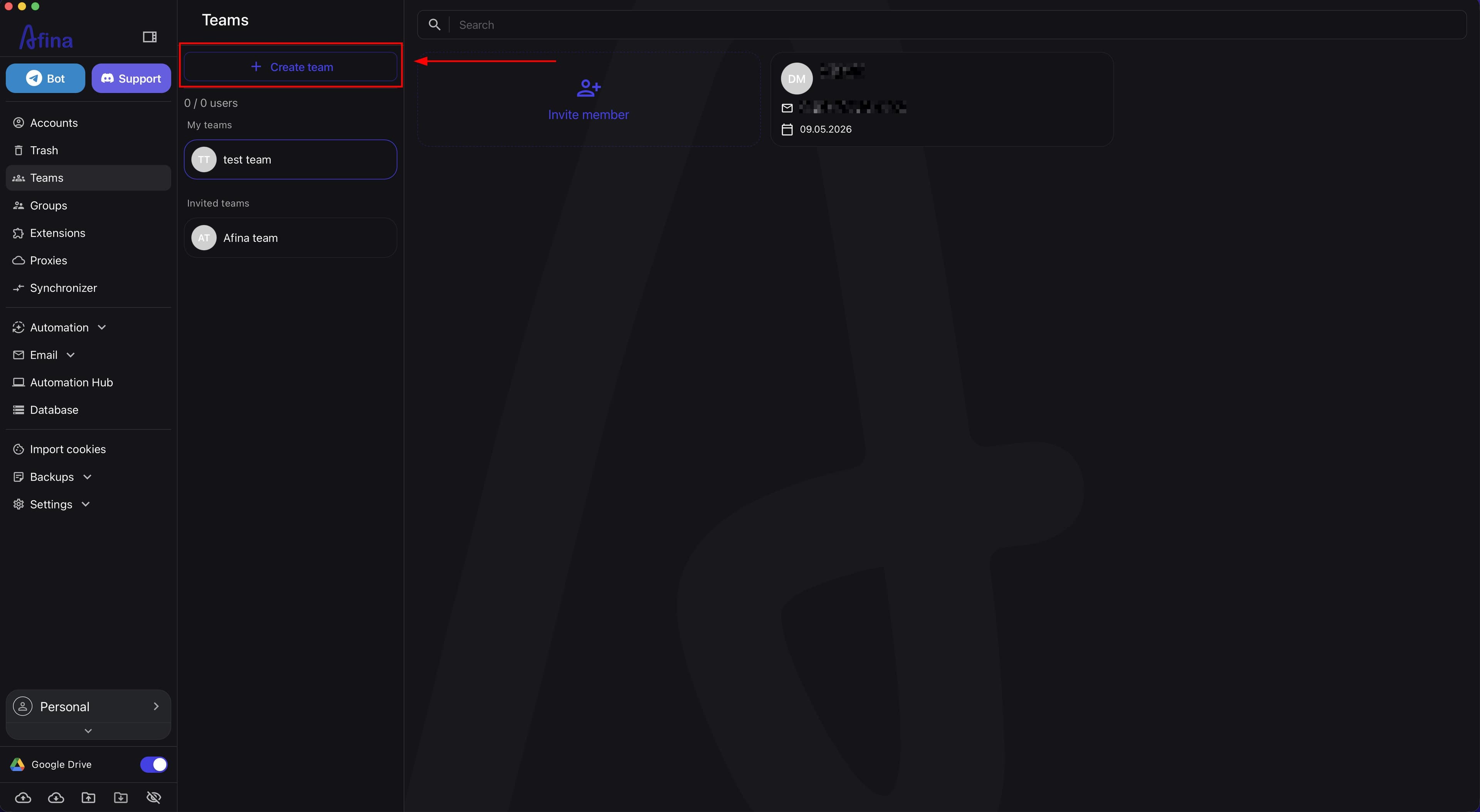
- Click Create team.
The next screenshot shows the Create team button in the "Teams" section.
-
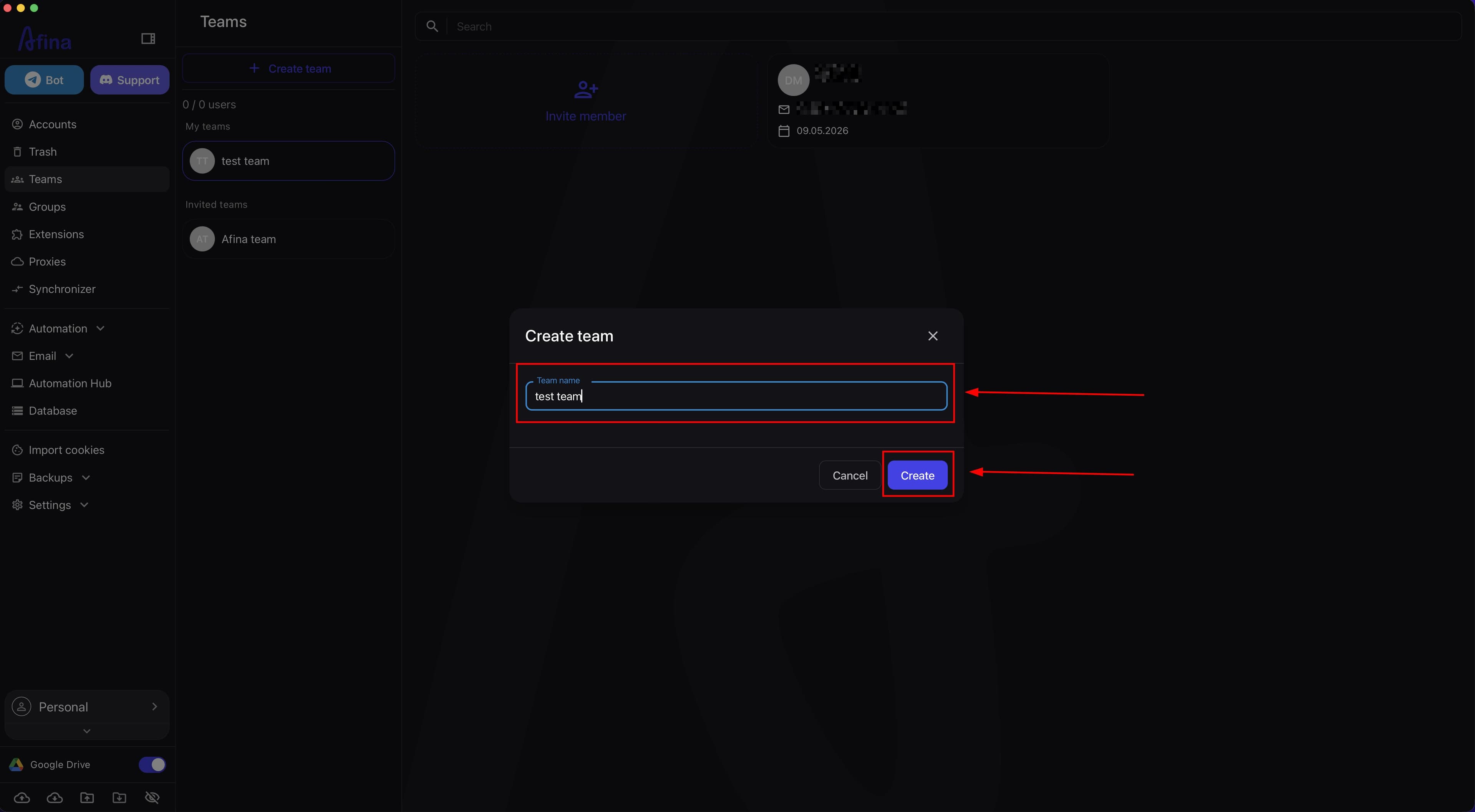
In the "Team name" field, enter a unique name.
-
Click Create to confirm creating the team.
This screenshot shows the form for creating a new team with a field for the name.
Inviting a member#
-
Open the desired team in the list.
-
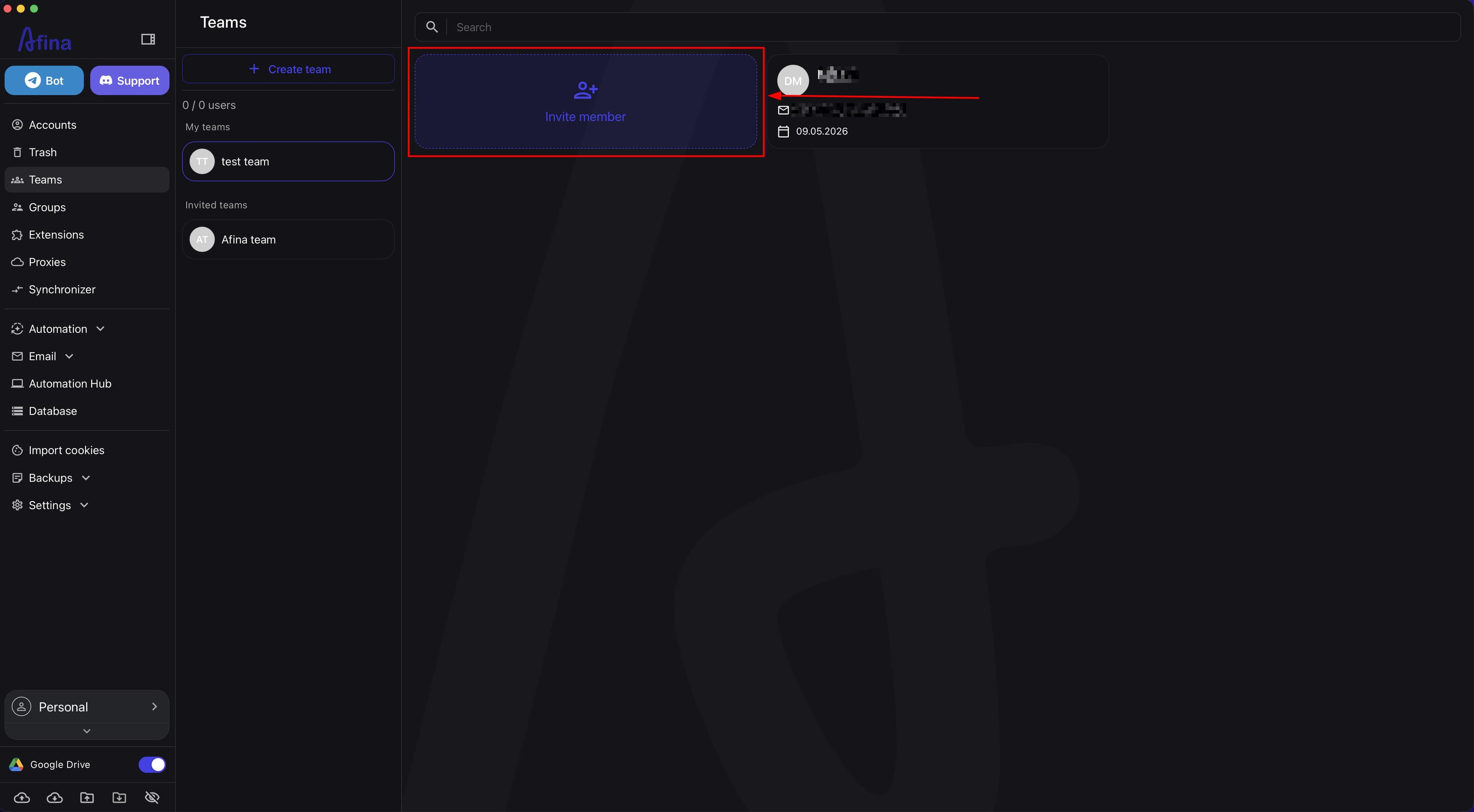
Click Invite member.
The screenshot below shows the team page from which the member invitation form opens.
-
In the "Email" field, enter the member's email address.
-
In the "Name" field, enter the name under which the member will appear in the team.
-
In the "Role" field, select the desired role, for example
Worker. -
Enable the checkboxes for the permissions that the member needs for work.
The next screenshot shows the member invitation form with fields, role, and a list of permissions.
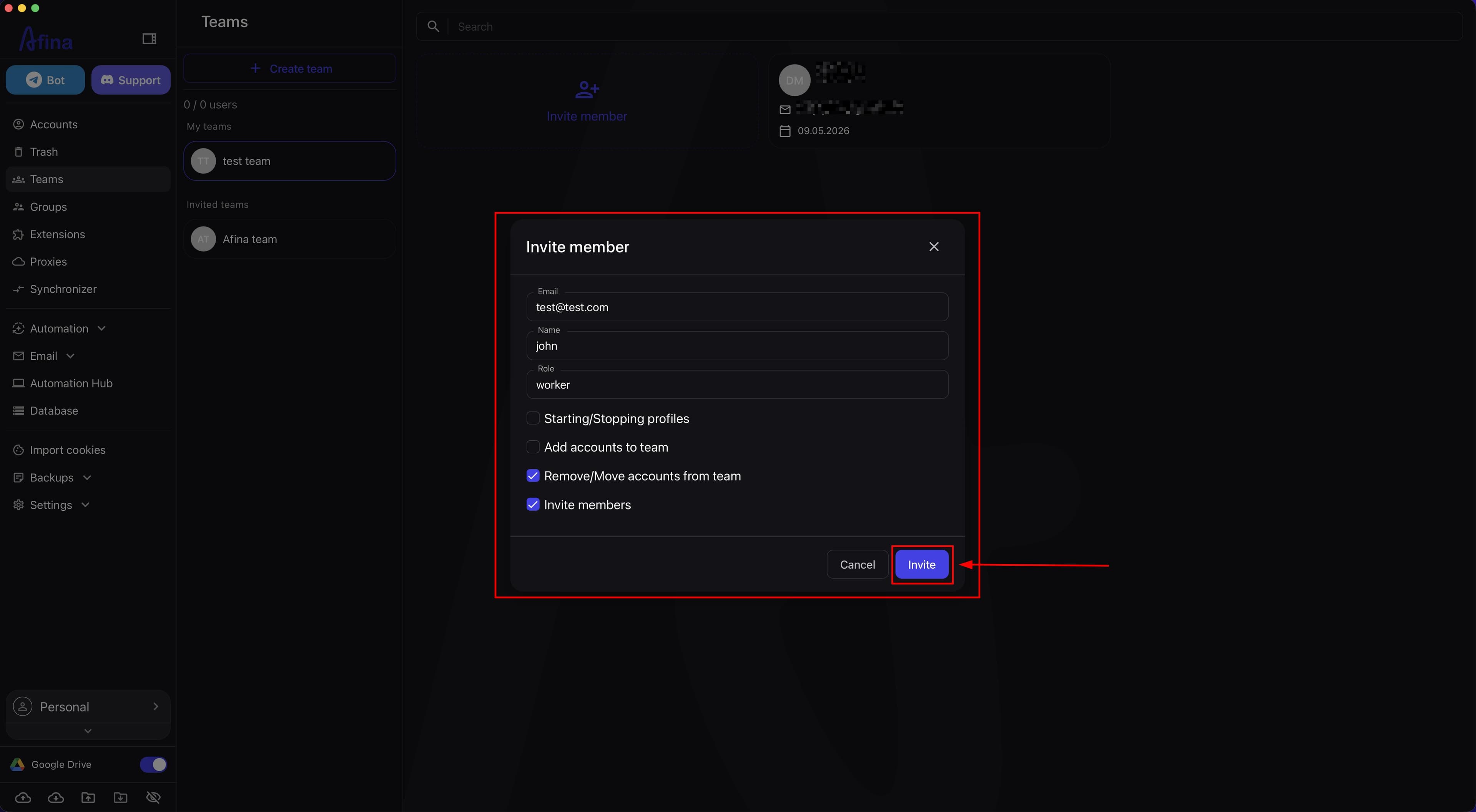
- Click Invite.
Without the right to start and stop profiles, a member will not be able to fully work with transferred accounts.
Activating the invitation#
- Open the email from no-reply@afina.io with the subject "Team Invitation to Afina.IO" in the invited user's inbox.
The screenshot below shows the invitation email to the team in Afina.
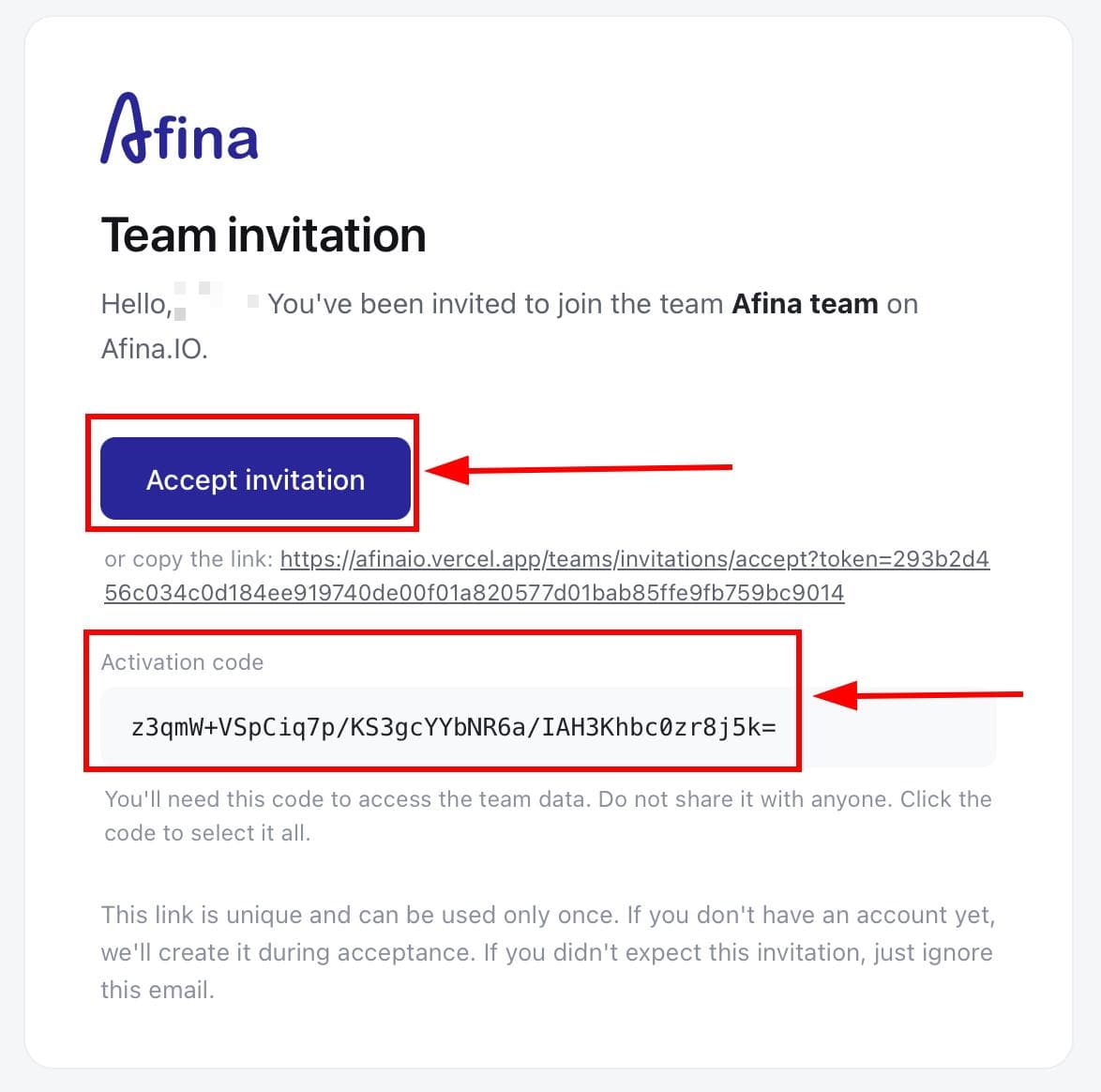
- Click Accept invitation in the email.
The next screenshot shows the invitation acceptance page that opens after clicking Accept invitation.
-
Copy the Activation code from the invitation page or from the email.
-
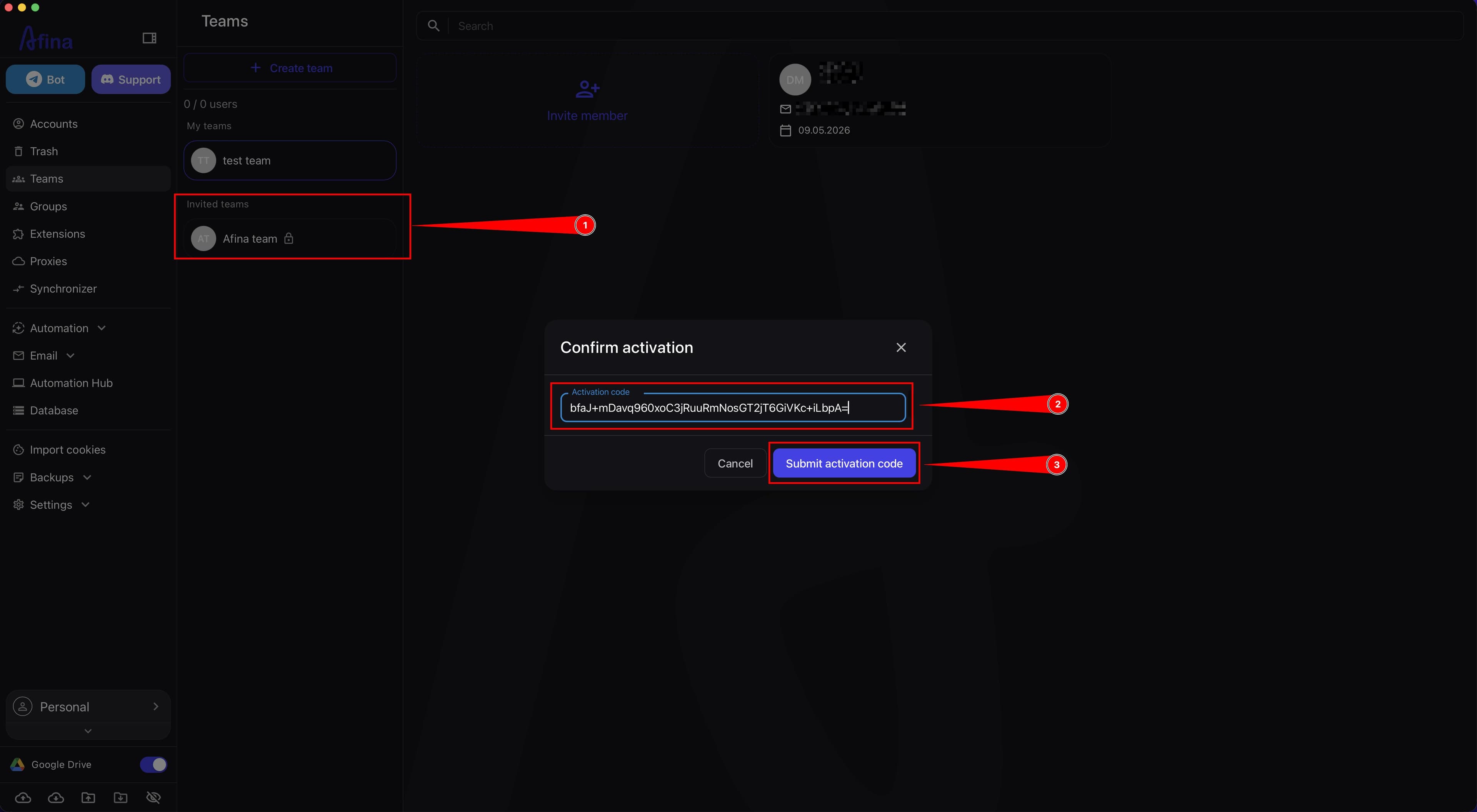
Go to the Teams section in the Afina app under the invited user's account.
-
Select the team to which the invitation was sent.
-
In the "Activation code" field, paste the copied code.
-
Click Submit activation code.
This screenshot shows the form for entering the Activation code in the Afina app.
-
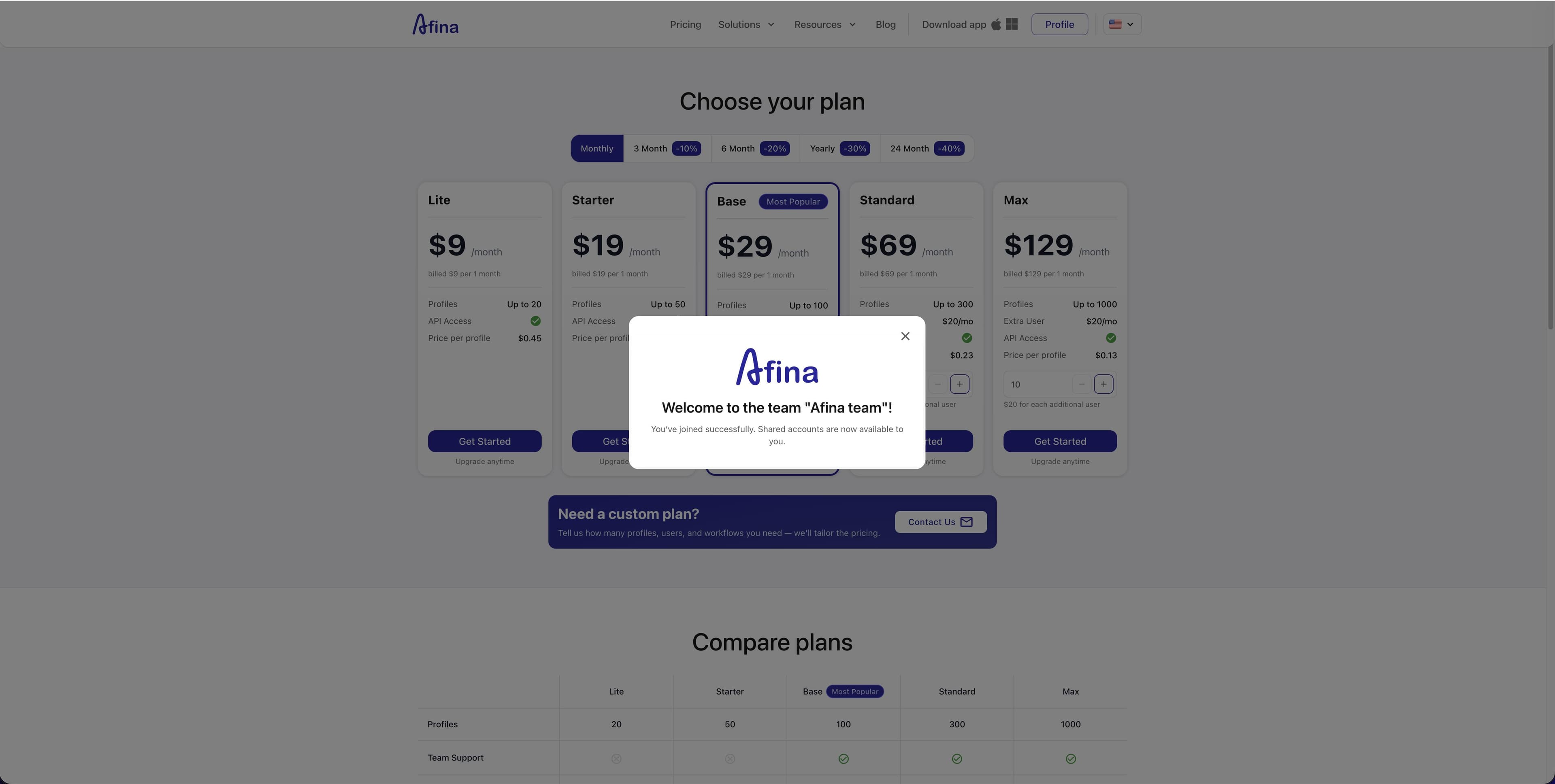
Make sure that after the code is verified, the team becomes available in the list of workspaces.
-
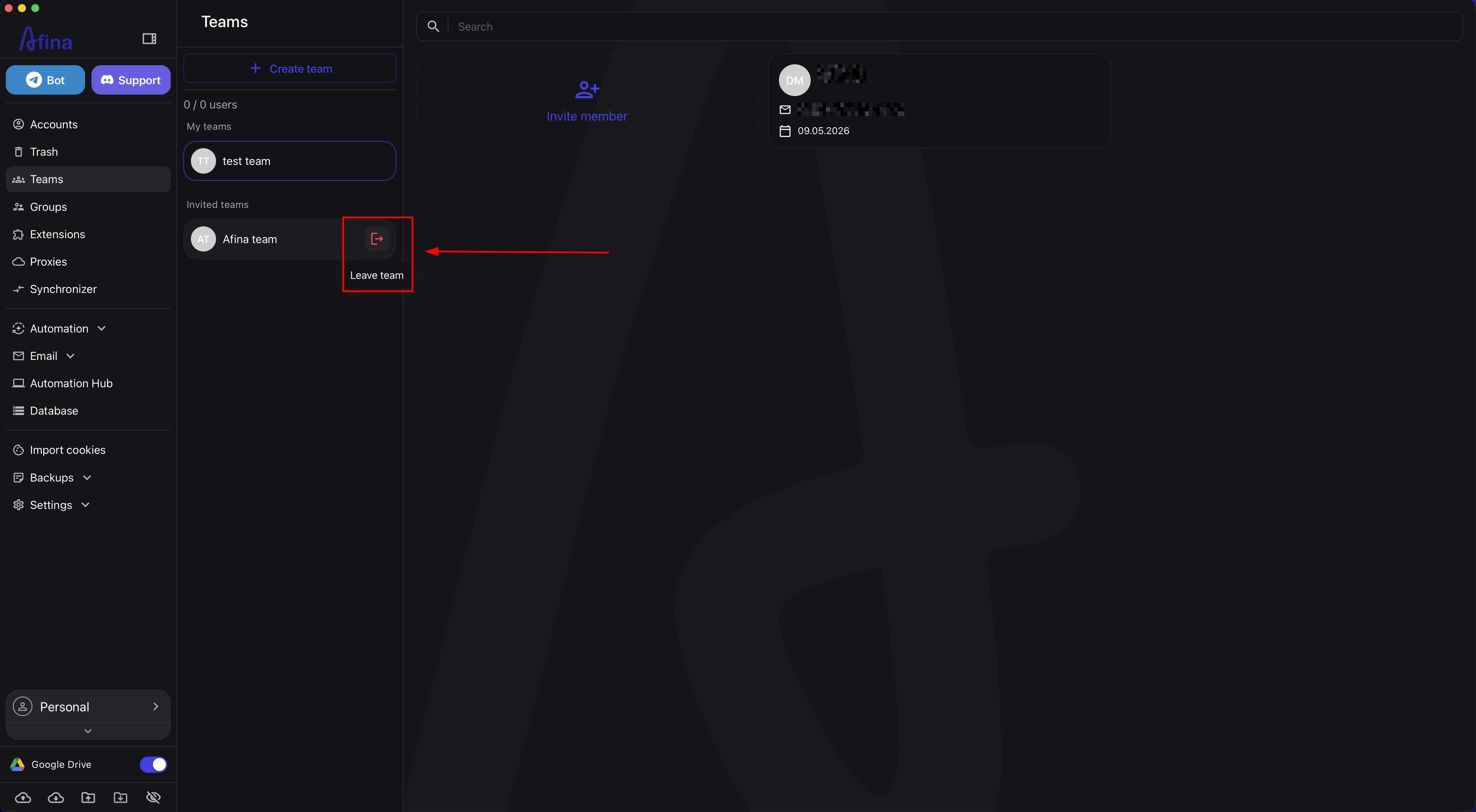
Click the exit icon next to the team name if you need to leave someone else's team.
The next screenshot shows the icon for leaving a team, which is available to the member after activation.
Switching workspace#
-
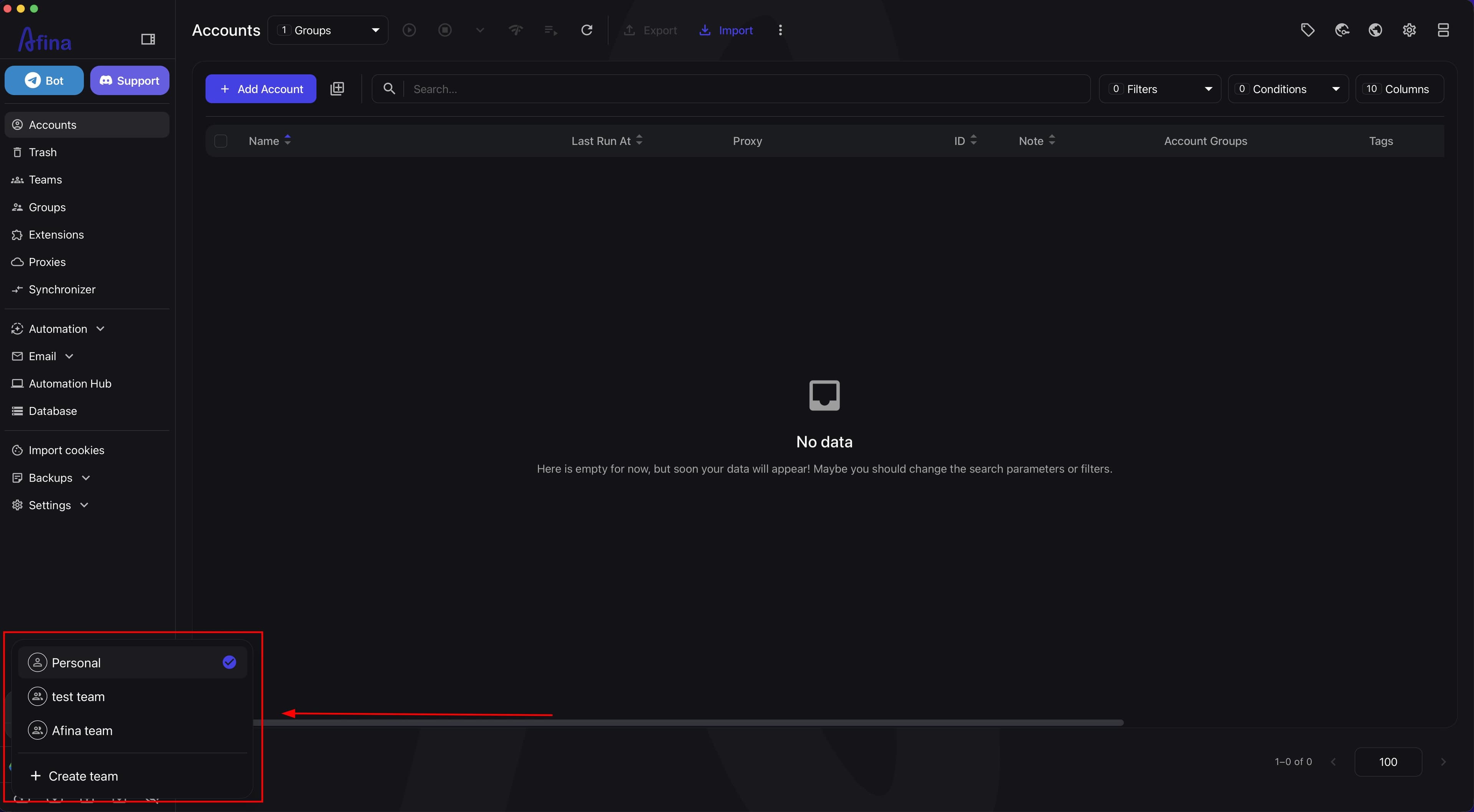
Open the workspace switcher at the top of the interface.
-
Select the desired team to switch to its workspace.
-
Select "Personal" if you want to return to your own workspace.
The screenshot below shows the switcher between the team and personal workspaces.
After switching, the "Accounts" section displays only those accounts that belong to the selected workspace.
Moving accounts#
-
Go to the Accounts section.
-
Select the desired accounts with checkboxes.
-
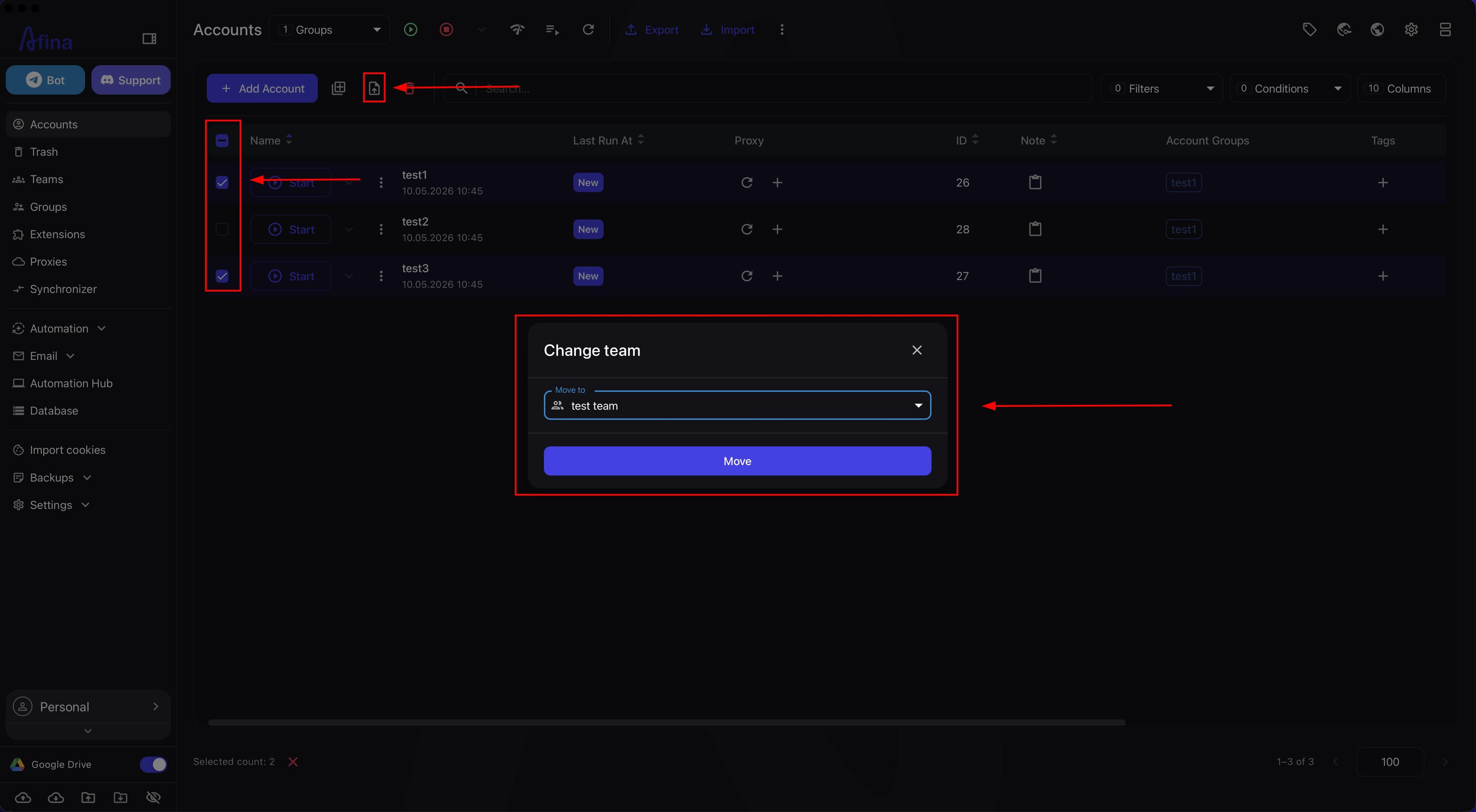
Click Move.
-
In the list of workspaces, select the target team or "Personal".
-
Click Move to confirm.
The screenshot below shows the window for moving accounts between workspaces.
If you move an account to "Personal", it will return to the personal workspace of the team owner.
Transferring accounts via Afina Cloud#
-
Make sure the desired accounts are already in the correct team workspace.
-
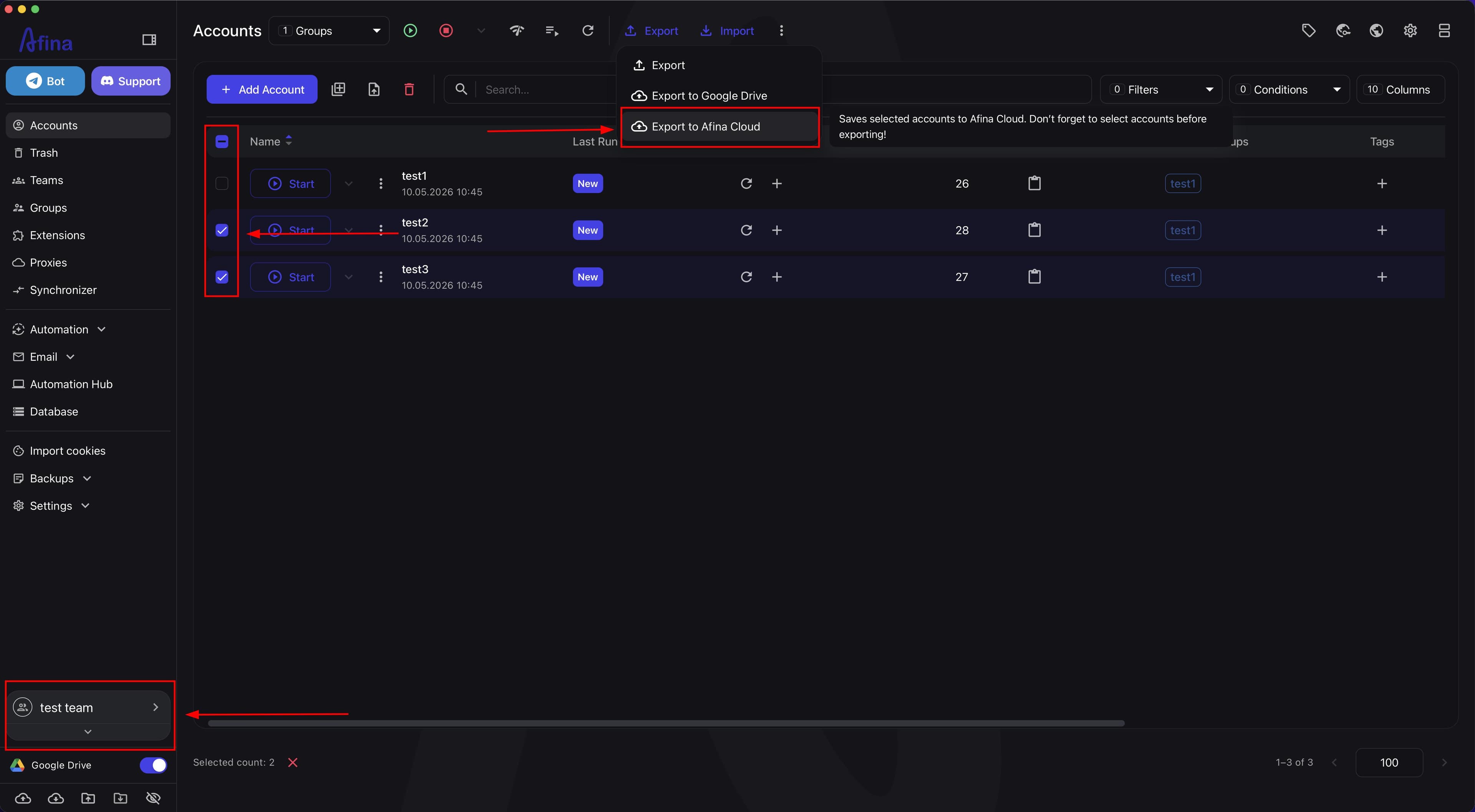
In the Accounts section, select the accounts you want to transfer with checkboxes.
-
Click Export to Afina Cloud.
The screenshot below shows the export of selected accounts to Afina Cloud.
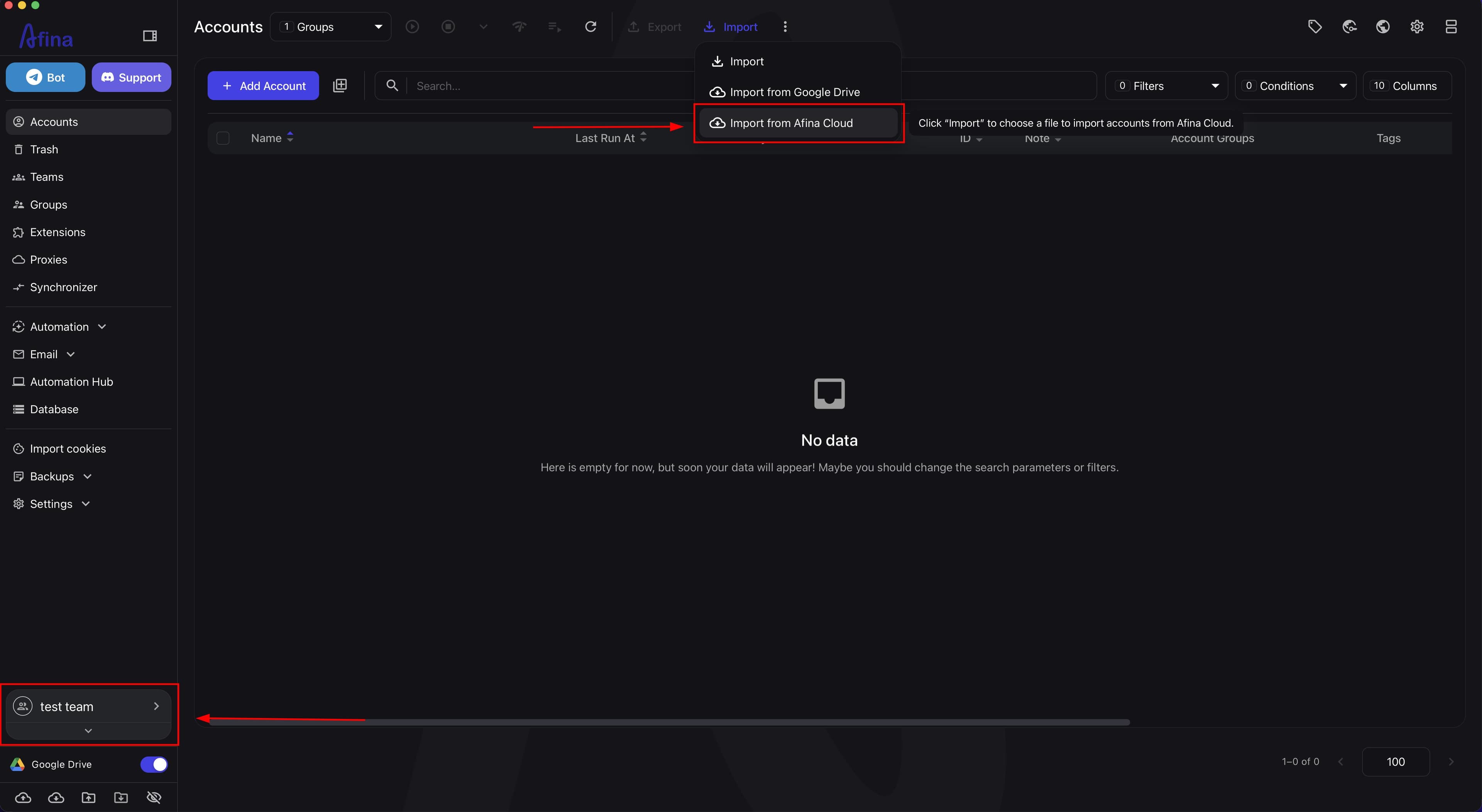
- Open Import from Afina Cloud in the same team to receive the transferred accounts.
The next screenshot shows the button for importing accounts from Afina Cloud.
-
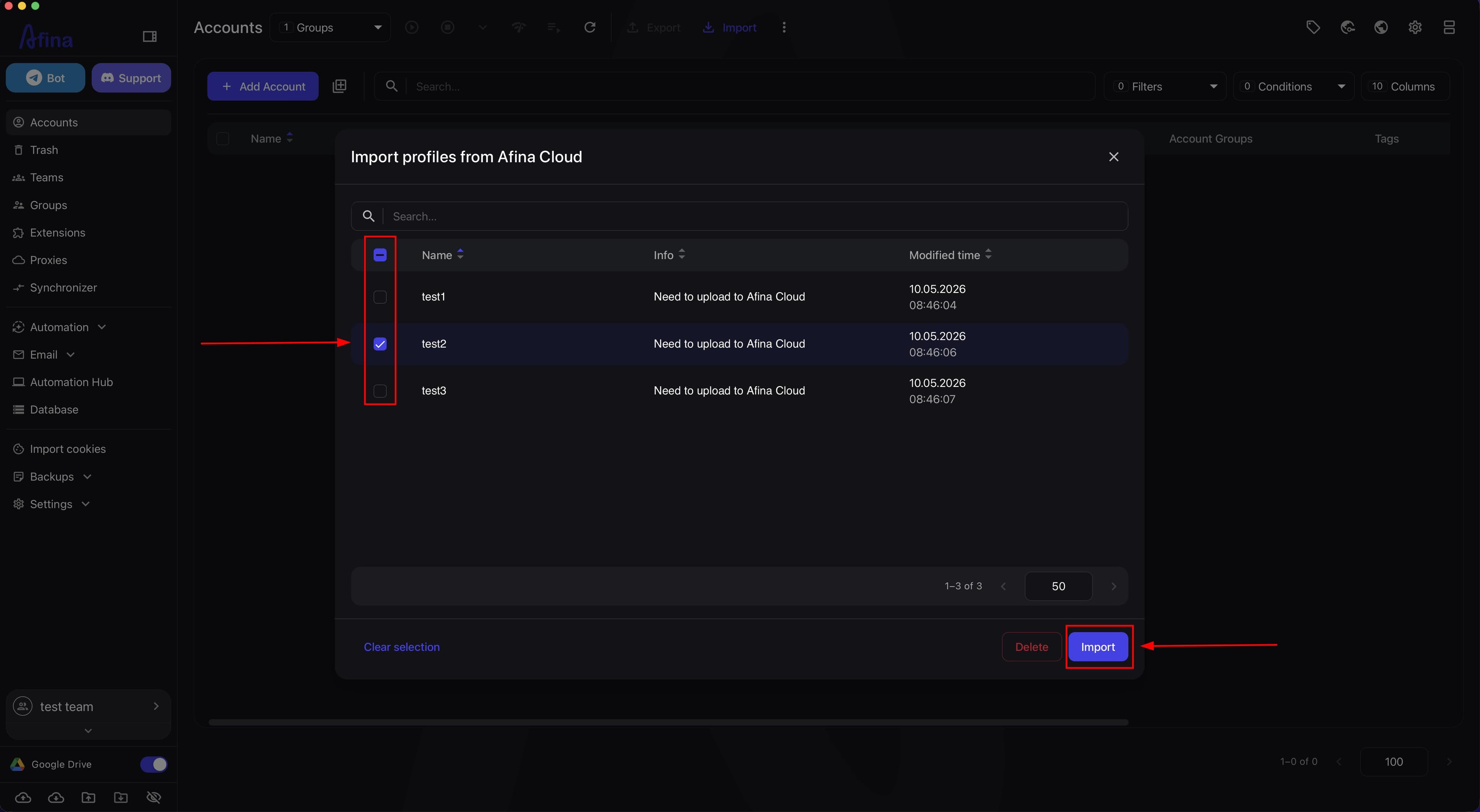
Select the desired accounts in the import list.
-
Click Import.
This screenshot shows the window for selecting accounts before importing from Afina Cloud.
- Check the export or import status in the "Backups" section.
Managing the team and members#
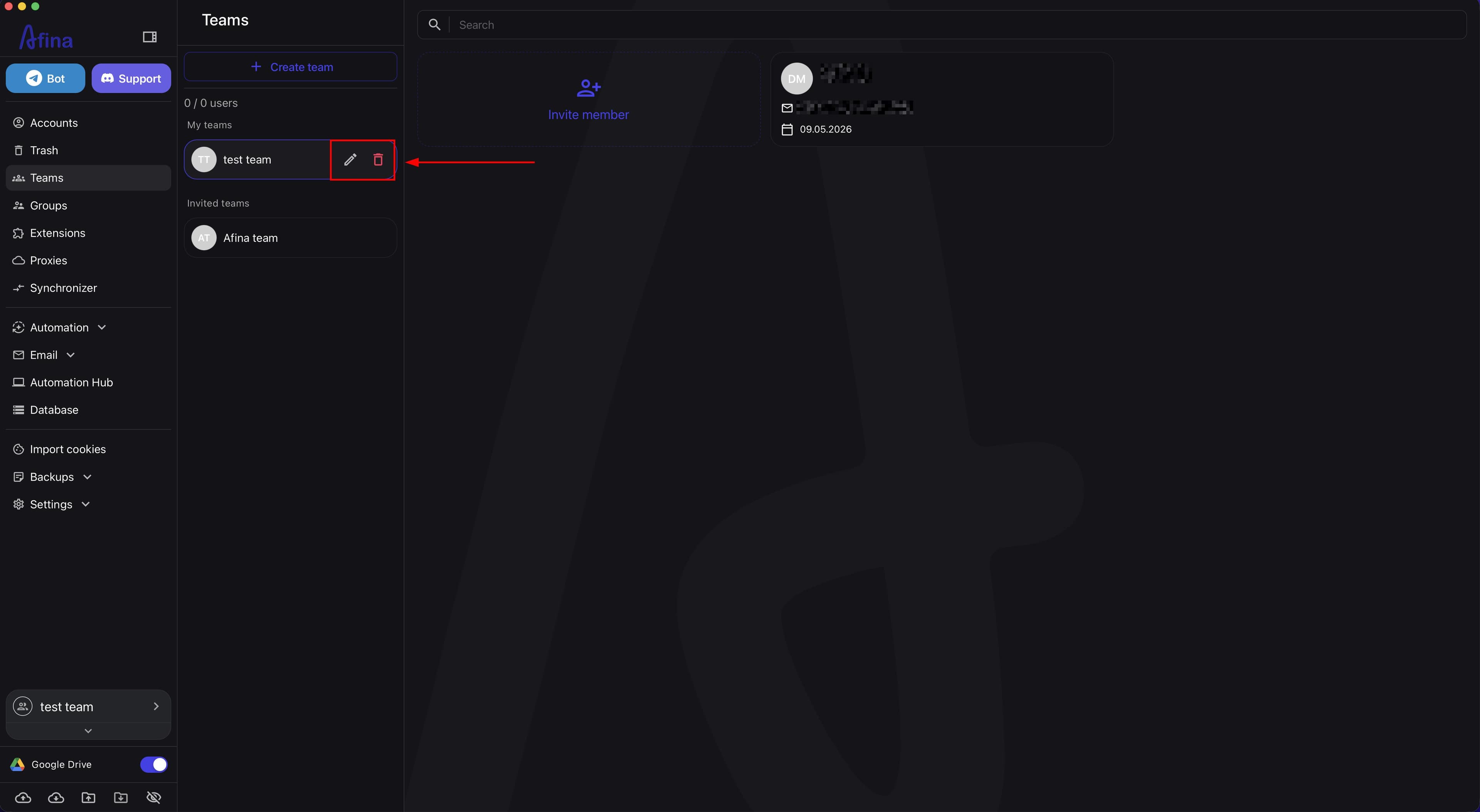
- Click the actions menu icon next to the team name if you need to change its name or delete the team.
The screenshot below shows the actions for editing or deleting a team.
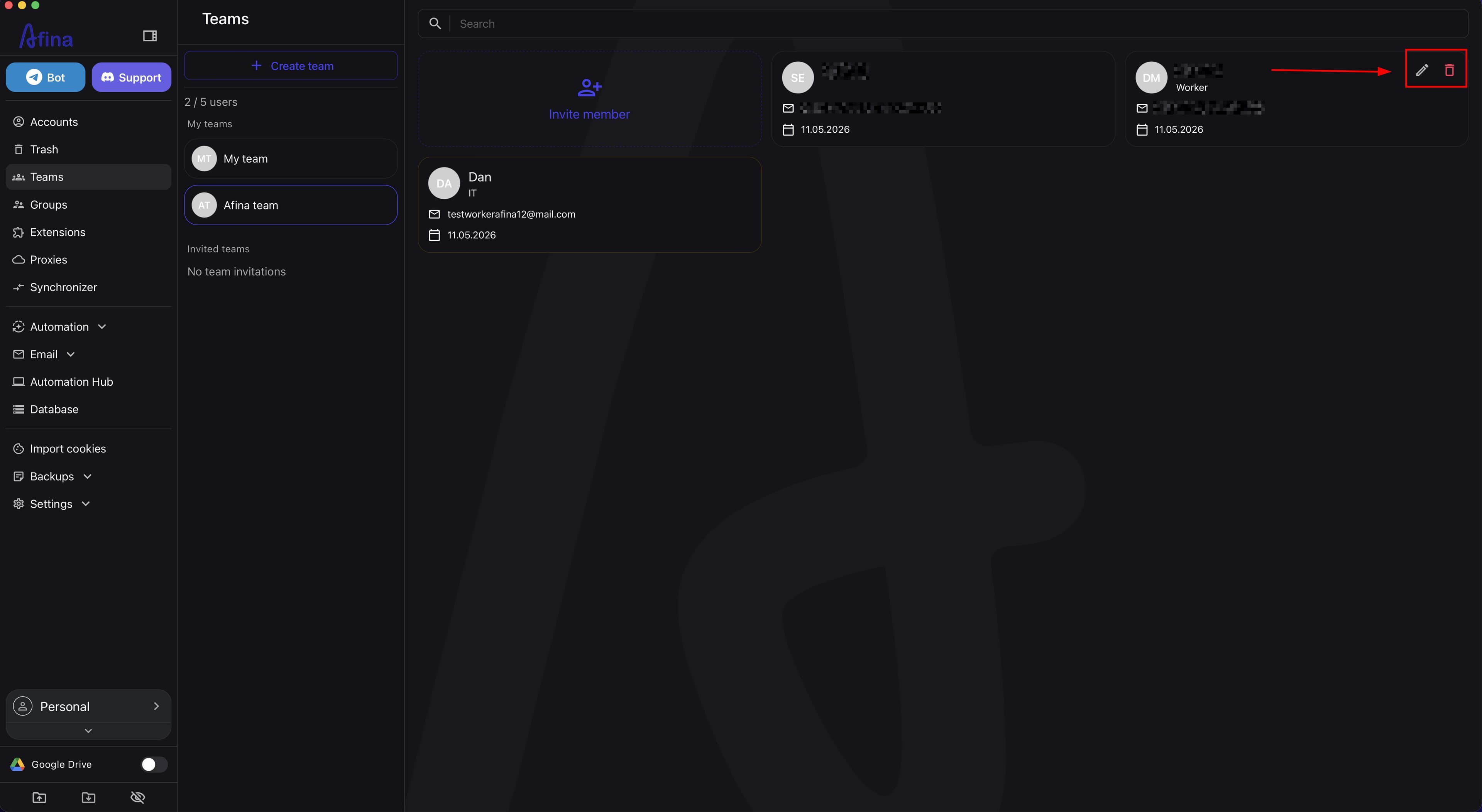
- Click the actions menu icon next to the member's name if you need to change their permissions or remove them from the team.
The next screenshot shows the actions for editing a member's permissions or removing them.
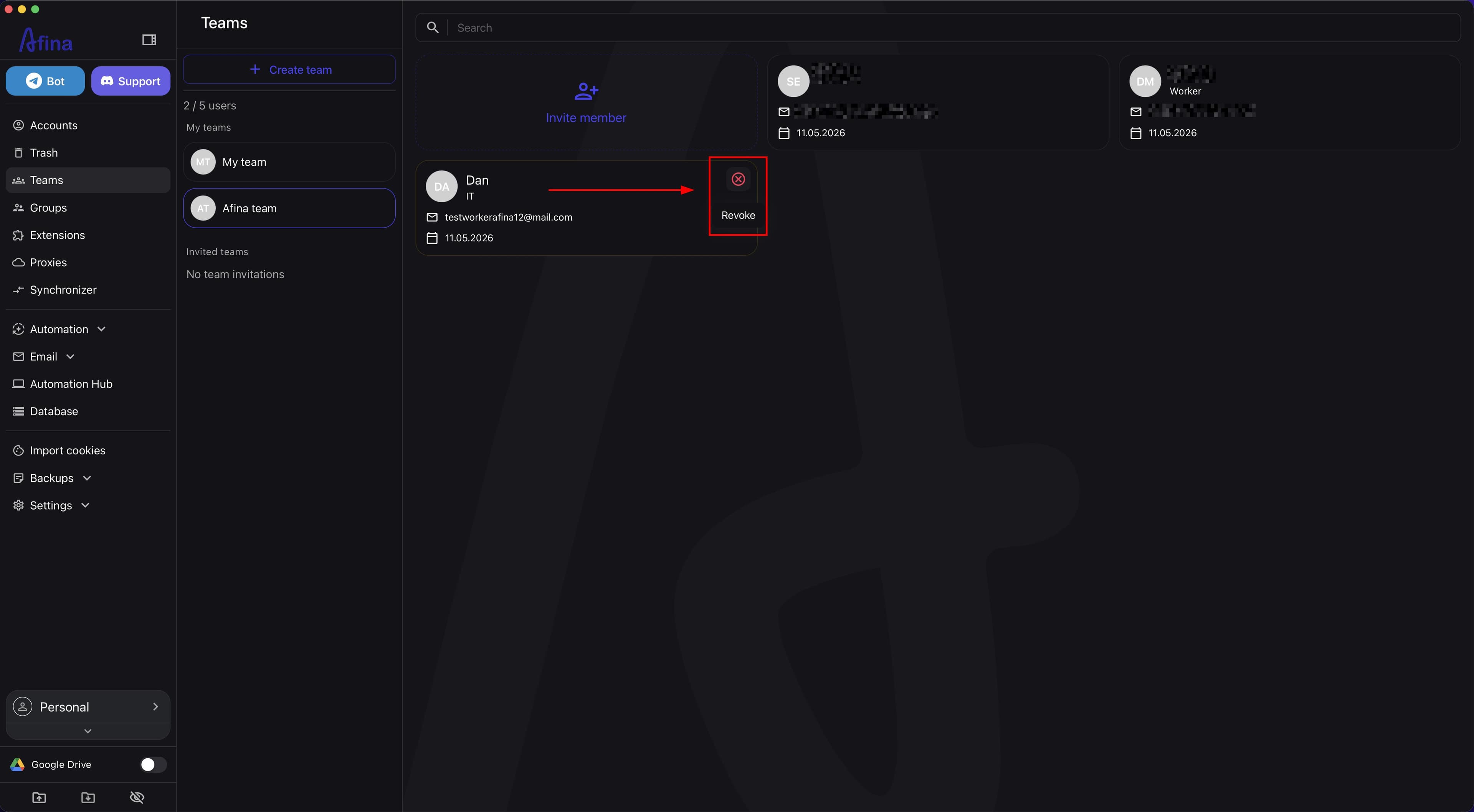
- Click Revoke on the invitation card if you need to cancel the invitation before the member accepts it.
This screenshot shows the Revoke button for canceling an invitation that has not yet been accepted.
Deleting a team and removing a member from a team are irreversible actions.
Only the team owner can remove members from a team.
Result#
After completing these steps, you will have a configured team workspace in Afina: the team will be created, members will be able to join via invitations, and accounts can be moved between workspaces and transferred via Afina Cloud.