Moving the Main Project Folder in Afina#
In this guide, you will move the main Afina project folder to another drive to free up space on the system drive, work with profiles on a faster SSD, and reduce the risk of failures caused by insufficient free space. This is not about reinstalling Afina, but specifically about moving the folder with profiles, service data, cache, and related files.
Before You Start#
- Use only an SSD (
SATA SSDorNVMe SSD). Moving data to an HDD is not recommended: Afina will work much slower on a hard drive, especially when launching many profiles in parallel. - Make sure there is enough free space on the target drive.
- Fully close Afina before copying.
- Check that Afina processes are not left running in the background:
- Windows: Task Manager;
- macOS: Activity Monitor.
- Create a backup of the current project folder.
Storage estimate:
1profile without cache: approximately up to50 MB;1profile with cache: approximately up to300 MB;- in the standard Afina configuration, the maximum cache size per
1account is300 MB; - if the cache limit was changed manually, the actual profile size may be larger. You can change the limit here: gear icon ⚙️ in the upper-right corner → "Afina Core Settings" → the "Main" tab → the "Max cache size (MB) per account" field;
- technical reserve: at least
+30%free space relative to the current folder size.
Example: if the Afina folder currently takes 120 GB, it is preferable to have at least 160 GB free on the target drive.
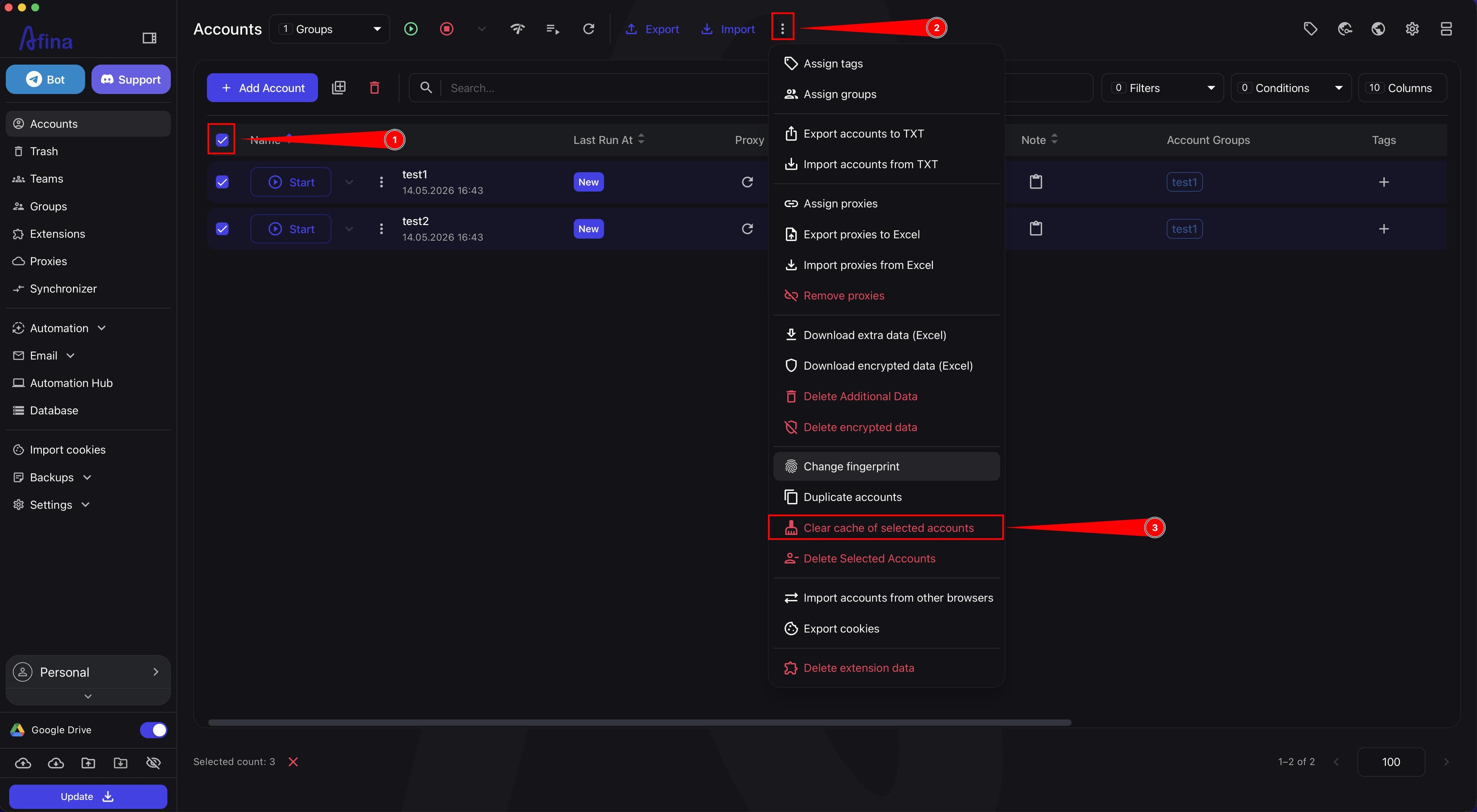
To save space before moving, you can delete cache from all accounts. This is not critical data, and cache can be safely cleared.
Never copy the data folder into the directory where Afina itself is installed (the Install folder). During the next application update, all contents of this folder, including profiles, cache, and logs, will be deleted. The target folder for data must always be separate from the application installation folder.
Do not choose cloud-synchronized directories (Google Drive, OneDrive, Dropbox, and so on), OS system directories, or old folders with other profiles as the target folder. Background synchronization or conflicts with existing files may damage or overwrite your work data.
The screenshot below shows clearing cache for selected accounts through the actions menu before moving the folder.
Preparing for the Move#
The basic principle of the move is:
-
First, physically move or copy the project folder to another drive.
-
Then switch Afina to the new folder path.
-
Click the gear icon ⚙️ in the upper-right corner of Afina and select "Afina Core Settings".
-
Go to the "Path for profiles" tab. It shows the current path to the project folder.
The screenshot below shows the "Path for profiles" section with the current path to the project folder.
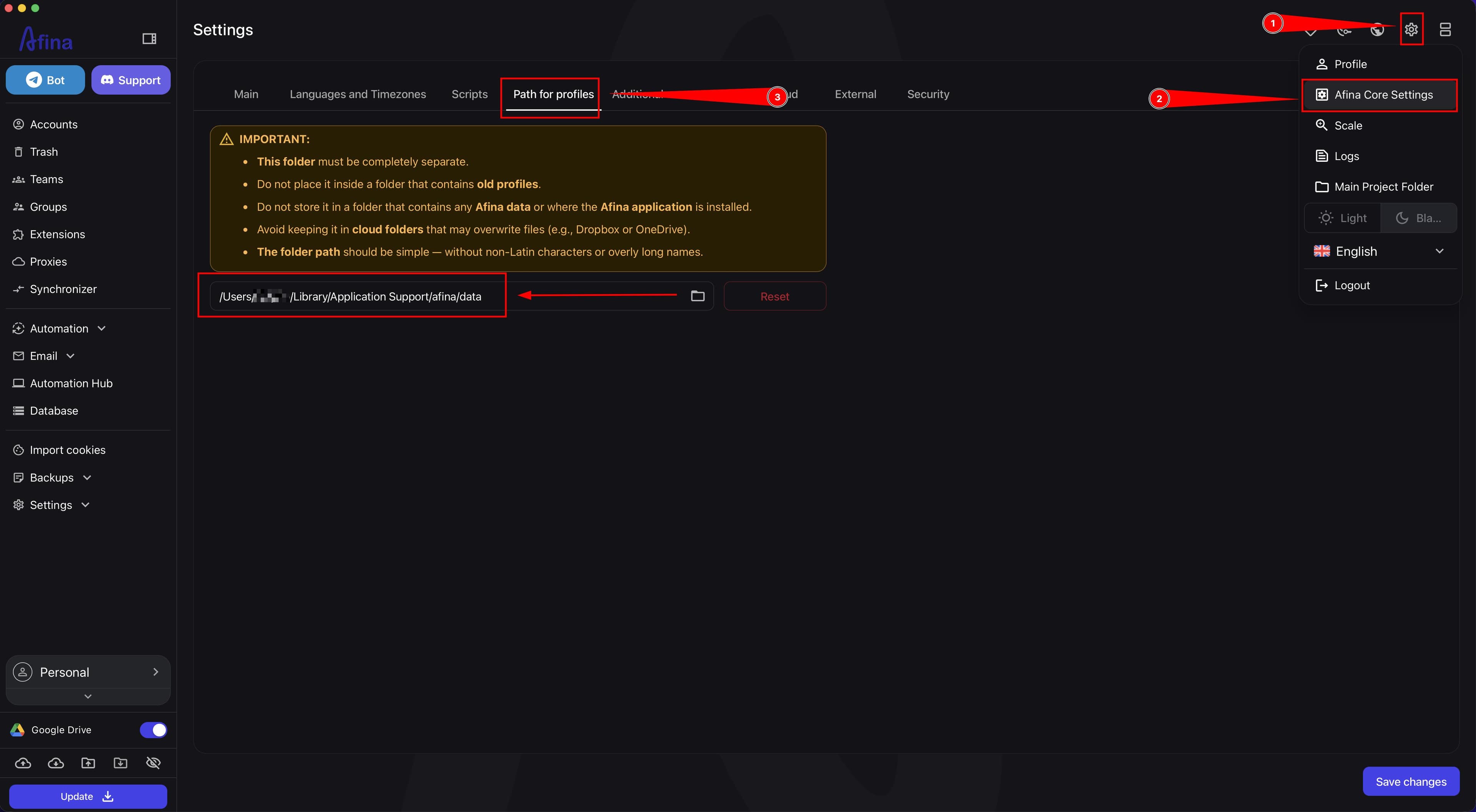
Quick way to find the current folder: gear icon ⚙️ → "Main Project Folder". The system directory with profiles, cache, and logs will open (usually this is the data folder).
-
Fully close Afina.
-
Create a new folder on the target drive, for example
AfinaData. Do not create it inside the Afina installation folder, in cloud-synchronized directories, or in OS system folders. See the warning above. -
Copy the entire Afina project folder from the old path to the new folder.
-
Make sure copying completed without errors.
-
Check that the size of the old and new folders matches.
Switching to the New Folder#
-
Launch Afina after copying is complete.
-
Click the gear icon ⚙️ in the upper-right corner and select "Afina Core Settings".
-
Go to the "Path for profiles" tab.
-
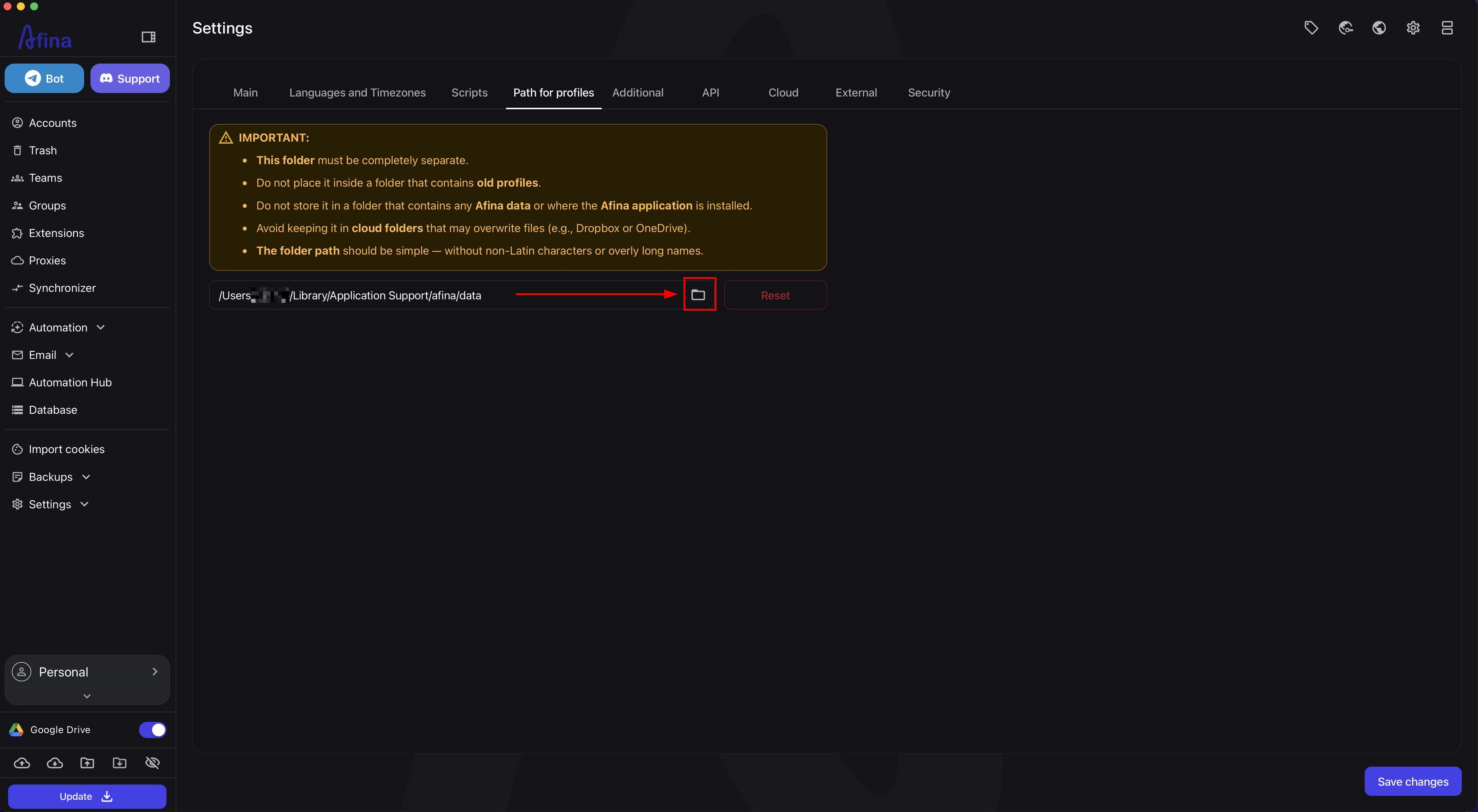
Click the folder selection button next to the current path.
The screenshot below shows the button for selecting a new folder next to the path field in the "Path for profiles" section.
-
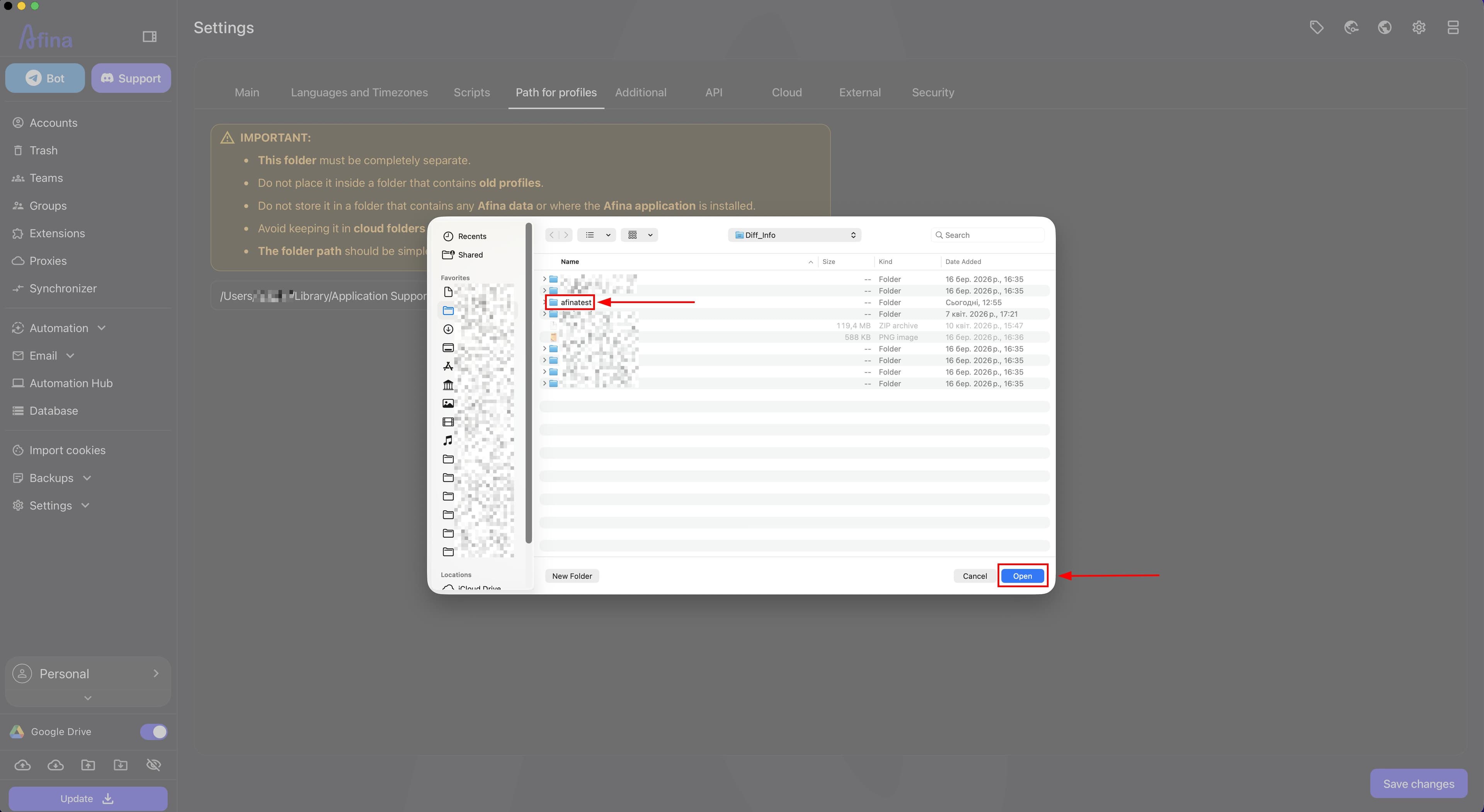
In the folder selection window, choose the new directory on the target drive.
-
Confirm the new folder selection and click "Save changes" at the bottom of the page.
The next screenshot shows the folder selection window with the new directory selected and confirmation using the Open button.
After you click "Save changes", Afina restarts automatically. You do not need to launch the application manually again. Wait until the restart is complete.
- Make sure that after switching, Afina is already working from the new path.
Checking After the Move#
-
Open
3-5different profiles after the move. -
Check proxy, cookies, and authorizations.
-
Make sure new data is created in the new folder.
-
Delete the old folder on the system drive only after a successful check.
Do not delete the old folder immediately after copying. First, make sure Afina works stably from the new path.
Additional Recommendations#
If you need to switch profile folders
For separate tasks, you can work with several folders, such as AfinaData_Main and AfinaData_Test, but only one active folder can be used at a specific moment. To switch folders, use the same procedure as in the section about switching to the new folder.
Performance recommendations
- store the Afina project folder on an SSD, not an HDD;
- keep at least
15-20%of the drive free; - periodically clear unnecessary profiles and cache;
- do not launch profiles in bulk if the drive is constantly loaded at
90-100%.
Problems and Solutions
Afina does not see profiles after the move
Possible causes:
- the wrong path is specified;
- copying was incomplete;
- Afina was open during copying.
Solution:
- Close Afina.
- Check the size and contents of the folder on the target drive.
- Specify the correct path again or copy the folder again.
- Restart Afina.
Profiles open slowly after the move
Possible causes:
- the target drive is slow, such as an HDD or overloaded SSD;
- there is too little free space;
- too many profiles are launched at the same time.
Solution:
- move the data to a faster SSD;
- free up space;
- reduce the simultaneous load.
There is not enough space on the target drive during the move
Solution:
- clear unnecessary files on the target drive;
- move part of your data;
- use a larger drive.
Short Checklist
- Close Afina.
- Create a backup.
- Copy the project folder from the old path to the target drive.
- Switch the path in Afina to the new folder.
- Check that profiles launch.
- Delete the old folder only after a successful test.
Result#
After completing these steps, the main Afina project folder will be moved to another drive, and profiles, service data, cache, and related files will start using the new path. If the post-move check is successful, you will be able to safely free up space on the system drive and continue working with Afina from the new data location.