Perfect account fingerprint#
In this guide, you will configure the account fingerprint in Afina so that it looks natural and does not conflict with the proxy, IP, language, timezone, or device parameters. It also covers the full logic of a proper profile, a recommended pre-launch checklist, and common mistakes to avoid.
Before you start#
- Prepare the account you are going to edit.
- Prepare a stable proxy if the account needs to work from a specific country or geolocation.
- Keep in mind that for stable work, it is better to configure the profile correctly once and then avoid changing its parameters unless necessary.
The main idea of a correct fingerprint is simple: the website should see not a "perfectly masked browser", but an ordinary real device that logically fits this account.
Basic fingerprint logic#
A correct fingerprint is a profile where all data looks consistent. For this kind of profile:
- the IP matches the account country;
- the browser language matches the IP country;
- the timezone matches the IP country;
- the ready-made Afina User Agent matches the operating system;
- CPU and RAM look like a real device;
- Canvas, WebGL, Audio, and Rects do not create unnecessary conflicts;
- the proxy is stable and does not change geolocation during work.
Each account should have its own stable set of parameters. You should not constantly change:
- IP country;
- browser language;
- timezone;
- operating system;
- User Agent;
- CPU count;
- RAM without a reason, because it should stay within realistic values for the selected configuration.
All required parameters are located in the "Edit account" window. Before launching the account, go through the main tabs and check that the parameters do not contradict each other.
A correct setup looks like this:
- IP: the country the account should work from;
- language: the language of the IP country for this account;
- timezone: the timezone of the IP country;
- proxy: a stable
HTTP,HTTPS, orSOCKS5proxy; - operating system: the one you actually want to emulate;
- User Agent: a ready-made Afina option for this operating system;
- CPU: a realistic value for a regular device;
- RAM:
8 GB,16 GB, or32 GBfor the current core; - window size: selected when creating the account and stable for the profile;
- Canvas, WebGL, Audio, Rects: three parameters remain real, and noise is added to no more than one parameter if your scenario requires it.
General settings#
-
Open the required account for editing.
-
Make sure the "Edit account" window opens on the "General" tab.
-
In the "Name" field, check or enter the account name.
-
In the "OS" field, select the system the profile should show.
-
In the "ARM chip" field, select a value only if you use Mac ARM.
-
In the "User Agent" field, use a ready-made Afina option selected for the chosen operating system and browser core.
-
Check "Screen size". When creating an account in Afina, choose a specific window size so the profile opens consistently and does not change geometry unnecessarily.
-
In the "Canvas" field, leave "Real" mode.
-
In the "WebGL" field, leave "Real" mode unless you are testing noise specifically for this parameter.
-
In the "Audio" field, leave "Real" mode unless you are testing noise specifically for this parameter.
-
In the "Rects" field, leave "Real" mode unless you are testing noise specifically for this parameter.
-
In the "Blocked ports" field, keep protection for service ports unless you have a specific technical reason to change this list.
-
Check the "Fingerprint" block on the right side of the window.
-
Click Generate new fingerprint only when you really need to update the fingerprint.
The screenshot below shows the "General" tab in the "Edit account" window with OS selection, User Agent, Canvas, WebGL, Audio, and Rects modes set to "Real", and the browser fingerprint block.
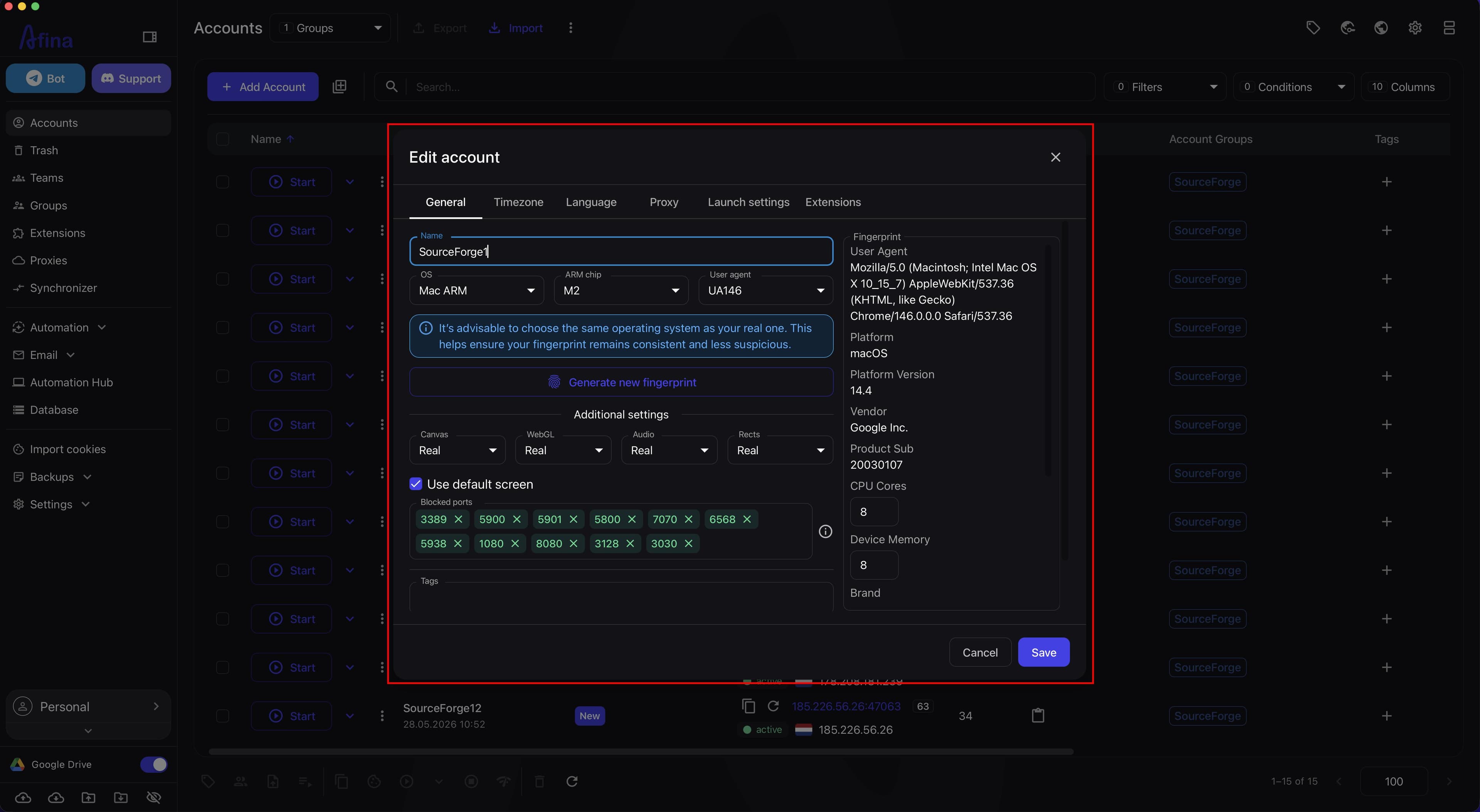
The "General" tab is where the base of the whole profile is checked. Canvas is best left in "Real" mode. For WebGL, Audio, or Rects, you can test noise, but no more than one parameter at a time.
Do not set a random User Agent manually. Afina uses ready-made User Agents that are already selected for the available core and profile configuration. Manual substitution can make the account fingerprint worse if it does not match the operating system, platform, or browser core.
Window size is also part of a stable profile. When creating an account, choose a specific screen size and do not change it unnecessarily. If the profile opens with different geometry each time or the user constantly resizes the window, it may look like an unstable environment.
The "Blocked ports" field is passed to --afina-fp|portsProtection. By default, Afina blocks service ports for RDP, VNC, and proxies. The CDP port of the current profile is added automatically when the account starts.
In the "Fingerprint" block, you can see what exactly the account will show to websites:
- User Agent;
- Platform;
- Platform Version;
- Vendor;
- Subproduct;
- CPU Cores;
- Device Memory;
- Brand;
- User Agent Version;
- Full Brand Version;
- WebGL Renderer;
- WebGL Vendor.
It is recommended to choose the same operating system as on your real device. This makes the fingerprint more consistent and less suspicious.
Language and timezone#
-
Open the "Language" tab in the "Edit account" window.
-
In the "Interface language" field, check the main profile language.
-
Turn on the "Languages from IP" switch if you want Afina to automatically select languages according to the proxy IP.
The screenshot below shows the "Language" tab with the "Languages from IP" switch enabled.
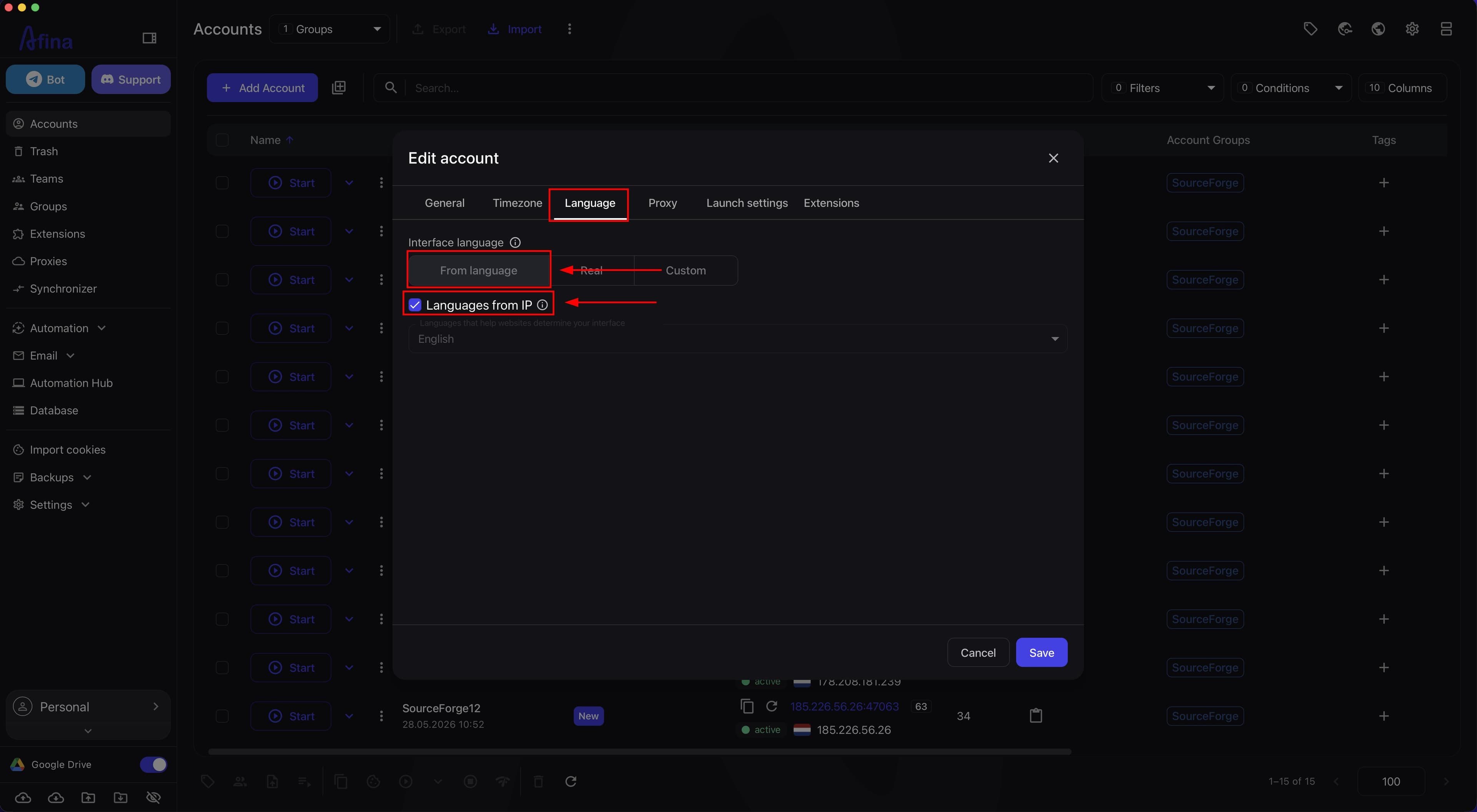
Do not set a random language that is not related to the IP. For example, a Ukrainian browser language with a proxy in the United States can be normal for a real person, but for mass work it is better not to create unnecessary unusual combinations.
-
Open the "Timezone" tab in the "Edit account" window.
-
Turn on the "Timezone from IP" switch so Afina automatically sets the timezone according to the proxy country and region.
The next screenshot shows the "Timezone" tab with the "Timezone from IP" switch enabled.
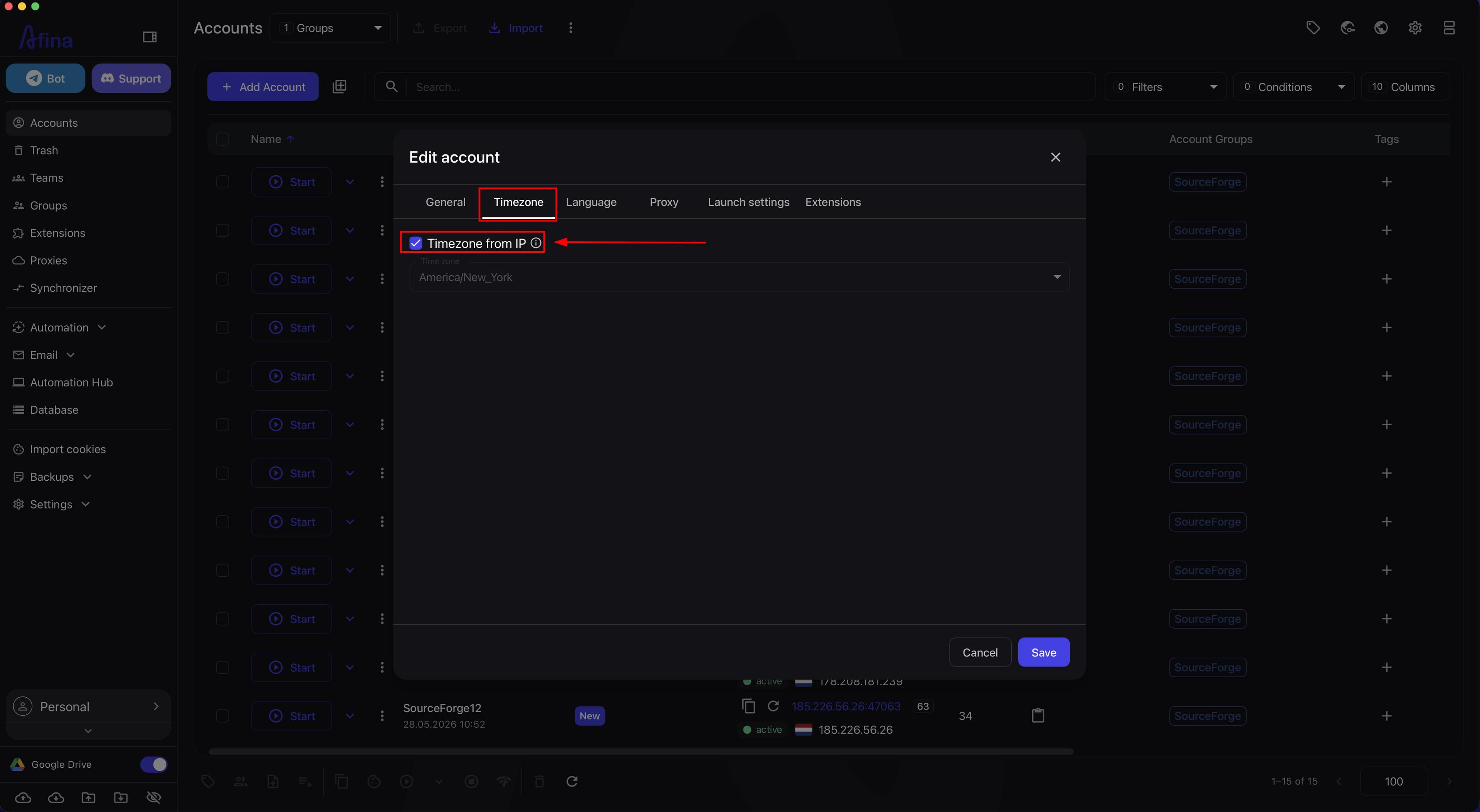
If the IP is in the United Kingdom, it is logical to use Europe/London. Do not leave your PC's local timezone if it does not match the account IP. For example, a US IP and the Europe/Kyiv timezone look like a technical conflict.
The best logic is for the browser language to match the proxy country or look natural for this account.
A mismatch between IP, language, and timezone is one of the most common mistakes when configuring a fingerprint.
Proxy and stability#
-
Open the "Proxy" tab in the "Edit account" window.
-
In the "Proxy type" field, select
HTTP,HTTPS, orSOCKS5. -
In the "Host", "Port", "Login", and "Password" fields, enter your proxy parameters if they are not filled in automatically.
The screenshot below shows the "Proxy" tab with a saved proxy selected, the SOCKS5 type, and host, port, login, and password fields.
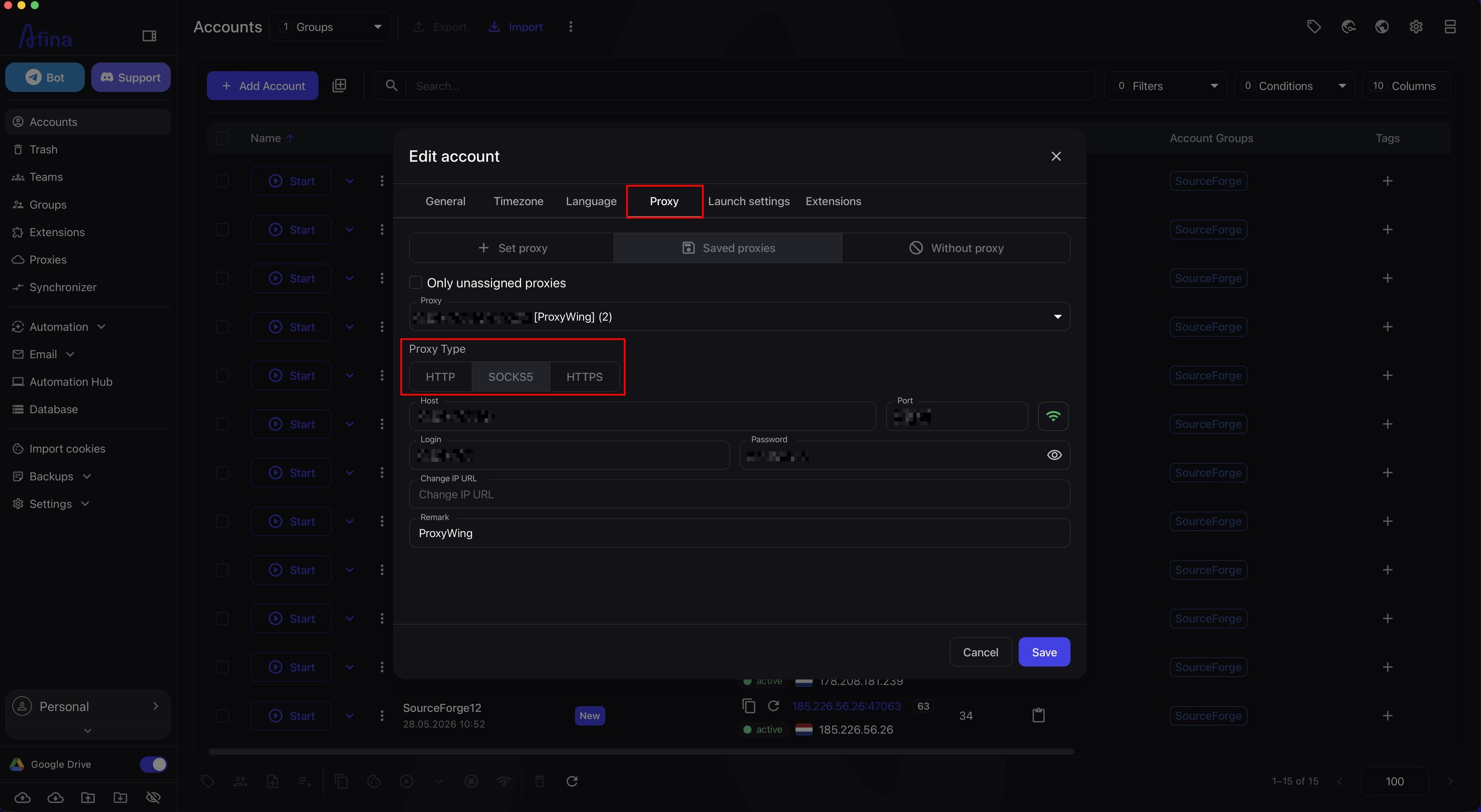
For stable browser work, it is better to use high-quality HTTP or HTTPS proxies if your proxy provider supports them. These proxies work well for browser profiles because:
- they work stably with websites;
- they are easy to check;
- they fit standard browser activity well;
- they work predictably in mass scenarios;
- they make it easier to control IP, country, and port.
If your scenario requires UDP traffic, use only a SOCKS5 proxy. HTTP and HTTPS proxies are not suitable for this scenario.
WebRTC, UDP, and SOCKS5 proxy quality
WebRTC does not need to be enabled separately. If the profile has a proper SOCKS5 proxy with real UDP support, WebRTC, QUIC/HTTP3, and WebTransport should work automatically.
If these technologies do not work correctly, the problem is usually not Afina but the proxy quality. A proxy may show UDP in settings but actually work unstably:
- not pass QUIC;
- not pass TURN UDP;
- cause a DNS or WebRTC leak;
- show different IPs in HTTP and WebRTC.
Therefore, for scenarios that require UDP, WebRTC, QUIC/HTTP3, or WebTransport, it is important to use not just SOCKS5, but a high-quality SOCKS5 proxy with real UDP support.
Use separate services for checking each technology:
browserleaks.com/webrtc- WebRTC leak check;browserleaks.com/quic- QUIC/HTTP3 check.
Why proxy stability matters The proxy is the foundation of the whole profile. If the IP constantly changes, even correctly configured Canvas, WebGL, or User Agent will not save the profile from looking suspicious.
Unwanted scenarios:
- the account opens from a new country every time;
- the IP changes during one session;
- the proxy shows one country, while the timezone is from another;
- the browser language does not match the IP;
- the proxy often drops or fails checks.
For one account, it is better to use one stable proxy or a stable rotation logic within one geolocation.
Enable protection against proxy country changes if it is available in the account settings. The "Block on proxy country change" option prevents the profile from launching when the IP country changes unexpectedly. This reduces the risk of a situation where the account worked from one country yesterday and opens from another today without a logical reason.
Do not install a VPN extension inside the profile unless absolutely necessary. Such an extension can override the Afina proxy and expose your real IP or show websites a different network logic than the one configured in the account.
Do not rely only on the fact that the proxy is labeled SOCKS5 or that UDP is shown in the settings. Always check that HTTP and WebRTC show the same IP and that there are no DNS/WebRTC leaks.
Console#
-
Open Settings in Afina.
-
Open Afina Core Settings.
-
Make sure the "Enable console" switch is disabled for normal account work.
The screenshot below shows the "Settings" section with the profile menu open, "Afina Core Settings" selected, and the "Enable console" switch disabled.
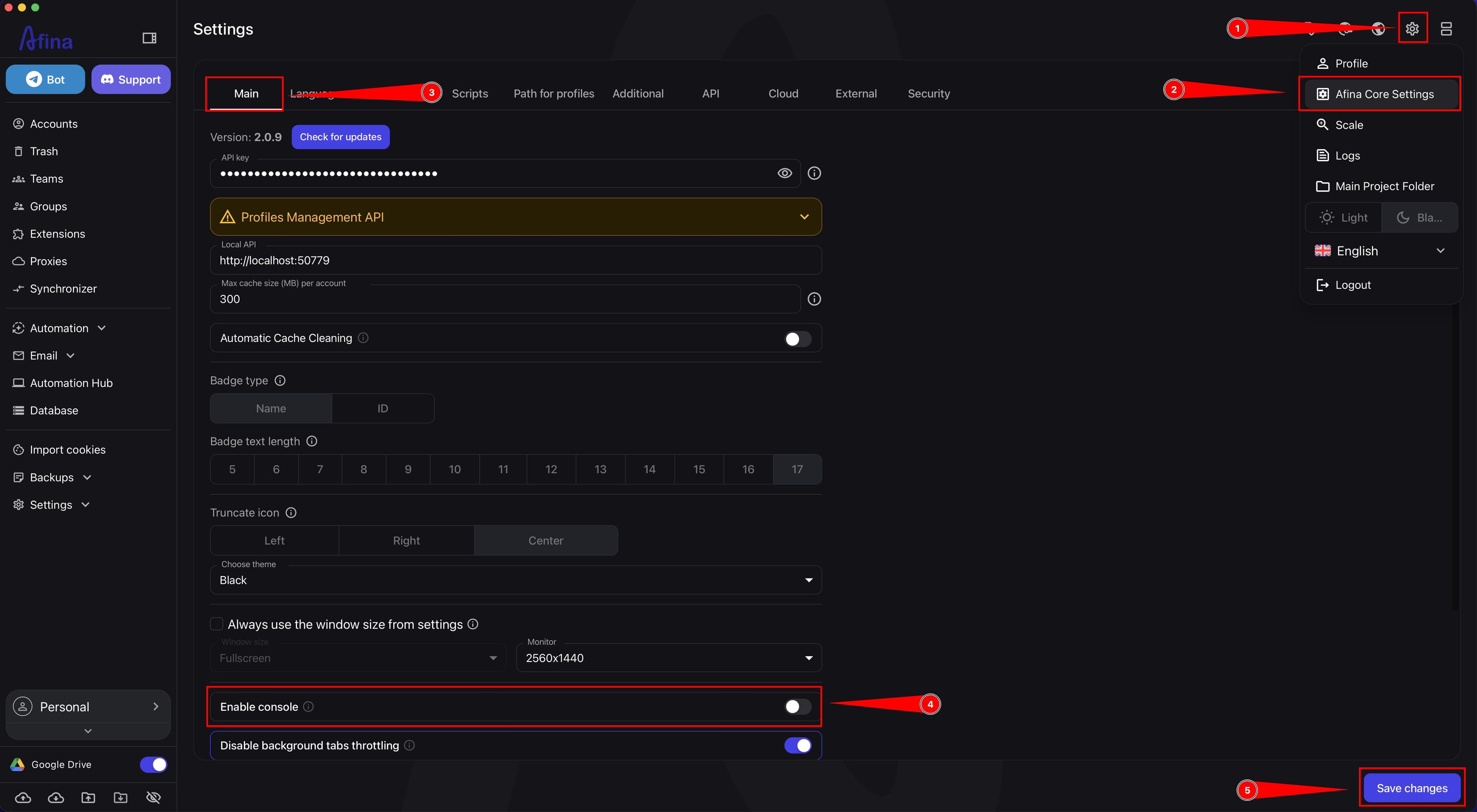
For normal account work, the console is not needed. A regular user does not open a technical console while working with a website, so a disabled console looks natural and matches default browser behavior.
Enable the console only for technical checks, debugging, or script testing. After that, it is better to disable it again so the profile does not have unnecessary technical surroundings.
For a perfect profile, the console should remain disabled. This is the standard and most natural behavior for a regular user.
CPU and RAM#
-
Return to the "General" tab in the "Edit account" window.
-
In the "CPU Cores" field, select a realistic even value.
-
In the "Device Memory" field, check the RAM value according to the number of cores.
The screenshot below shows the "CPU Cores" and "Device Memory" fields on the "General" tab.
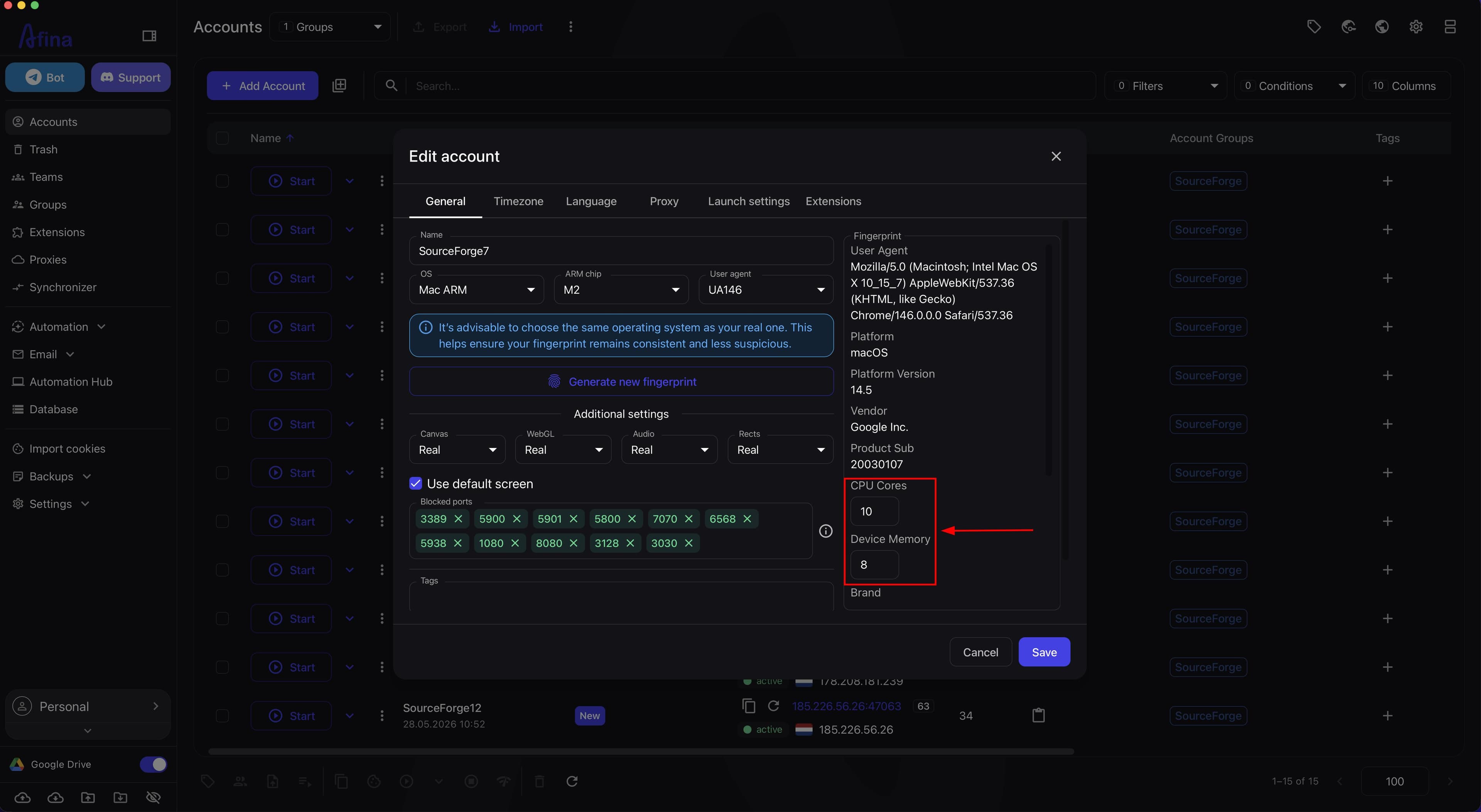
Before changing the fingerprint, consider the technical limits shown in the screenshot:
- Afina currently provides browser core
148and newer; - when the core is updated, accounts automatically move to the latest available core;
- in the "Device Memory" field, you can select
8 GB,16 GB, or32 GB; - use only even values for CPU;
- the maximum CPU value is
64, but for a natural profile it is better to stay within20or less.
In Afina, you can manually change CPU cores in the fingerprint settings, but you should not make the profile too powerful without a reason. For a regular browser account, 4, 6, or 8 cores are usually enough. Values like 12, 16, or 20 can also look normal if the whole profile is built as a powerful modern device.
Do not set an odd number of cores. Values like 3, 5, 7, or 9 look unusual for a normal browser environment and can create unnecessary suspicion.
RAM should be selected logically for the device profile. For the current Afina core, use 8 GB, 16 GB, or 32 GB depending on what kind of device profile you are building. Do not set 32 GB just to make the profile look "stronger": this value should look natural together with CPU, operating system, User Agent, and the overall device image.
Canvas, WebGL, Audio, and Rects#
-
On the "General" tab, check that "Canvas" is set to "Real" mode.
-
Decide whether you need noise for one of the other parameters: WebGL, Audio, or Rects.
-
Keep three out of four parameters, Canvas, WebGL, Audio, and Rects, in "Real" mode.
-
If you test noise, apply it to only one parameter at a time.
The screenshot below shows the additional Canvas, WebGL, Audio, and Rects settings in "Real" mode.
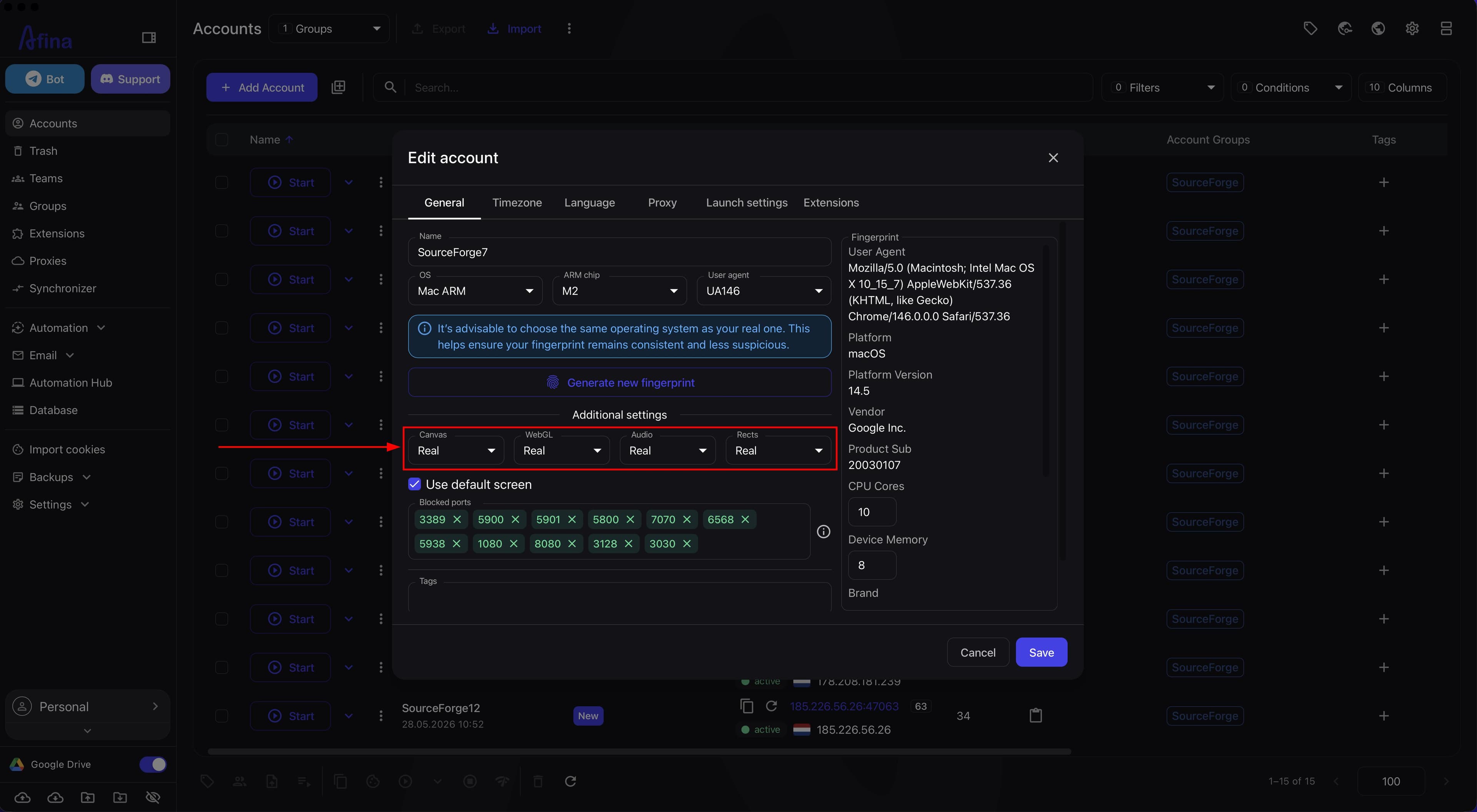
Canvas Canvas is part of the browser fingerprint that shows how the browser and device render graphics. In Afina settings, Canvas should be set to "Real" mode. It is already set correctly by default.
When working with modern anti-fraud systems, it is important to avoid 100% profile uniqueness. This is especially true for Canvas. Large platforms and services have databases of almost all existing real Canvas fingerprints, so artificial noise on Canvas often looks like an anomaly and attracts unnecessary attention from security algorithms.
Do not constantly change Canvas for the same account. If a website sees that Canvas changes often, it may look like a new device or an unstable environment. For a perfect profile, disable noise on Canvas and keep the real fingerprint.
WebGL WebGL is responsible for the graphics fingerprint and often shows information about the video card or graphics renderer. By default, you can leave it in "Real" mode. If you need to separate several accounts from each other, WebGL can be one of the parameters where noise is tested.
Audio Audio is the browser audio fingerprint. By default, you can leave it in "Real" mode. If WebGL and Rects remain real, Audio can be a parameter for test noise.
If Audio changes every time, the website may interpret it as a device change. Therefore, do not switch noise between sessions unless necessary.
Rects Rects is a parameter related to rendering elements on the page. By default, you can leave it in "Real" mode. If WebGL and Audio remain real, Rects can be a parameter for test noise.
The main rule is 1 out of 4. Three out of four main components (Canvas, WebGL, Audio, Rects) should remain real, and only one should have noise applied. Since social networks, ad accounts, crypto exchanges, and other platforms have different tracking algorithms, there is no universal recipe. Test which parameter, WebGL, Audio, or Rects, works best for adding noise for your target resource.
Pre-launch checklist#
Before launching the account, check that:
- the proxy is stable and shows the correct country;
- a high-quality
HTTPorHTTPSproxy is used for normal browser work; - if UDP, WebRTC, QUIC/HTTP3, or WebTransport is needed, only high-quality
SOCKS5with real UDP support is used; HTTPand WebRTC show the same IP, and there are no DNS/WebRTC leaks;- WebRTC, QUIC/HTTP3, WebTransport, and TURN UDP/TCP have been checked through separate services;
- block on proxy country change is enabled if stable geolocation is critical for the profile;
- there is no VPN extension in the profile that can override the Afina proxy or expose the real IP;
- "Languages from IP" is enabled;
- "Timezone from IP" is enabled;
- the operating system, ready-made Afina User Agent, and WebGL look like one real device;
- a stable window size was selected when creating the account;
- CPU has a standard even value:
2,4,6, or8; - RAM has a realistic value:
8 GB,16 GB, or32 GB; - Canvas is set to "Real" mode;
- among WebGL, Audio, and Rects, noise is used on no more than one parameter;
- the console is disabled;
- service ports are protected through "Blocked ports";
- account parameters are not changed between sessions unless necessary.
What a perfect browser should look like A perfect browser profile is not a profile with the maximum number of substitutions. It is a profile where all parameters look like one real device and do not contradict each other.
Example of good logic:
- on the "Language" tab, "Languages from IP" is enabled, so the language matches the proxy;
- on the "Timezone" tab, "Timezone from IP" is enabled, for example
Europe/Berlin; - the operating system is Windows or MacOS;
- User Agent is a ready-made Afina option for the current core;
- the window size was selected when creating the account and does not change unnecessarily;
- CPU is a standard even value, for example
4or8; - RAM is
8 GB,16 GB, or32 GBfor the current core; - Canvas remains in "Real" mode, and noise, if needed, is tested only on one parameter: WebGL, Audio, or Rects;
- if UDP, WebRTC, QUIC/HTTP3, or WebTransport is needed, a high-quality
SOCKS5proxy with real UDP support is used; - block on proxy country change is enabled;
- the console is disabled because this is how a standard user looks;
- blocked service ports remain protected.
Example of bad logic:
- browser language does not match the IP;
- timezone does not match the IP;
- a manually set User Agent does not match the ready-made Afina configuration;
- WebGL from Windows;
- CPU is
7, an odd and non-standard value; - RAM is selected without device logic, for example
32 GBon a weak profile; - noise is applied to Canvas or to several parameters at once: WebGL, Audio, and Rects;
- window size constantly changes;
- the proxy is unstable;
- the proxy country changed, but block on country change is not enabled;
- a VPN extension is installed in the profile and can override the Afina proxy;
- an
HTTPorHTTPSproxy is used instead of high-qualitySOCKS5for a UDP/WebRTC scenario; - the console is enabled without technical need.
Common mistakes The most common mistakes when configuring a fingerprint:
- language does not match the IP country;
- timezone does not match the IP country;
- an unstable proxy is used;
- an
HTTPorHTTPSproxy is used instead ofSOCKS5for a UDP/WebRTC scenario; - the proxy is labeled
SOCKS5, but actually does not pass UDP, QUIC, or TURN UDP; HTTPand WebRTC show different IPs;- there are DNS/WebRTC leaks;
- IP and geolocation are changed often for the same account;
- block on proxy country change is not enabled;
- a VPN extension is installed inside the profile;
- no stable window size is selected when creating the account;
- too many CPU cores are set;
- an odd CPU count is set, which should not appear in a normal fingerprint;
- noise is applied to Canvas;
- noise is applied to several WebGL, Audio, and Rects parameters at once;
- the console is enabled without technical need;
- the profile is made too unique.
Result#
After following these steps, you will have a stable and logically assembled account fingerprint: IP, language, timezone, ready-made Afina User Agent, CPU, RAM, window size, Canvas, WebGL, Audio, Rects, proxy, and console will not conflict with each other. For a natural profile, CPU should be even and realistic, RAM should be 8 GB, 16 GB, or 32 GB, Canvas should remain real, noise should be used on no more than one of WebGL, Audio, or Rects, and the console should remain disabled unless there is a specific technical need. Also check WebRTC/DNS leaks, proxy country stability, and do not use a VPN extension inside the profile unless absolutely necessary.