Encryption Keys and Security in Afina#
In this guide, you will learn how to create a key file when launching Afina for the first time, recreate it after a failed migration, store it in a secure location, change the master password, and transfer the keys to another device. These actions protect your accounts, cookies, and all encrypted data in the application.
What a key file is and why you need it The key file encrypts your accounts, cookies, and all sensitive data in Afina. The master password protects the key file itself and confirms authorization to perform key-related actions. Without both components, you cannot access or recover encrypted data.
You must create and save the key file and master password when signing in for the first time or migrating from an older version of Afina.
A key file is as critical as a seed phrase: if you lose access to the key file and master password, you will not be able to access your accounts or recover encrypted data.
Creating a key file on first launch#
When you launch Afina for the first time or migrate from an older version, the application automatically opens the encryption setup window. You cannot continue until you complete these steps.
1. Create a new key file
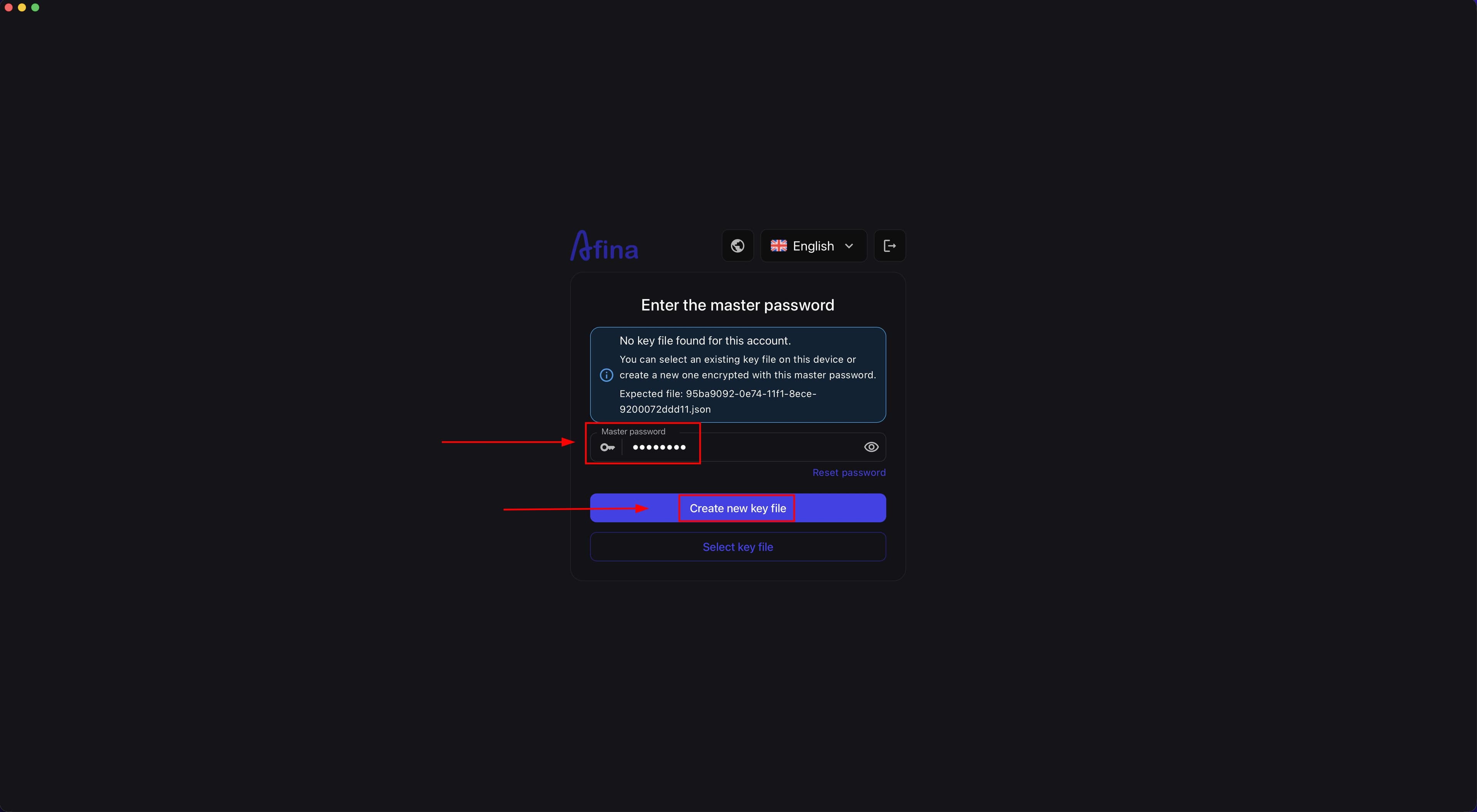
- In the “Master password” field, enter your password: if you are migrating from an older version, enter your old master password; if this is your first launch, create a new password.
- Click Create new key file to begin generating the encrypted key.
The screenshot below shows the Afina first-launch window with the master password field and the button for generating a new key file.
2. Save the newly created key file
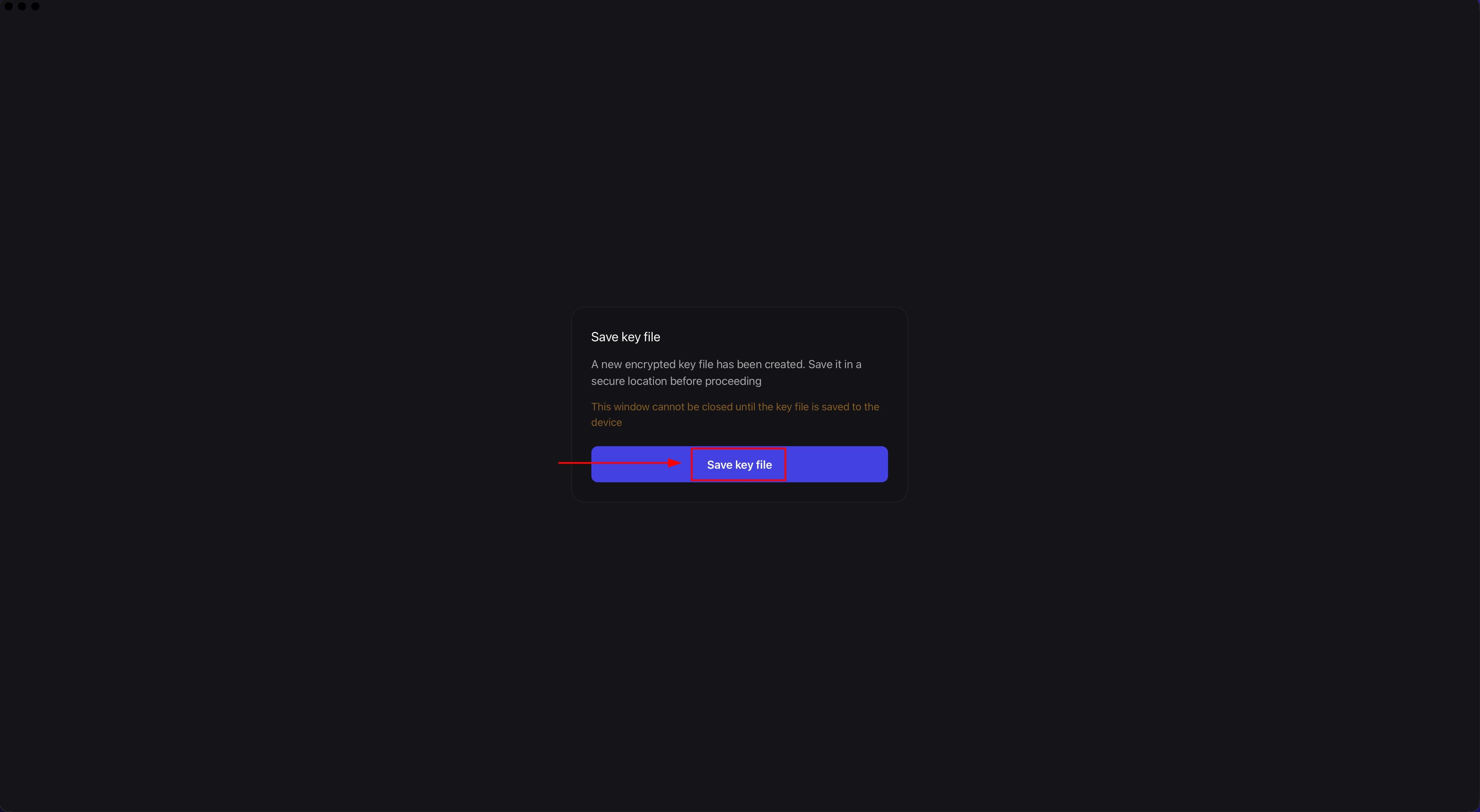
After you click the button, Afina generates a key file and displays the system message: “A new encrypted key file has been created. Save it in a secure location before proceeding”. The window is locked and cannot be closed until the key file has been saved to the device.
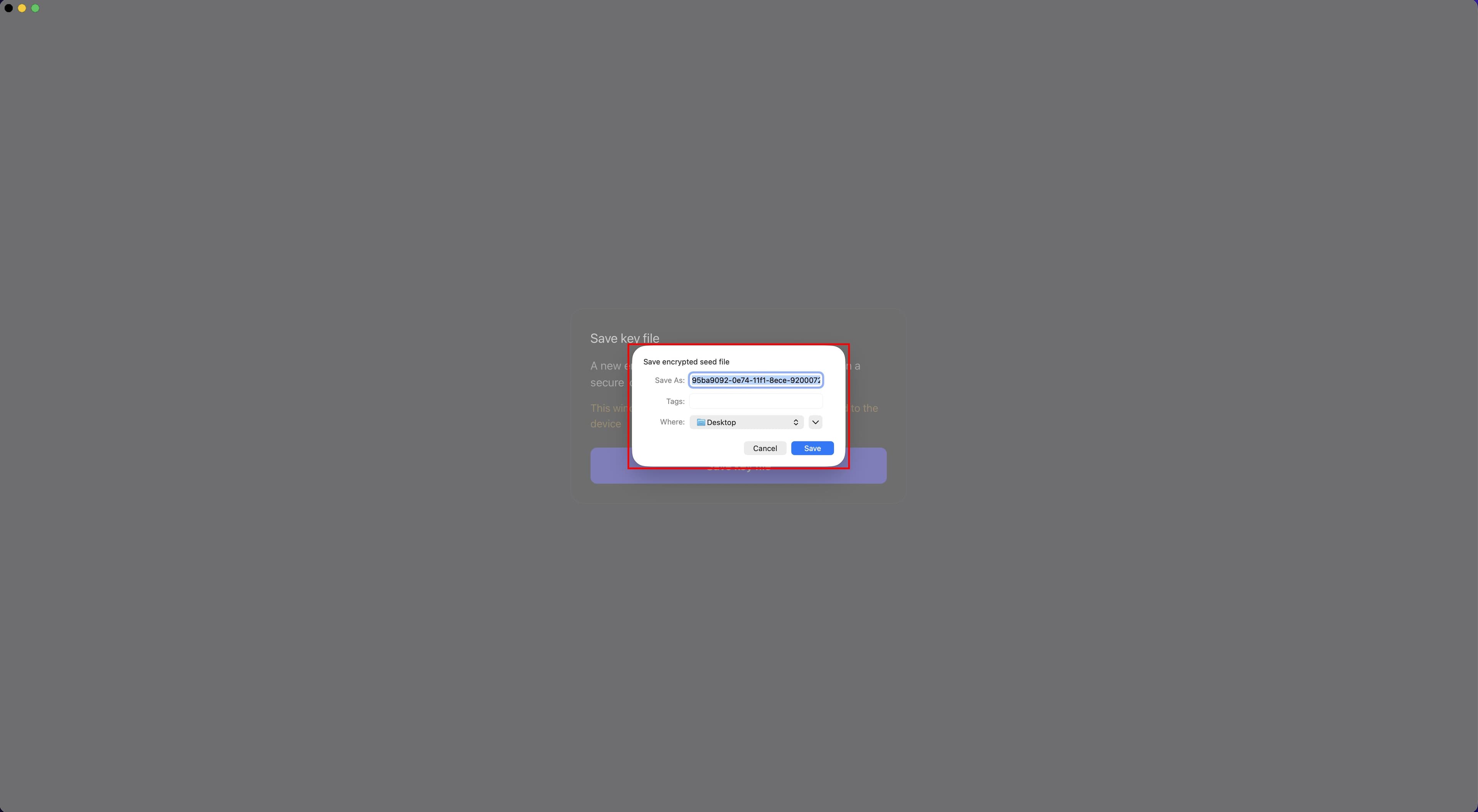
Click Save key file in this window. In the system folder selection dialog, specify the save location and confirm your choice.
The screenshot below shows the confirmation window with the newly generated key file and a warning that you must save it before continuing.
3. Save the key on your device
Choose a secure location, not the application folder itself or a publicly accessible directory.
What the master password protects and what the key file encrypts
- The “Key file” encrypts your data, such as accounts and cookies, as well as all sensitive data in Afina.
- The “Master password” protects the key file and confirms authorization to perform key-related actions.
You have now completed the migration from an older version or the installation and setup of the new Afina 2.0.0+ version.
Recreating a key file after migration#
This section explains how to recreate the Afina key file and continue signing in with your old master password.
Use these instructions only if you inserted your old key file from the previous version while migrating to the new version of Afina.
- In Afina, click the Settings icon in the upper-right corner.
- In the menu, click Main Project Folder.
- Close Afina completely.
- In the folder that opens, find the file whose name begins with
db_and contains many characters, for example,db_95bf26c....
Do not delete the database.db file. Delete only the file whose name begins with db_ and contains many characters.
-
Delete the file whose name begins with
db_and contains many characters. -
In the main Afina folder, open the
keysfolder. -
Find the key file in the
keysfolder. -
Rename the key file by adding
_oldto the end of its name. -
Launch Afina.
-
In the “Master password” field, enter your old master password.
-
Follow the Afina prompts to create a new key file.
-
Complete the Afina launch process by following the on-screen prompts.
Afina will then recreate the key file, and you will be able to continue working with your old master password.
Secure key file storage#
For reliable data protection, keep an additional copy of the key file on an external storage device or in your own secure vault. Your key file is always encrypted with the master password and cannot be opened without it.
You must remember the master password or store it in a secure location separately from the key file. This is critical for future access to encrypted data.
All key file and master password settings are located on the Cloud tab of the application settings page. Follow the steps below to navigate to this section.
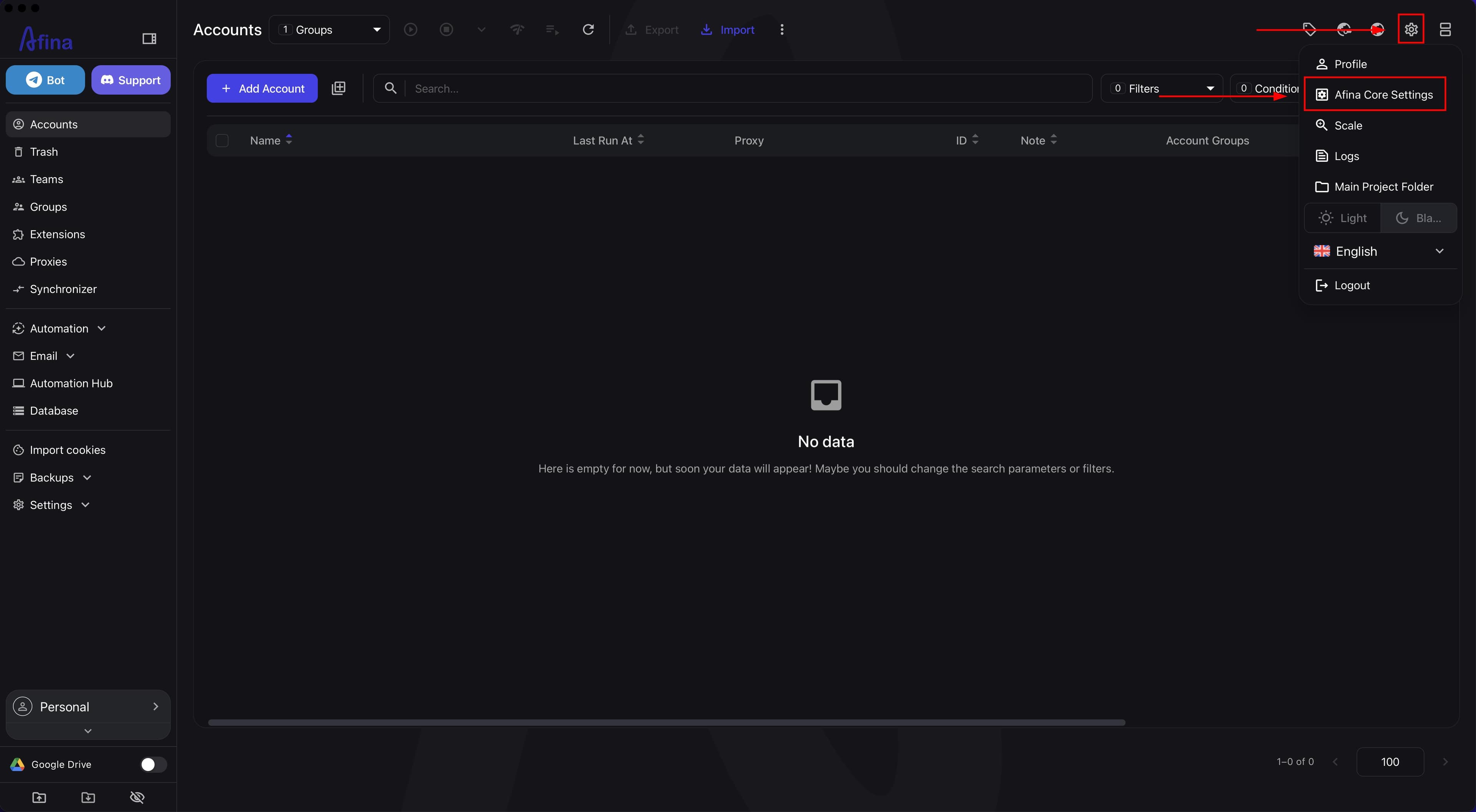
1. To manage key files and the master password, click Afina Core Settings
Click the Settings icon in the upper-right corner of the main Afina window. Then click Afina Core Settings. The “Settings” page opens.
The screenshot below shows the location of the Afina Core Settings icon in the main application interface.
2. Then click Cloud
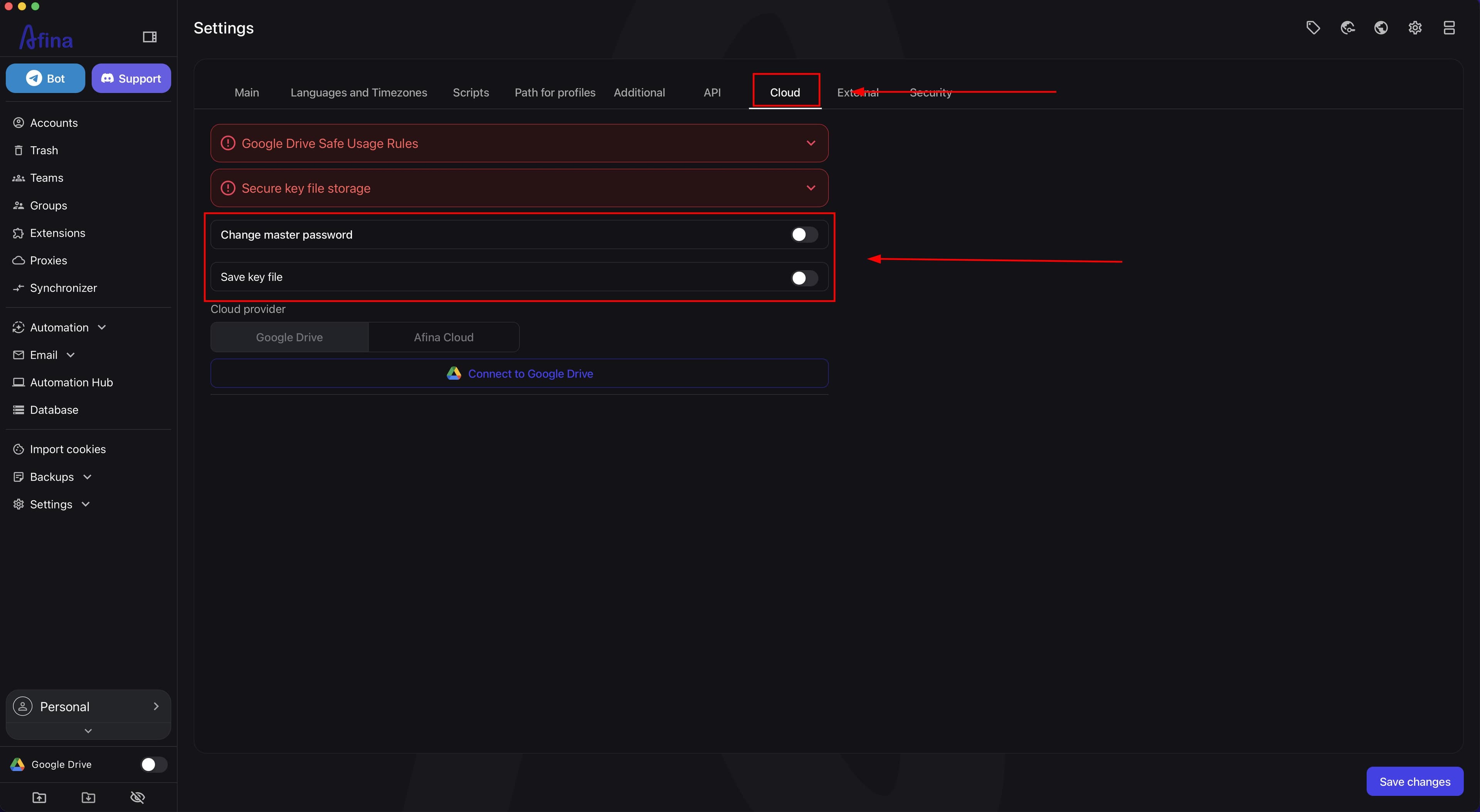
On the “Settings” page, find and click the Cloud tab. This tab contains all the tools for managing the key file and master password: saving locally, viewing the QR code, and changing the password.
The screenshot below shows the “Settings” page with the “Cloud” tab open and the available key file management options.
Change master password#
To replace the current master password, follow these steps on the Cloud tab.
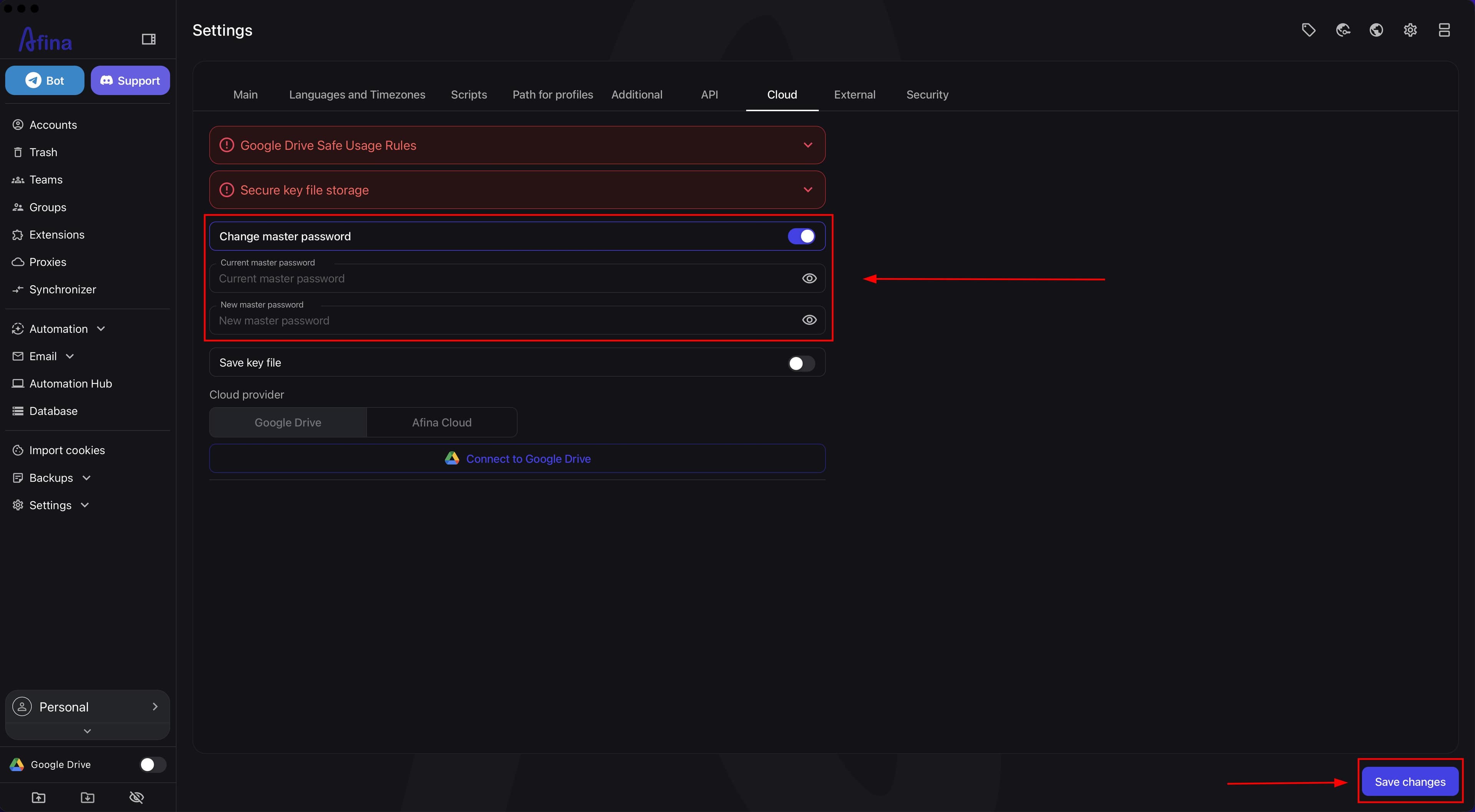
- Find the “Change master password” toggle and enable it. It should become active (blue).
- After enabling the toggle, complete the two form fields that appear.
- In the “Current master password” field, enter your current master password to confirm authorization.
- In the “New master password” field, enter the desired new password. Each field has a Show password / Hide password icon. Click it to temporarily show or hide the characters you entered.
- After completing both fields, make sure to click Save changes. Otherwise, the changes will not be applied.
The screenshot below shows the enabled master password change form with two input fields, password visibility icons, and the button for saving changes.
Save key file#
This option lets you save an up-to-date copy of the key file to your device or obtain a QR code for transferring it between devices at any time.
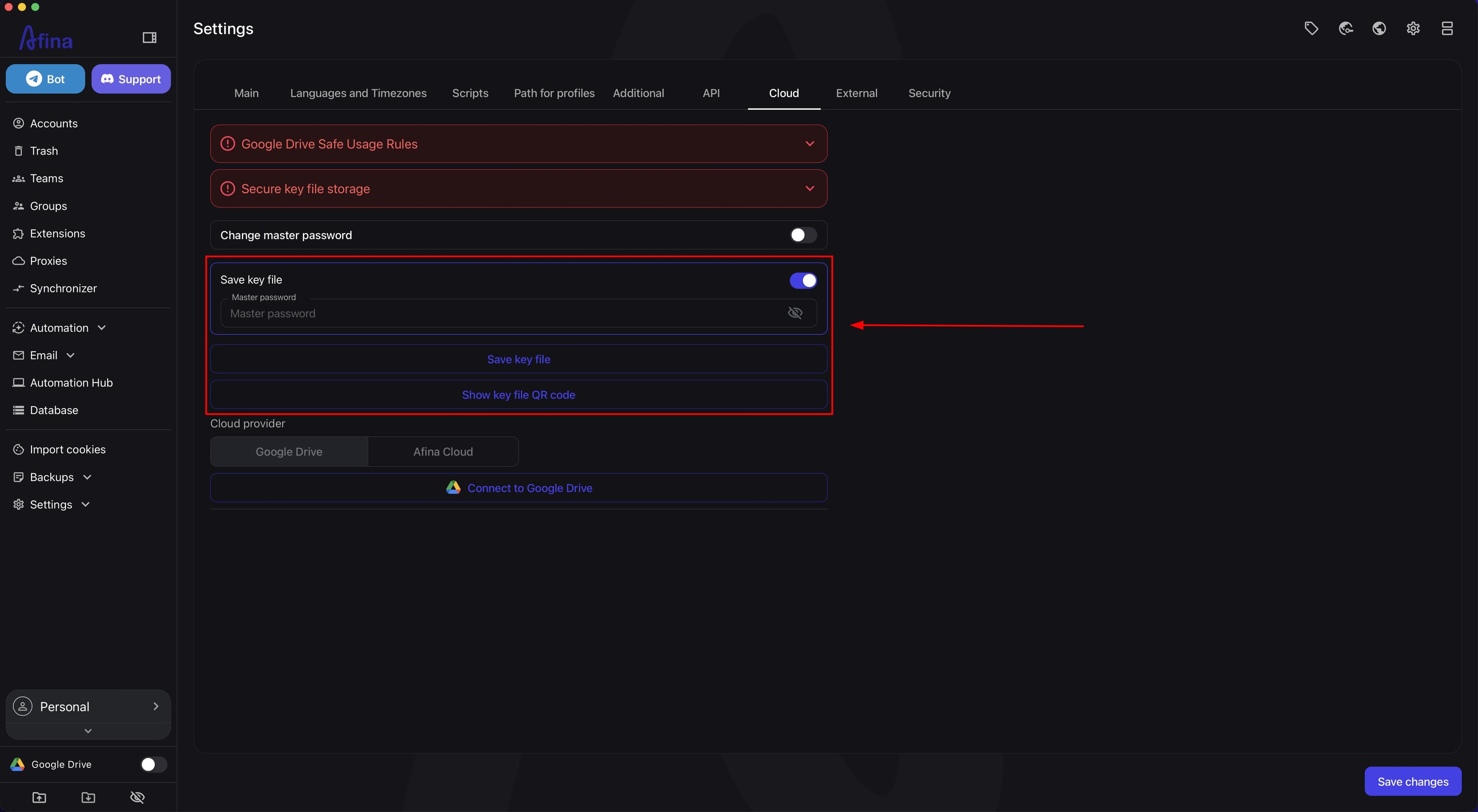
- On the Cloud tab, find the “Save key file” toggle and enable it. It should become active.
- After enabling the toggle, the “Master password” field appears to confirm access. Enter your current master password in this field.
- After entering the master password, two actions become available:
- Click Save key file. A system folder selection dialog opens. Specify the desired location on the drive and confirm your choice. Afina saves the encrypted key file locally on your device.
- Click Show key file QR code. Afina opens a QR code that you can scan to transfer or save the key file in another way.
The screenshot below shows the enabled key file saving form with the master password confirmation field and two buttons: one for saving locally and one for displaying the QR code.
Transferring the key to another device#
To access encrypted data on a new PC, transfer the key file and use the same master password. The data cannot be decrypted without both components.
- On your current PC, save the key file using the Save key file button (see the “Save key file” section above), or use the QR code.
- Transfer the saved file to the new PC using a USB drive, cloud storage, or any other secure method. Store the key file and master password separately.
- Launch Afina on the new PC. On first launch, the application displays a window for choosing an encryption setup method. Select the option to upload an existing key file.
The screenshot below shows the window for choosing an encryption setup method when Afina is launched for the first time on a new device, including the option to upload an existing key file.
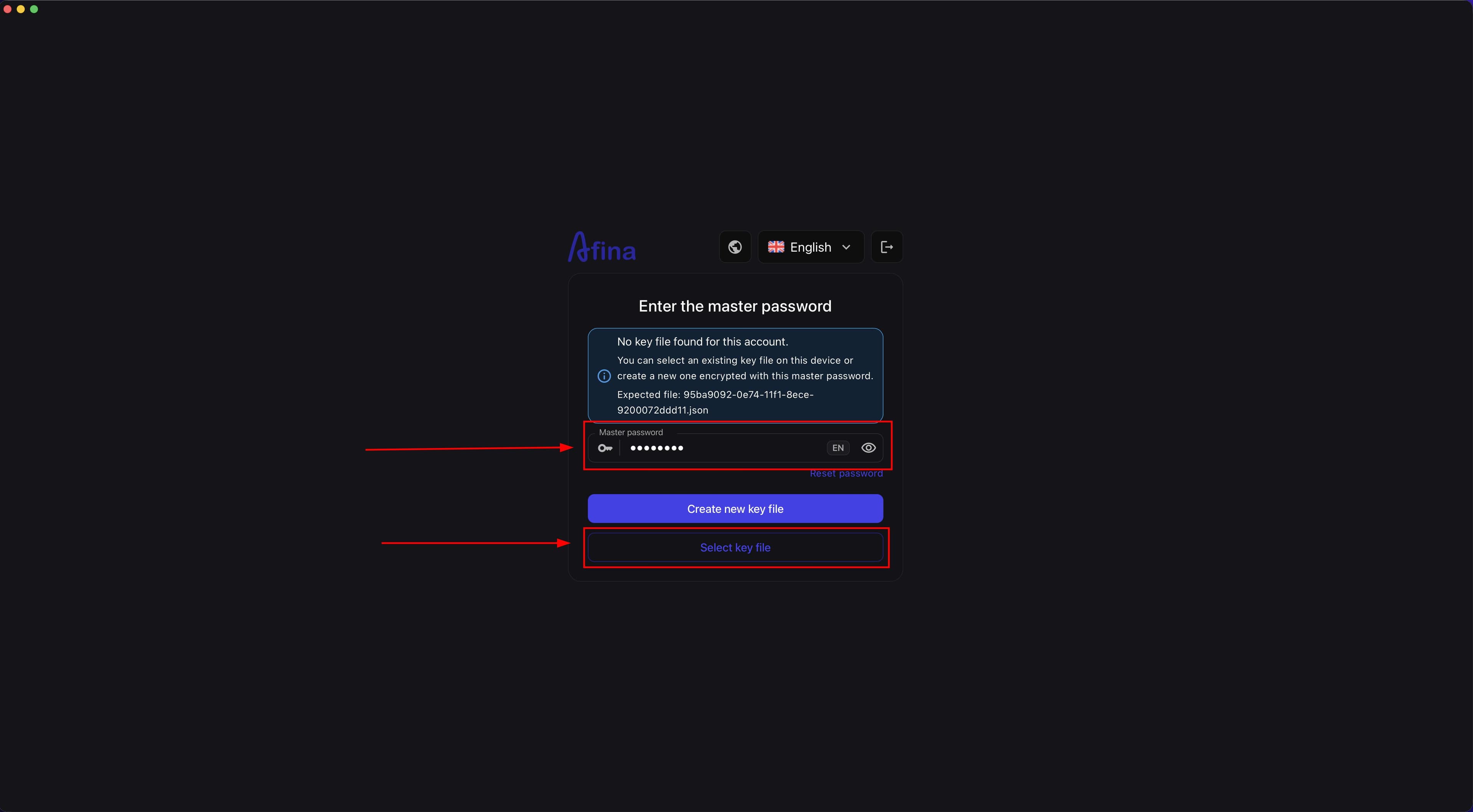
- Upload the saved key file from the drive. Afina decrypts the file and provides full access to your encrypted data.
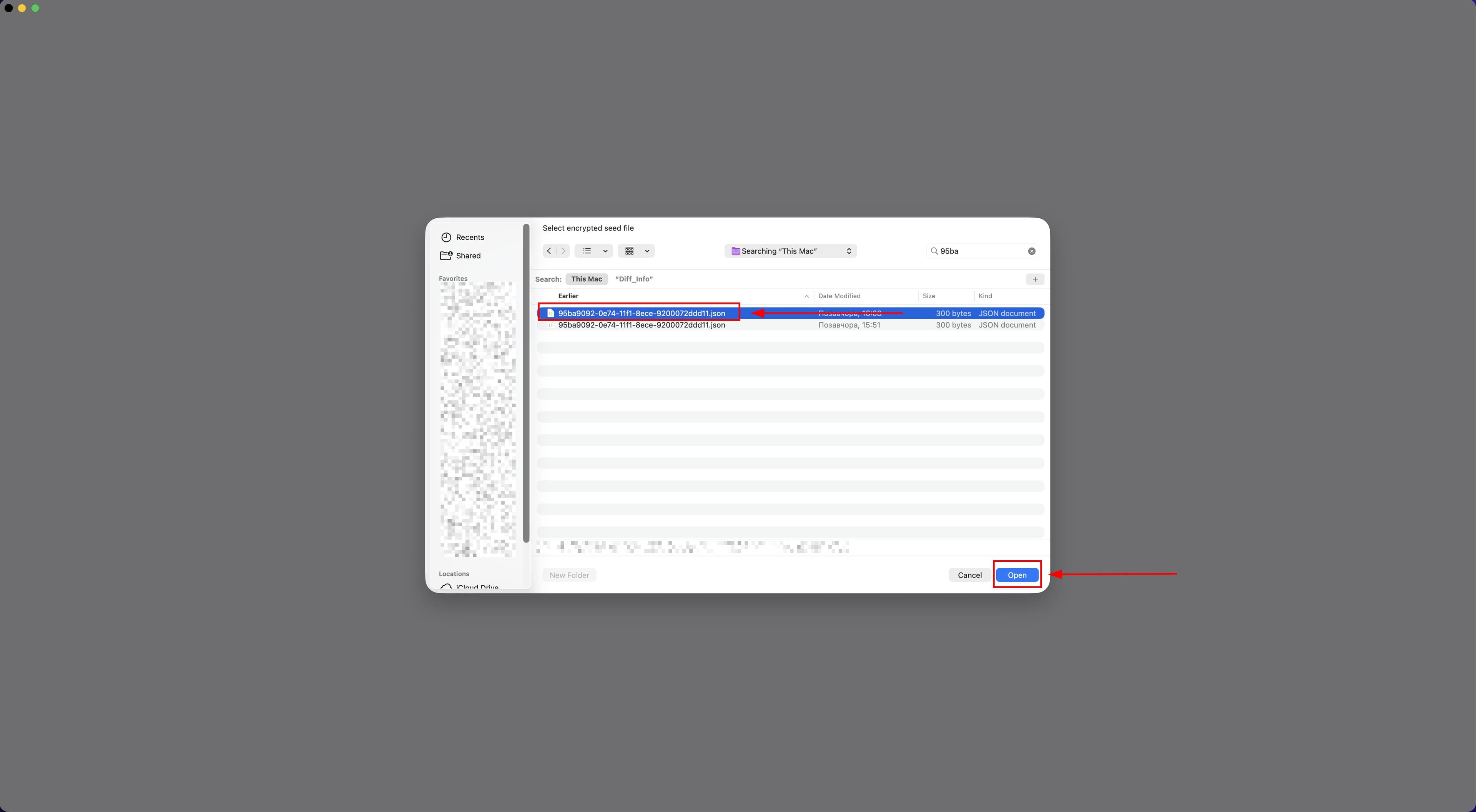
The screenshot below shows the key file upload screen during the first launch on a new device.
Storage and transfer rules#
- store the key file separately from the cloud storage containing profiles;
- store the key file and master password securely and always separately;
- do not share the key file with other users;
- do not store the key file in a publicly accessible location.
If you want to transfer access to another PC and work with the same project folder, use the saved key file and current master password when launching Afina for the first time on the new PC.
Working with one folder on multiple PCs The exact same key file with the same master password must be loaded on every device. To synchronize sessions between devices, configure cloud synchronization:
- On PC 1, enable the “Automatic accounts file upload” toggle. After you finish working with a profile, always wait for cloud synchronization to complete before shutting down.
- On PC 2, connect the same cloud account and enable the “Automatic accounts file download” toggle. The system automatically downloads the latest session from the cloud before each profile launch.
- Also enable the “Automatic settings backup” toggle to synchronize global variables, groups, extensions, and proxy lists across all PCs.
Use Google Drive for solo work and Afina Cloud for team collaboration.