Working with Afina AI#
This guide shows how to connect a model to Afina AI using an API key and open the AI chat in the application. After that, you will be able to work with Afina AI through the built-in chat panel.
Before you start#
Before you start, you need an API key from the provider of the model you want to connect. This guide uses OpenAI as the provider in the example.
Where to get an API key#
You can get an API key for connecting a model on the official provider websites:
- OpenAI: platform.openai.com | API keys
- Anthropic: platform.claude.com | API keys
- Google: aistudio.google.com | API keys
- OpenRouter: openrouter.ai | API keys
After creating the key, copy it and paste it into the API key field when adding the model in Afina.
Opening API settings#
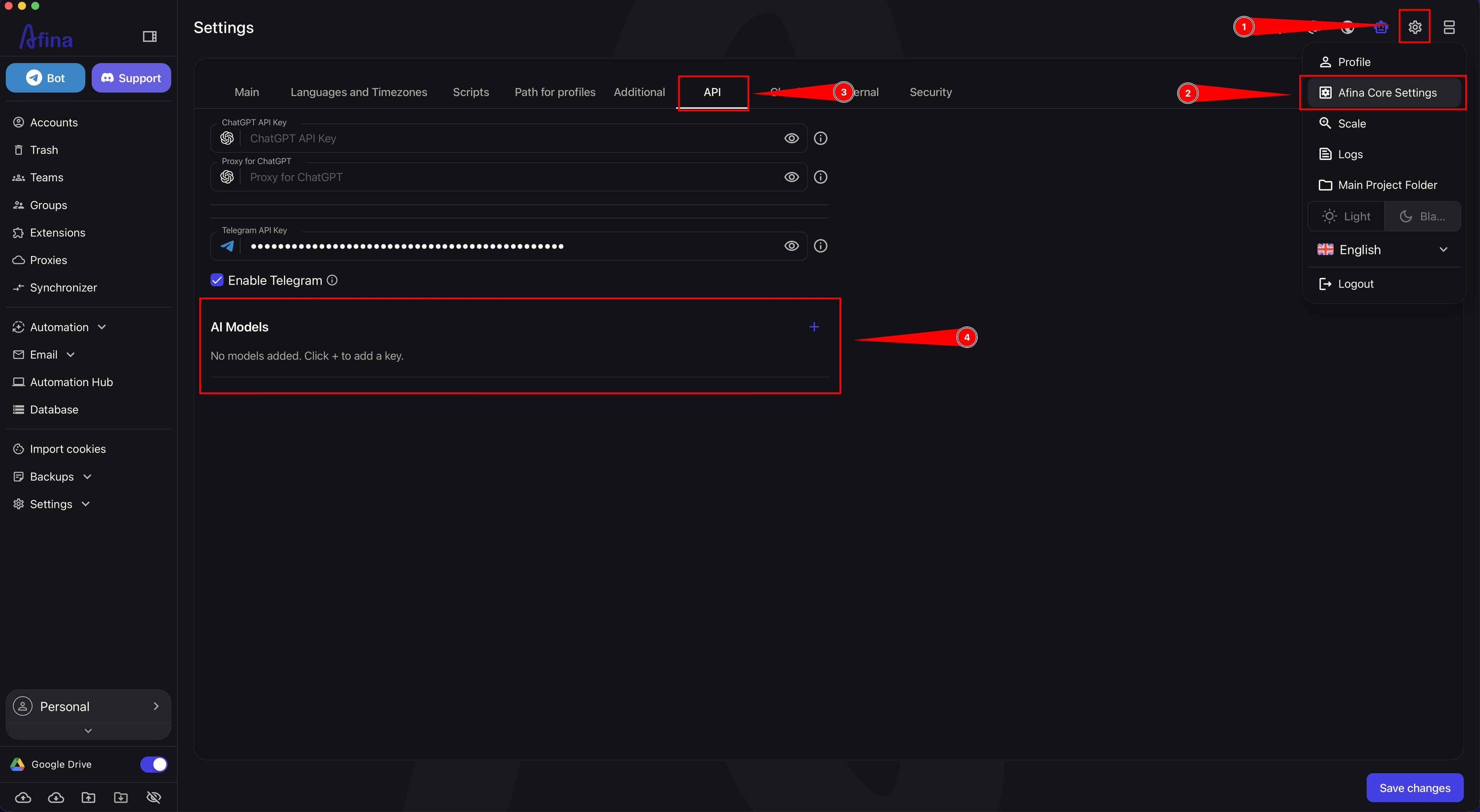
- In the upper-right corner of Afina, click the settings icon.
- In the dropdown menu, select Afina Core Settings.
- In the settings window, open the API tab.
- In the AI Models block, click the + button to add a new model.
The screenshot below shows how to open the API section and proceed to adding a model in the AI Models block.
Adding a model#
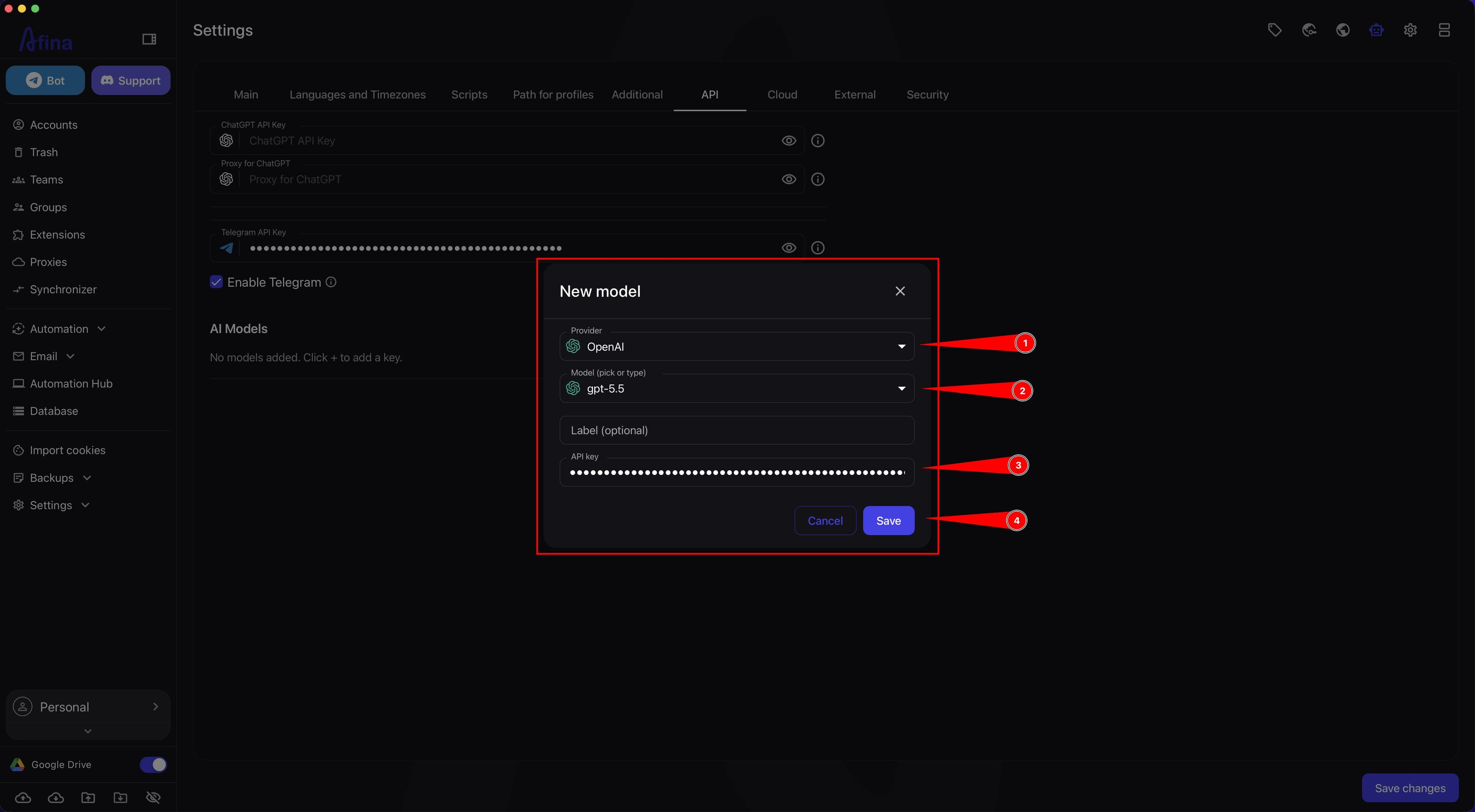
- In the New model window, select the required service in the Provider field.
- In the Model field, select the required model or enter it manually.
- If needed, fill in the Name (optional) field to set a convenient name for the model in Afina.
- In the API key field, paste your provider key.
- Click Save.
The following options are available in the provider list in this window: OpenAI, Anthropic, Google, OpenRouter, and Custom.
The screenshot below shows the form for adding a new model. In the example, the OpenAI provider and the gpt-5.5 model are selected.
Saving the model#
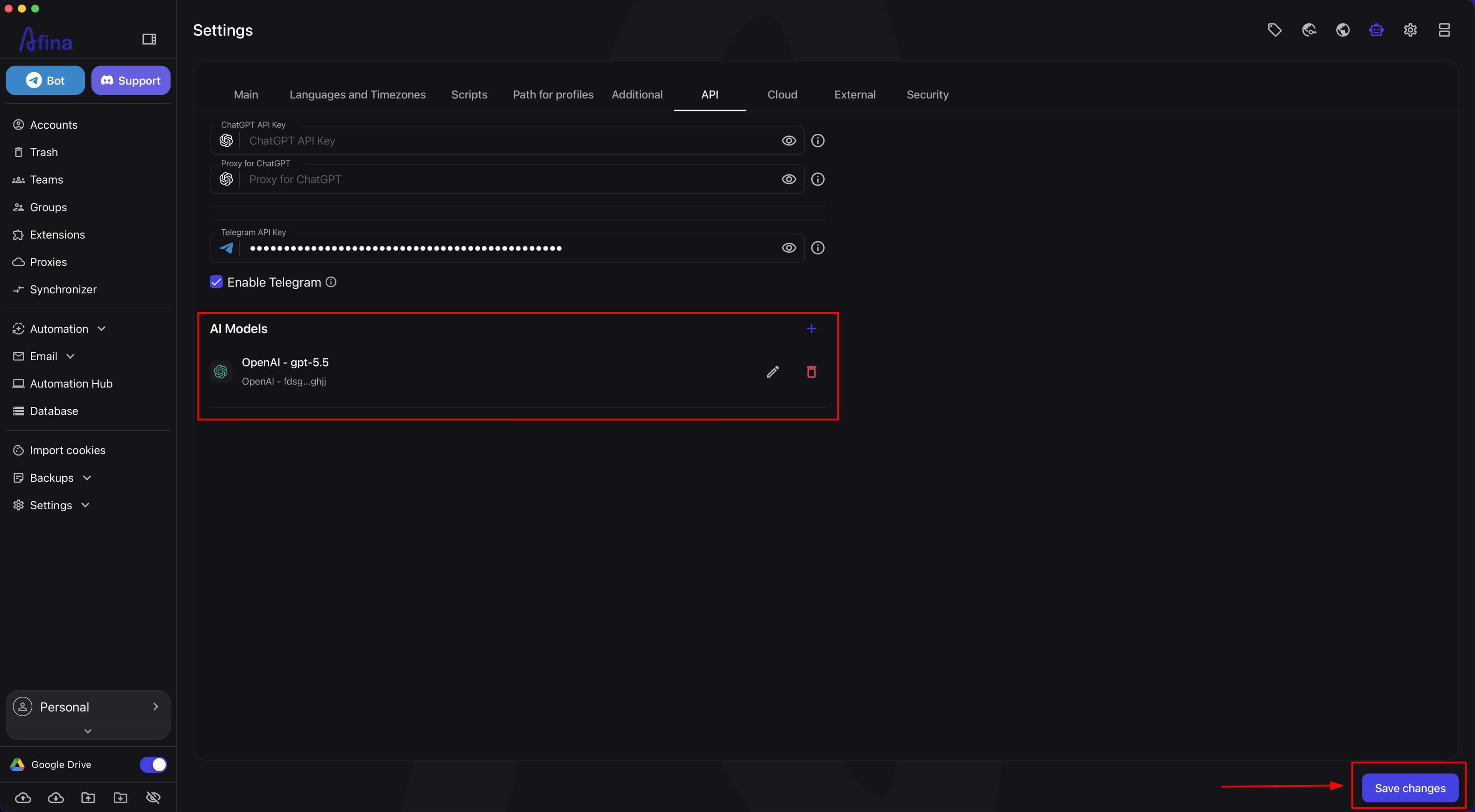
- After adding the model, make sure it appears in the AI Models block.
- Click Save changes in the lower-right corner of the settings window.
The screenshot below shows that the model has already been added to the AI Models block, and the Save changes button is available in the lower-right corner.
Afina AI chat#
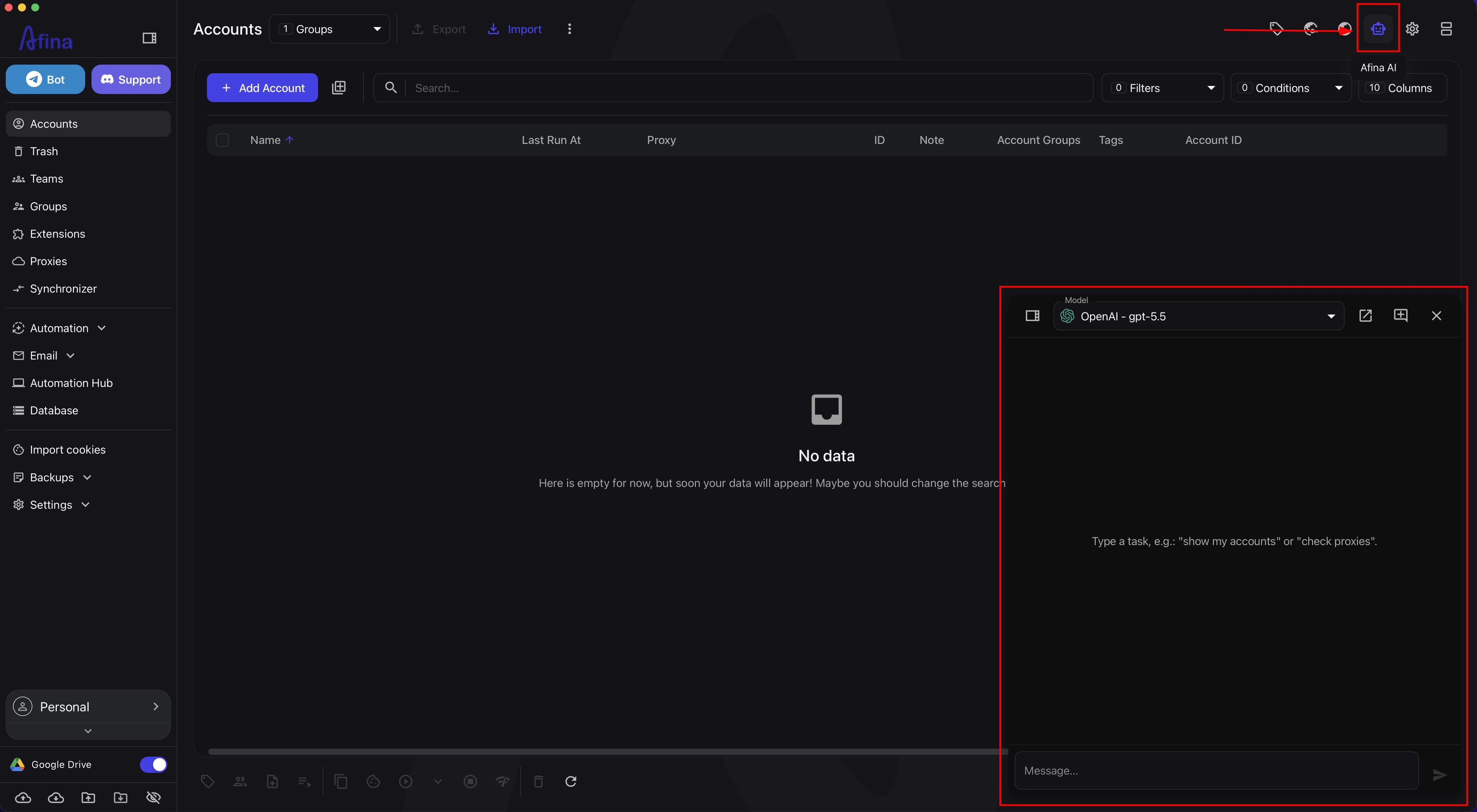
- Go to any main Afina section, for example Accounts.
- In the upper-right corner, click the Afina AI icon.
- Wait until the chat panel opens on the right.
- At the top of the panel, make sure the connected model is selected.
The screenshot below shows the button for opening Afina AI, the open chat panel on the right, and the connected model at the top of this panel.
Working with the chat#
- After connecting the model, open the Afina AI panel.
- Click the Message... field at the bottom of the chat.
- Enter your request.
- Send the message using the button on the right.
Through this panel, you can work with Afina AI in chat format without leaving Afina.
What Afina AI can do#
If you ask Afina AI about its capabilities, the agent may report that it can control Afina through built-in tools.
- Browser profiles: list, search, create, update, start, stop, and delete profiles, as well as work with disposable profiles.
- Browser Automation: execute JavaScript in an open profile, search for buttons and fields, get the page URL and text, and create screenshots.
- Cookies: import and export cookies.
- Proxies: add and check proxies, as well as check proxies in profiles.
- RPA scripts and modules: list, view, create, update, start, and stop scripts, view run logs, and manage modules.
- Tasks: work with task groups, start, restart, and stop tasks, view active tasks and logs, add, update, and delete tasks.
- Data and variables: global variables, account variables, keys, and databases.
- Organization: account groups and tags.
- Email IMAP: list connected emails, enable and disable monitoring.
Before critical actions, including deletion, stopping, or starting, Afina AI first briefly explains what it is going to do and asks for confirmation.
Result#
After completing these steps, the model will be connected to Afina through an API key, and the Afina AI panel will become available for working with the built-in chat.