Setting up a system proxy#
In this guide, you will set up a system proxy for Afina using the Network Detection tool, check the local network, and enable routing of the app's network functions through the proxy. A system proxy is not required for normal Afina operation, but it is needed in regions and networks where there are restrictions or blocks on direct access to the app's servers.
Before you start#
- Prepare your system proxy details: address, port, login, and password if they are required.
- Make sure you have access to the network settings in your operating system.
Network Detection is an Afina tool for checking the internet connection and OS proxy configuration. It allows you to:
- check the local network and system proxy;
- run a connection test through the proxy;
- route the app's network functions, including API, license, and fingerprint, through the system proxy.
This function is needed for work in regions and networks with strict restrictions, where direct access to the app's servers may be blocked. If Afina works stably without a system proxy, you do not have to enable it.
Setting up a system proxy#
Windows
-
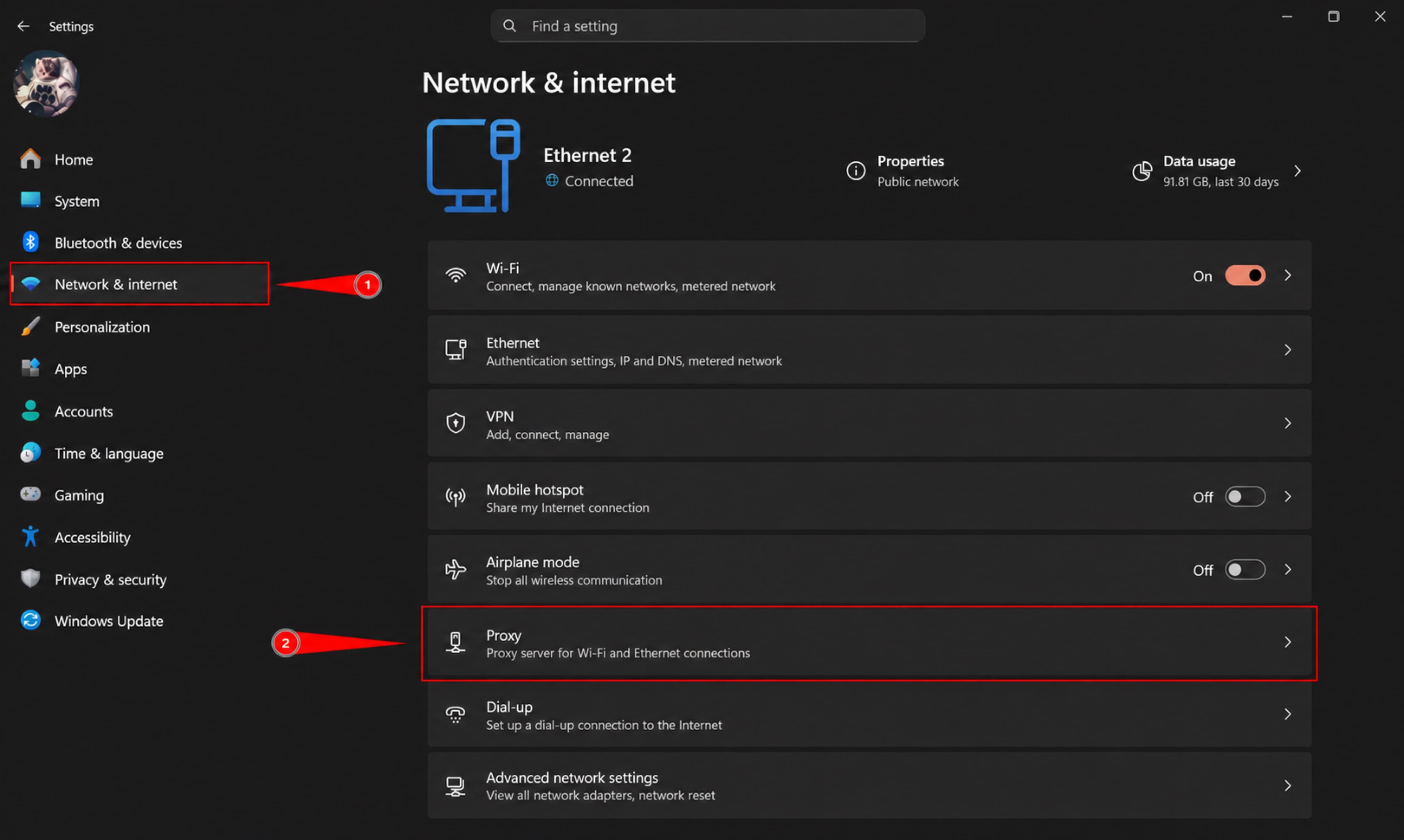
Open the Settings app on your Windows device.
-
Go to Network & internet.
-
Open the Proxy page.
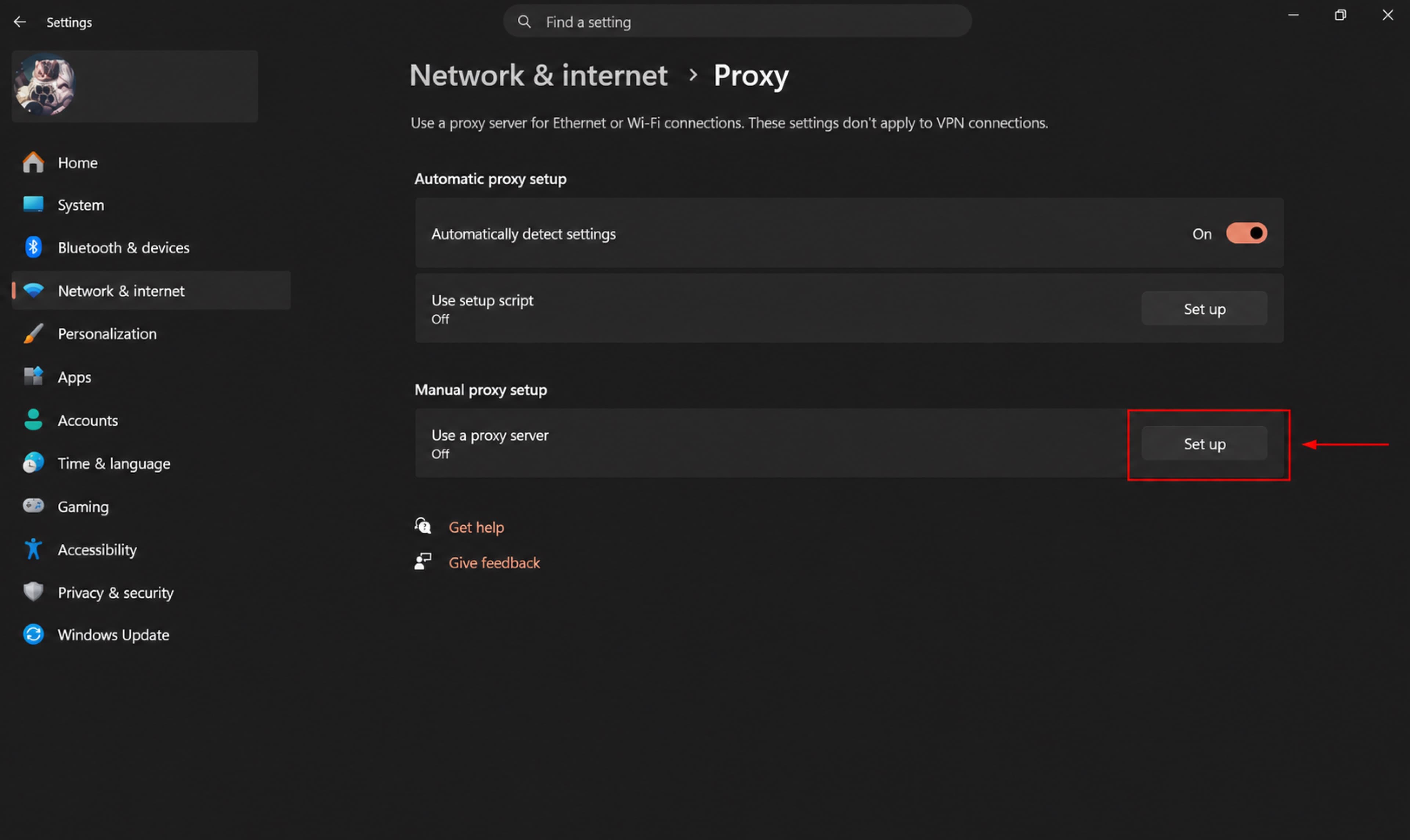
- In the manual setup block, click Set up next to Use a proxy server.
-
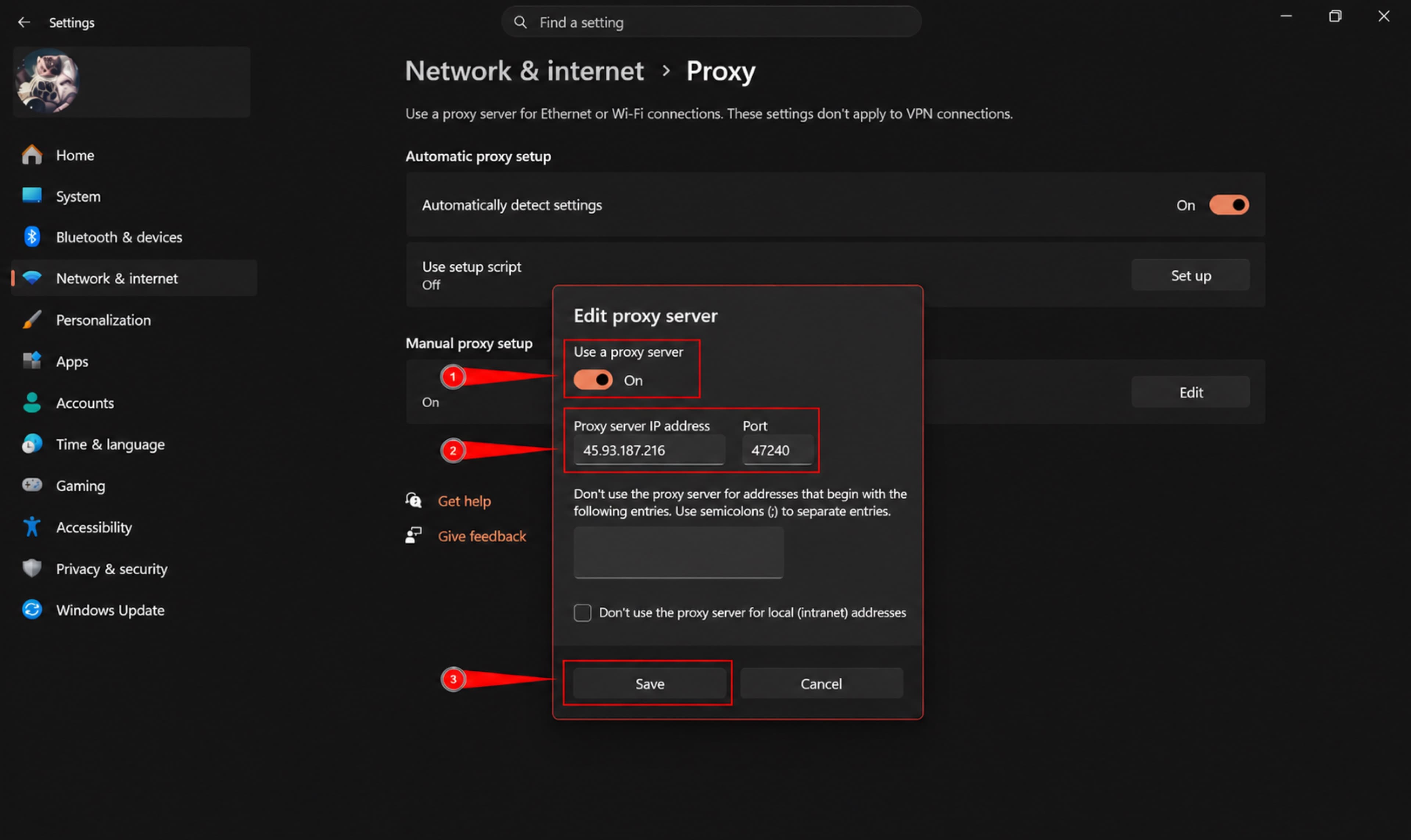
Enable Use a proxy server.
-
In the system proxy fields, enter the IP address and port.
Official Microsoft guide: Set up a proxy in Windows
macOS
-
Open the Apple menu.
-
Open System Settings.
-
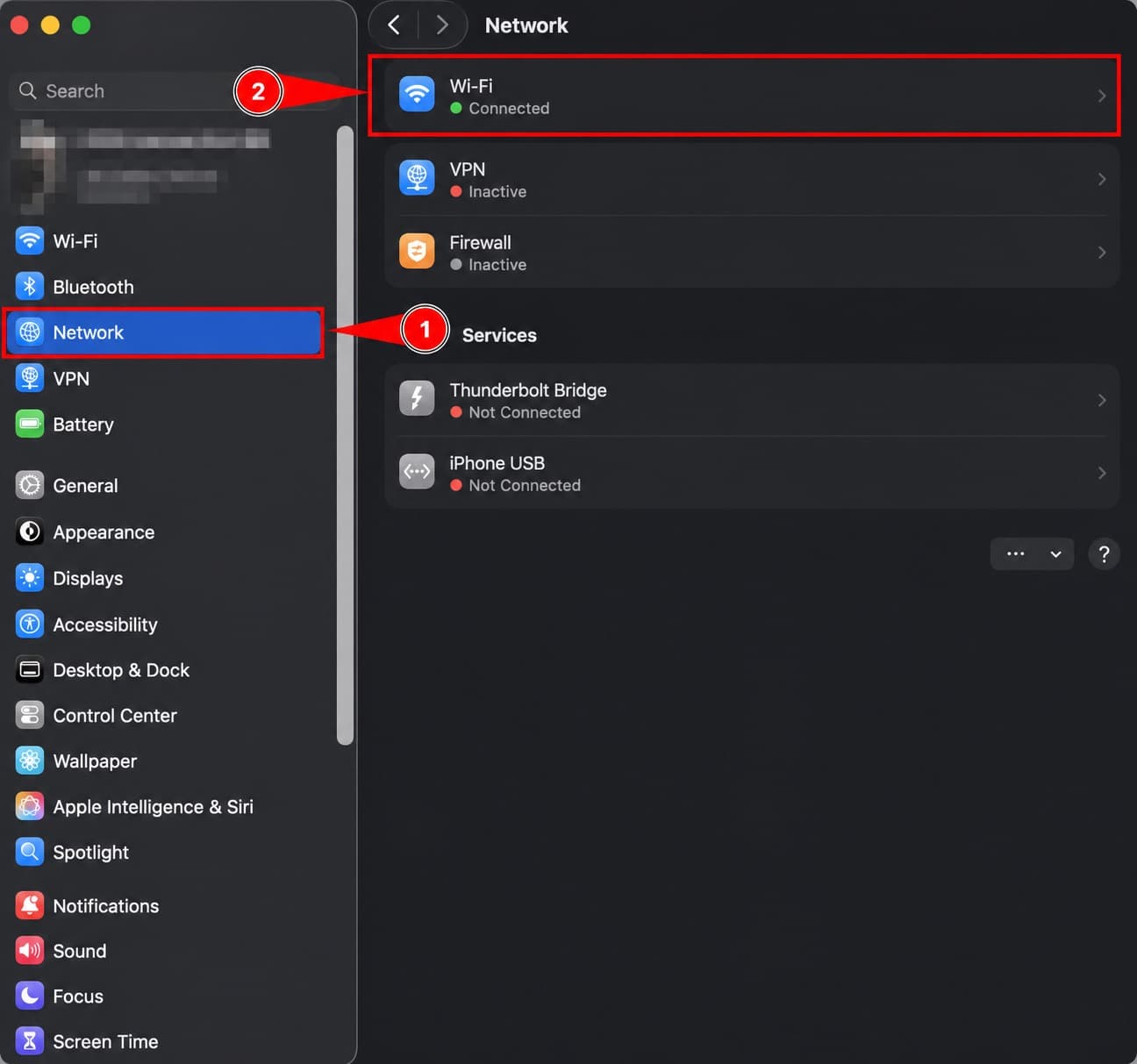
Select Network in the sidebar.
-
Select the Wi-Fi or Ethernet network service, depending on your connection.
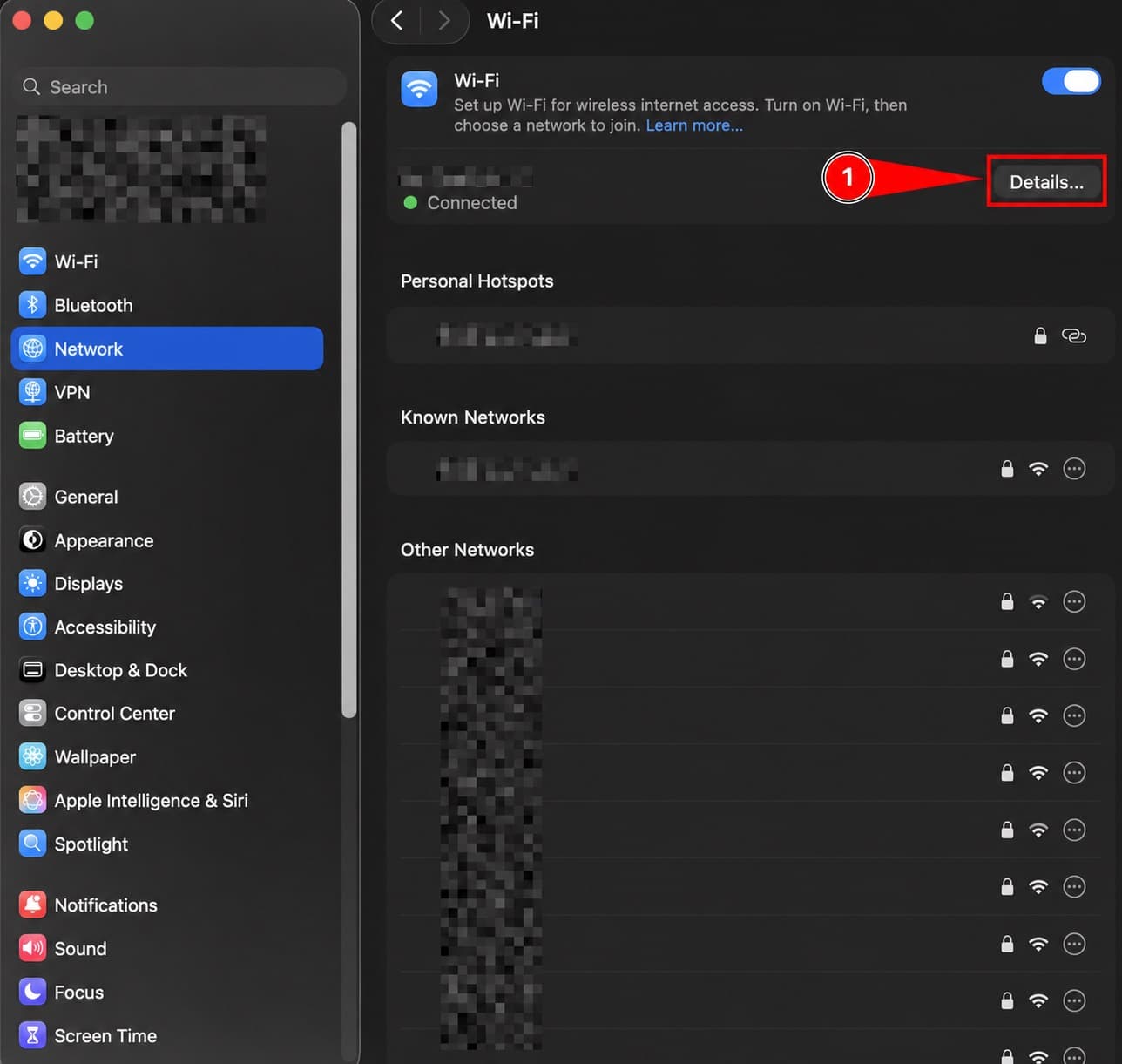
The screenshot below shows selecting the Wi-Fi or Ethernet network service in macOS.
- Click Details.
The screenshot below shows the Details button for the selected network service in macOS.
-
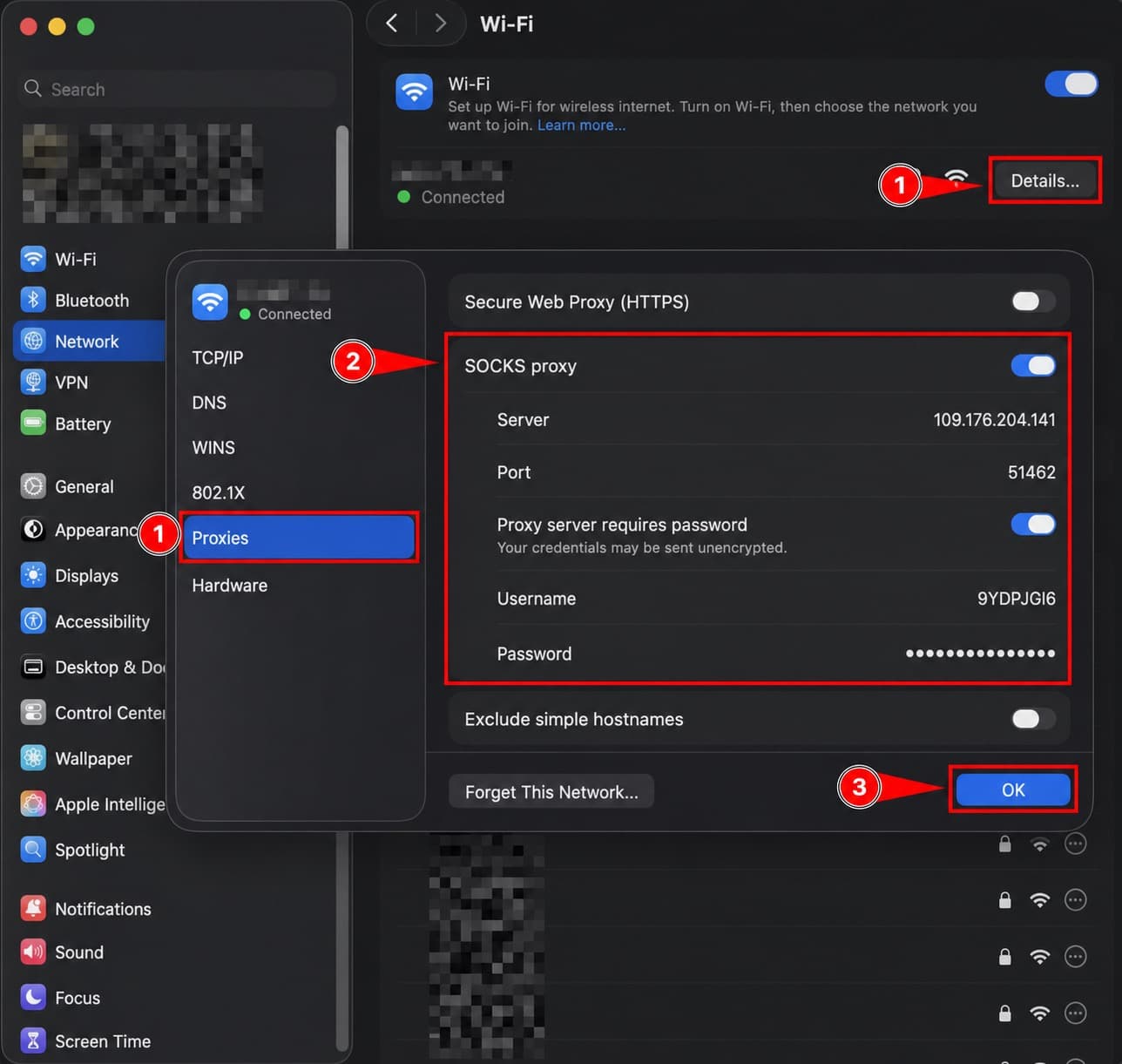
Open the Proxies tab.
-
Enable the
HTTPorSOCKSproxy server that you want to configure. -
In the proxy fields, enter the address and port number.
-
Enable Proxy server requires password if the proxy requires authorization.
-
In the authorization fields, enter the username and password.
-
Click OK.
Official Apple guide: Set up a proxy server on Mac
Opening Network Detection#
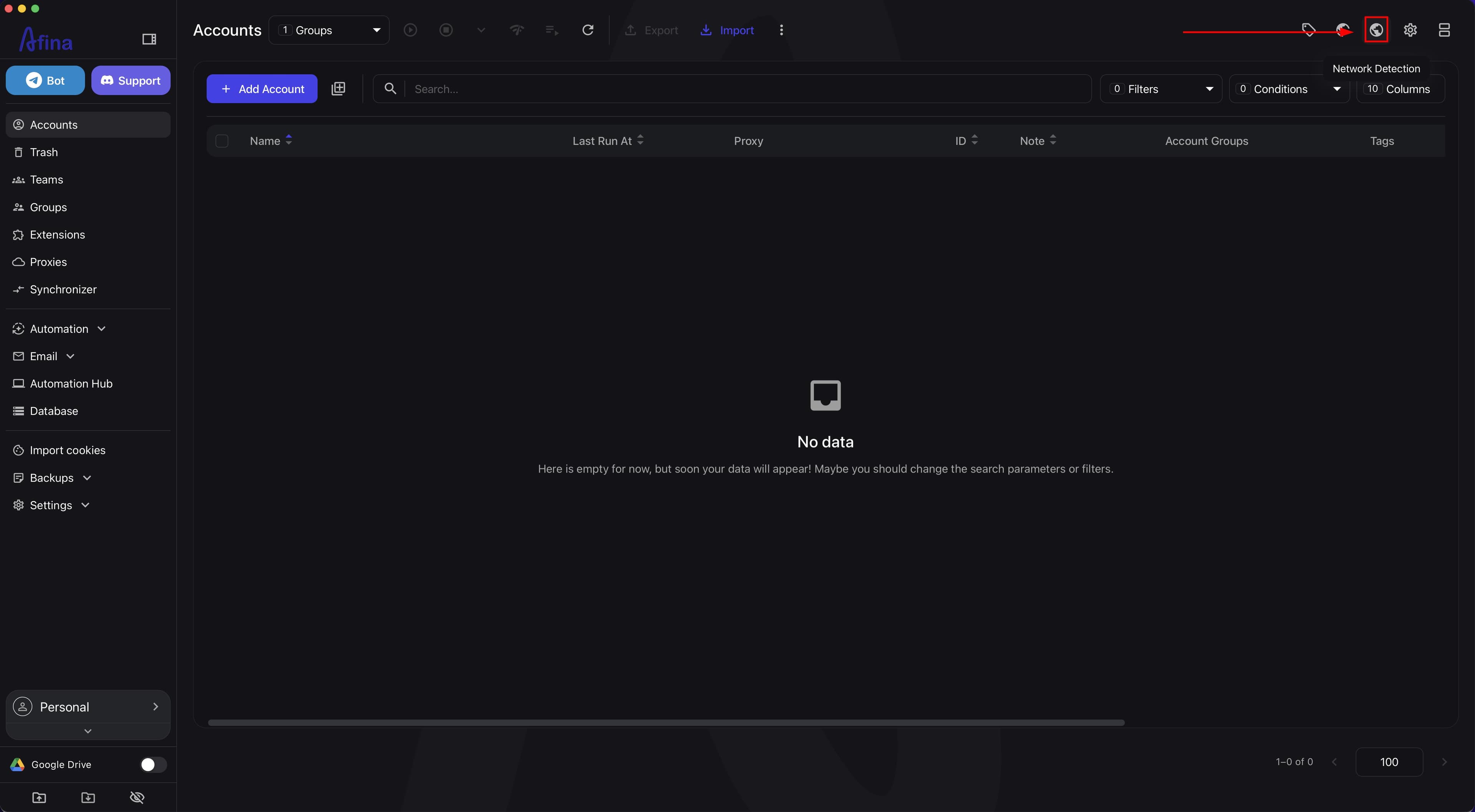
- Click the Network Detection icon on the Afina quick actions panel.
The screenshot below shows the main Afina menu with the Network Detection button.
Checking the connection in Network Detection#
-
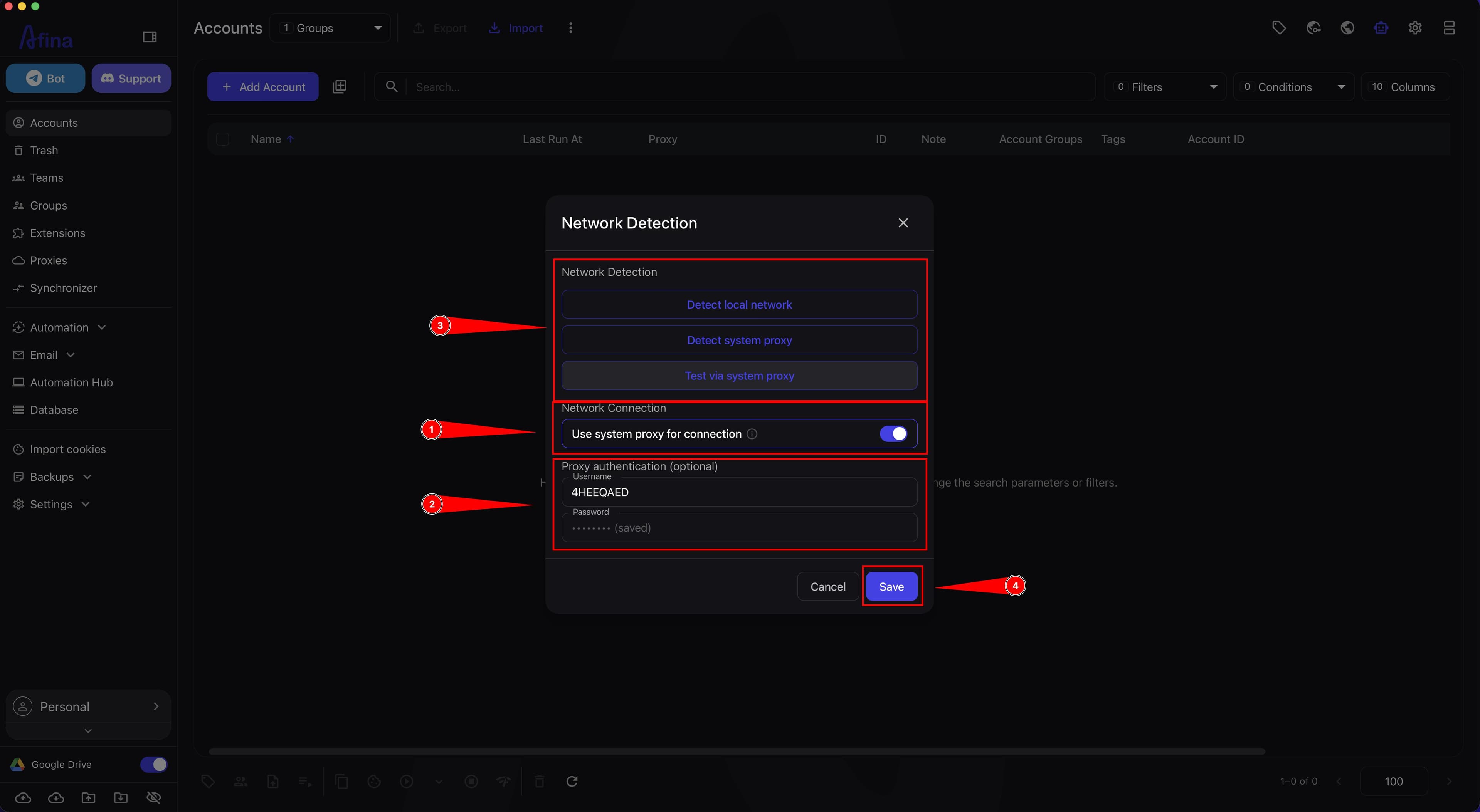
Enable the Use system proxy for connection toggle.
-
In the Proxy authentication (optional) block, enter the Login and Password if your proxy requires authorization.
-
At the top of the window, click these buttons one by one: Detect local network, Detect system proxy, Test via system proxy.
-
Click Save.
Result statuses:
- green - the connection works, there is a ping and a target IP;
- yellow - the system proxy is not configured;
- red - there is no access to the server through the proxy.
Global routing#
After saving the settings, the app's network functions will go through the system proxy:
- API requests;
- license verification;
- fingerprint requests.
This setting does not replace the proxy of a separate browser profile and does not control the IP that sites see inside the profile. If a VPN extension is enabled in the profile, it may block the proxy or override its routing. In this case, sites may see your real IP or the VPN extension IP instead of your proxy IP.
-
In the Proxy authentication (optional) block, fill in the Password field.
-
Click Save.
If no system proxy is configured in the OS, Afina does not create a proxy server automatically.
Result#
After completing these steps, Afina will be able to check the local network, use the system proxy, and route the app's network functions through it. The setup is correct if Detect system proxy completes without errors, Test via system proxy is successful, and Afina's network functions work stably. If the system proxy is not detected, check that it is saved for the active OS network interface; if there is an authorization error, check the login and password in the Proxy authentication block and the credentials on the proxy side; if the test through the proxy fails, check the address, port, and availability of the proxy on the network.