Export accounts from other browsers#
Transfer accounts from AdsPower, Dolphin, or Vision to Afina with bulk import, without manually creating each profile.
What it is and what it is for#
Importing accounts from other browsers is a bulk transfer feature for moving profiles into the "Accounts" section in Afina. During import, Afina connects to the local API of the source browser, reads all account data, including profile names, browser fingerprints, and settings, and transfers them to your list. This lets you move an entire farm in a few actions without manually entering data.
Where to find it#
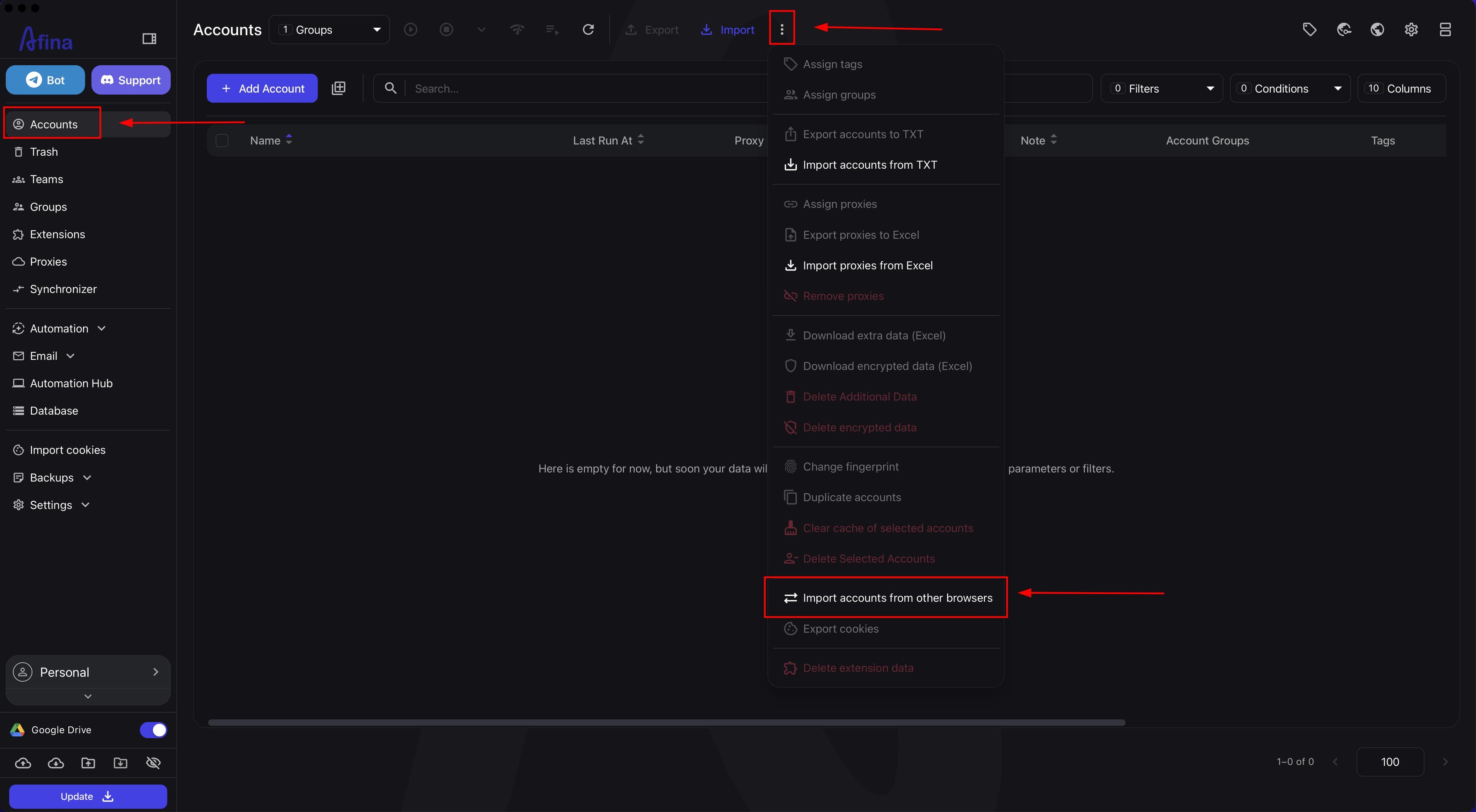
Go to the "Accounts" section in the left navigation panel. On the top action panel, click the "⋮" icon (three vertical dots). In the drop-down list, select Import accounts from other browsers.
Before you start#
Critical before starting import:
- Afina and the source browser (AdsPower, Dolphin, Vision) must be running on the same computer.
- The source browser must be open at the moment of import.
- The source browser must be updated to the current version.
- API keys and links for source browsers must be entered in Afina in advance in "Afina Core Settings" → the "External" tab (details are in the "Additional browser data" section below).
- Browsers (AdsPower, Dolphin, Vision) must have an active paid license.
Recommended checklist before import:
- Restart the source browser.
- Make sure you are signed in to the required account in the source browser.
- Close unnecessary programs that may block local ports.
- Check that the local antivirus or firewall does not block LocalHost requests.
Transfer steps#
1. Open the actions menu
Go to the "Accounts" section in the left navigation panel. On the top action panel, click the "⋮" icon (three vertical dots). The drop-down list of actions will open.
2. Start import
In the drop-down list, click Import accounts from other browsers. A modal window for selecting the source browser will open.
3. Select the source browser
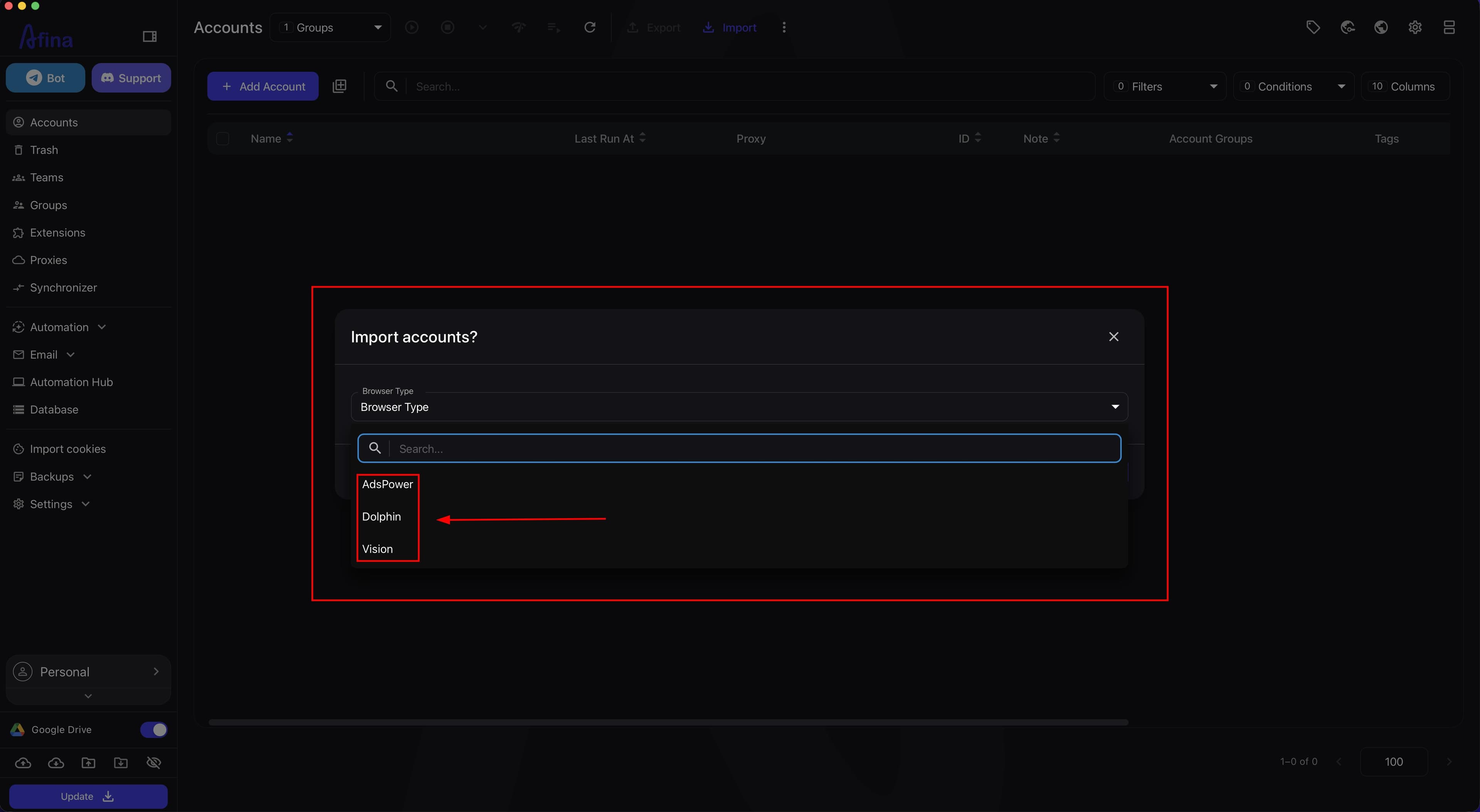
In the modal window, open the drop-down list and select the required source browser:
- AdsPower if your farm is in AdsPower;
- Dolphin if you use Dolphin Anty;
- Vision if you use Vision.
4. Confirm the browser selection
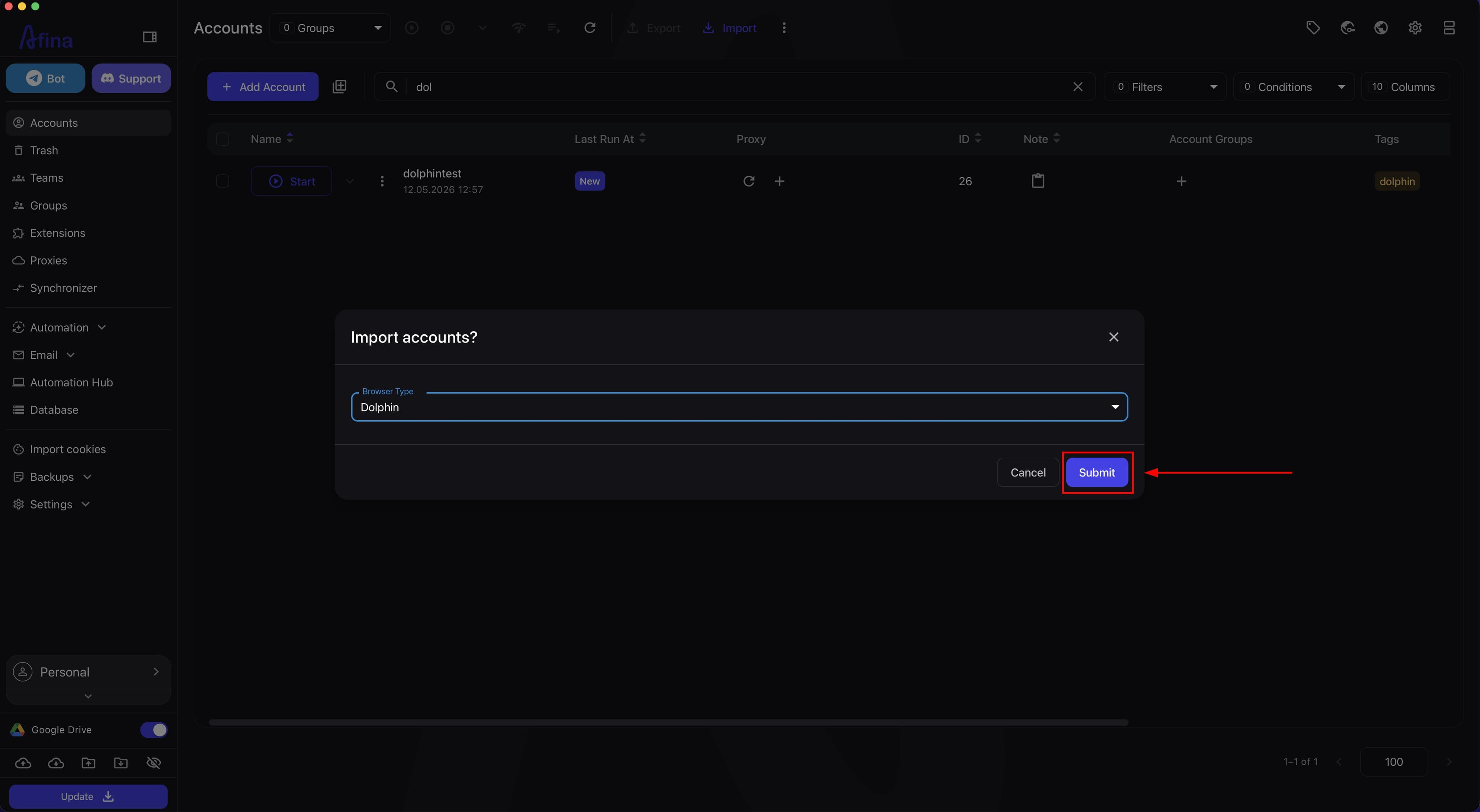
Make sure the selected browser is currently open on the same computer. Click Confirm. Afina will connect to the browser's local API and load the list of available accounts.
5. Select accounts to transfer
The window will show a list of profiles that Afina found in the source browser. There is a checkbox next to each entry. Select the required accounts or use the "Select all" link to select the full list. The Import button will become active after you select at least one entry.
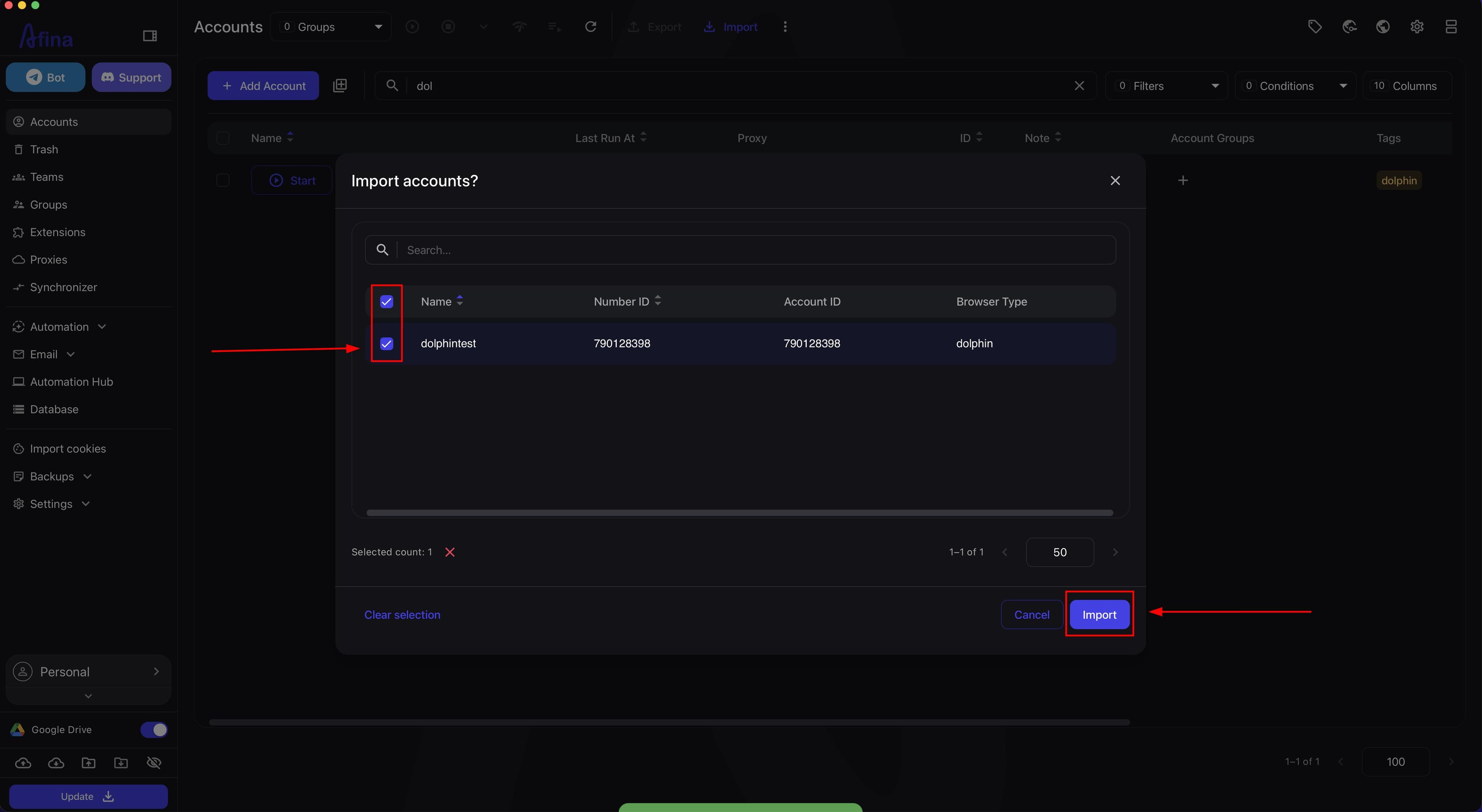
Click Import. The system will create a task and show a green pop-up message: "Task for import profiles created". Afina will automatically read all profile data and transfer it to your account list.
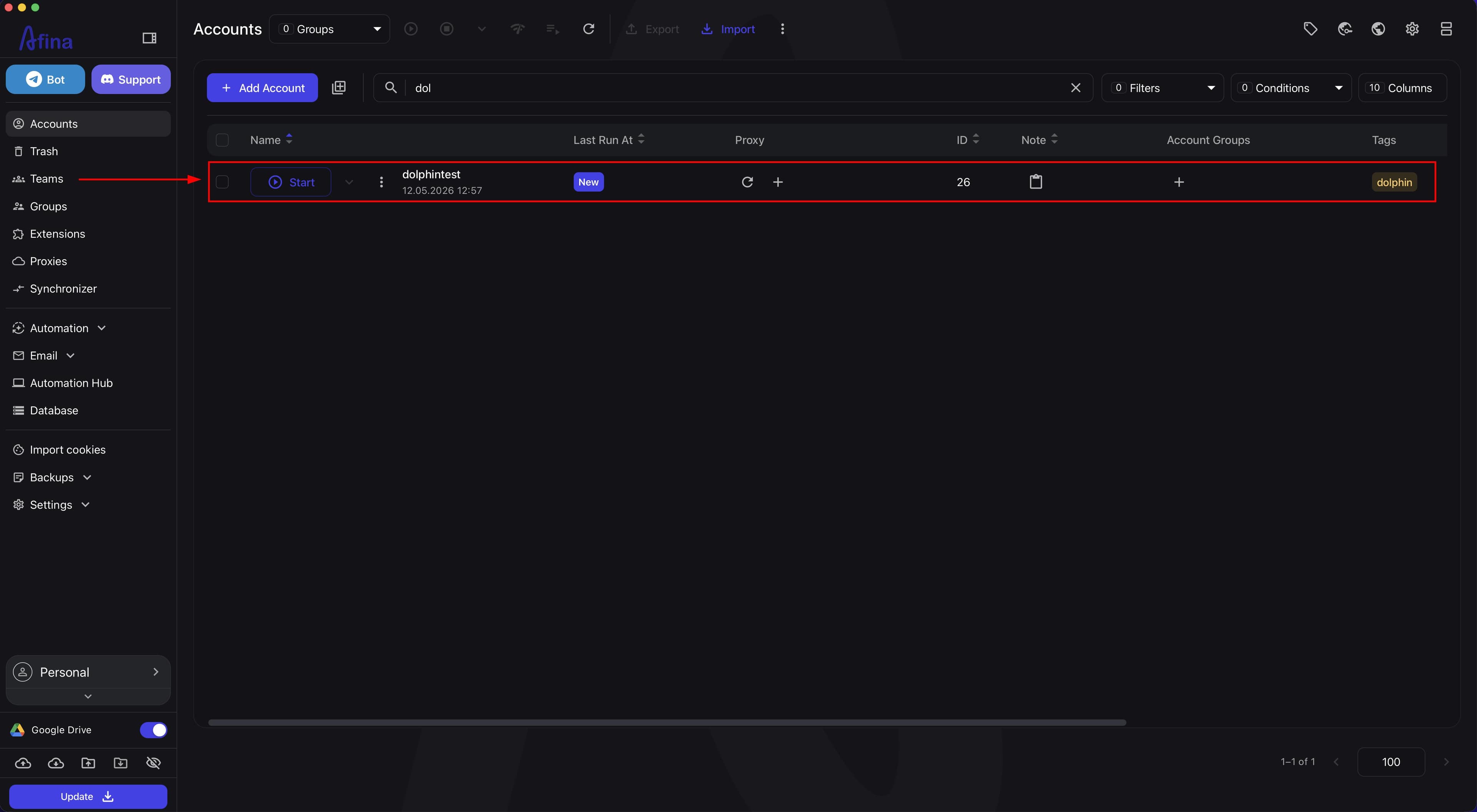
The basic migration is now complete. Check that all accounts were imported correctly.
Additional browser data#
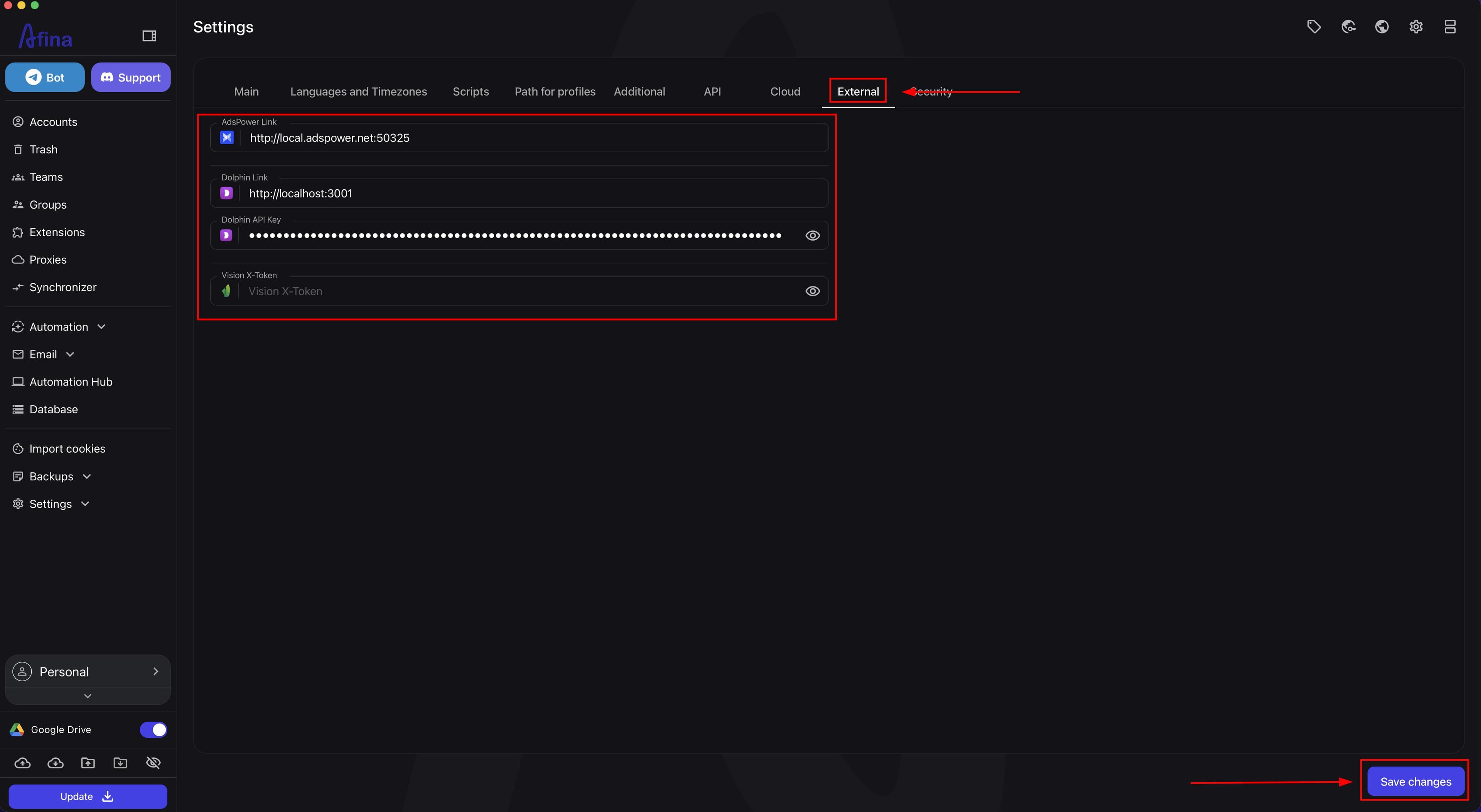
Before starting import, enter the connection parameters in Afina. Click the gear icon in the upper-right corner of the app, select Afina Core Settings, and go to the External tab. Fill in the relevant fields for your source browser and click Save changes.
AdsPower
Values for fields on the "External" tab:
- "AdsPower Link" →
http://local.adspower.net:50325
What to check before importing from AdsPower:
- AdsPower is running on the same computer as Afina.
- Local API access is active in AdsPower.
- LocalHost
http://local.adspower.net:50325is available and is not blocked by the firewall. - AdsPower is updated to the current version before import.
- Data synchronization is enabled in AdsPower settings (all items), and cache deletion is disabled.
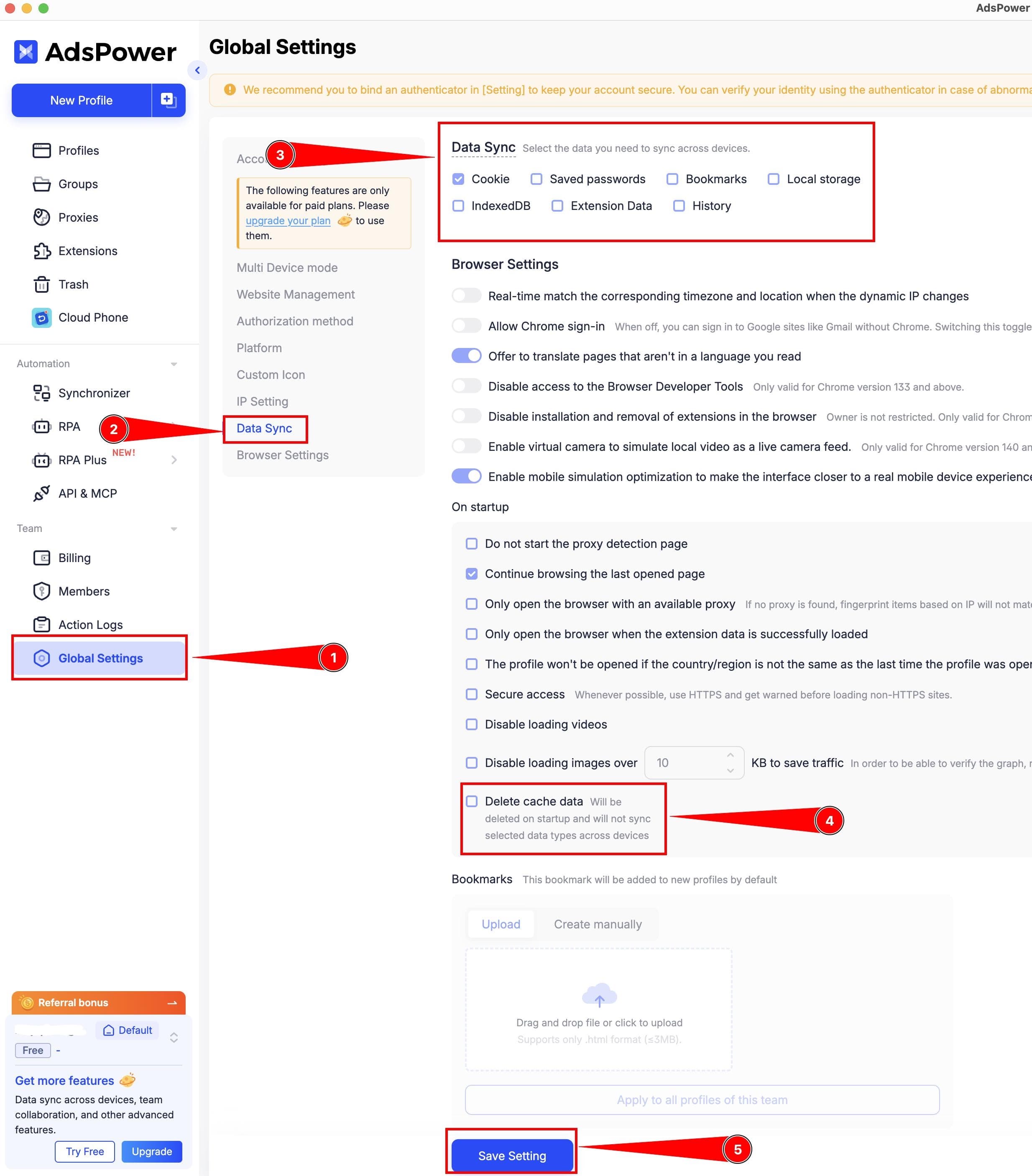
Dolphin
Dolphin requires an individual API key. Go to the Dolphin panel at https://dolphin-anty.com/panel/#/api, click the key generation button, and copy the generated value.
Values for fields on the "External" tab:
- "Dolphin Link" →
http://localhost:3001 - "Dolphin API Key" → paste the copied key
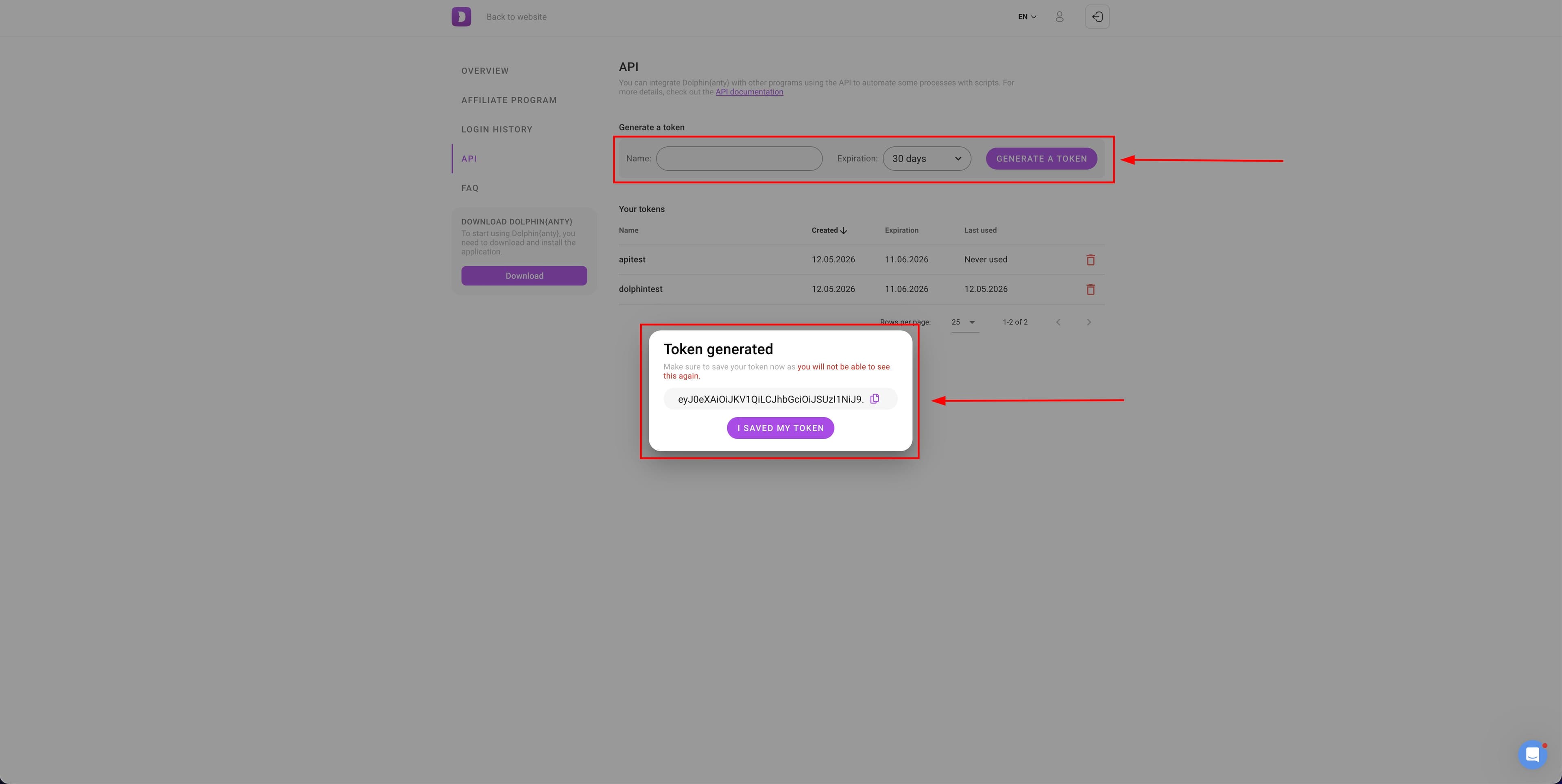
What to check before importing from Dolphin:
- Dolphin is running on the same computer as Afina.
- The correct API key for the current user is active in Dolphin.
- LocalHost
http://localhost:3001is available and is not blocked by the firewall. - The Dolphin API key is entered in the "Dolphin API Key" field on the "External" tab in Afina.
Vision
Vision requires an individual X-token (API key). Open Vision settings, find the access token section, and copy the X-token value.
Values for fields on the "External" tab:
- "Vision X-Token" → paste the copied token
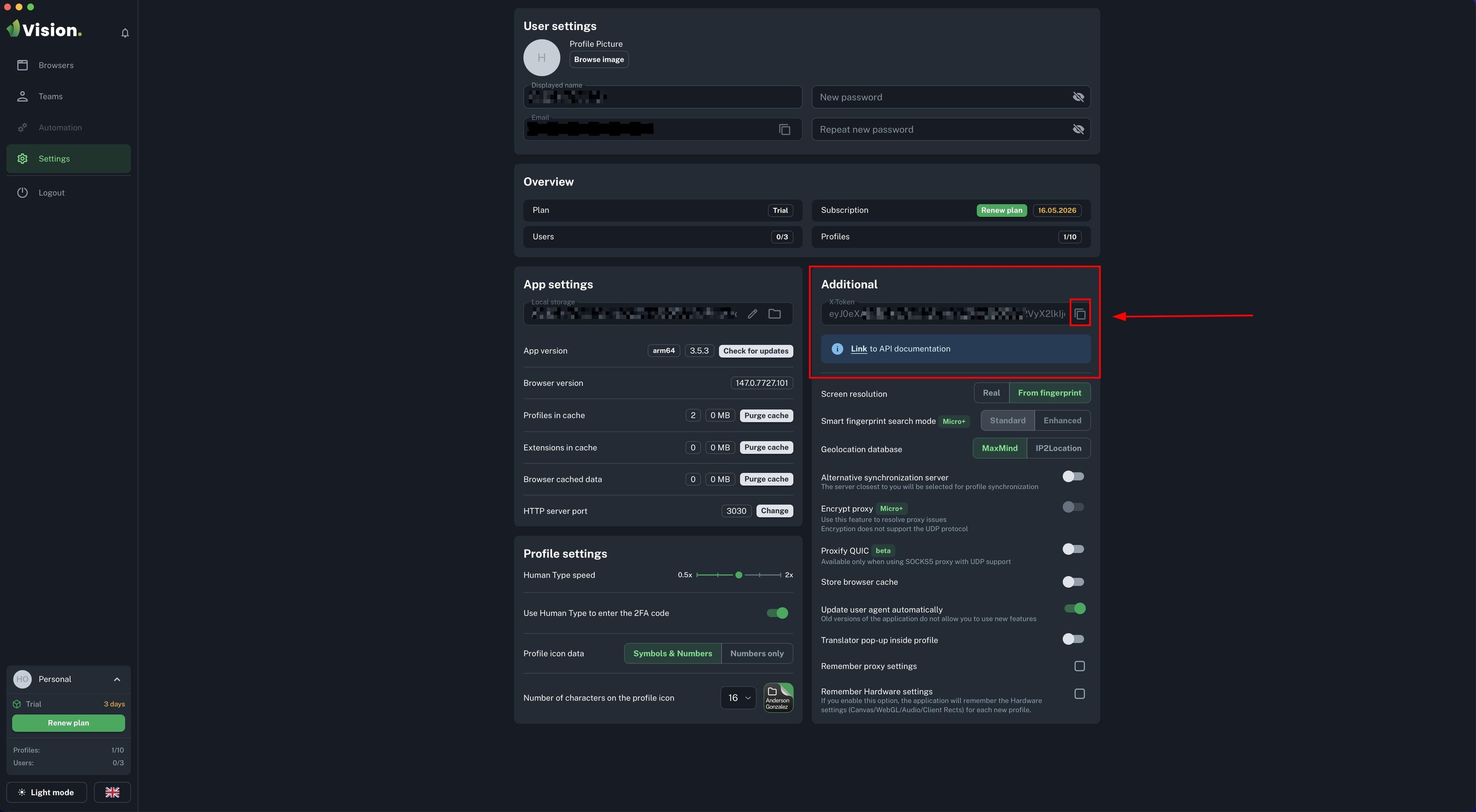
What to check before importing from Vision:
- Vision is running on the same computer as Afina.
- The correct X-token for the current user is active in Vision.
All parameters (links and keys) are entered in Afina: gear icon → "Afina Core Settings" → the "External" tab. After entering the parameters, be sure to click Save changes.
Verification#
The import was completed successfully if:
- transferred profiles appeared in the "Accounts" table;
- account names and basic parameters match the source;
- accounts launch without errors;
- the number of transferred accounts matches the expected number.
Recommendation after migration:
- run a spot check of 5-10 accounts from different groups;
- delete or archive accounts in the old browser only after verification.
Problems and solutions#
Afina does not see AdsPower, Dolphin, or Vision
Check that:
- the source app is actually running;
- it is running on the same computer where Afina is open;
- it is updated to the current version;
- the local API is not blocked on LocalHost.
Import does not start or freezes
- Close the import modal window.
- Restart the source browser.
- Restart Afina.
- Restart the PC.
- Repeat the import.
If that does not help, check the LocalHost configuration and API port in the source browser.
Not the entire farm was transferred
The most common reasons are:
- some profiles were in another workspace of the source browser;
- some profiles were unavailable because of the app state;
- a temporary local API failure occurred during import.
Solution:
- repeat the import after restarting the source;
- add the missing accounts by running the procedure again.