Importing and exporting cookies#
In this guide, you will learn how to export cookies from one or several accounts, import them into the required profiles, and work with the TXT format for bulk transfer of accounts and sessions. This is useful for backups, transferring authorization without logging in again, and quickly restoring working sessions.
Before you start#
- Make sure you understand exactly which account you are exporting or importing cookies for.
- If you work with files from other browsers, first check the file format.
- If you plan bulk operations, it is better to first test the scenario on a single account.
Cookies in Afina can be:
- exported for an individual account;
- imported into the required profile;
- exported in bulk for several accounts;
- transferred together with accounts via TXT files.
For the exact file format, it is convenient to first export cookies from your Afina account so you can see the correct structure for the subsequent import.
Exporting cookies#
The cookie export section is used to save the cookie files of an individual account to a local file for later transfer.
-
Go to the Accounts section.
-
Find the required account in the main table.
-
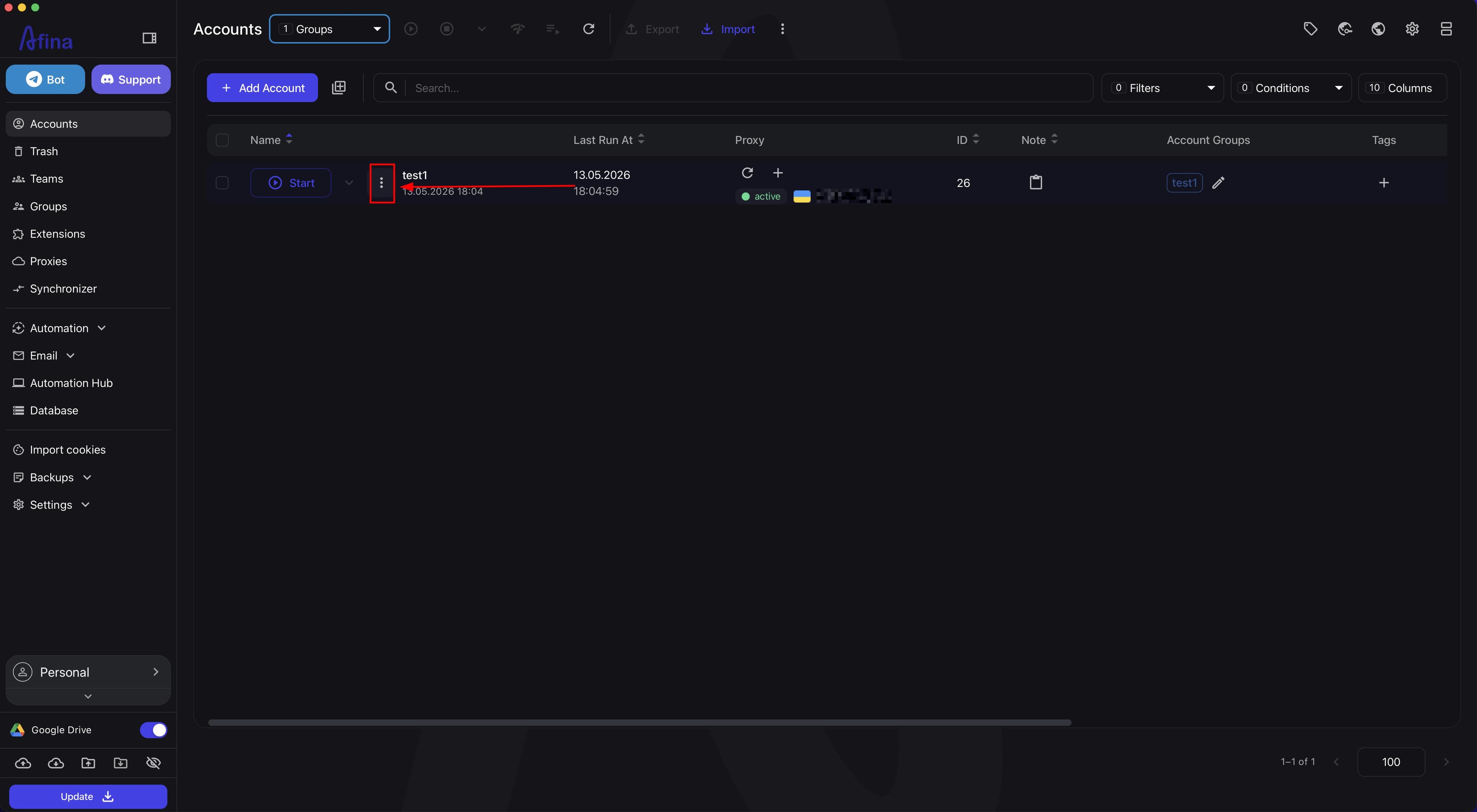
Click the ⋮ icon next to the required account.
The screenshot below shows the "Accounts" page with the additional actions icon in the row of the selected account.
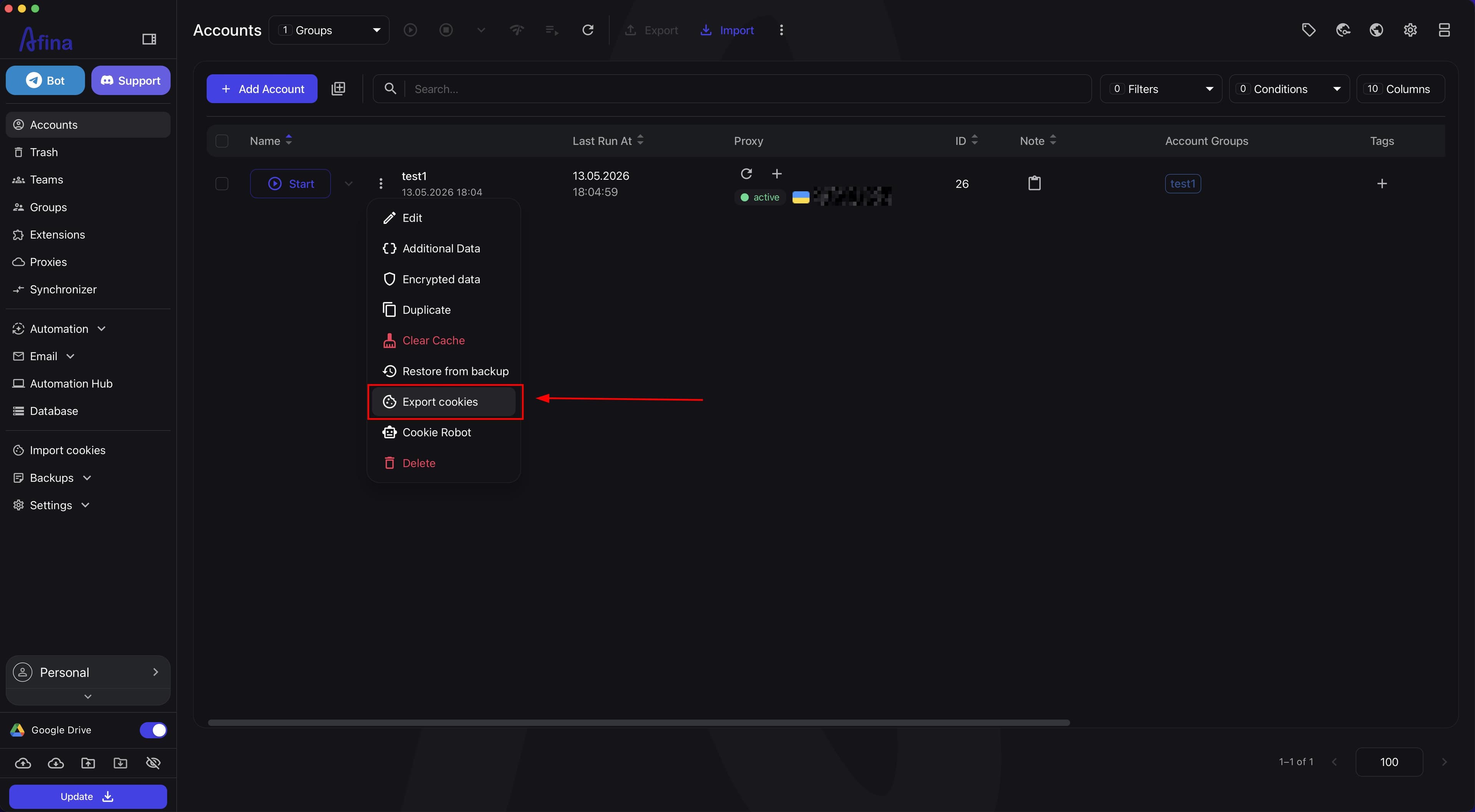
- Select Export cookies in the drop-down list.
The next screenshot shows the account context menu with the "Export cookies" item.
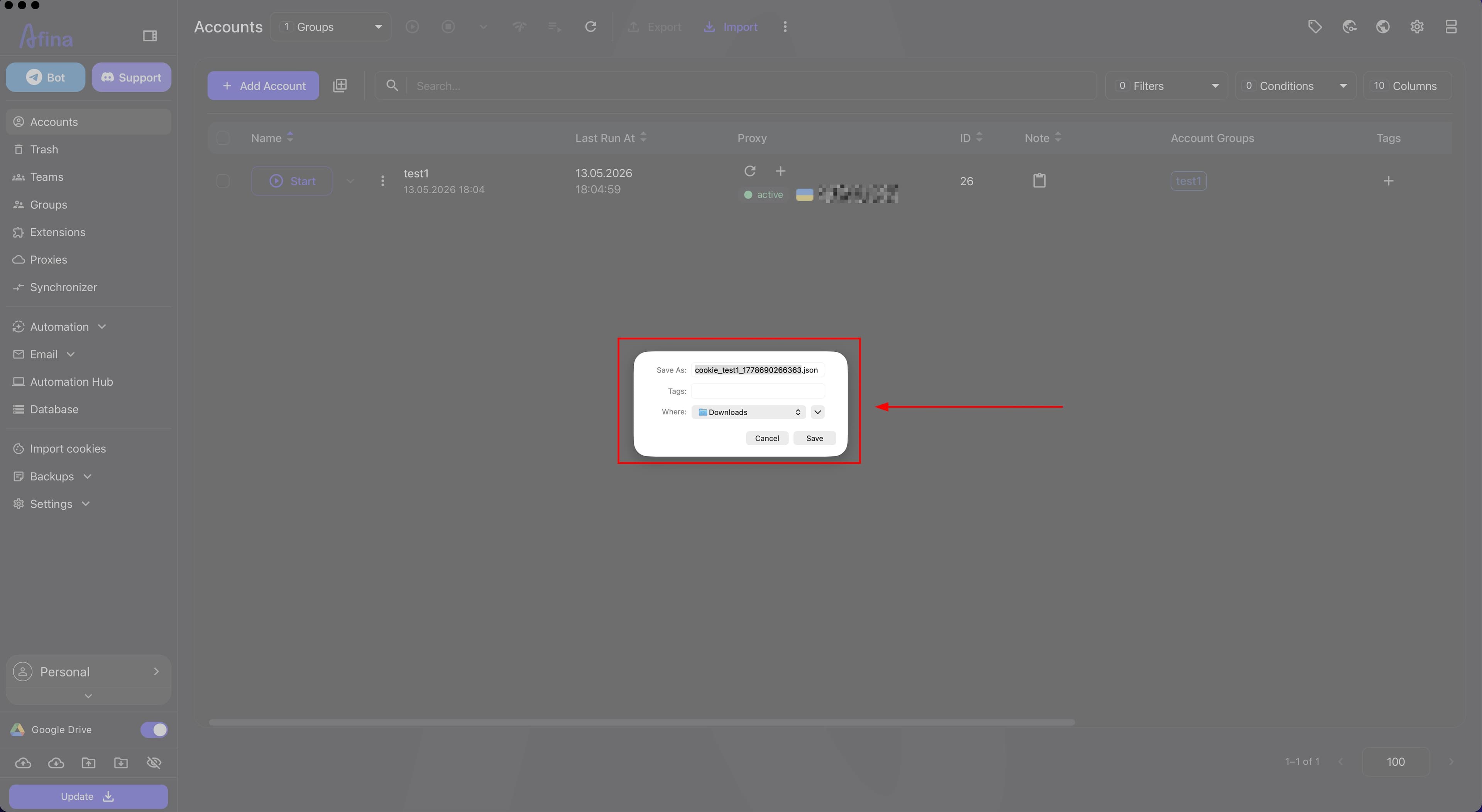
- In the system window, save the
JSONfile to the required folder.
This screenshot shows the system window for saving the JSON cookie file.
Importing cookies#
The "Import cookies" section is used to upload a cookie file, link the uploaded data to Afina accounts, and save the cookies in the selected profile.
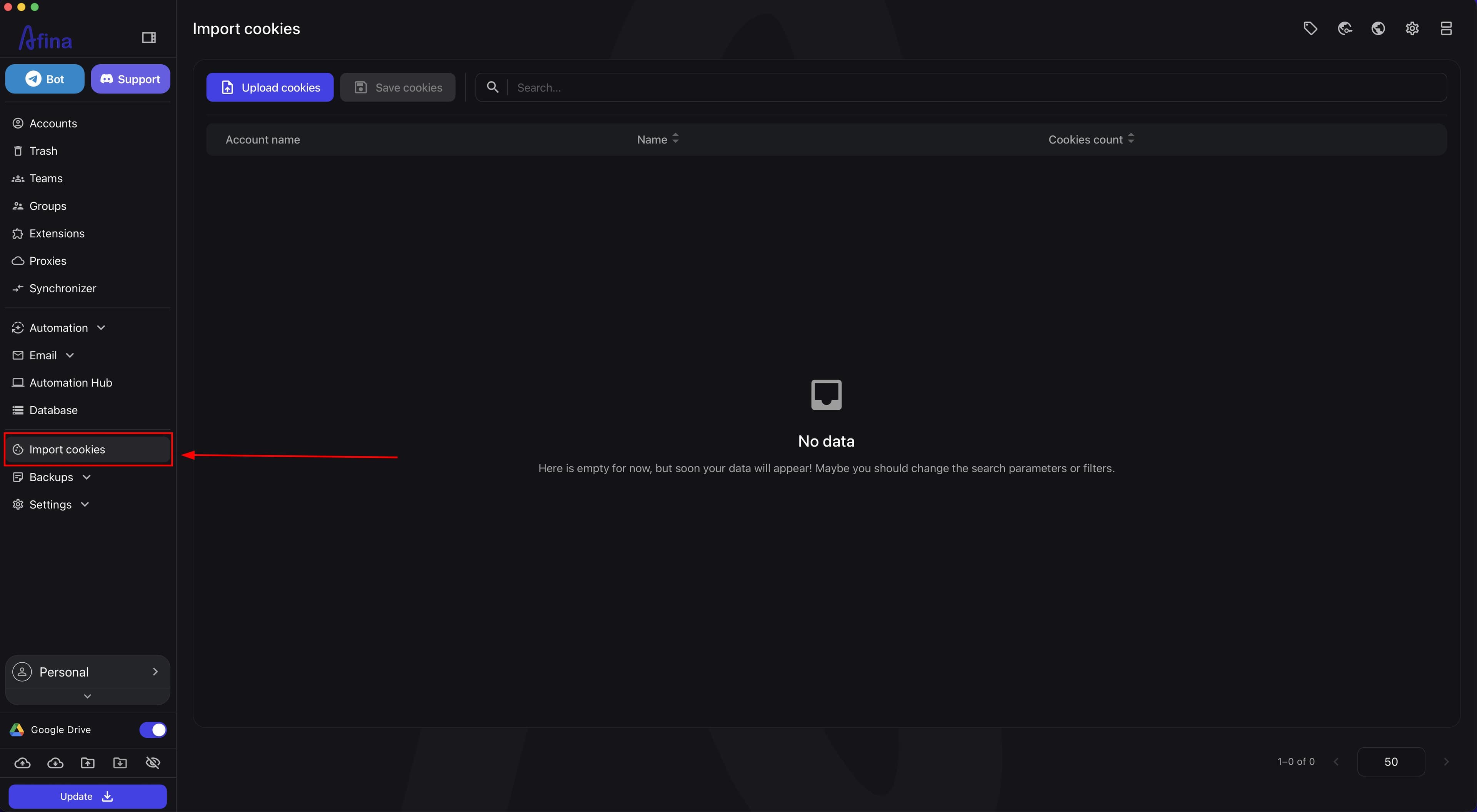
- Open the Import cookies section in the left navigation panel.
The screenshot below shows the Afina left menu with the "Import cookies" section open.
-
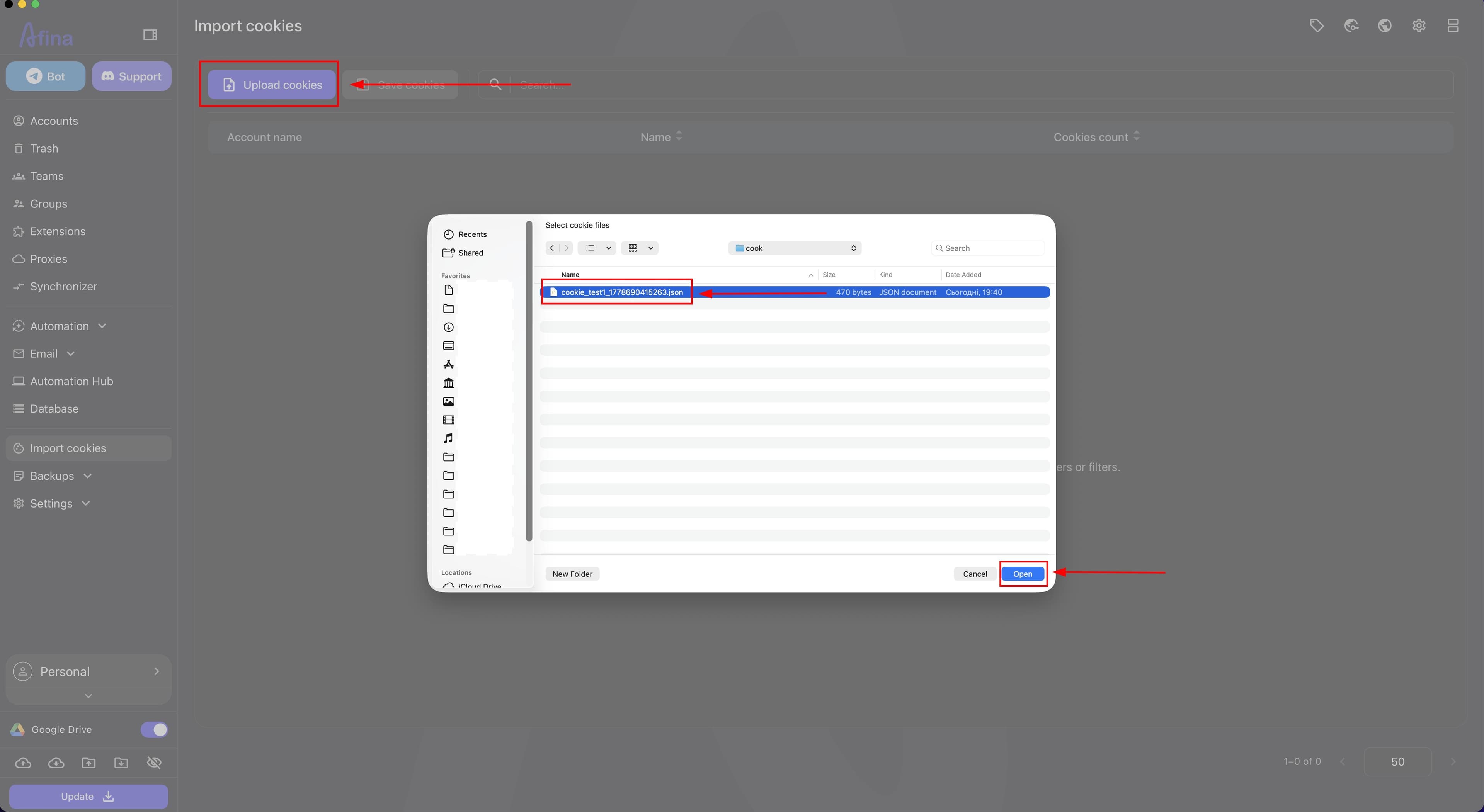
Click Upload cookies.
-
In the system window, select the cookie file and confirm the upload.
The next screenshot shows the "Upload cookies" button and the system window for selecting a JSON file.
-
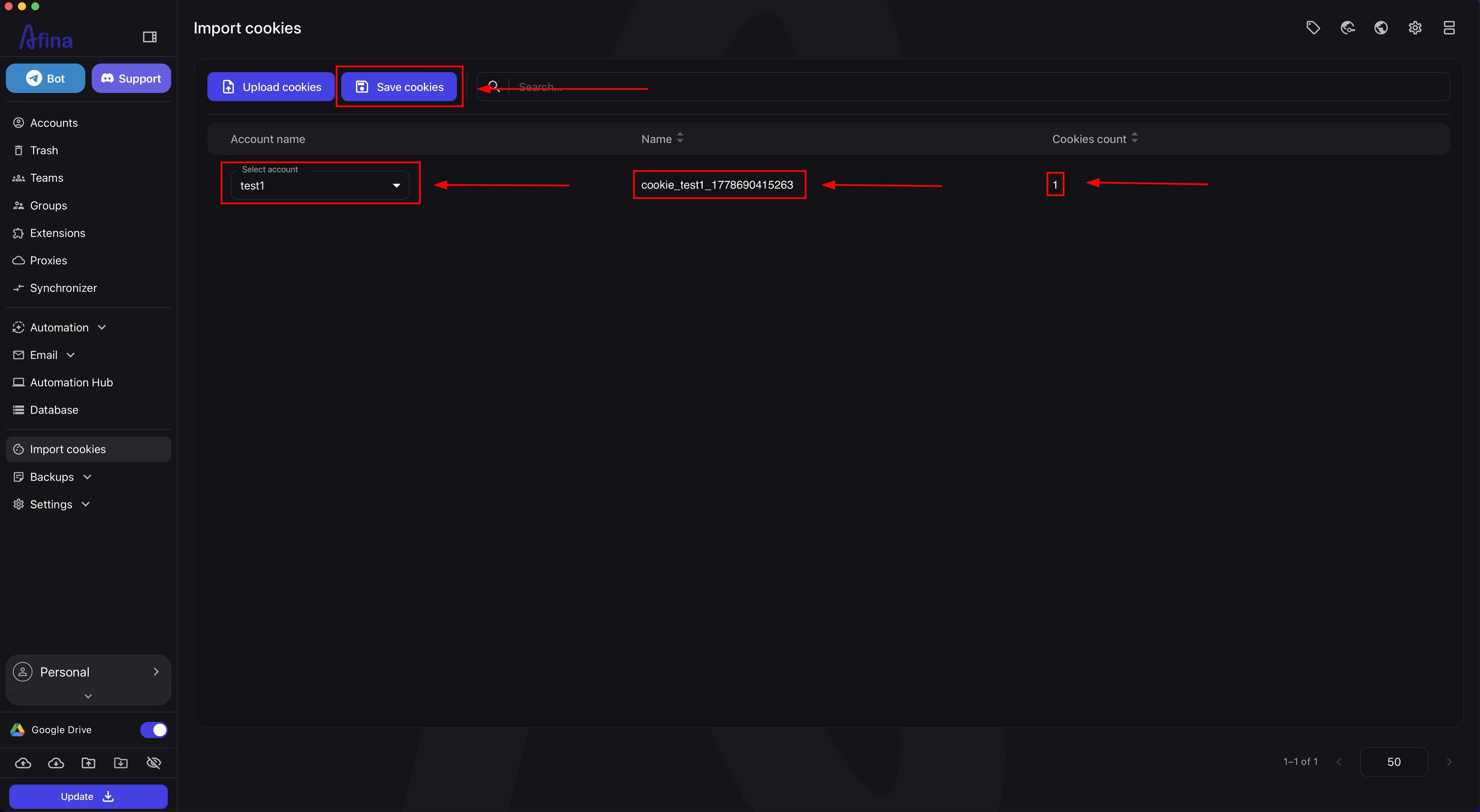
Make sure that the uploaded cookie set, its name, and the number of cookies have appeared in the table.
-
In the "Account name" column, open the "Select account" list.
-
Select the profile to which you want to save the cookies.
-
Click Save cookies.
This screenshot shows the cookie import table with the selected account, the file name, and the number of cookies.
Importing cookies from other browsers#
In Afina, you can import cookies exported from other anti-detect browsers if the file has a valid JSON or TXT format.
Basic scenario:
- Export cookies from the source browser to a file.
- Check the
JSONorTXTstructure and the presence of basic cookie fields. - Import the file in the "Import cookies" section.
- Select the account to which you want to save the cookies.
- Click Save cookies.
Compatibility nuances during import
- if the cookies are expired, the site may request a repeated login;
- some sites additionally check the IP, geo, User-Agent, or other environment parameters;
- for accounts with
2FAor additional verification, the session may work with limitations; - if the file is large or non-standard in structure, first test it on a single profile;
- do not mix cookies of different accounts into a single set for one account.
Bulk cookie export#
Bulk cookie export is a tool for saving the cookie files of selected accounts to local JSON files. It lets you quickly obtain session data from several profiles at once for backup or further transfer of authorization.
-
Go to the Accounts section.
-
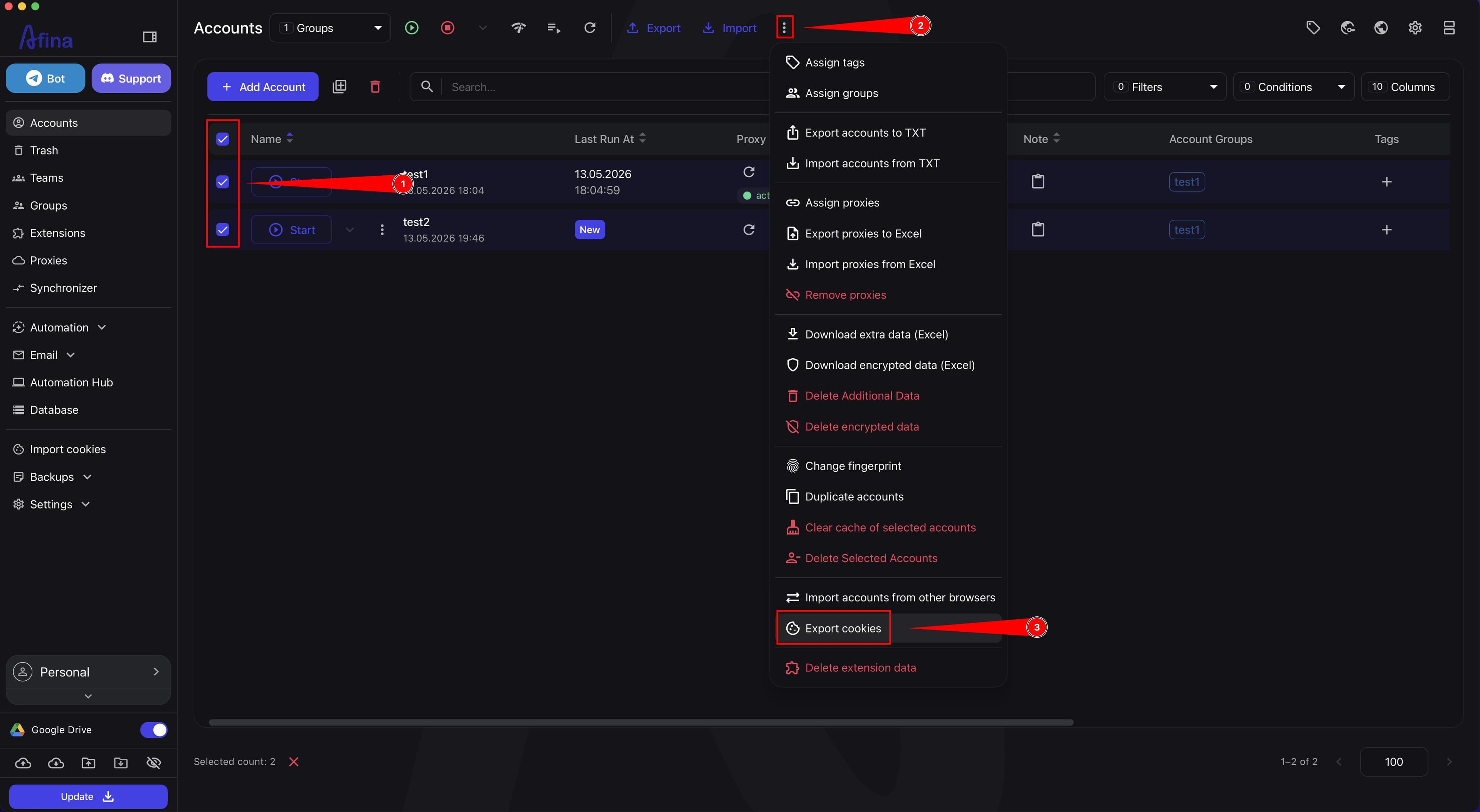
Mark the required accounts with checkboxes.
-
On the top panel, click the ⋮ icon.
-
Select Export cookies.
The screenshot below shows the "Accounts" page with the selected profiles and the open actions menu on the top panel.
-
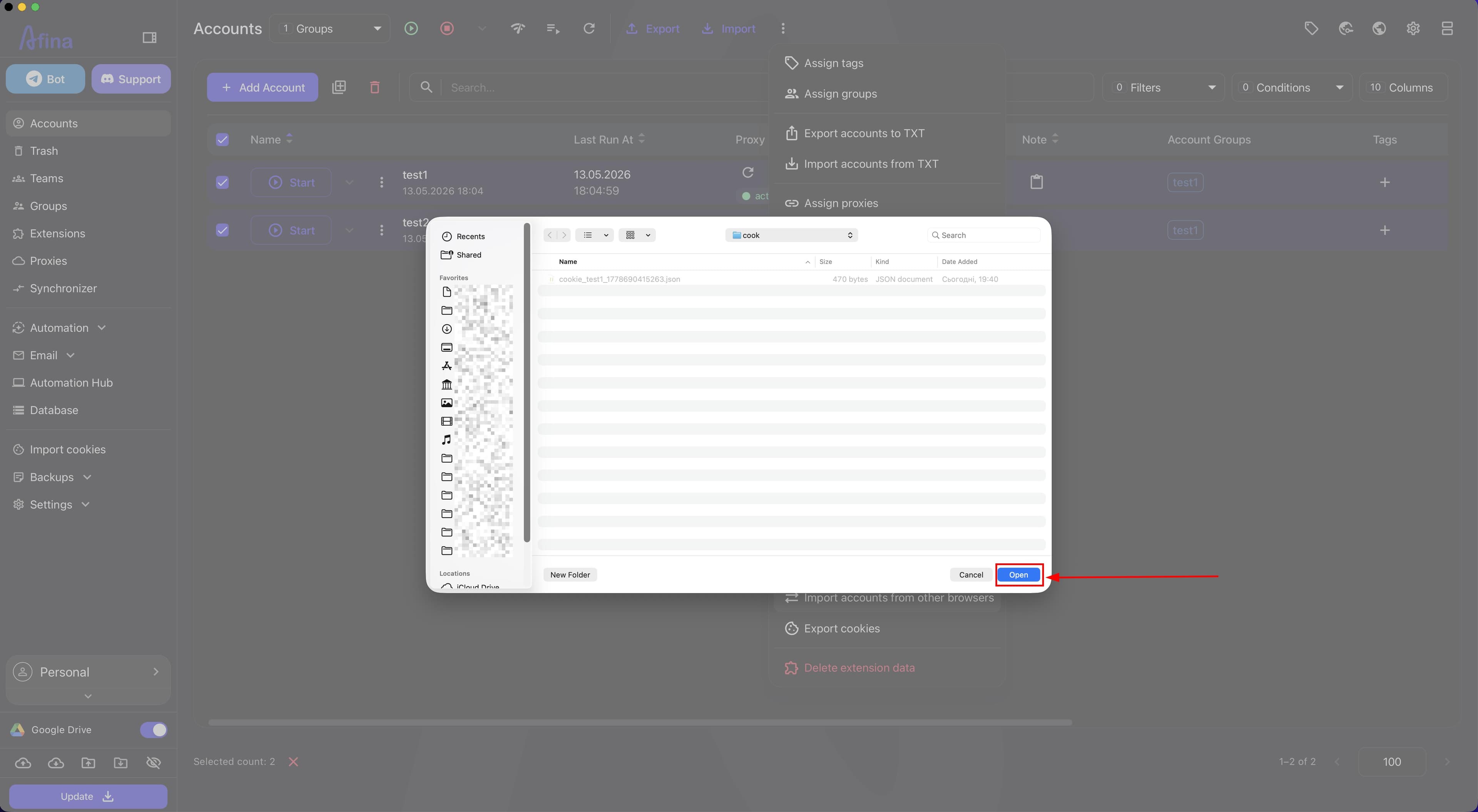
In the system window, select the folder for saving the
JSONfiles. -
Click Save.
The next screenshot shows the system window for selecting a folder to save the files after the bulk export.
After you confirm the folder, Afina automatically generates files with cookies for the selected accounts. Each account is exported to a separate file with the .json extension.
The file contains all the saved information about the cookies of the corresponding profile:
- domains;
- cookie names;
- values;
- validity period;
- other technical session parameters.
Importing accounts and cookies from TXT#
Importing accounts from TXT is a tool for bulk adding accounts with cookies to Afina from a text file. It lets you quickly load ready-made profiles together with cookies, proxies, and technical parameters without manual creation.
-
Go to the Accounts section.
-
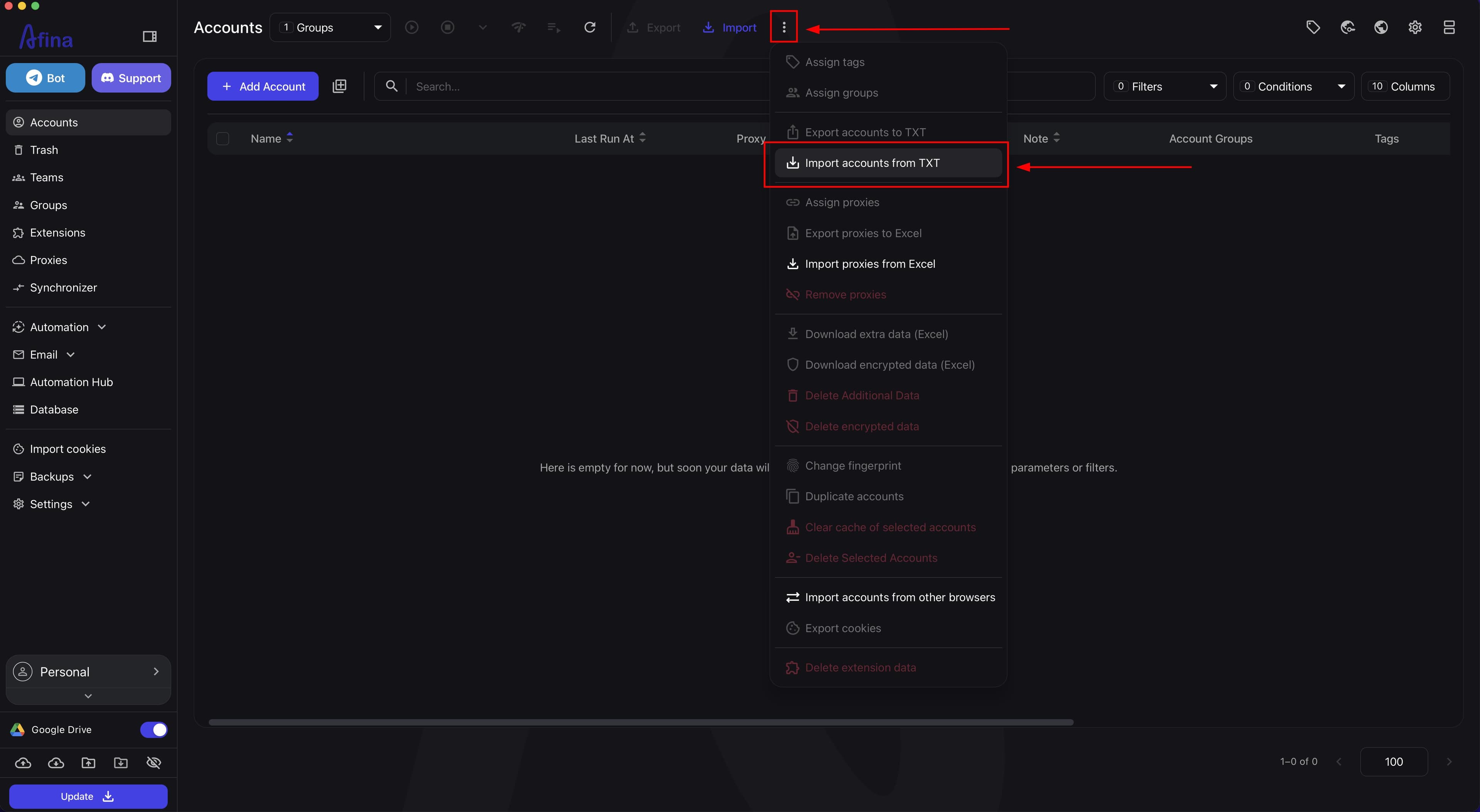
On the top panel, click the ⋮ icon.
-
Select Import accounts from TXT.
The screenshot below shows the actions menu with the "Import accounts from TXT" item.
-
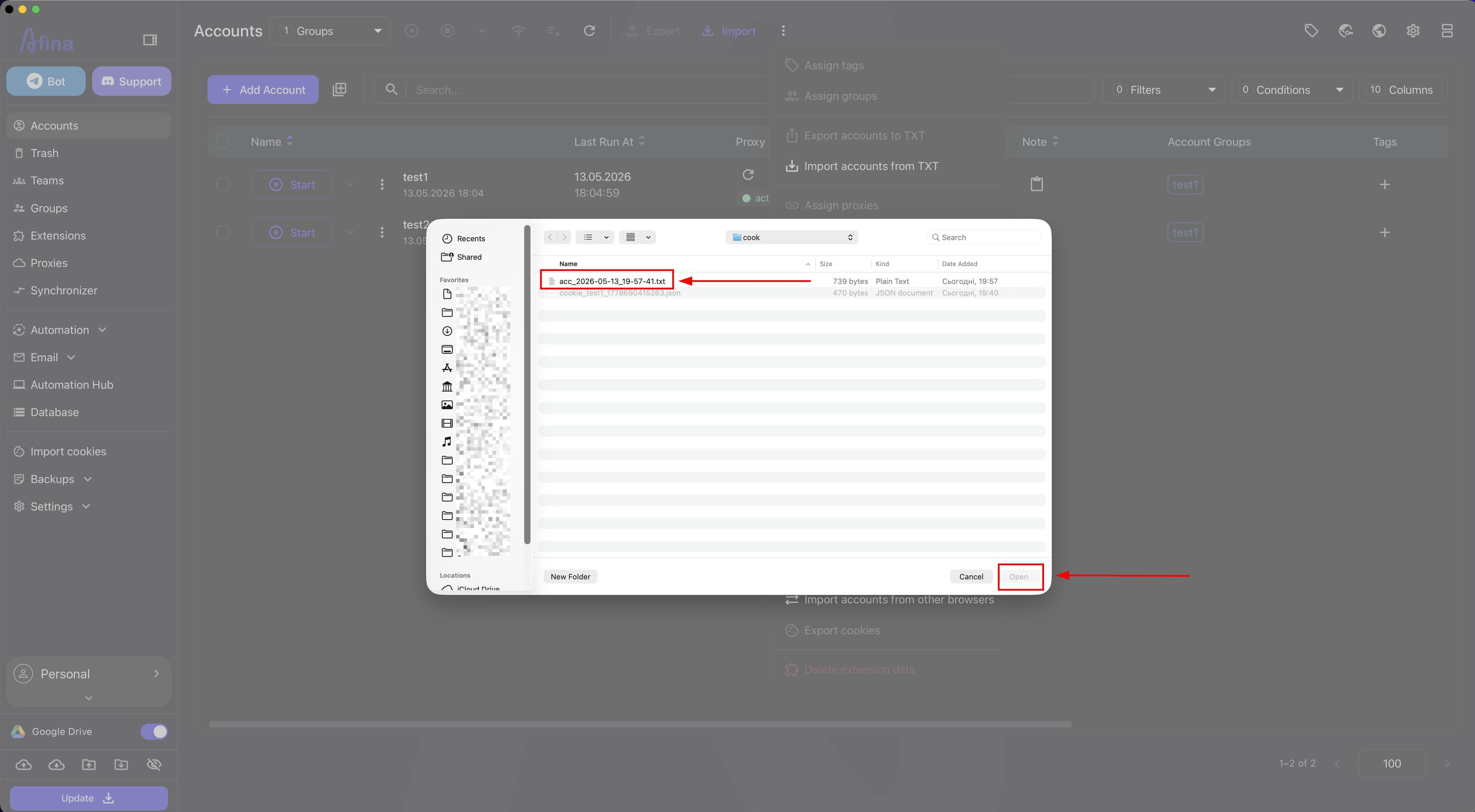
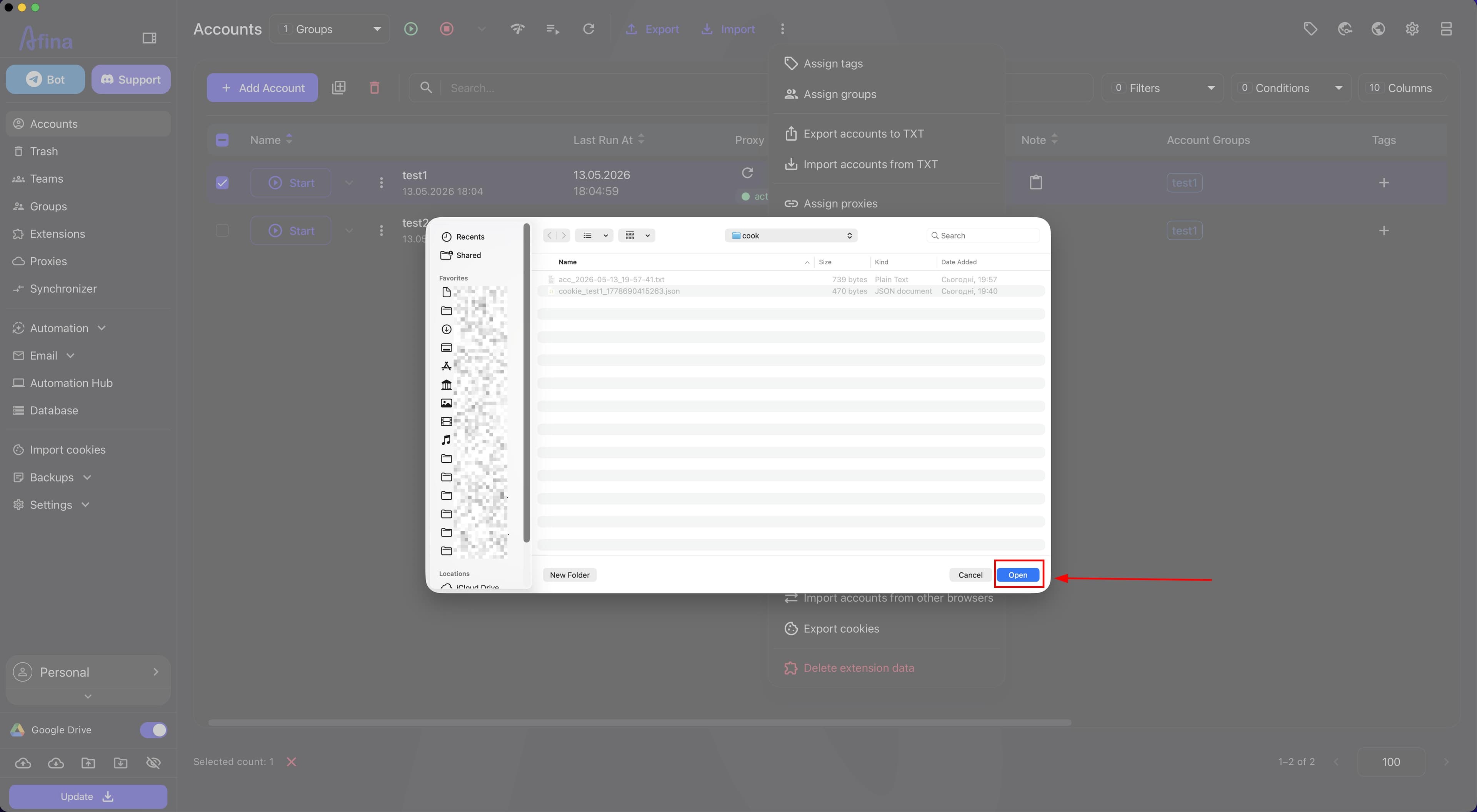
In the system window, find the
TXTfile. -
Click Open.
The next screenshot shows the TXT file selection window and the Open button for confirming the import.
- Wait for the import to complete.
This screenshot shows the "Accounts" page after the import from TXT is performed.
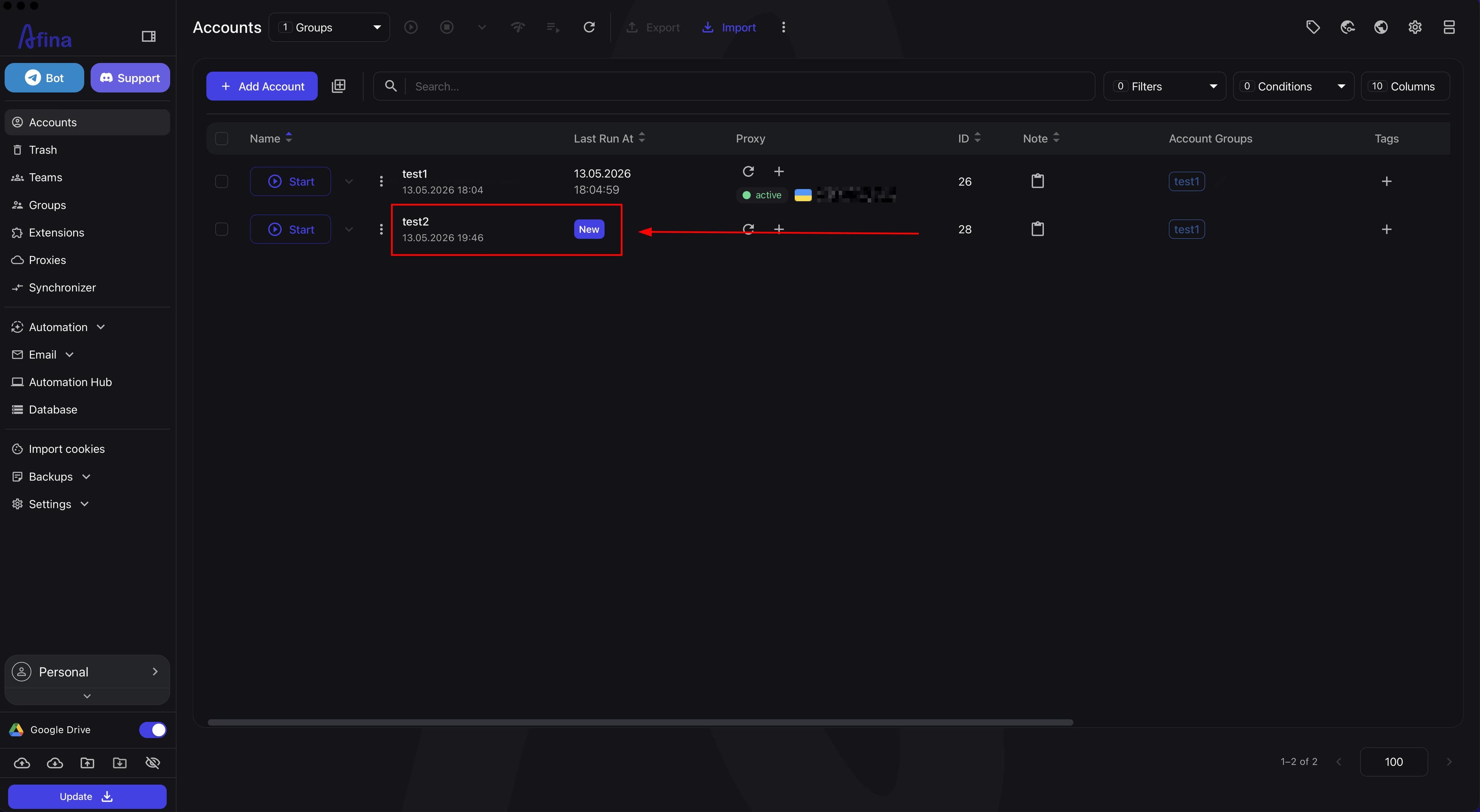
After the import is complete, all accounts from the file will be added to the "Accounts" table. Each profile is created together with all the data contained in the file, including cookies, proxies, and technical parameters.
Exporting accounts and cookies to TXT#
Exporting accounts to TXT is a tool for unloading the data of selected accounts to a text file. It lets you save the full profile data together with cookies, proxies, and technical parameters for later use or transfer.
-
Go to the Accounts section.
-
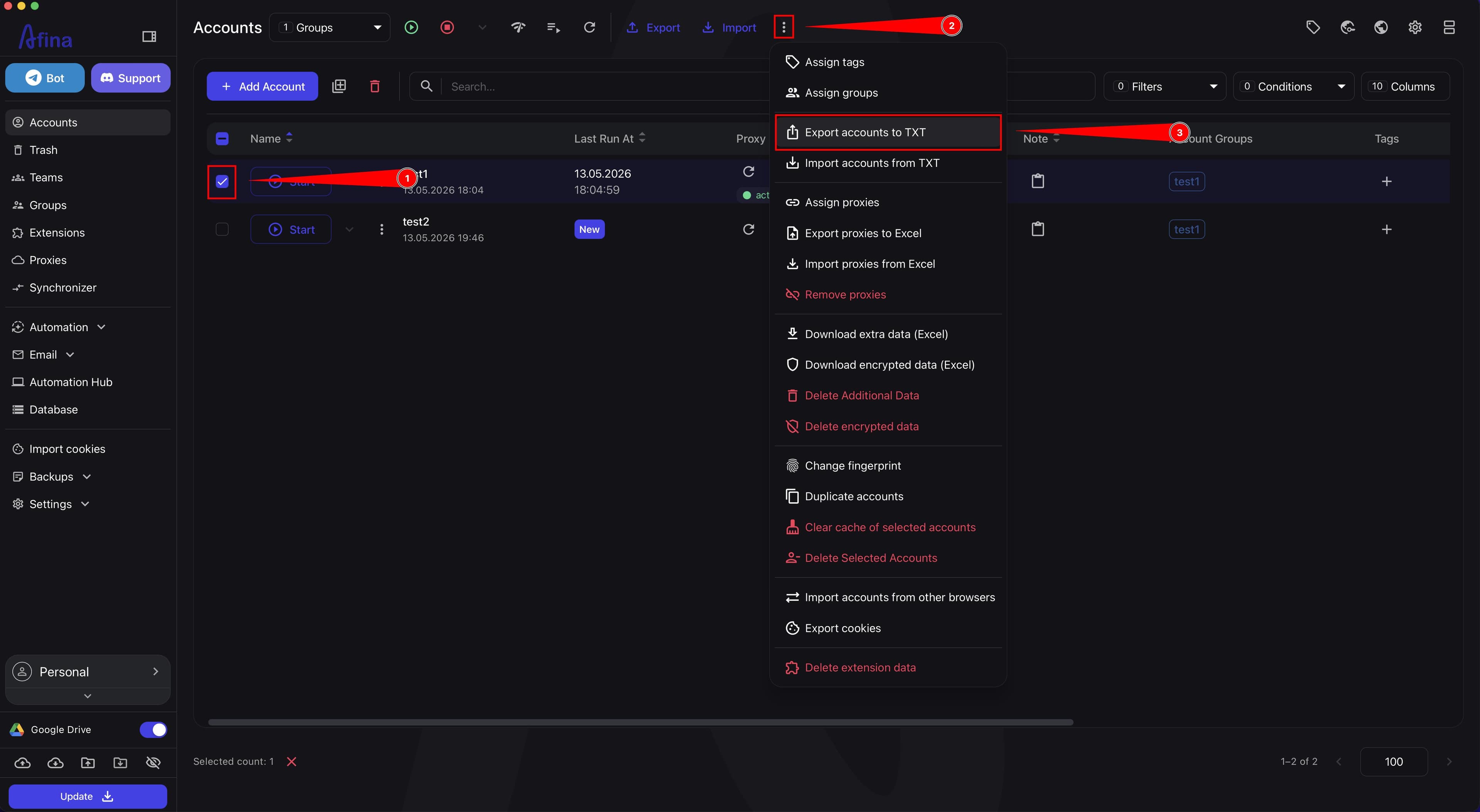
Mark the required accounts with checkboxes.
-
On the top panel, click the ⋮ icon.
-
Select Export accounts to TXT.
The screenshot below shows the actions menu with the "Export accounts to TXT" item.
-
In the system window, select the folder where you want to save the file.
-
Click Select folder.
The next screenshot shows the system window for selecting a folder to save the TXT file.
- Wait for the export to complete.
After confirmation, the system creates a TXT file with the data of the selected accounts. The file contains the full profile information, including cookies in the form of a list of domains and values, as well as the technical parameters required for later use of the account.
Result#
After completing these steps, you will be able to export cookies of an individual or several accounts, import them into the required profiles, and also transfer accounts and cookies via TXT files.
Signs of a successful result
- after "Export cookies", a
JSONfile is saved; - after the bulk export, a separate
JSONfile is created for each selected account; - after importing cookies, the set is displayed in the "Import cookies" table;
- after clicking "Save cookies", the profile starts with the expected session;
TXTimport adds accounts to the "Accounts" table without omissions;TXTexport creates a file in the selected folder.
If something does not work
- if the cookie file does not upload, check that it is not corrupted, has a valid format, and contains the basic fields
domain,expirationDate,hostOnly,httpOnly,name,path,sameSite,secure,session,storeId,value; - if the "Save cookies" button is inactive, make sure the file is uploaded and an account is selected for the row;
- if the site asks for a repeated login after import, the cookies are most often expired, the site checks additional parameters, or the session has already ended on its side;
- if the bulk export does not create files for some accounts, check the checkboxes, the folder's write availability, and the integrity of the session data;
- if
TXTimport orTXTexport works incorrectly, restart Afina, check the integrity of theTXTfile and the encoding, and test the operation on a smaller set of accounts.