Working with Google Drive#
In this guide, you will connect Google Drive to Afina, enable account synchronization, and set up settings backup. It also shows how to transfer scripts and modules through the cloud and work with one environment on different devices.
Before You Start#
- Make sure you have access to the required Google account in your browser.
- Make sure you have your key file and master password, and that they are identical on every device where you plan to open the same data.
Cloud data is stored in encrypted form. The key file and master password must be exactly the same on all devices: if they differ, Afina will not decrypt the accounts, and cookies may be deleted when you try to open the profile. Using different key files on different devices is strictly prohibited.
Connecting Google Drive#
You can open the connection page in two ways: through the Google Drive button in the lower-left corner of the interface, or through the gear icon in the upper-right corner → Afina Core Settings → the Cloud tab. Both paths lead to the same page.
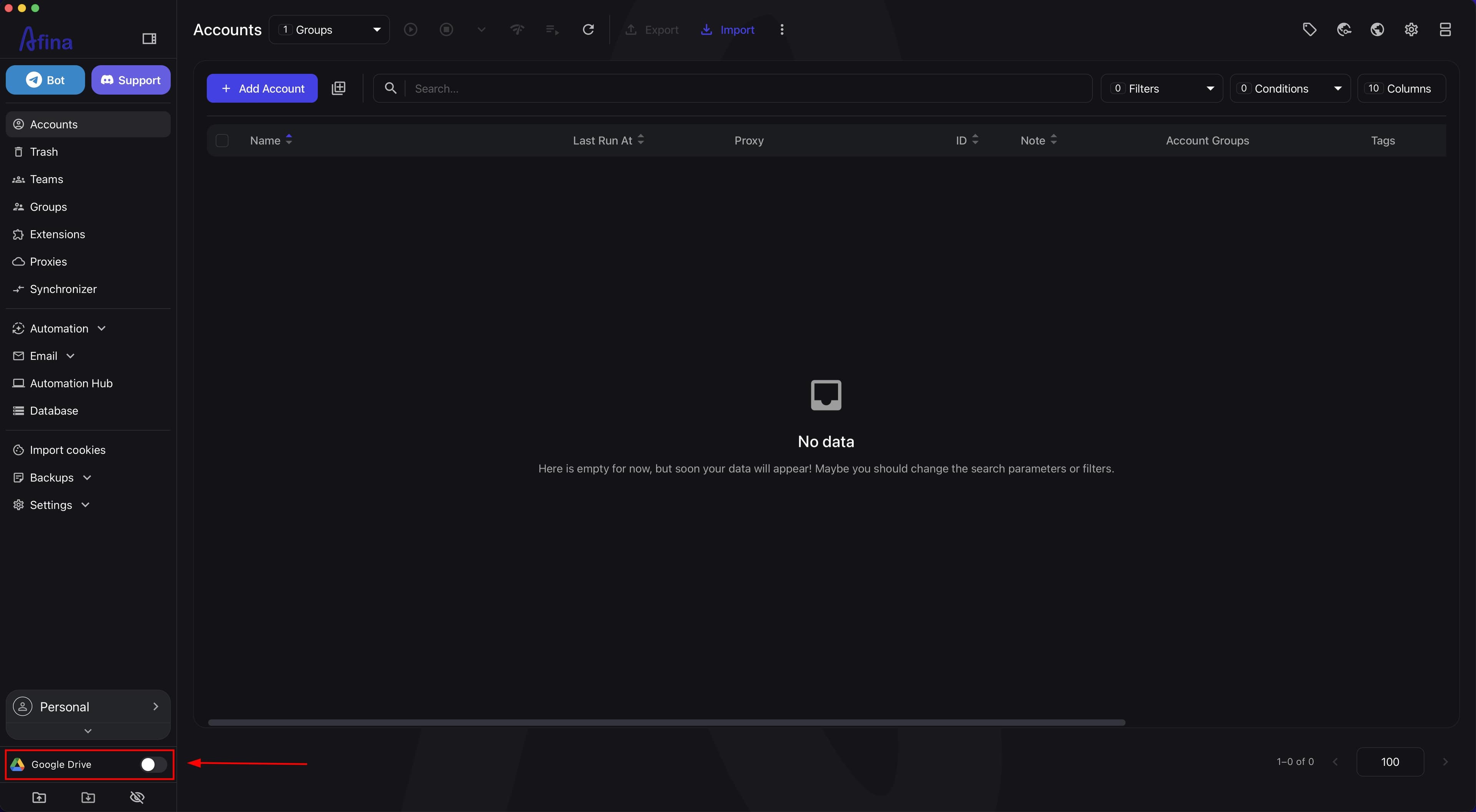
- Go to the Google Drive section in the lower-left corner of the Afina interface.
The screenshot below shows exactly where the Google Drive section is located in the Afina interface.
- Make sure the "Google Drive" page opens with the provider selection block, connection button, and synchronization settings.
The next screenshot shows the main elements of the "Google Drive" page that you will work with next.
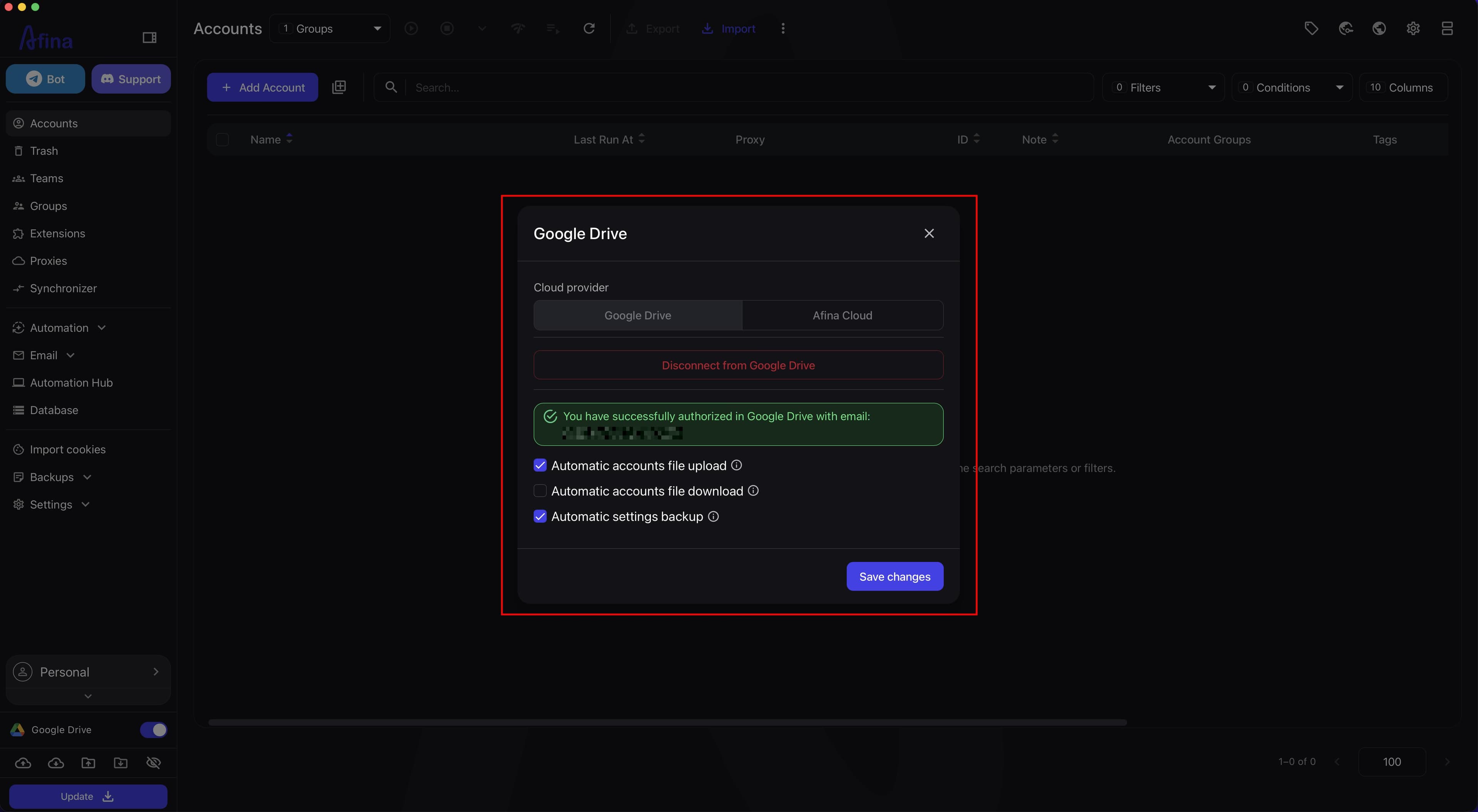
- In the provider block, select Google Drive.
In addition to Google Drive, another provider is available in this block: Afina Cloud, Afina's own cloud storage for exchanging profiles within a team. This guide describes connecting Google Drive specifically.
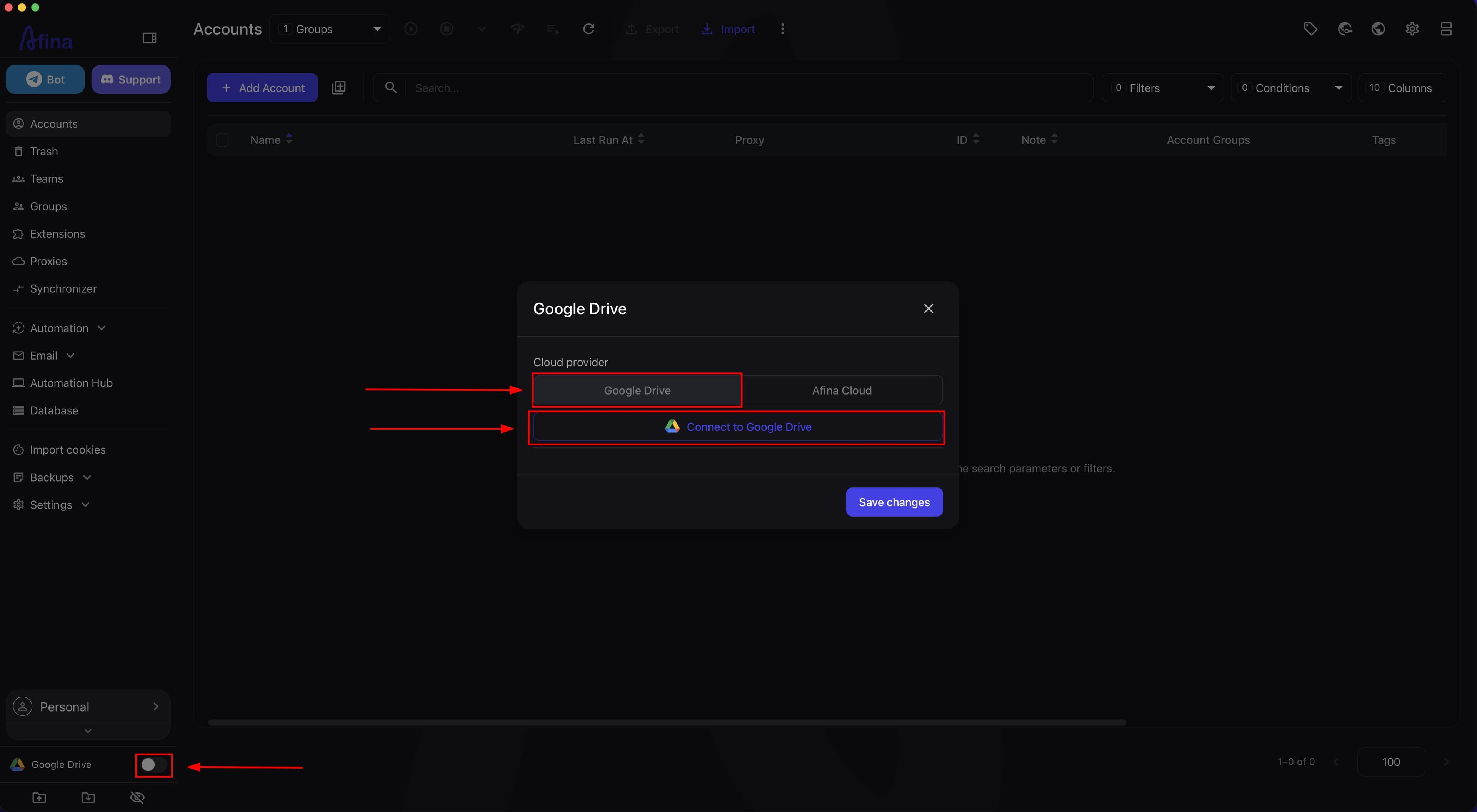
- Click Connect to Google Drive.
The screenshot below shows the Connect to Google Drive button on the "Google Drive" page.
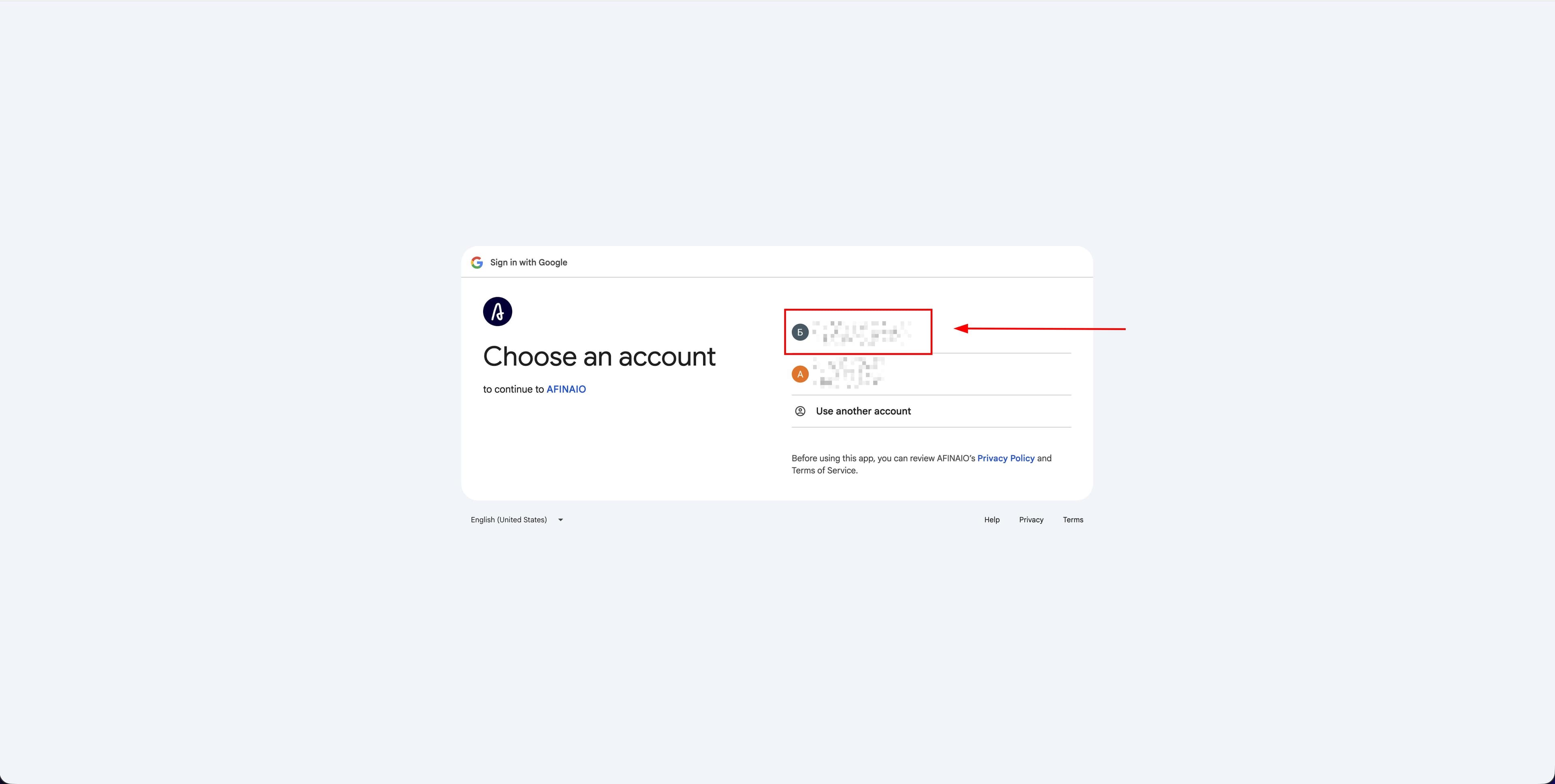
- In the authorization window, select the required Google account.
The next screenshot shows the Google account selection page in the browser.
- Confirm sign-in to the selected Google account if the browser asks you to authorize again.
This screenshot shows the sign-in confirmation screen for the selected Google account.
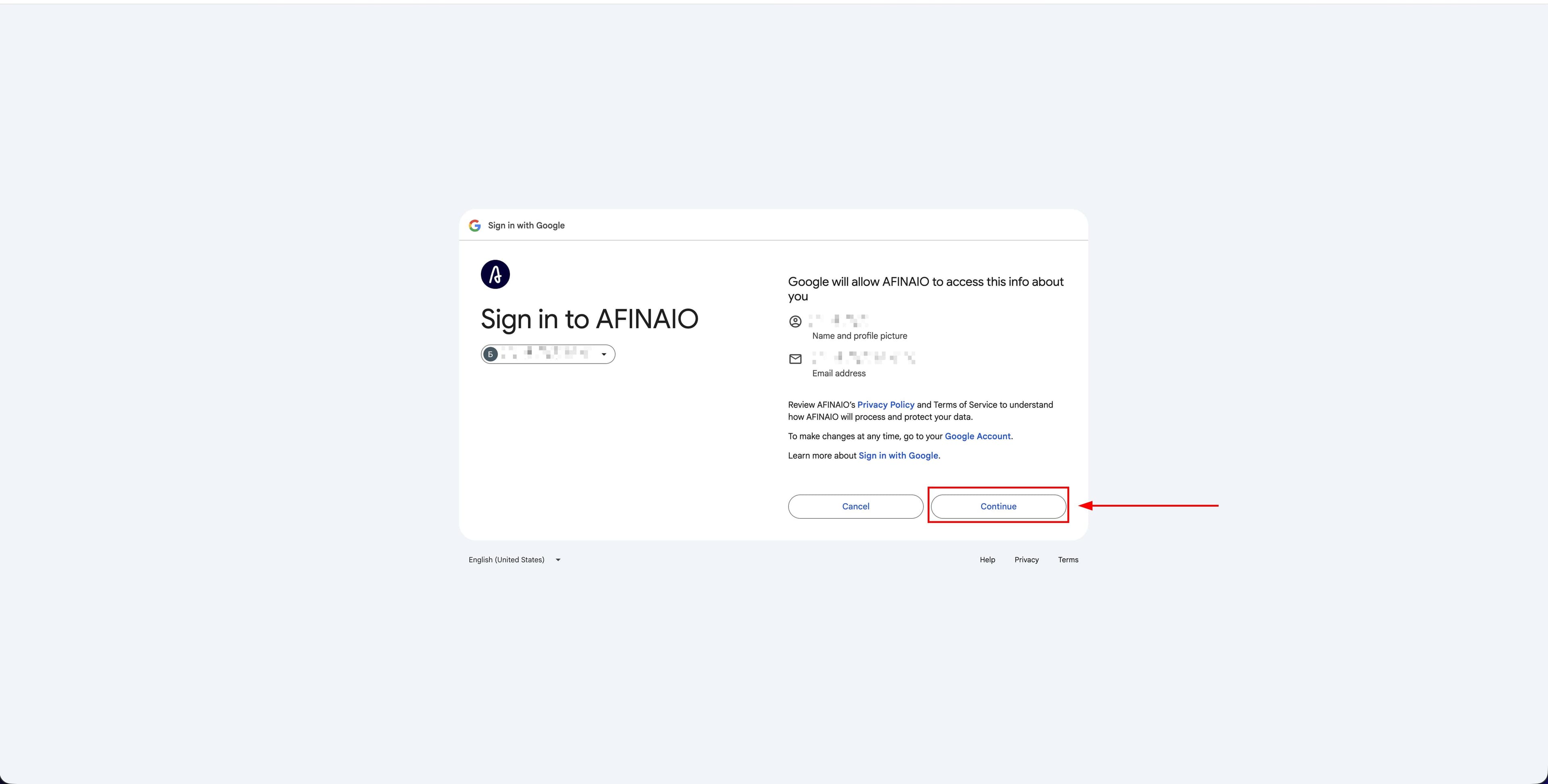
- Click Continue or another access confirmation button to grant Afina permission to work with Google Drive.
The next screenshot shows the permissions screen where Google asks you to confirm Afina's access to Google Drive.
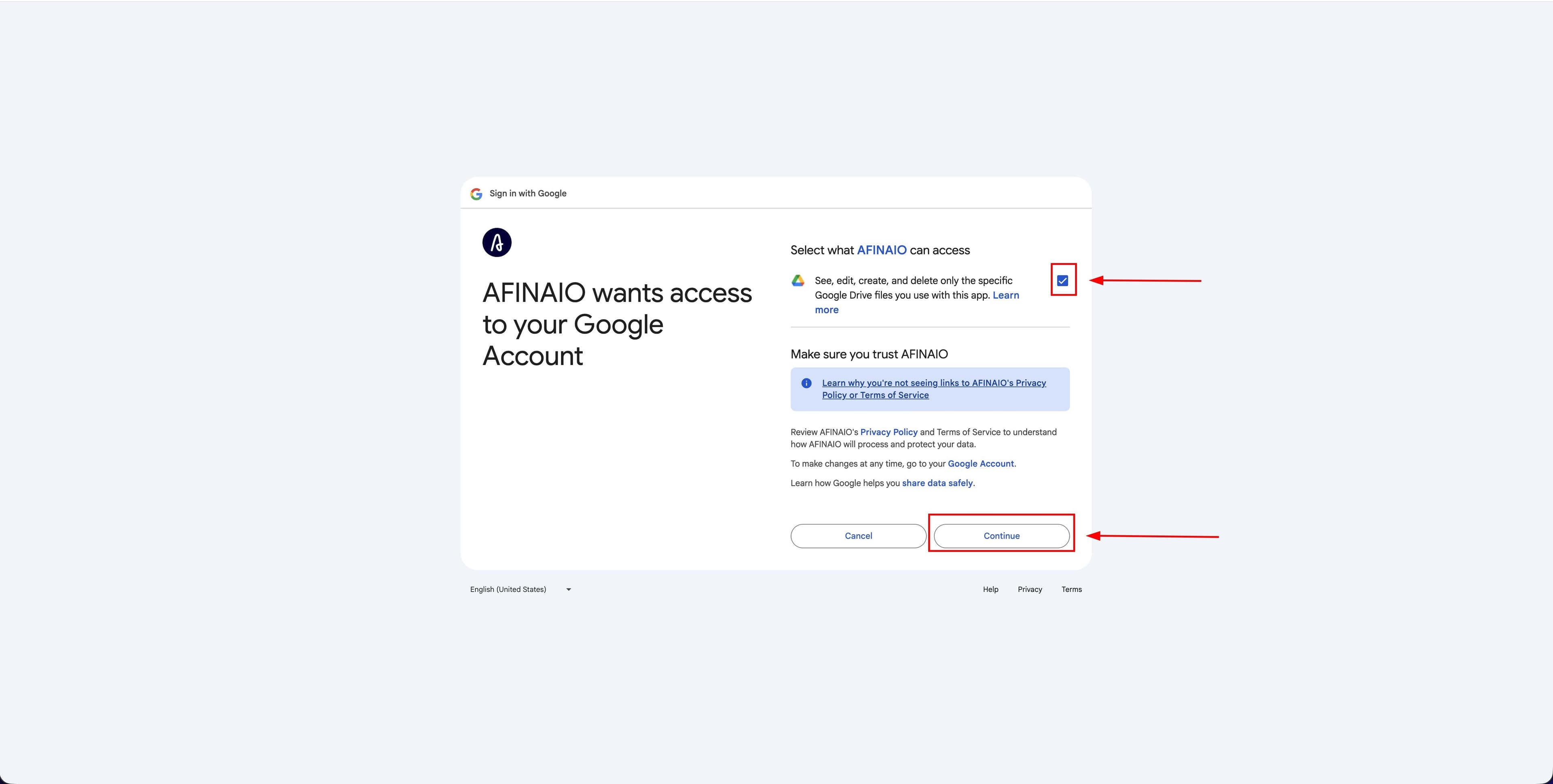
- Wait until authorization in the browser is complete.
This screenshot shows the final authorization step, after which you can return to Afina.
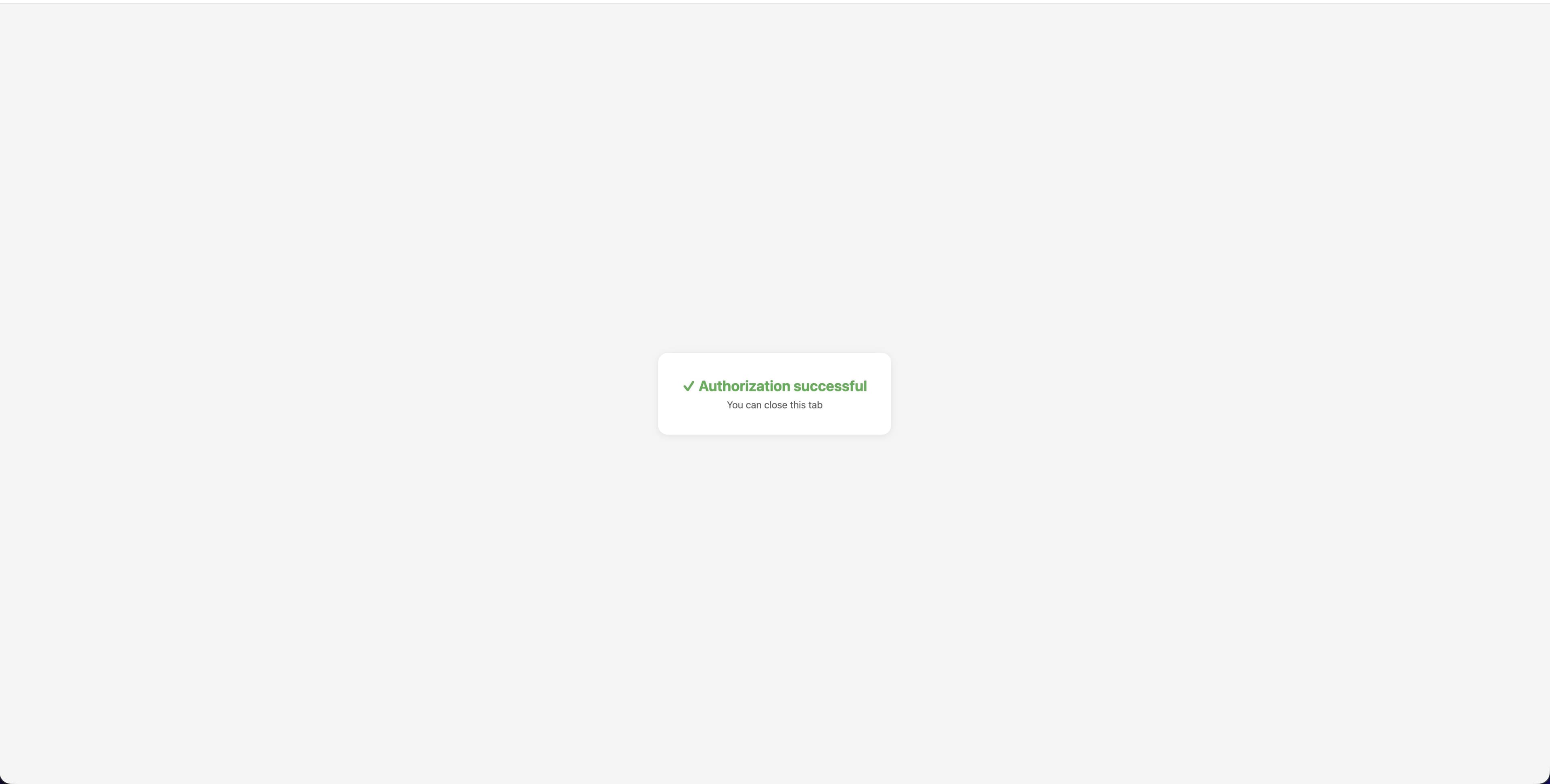
- Make sure a green block with connection confirmation and your email appears on the "Google Drive" page.
The next screenshot shows the page state after Google Drive is connected successfully.
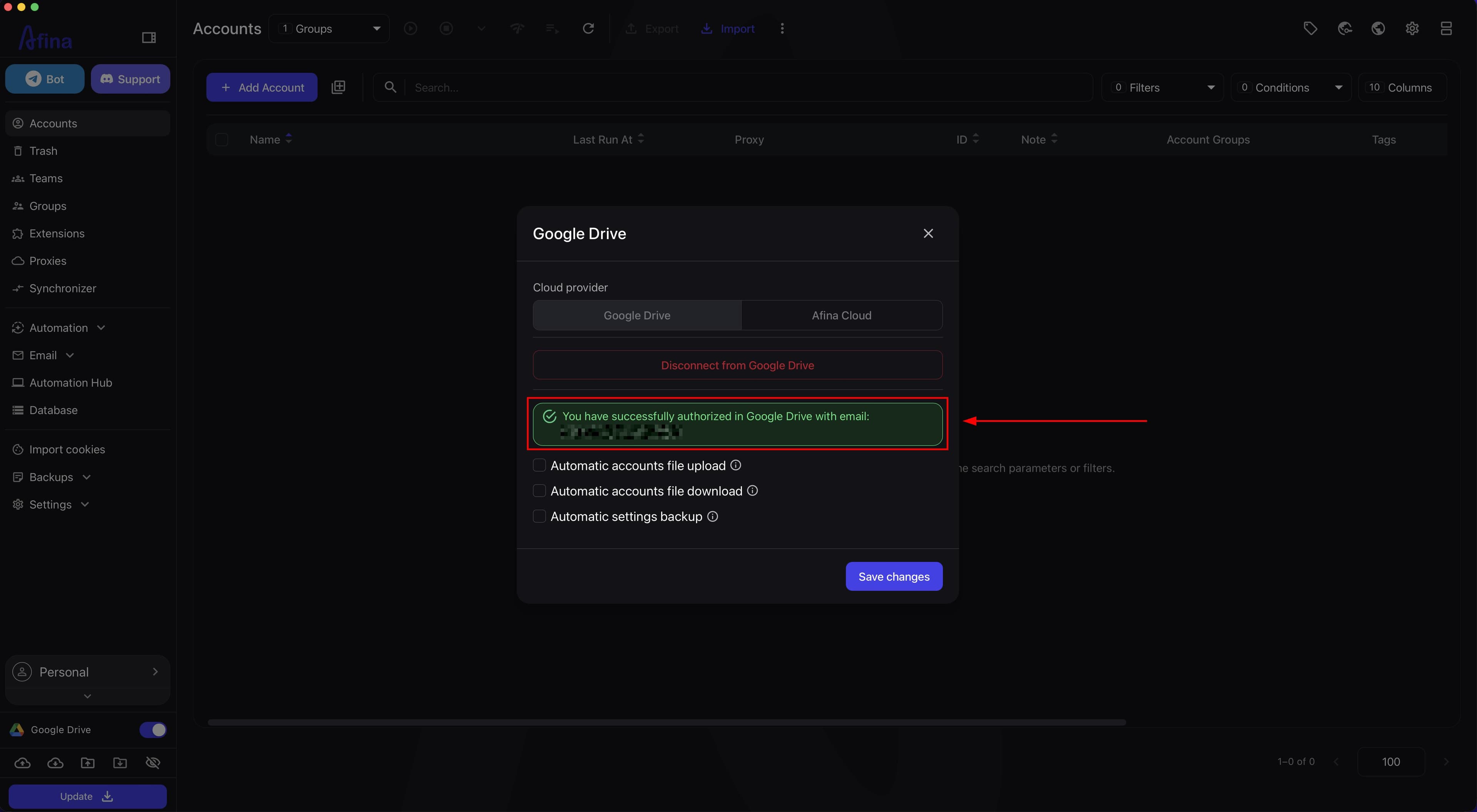
Synchronization Settings#
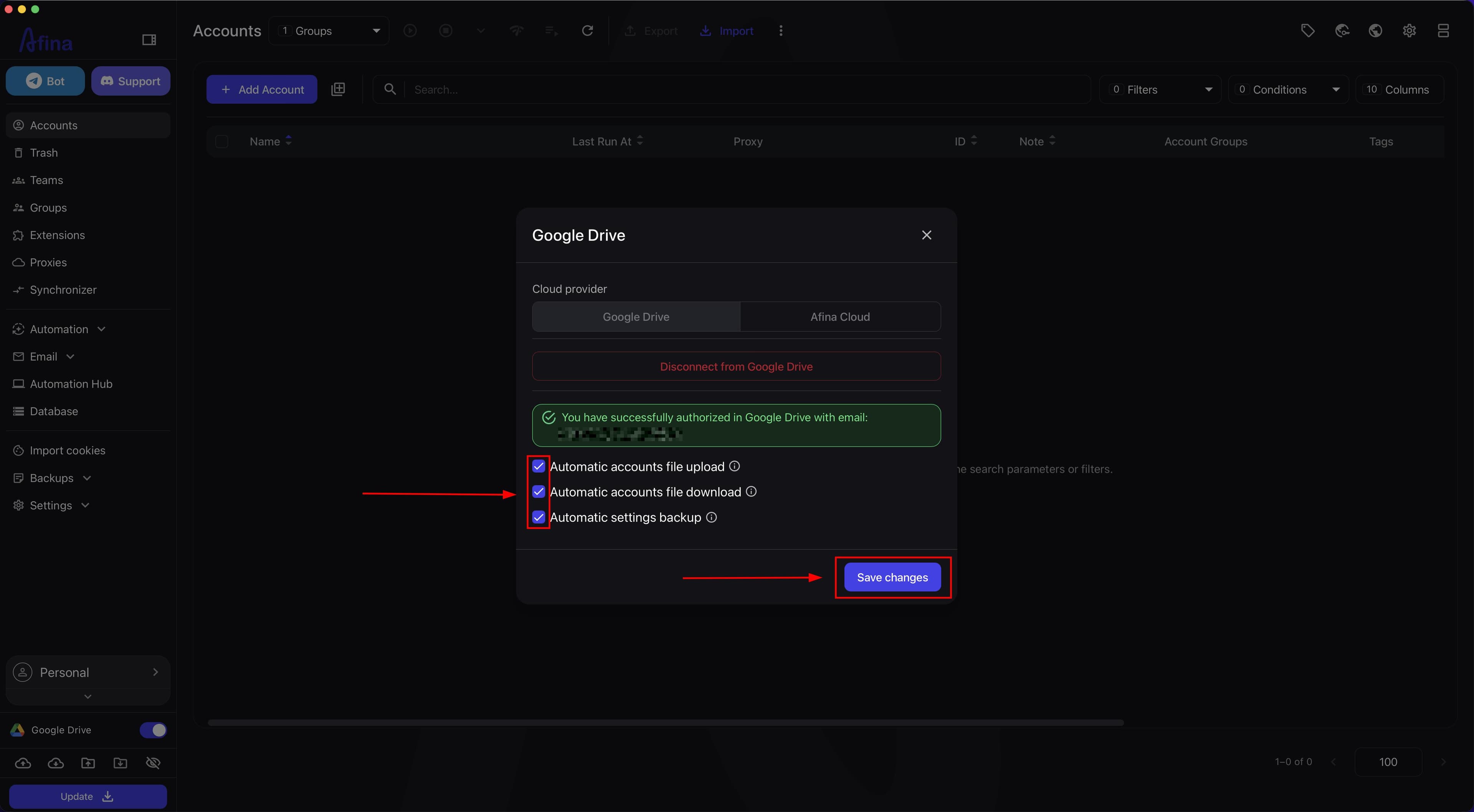
- Enable the "Automatic accounts file upload" checkbox if you want Afina to send account data to the cloud after the work session ends.
You can upload an account to the cloud only after it has been launched on this device at least once: Afina must have time to create its profile folder and pull in extensions.
-
Enable the "Automatic accounts file download" checkbox if you want Afina to check the cloud before launching an account and download a newer version.
-
Enable the "Automatic settings backup" checkbox if you want to store Afina Core Settings, groups, tags, extensions, global variables, and proxy lists in the cloud.
-
Click Save changes.
The screenshot below shows the Save changes button. After you click it, the synchronization settings will take effect.
Until you click Save changes, the new synchronization and backup settings will not be applied.
Afina does not set strict limits on file size or number of accounts: the volume is limited by free space in your Google Drive. One profile without cache takes approximately up to 50 MB, and with cache up to 300 MB.
Exporting and Importing Scripts#
-
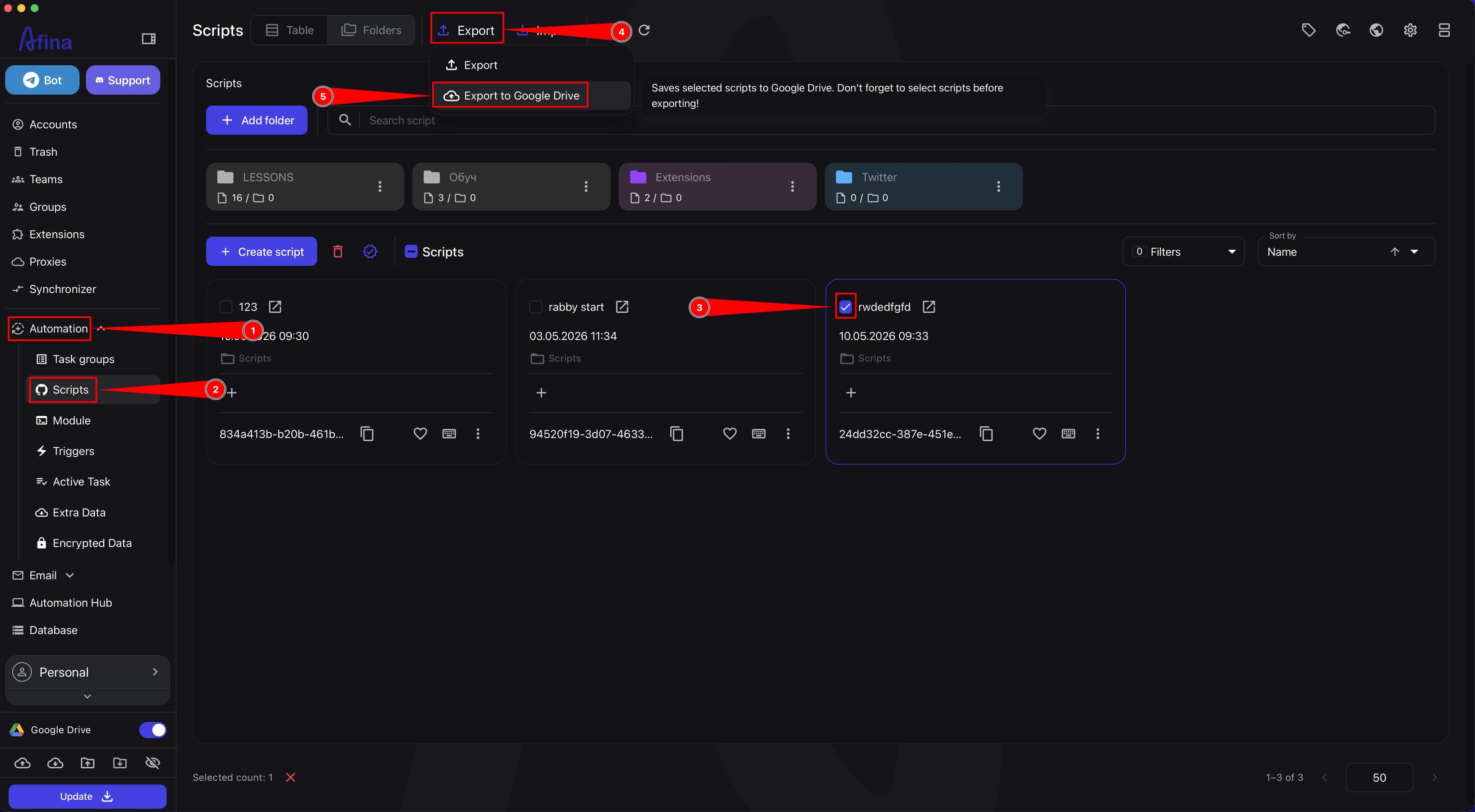
Go to the Automation section.
-
Open the "Scripts" tab.
-
Select one or more scripts to upload using the checkboxes.
-
Click Export.
-
Select Export to Google Drive.
The screenshot below shows the "Scripts" page with selected items and the export action to Google Drive.
If you do not select any script before clicking Export, the upload will not be performed.
-
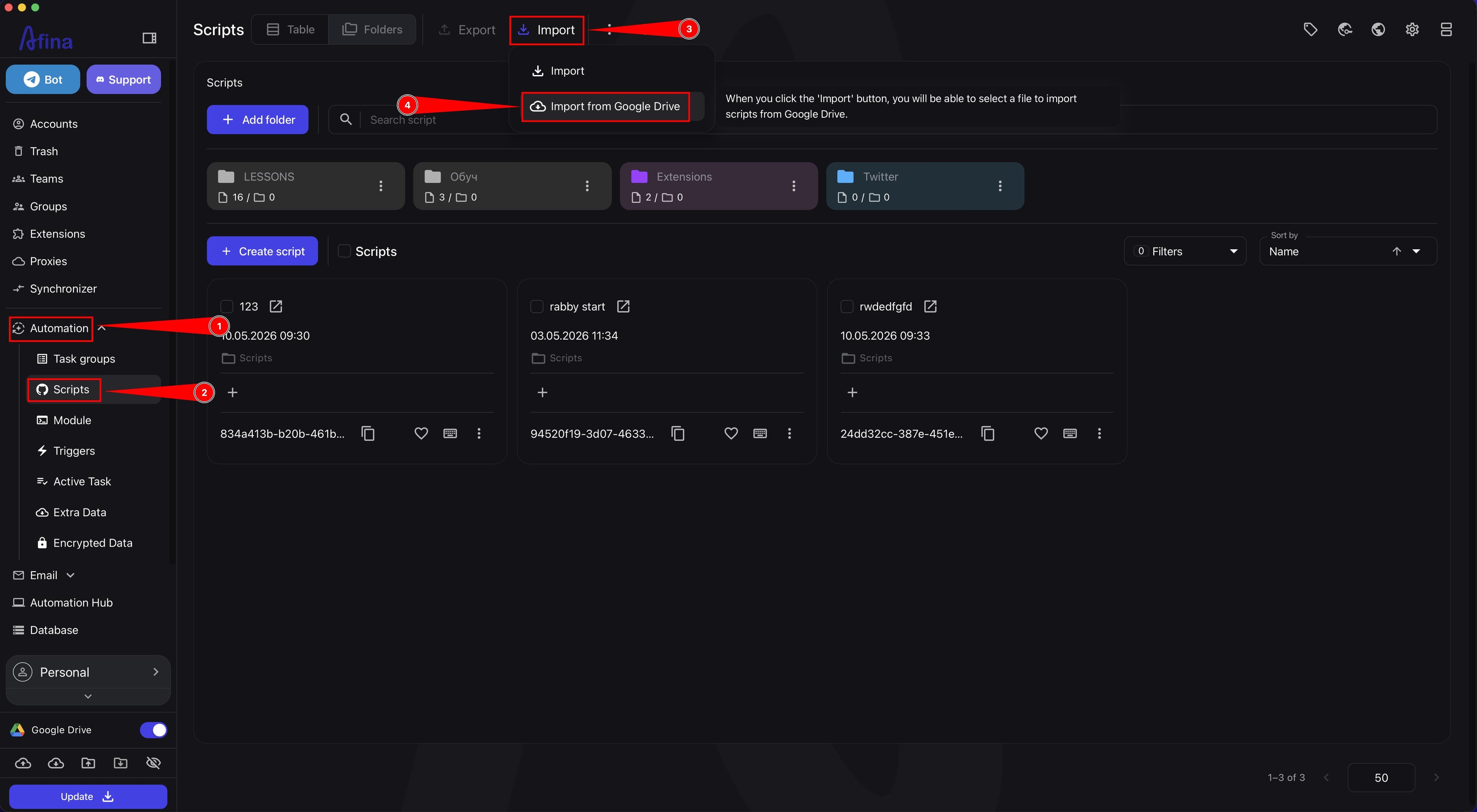
Click Import in the "Scripts" section if you want to download a script from the cloud to Afina.
-
Select Import from Google Drive.
This screenshot shows the button for importing scripts from Google Drive in the "Scripts" section.
-
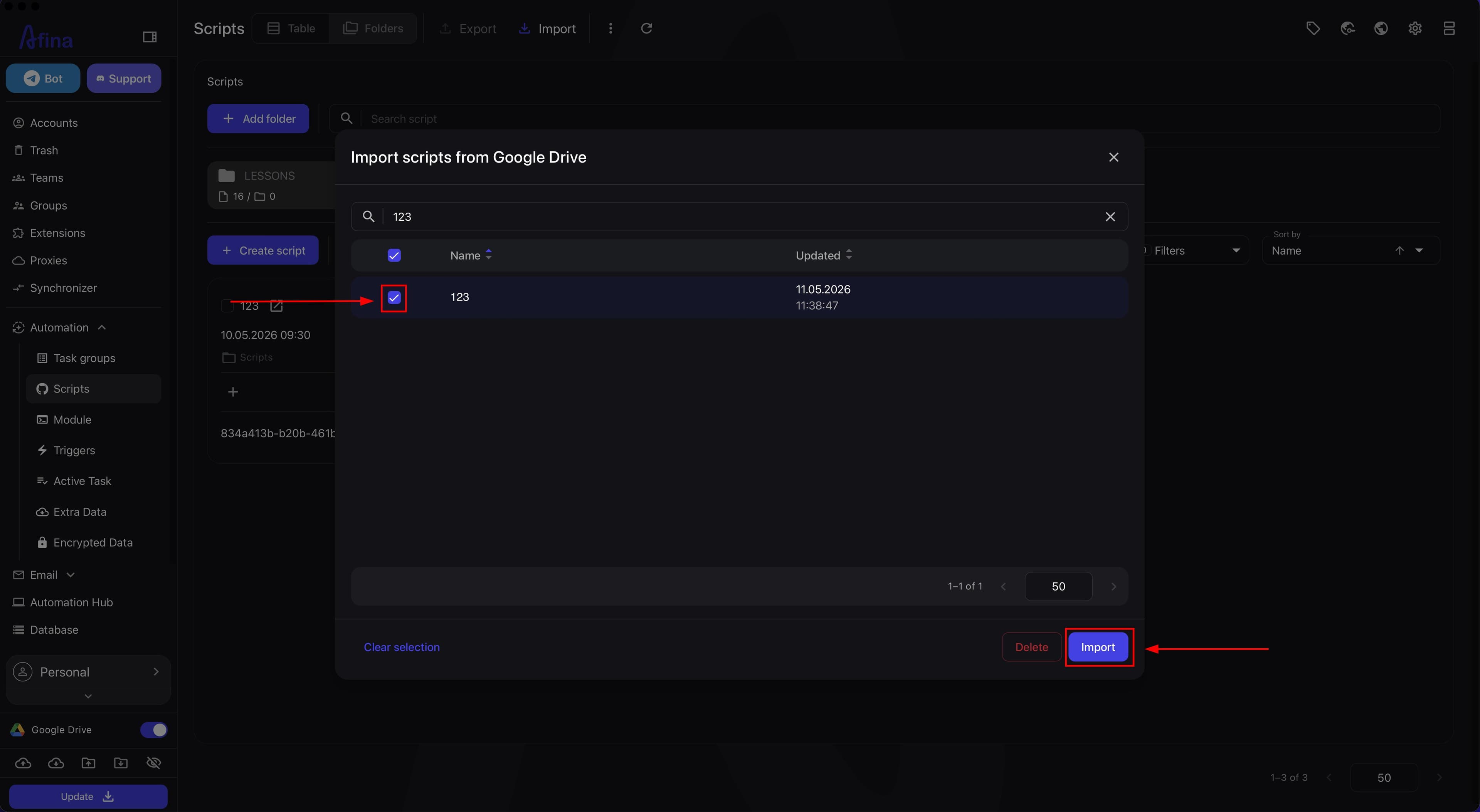
Select the required script in the list of files from Google Drive.
-
Click Import.
The next screenshot shows the script selection window before importing it into Afina.
The folder structure for scripts is not transferred through Google Drive. After import on a new device, scripts will appear as a single list, and you will need to manually sort them back into folders.
Exporting and Importing Modules#
Modules are not transferred automatically together with the scripts that use them. Scripts refer to modules by a unique hash, so modules must always be exported and imported separately through this section. If you transfer only the script without the related modules, automation will not work on the new device.
-
Go to the Automation section.
-
Open the "Modules" tab.
-
Select one or more modules to upload using the checkboxes.
-
Click Export.
-
Select Export to Google Drive.
The screenshot below shows the "Modules" page with selected items and the export action to Google Drive.
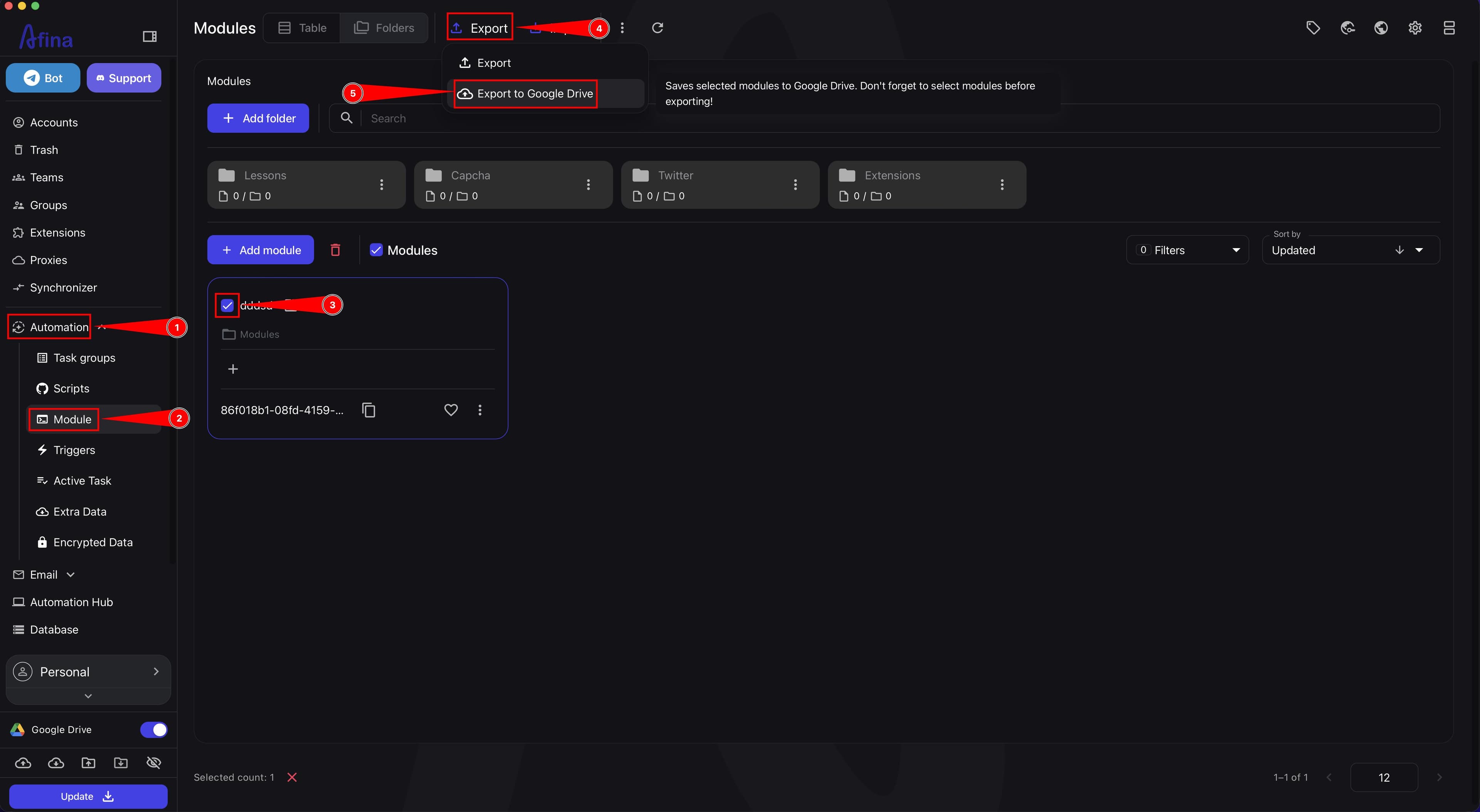
If you do not select any module before clicking Export, the upload will not be performed.
-
Click Import in the "Modules" section if you want to download a module from the cloud to Afina.
-
Select Import from Google Drive.
This screenshot shows the button for importing modules from Google Drive in the "Modules" section.
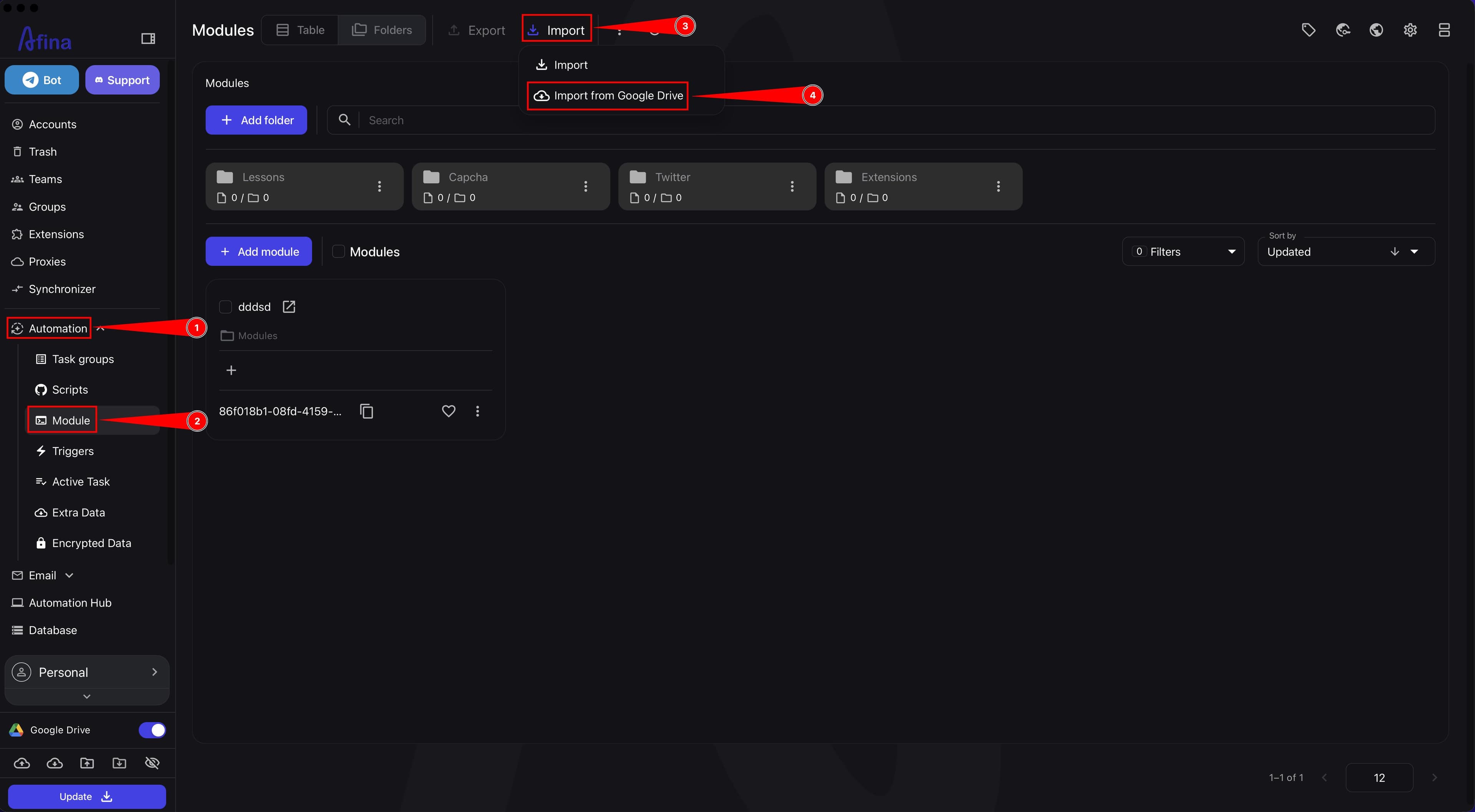
-
Select the required module in the list of files from Google Drive.
-
Click Import.
The next screenshot shows the module selection window before importing it into Afina.
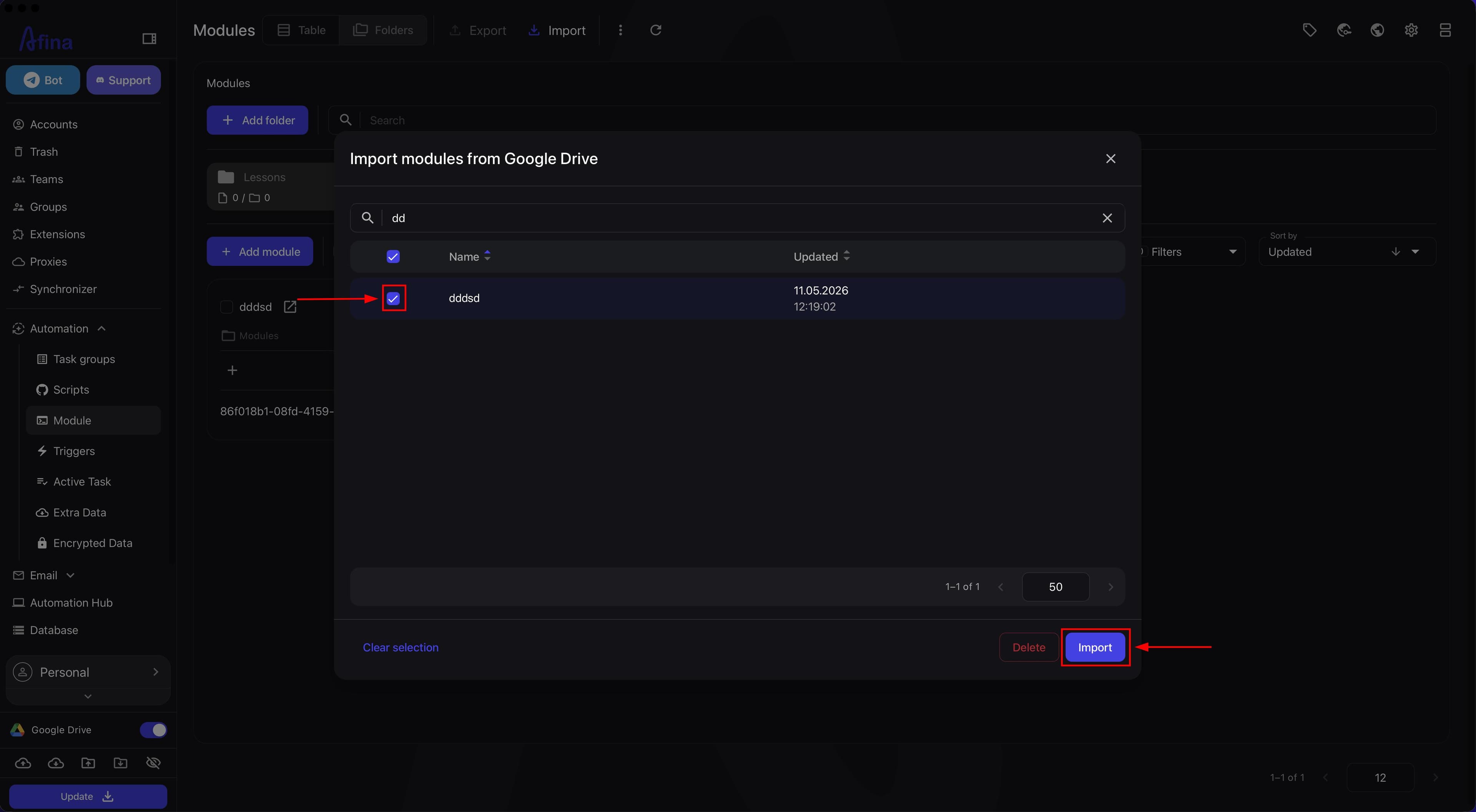
Module import runs in the background. Do not close the section until a green notification about successful completion appears.
Each module is protected by an Ed25519 signature. If you edit the module code locally after import, the executor will block it from running. To fix this, click the red icon on the module card or select "Re-sign" in the menu.
If you updated a module and its hash changed, all scripts that already used this module will stop working. You need to add the updated module to those scripts again.
Working on Different Devices#
-
On the first device, enable the "Automatic accounts file upload" checkbox.
-
Finish working with the required account and wait until the upload to the cloud is complete before turning off the device or closing Afina.
If you turn off the device before the upload is complete, new data will not be pulled to another device.
-
On the second device, connect the same Google account in the Google Drive section and load the same key file.
-
On the second device, enable the "Automatic accounts file download" checkbox.
-
Launch the required account on the second device.
If new data was not pulled to the second device, check whether synchronization on the first device finished and whether the same key file is being used.
Result#
After completing these steps, Google Drive will be connected to Afina, synchronization and backup settings will be saved, and scripts, modules, and account data can be transferred between devices through the cloud.