Transfer accounts and settings to another PC#
This guide shows how to transfer accounts and Afina working data to another computer. This is useful when you change devices, set up a new workstation, or want to open the same accounts on another PC without losing access to encrypted data and settings.
Before you start#
- Make sure you have access to your key file and know the current master password.
- Make sure there is enough free space on the new PC or target drive.
- If you need to transfer not only accounts, but also main settings, Integration Keys, groups, and extensions, transfer settings together with the accounts.
To open accounts, passwords, and cookies on another PC, you need to use the same key file and the same master password on the new device. If the keys do not match, Afina will not decrypt the data.
This guide covers two main transfer options: via Google Drive and via local .afbk archives. Choose the method depending on whether you want to transfer data through the cloud or manually.
Transfer via Google Drive#
This method is suitable if you need to transfer not only accounts, but also the program configuration: main settings, Integration Keys, groups, and extensions. It is the most convenient option for working between two PCs without manually copying files.
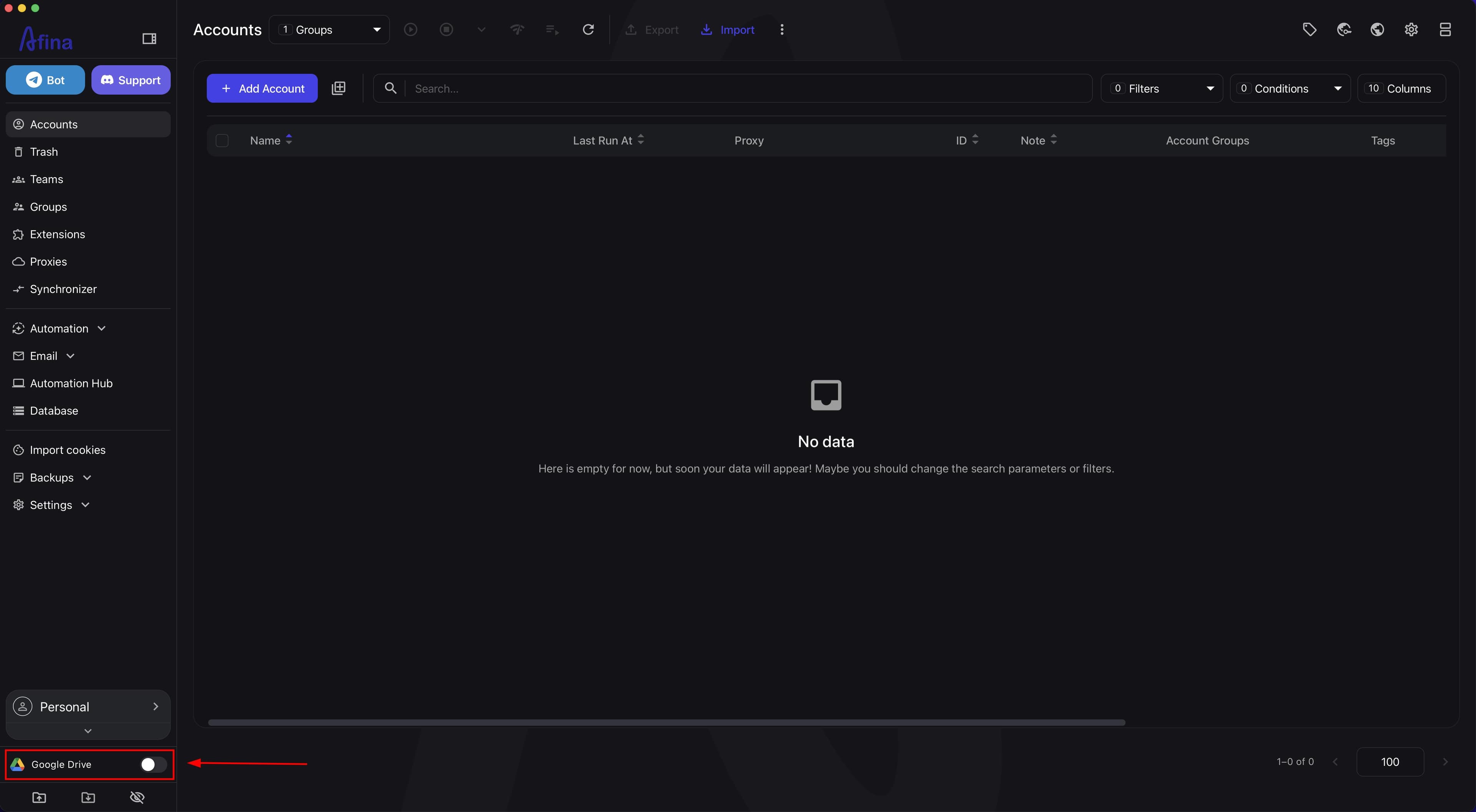
- On the old PC, go to the Google Drive section in the lower-left corner of the Afina interface.
- Authorize the same Google account that you will use on the new PC.
The screenshot below shows the Google Drive button in the lower-left part of the Afina interface, where cloud storage connection starts.
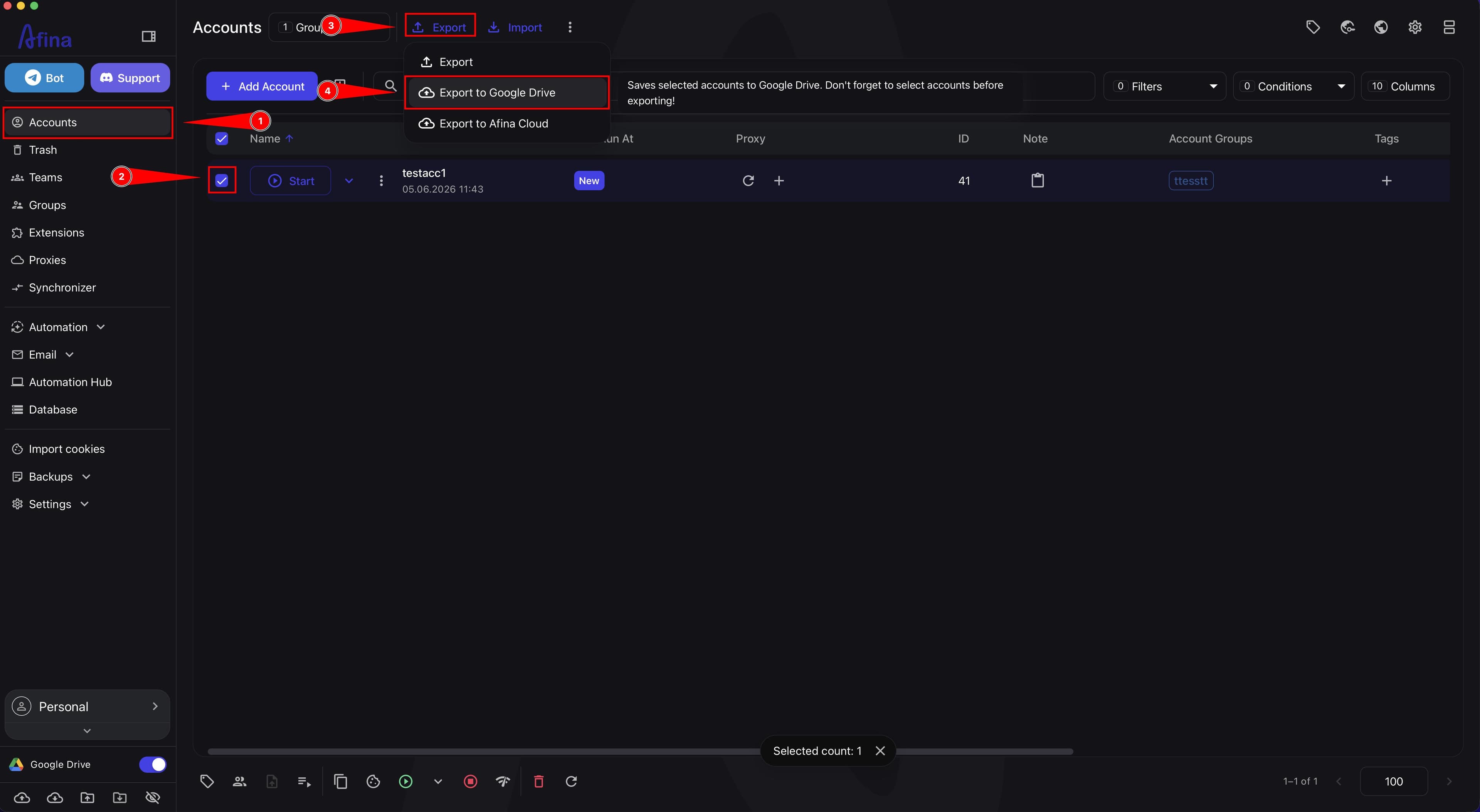
- Go to the Accounts section.
- Select the required accounts using checkboxes in the table.
- Click Export.
- In the dropdown menu, select Export to Google Drive.
The screenshot below shows the Export button menu with the Export to Google Drive item.
- Wait until the accounts export to the cloud is complete.
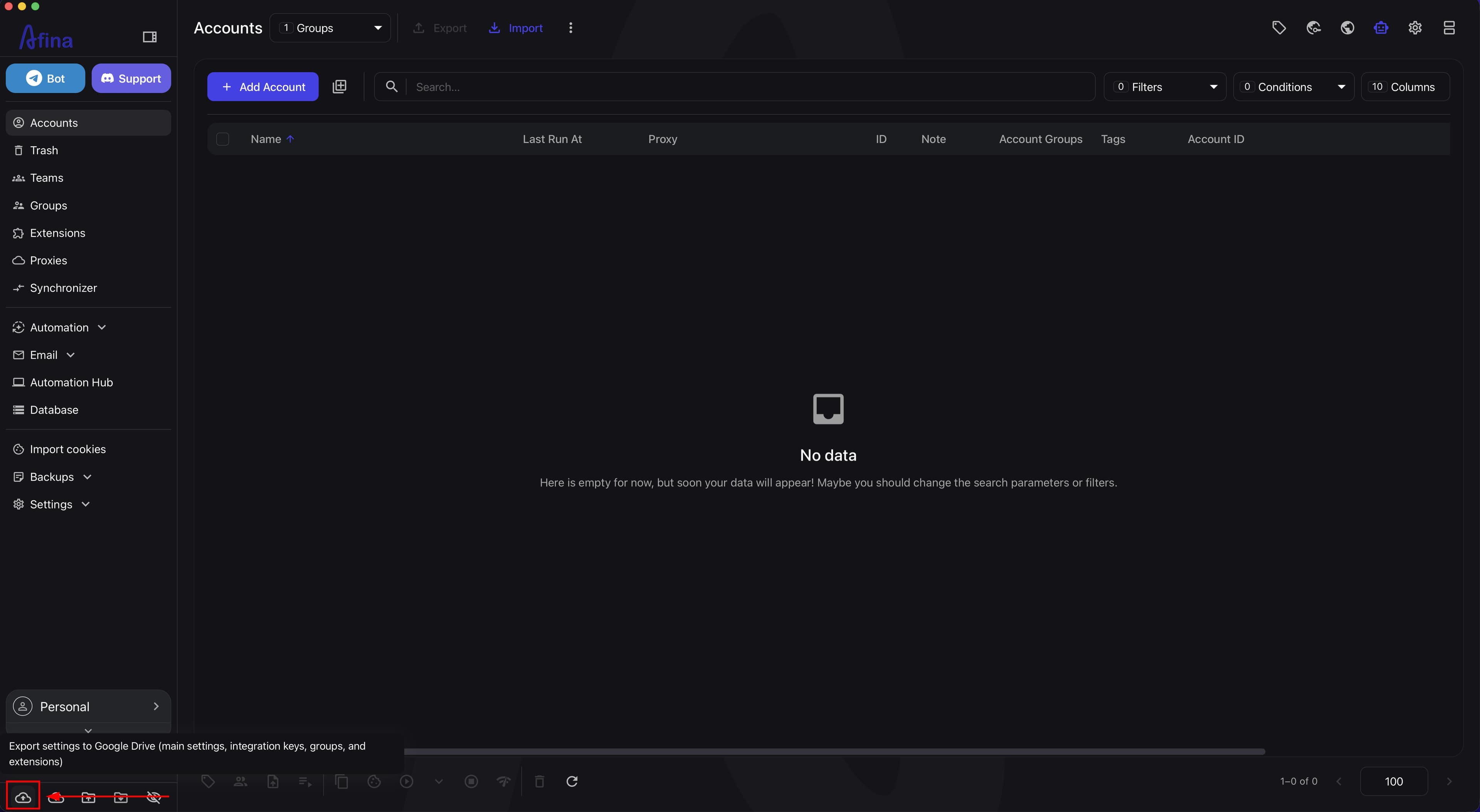
- On the bottom panel, click the Export settings to Google Drive icon to save main settings, Integration Keys, groups, and extensions to the cloud.
The screenshot below should show the Export settings to Google Drive icon on the bottom panel.
- Install Afina on the new PC.
- During the first login, upload your key file and enter the master password.
- On the new PC, open the Google Drive section.
- Connect the same Google account.
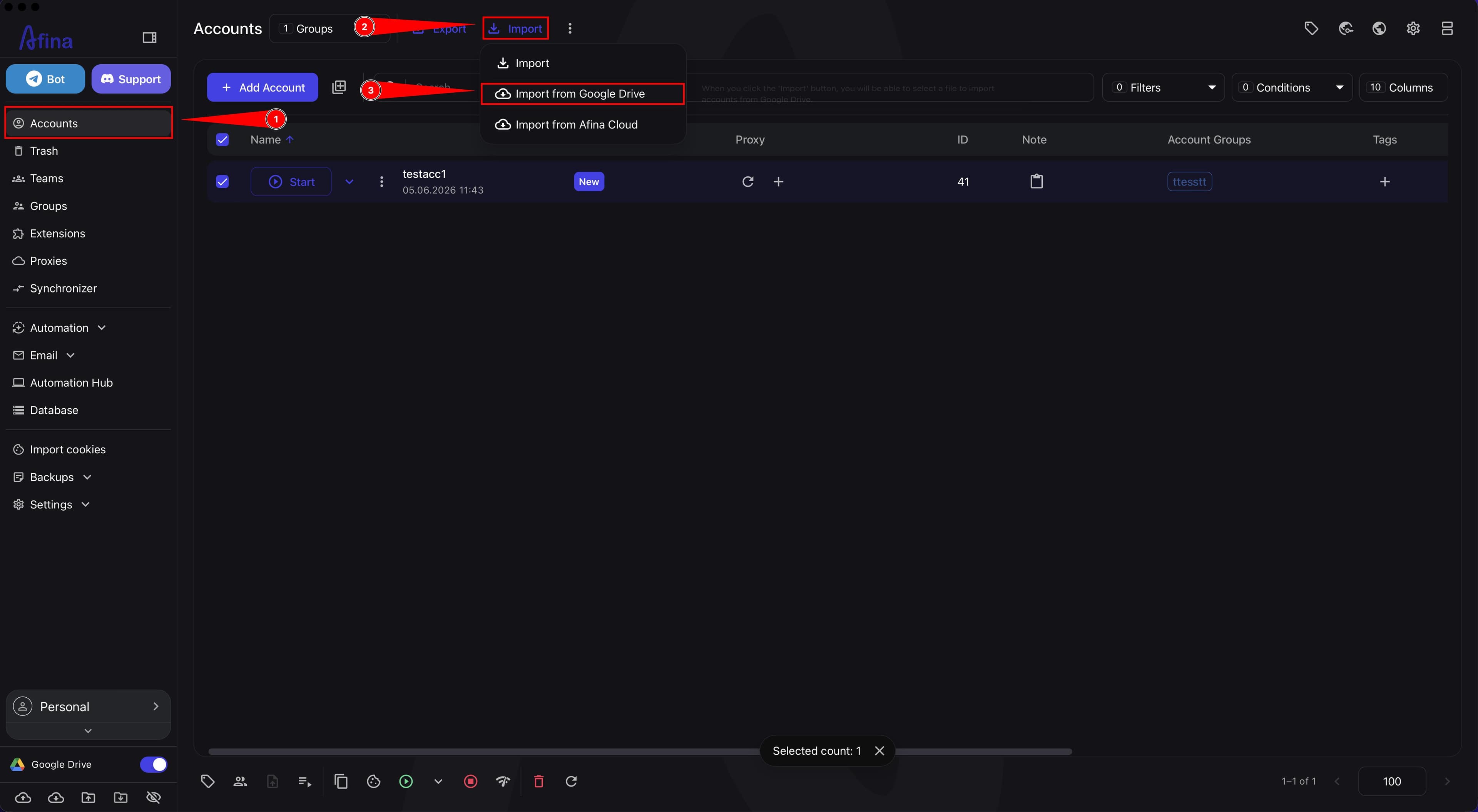
- Go to the Accounts section.
- Click Import.
- In the dropdown menu, select Import from Google Drive.
The screenshot below shows the Import button menu with the Import from Google Drive item.
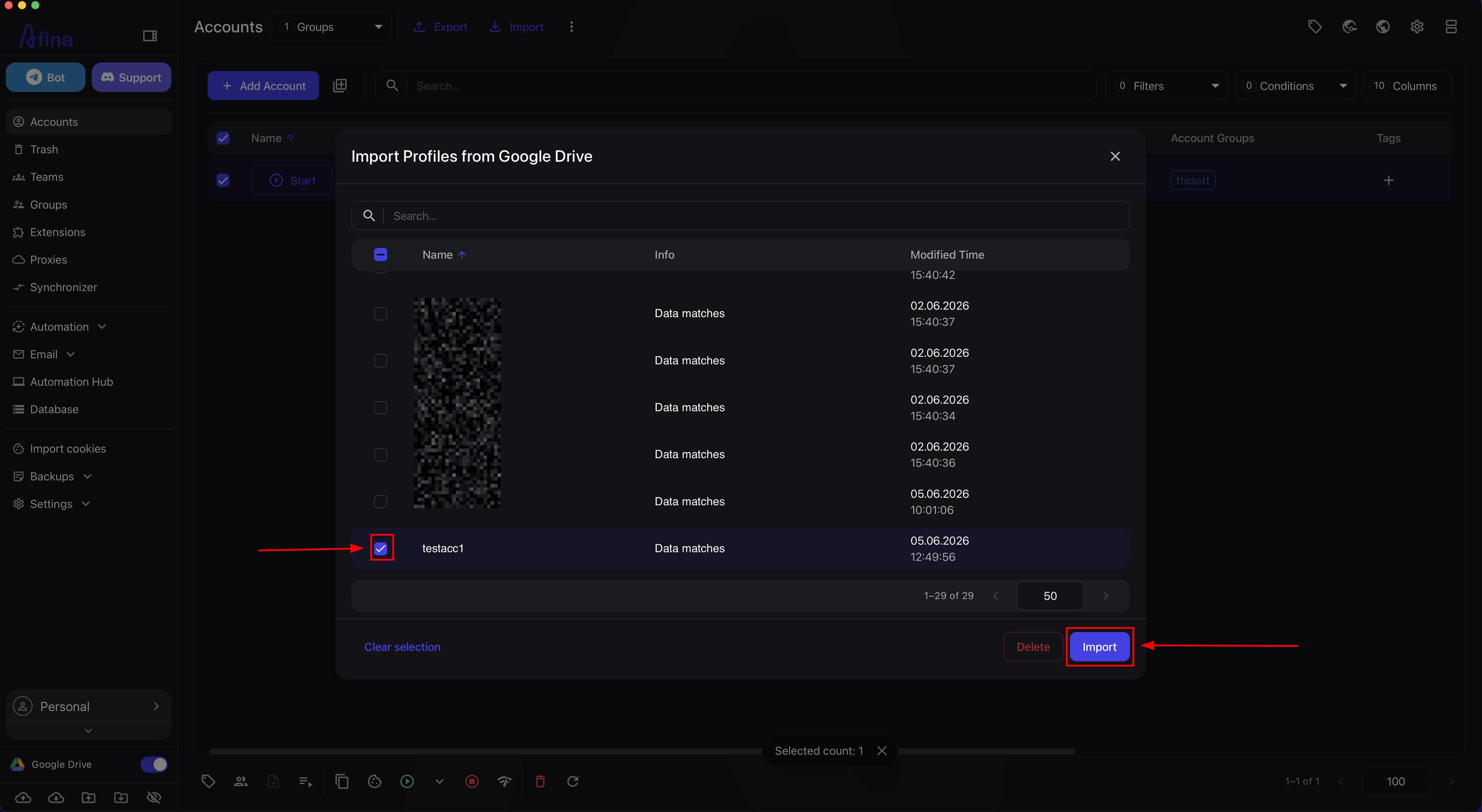
- In the "Import profiles from Google Drive" window, select the required archives.
- Click Import.
The next screenshot shows the "Import profiles from Google Drive" window with a list of archives and the Import button.
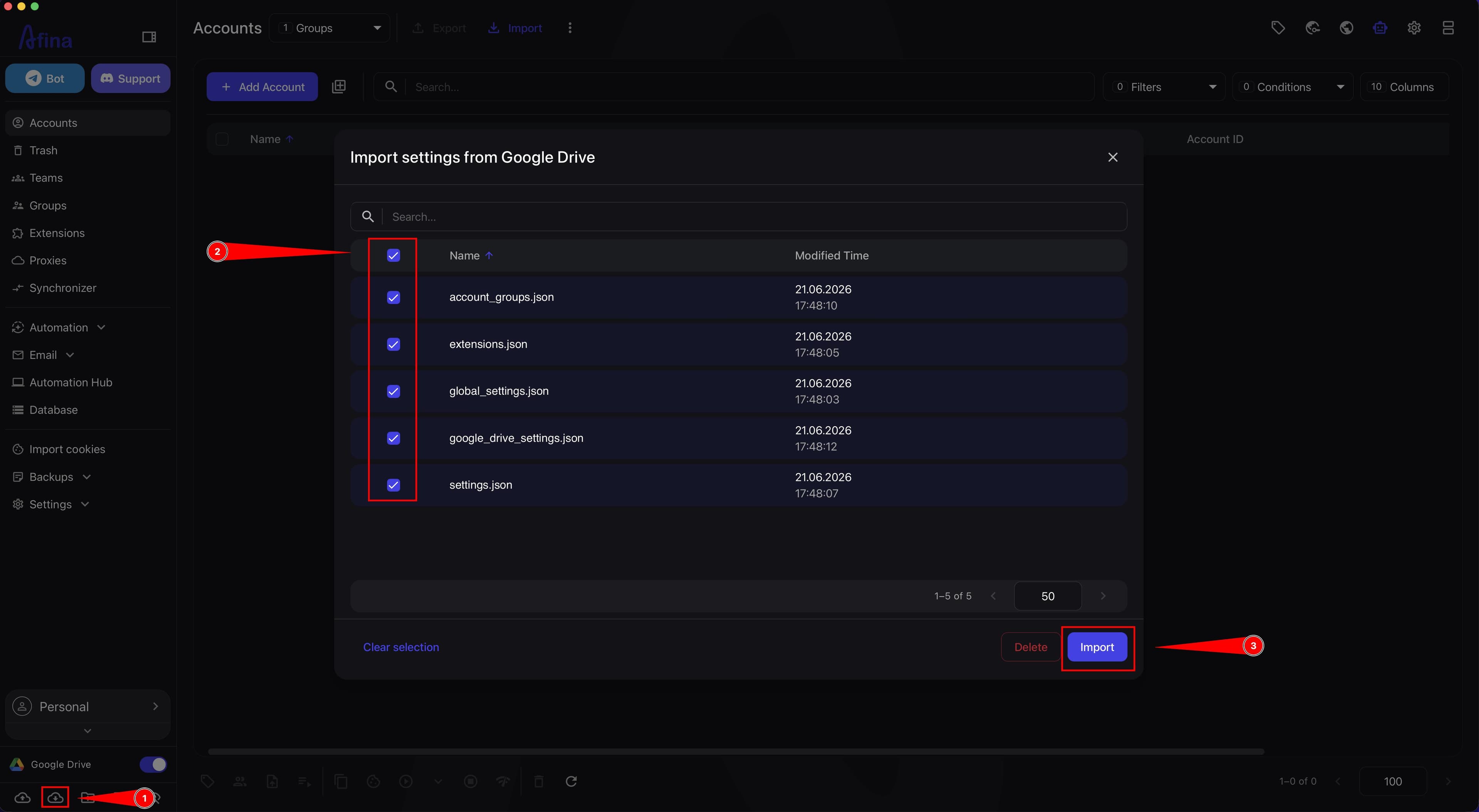
- On the bottom panel, click the Import settings from Google Drive icon.
- Select the required configuration files.
- Confirm the settings import.
The screenshot below should show the settings import window or panel from Google Drive with configuration file selection.
After this, the imported accounts and loaded environment configuration will be available on the new PC.
Transfer via local archives#
This method is suitable for manual transfer without using cloud services. It is convenient if you transfer data via a USB drive, external drive, or another local storage device.
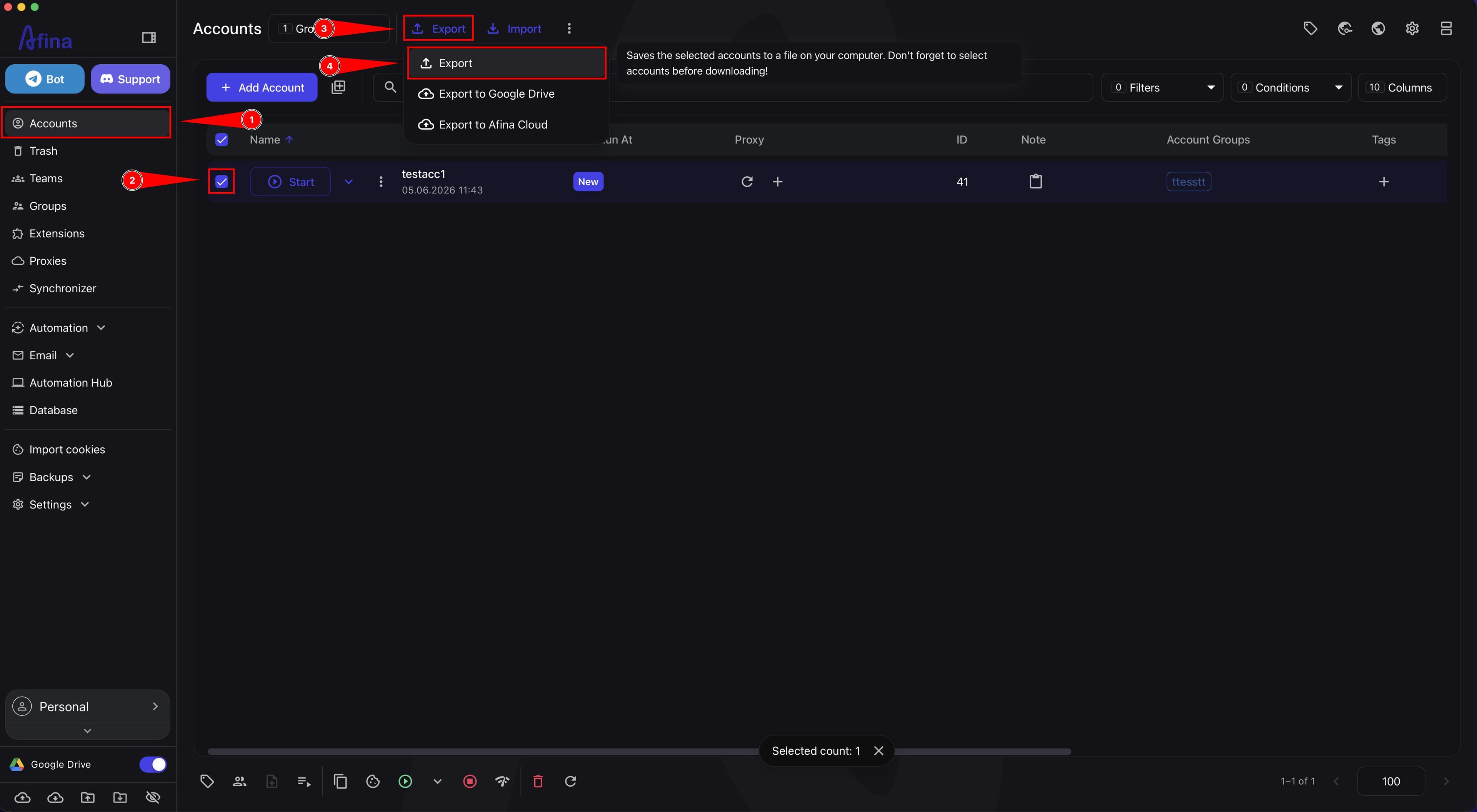
- On the old PC, go to the Accounts section.
- Select the required accounts using checkboxes in the table.
- Click Export.
- In the dropdown menu, select Export.
The screenshot below shows the Accounts section with the Export button menu open for saving archives locally.
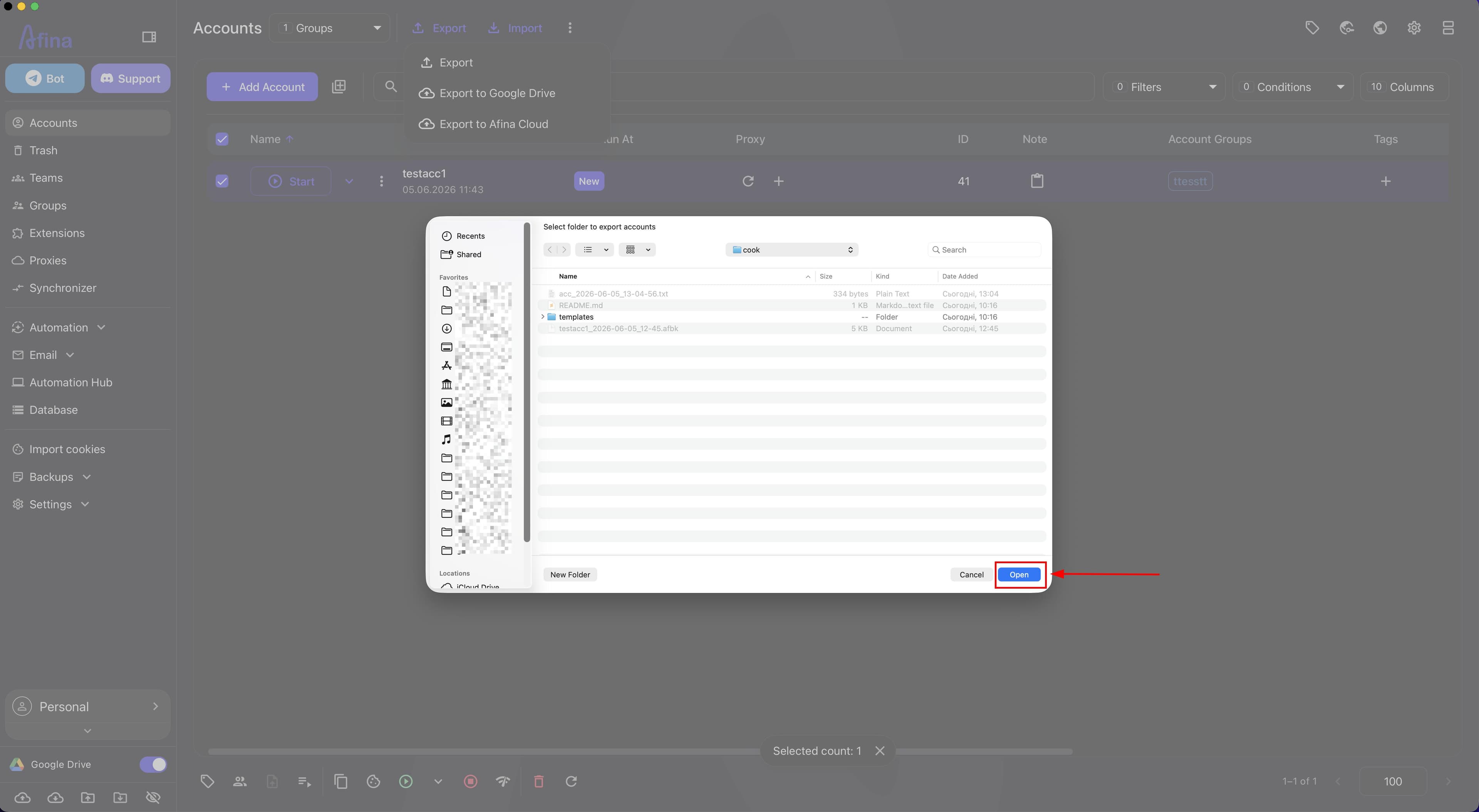
- In the system window "Select folder to export accounts", choose a folder for saving the archives.
- Confirm the folder selection in the OS system window.
The next screenshot shows the "Select folder to export accounts" system window, where you need to select a folder for local export of accounts.
- Wait until the
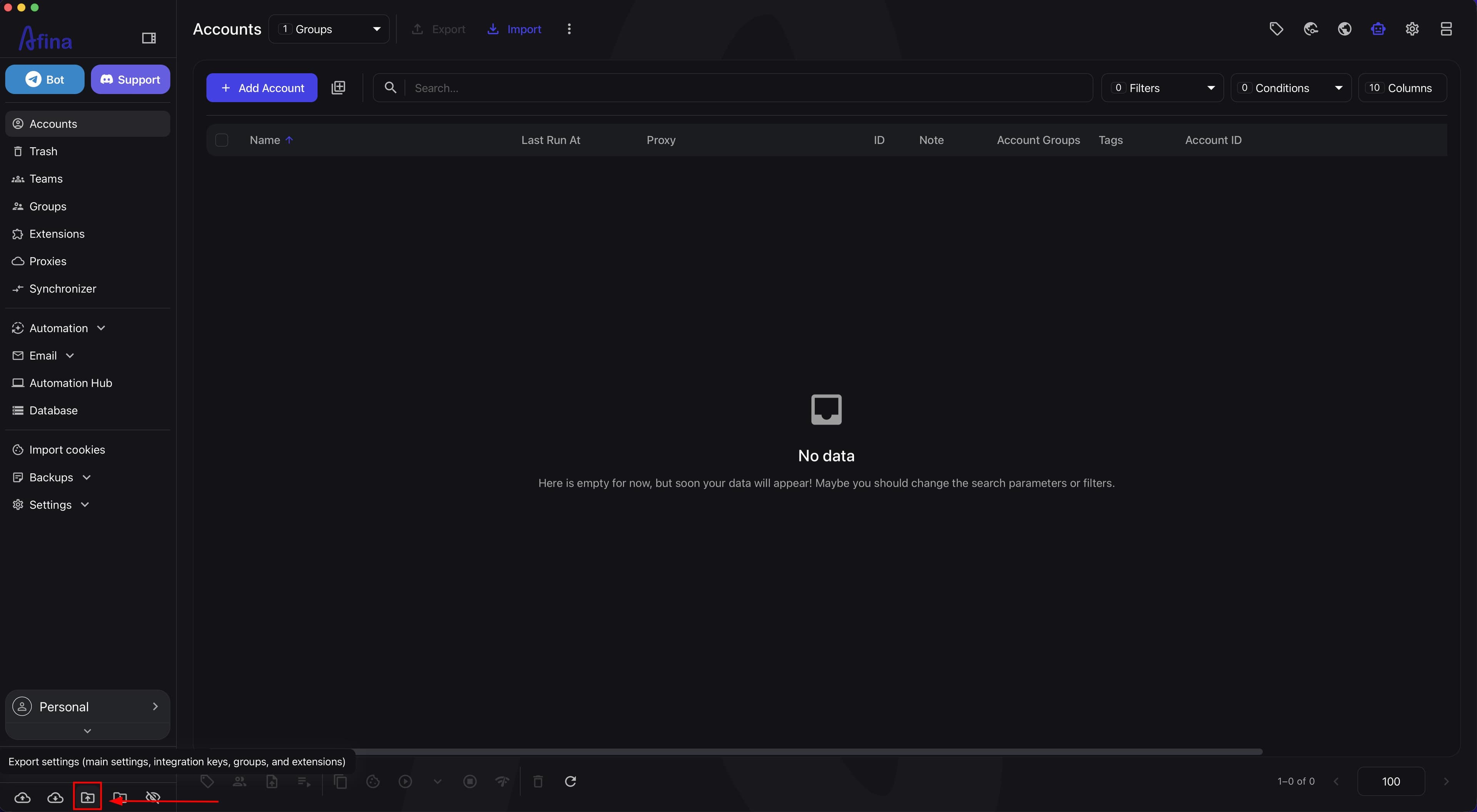
.afbkarchives are created. - On the bottom panel, click the Export settings icon to separately save main settings, Integration Keys, groups, and extensions.
The screenshot below shows the Export settings icon on the bottom panel for saving configuration files locally.
- Transfer the account archives and settings files to the new PC via a USB drive, external drive, or another local storage device.
- Install Afina on the new PC.
- During the first login, upload your key file and enter the master password.
- Go to the Accounts section.
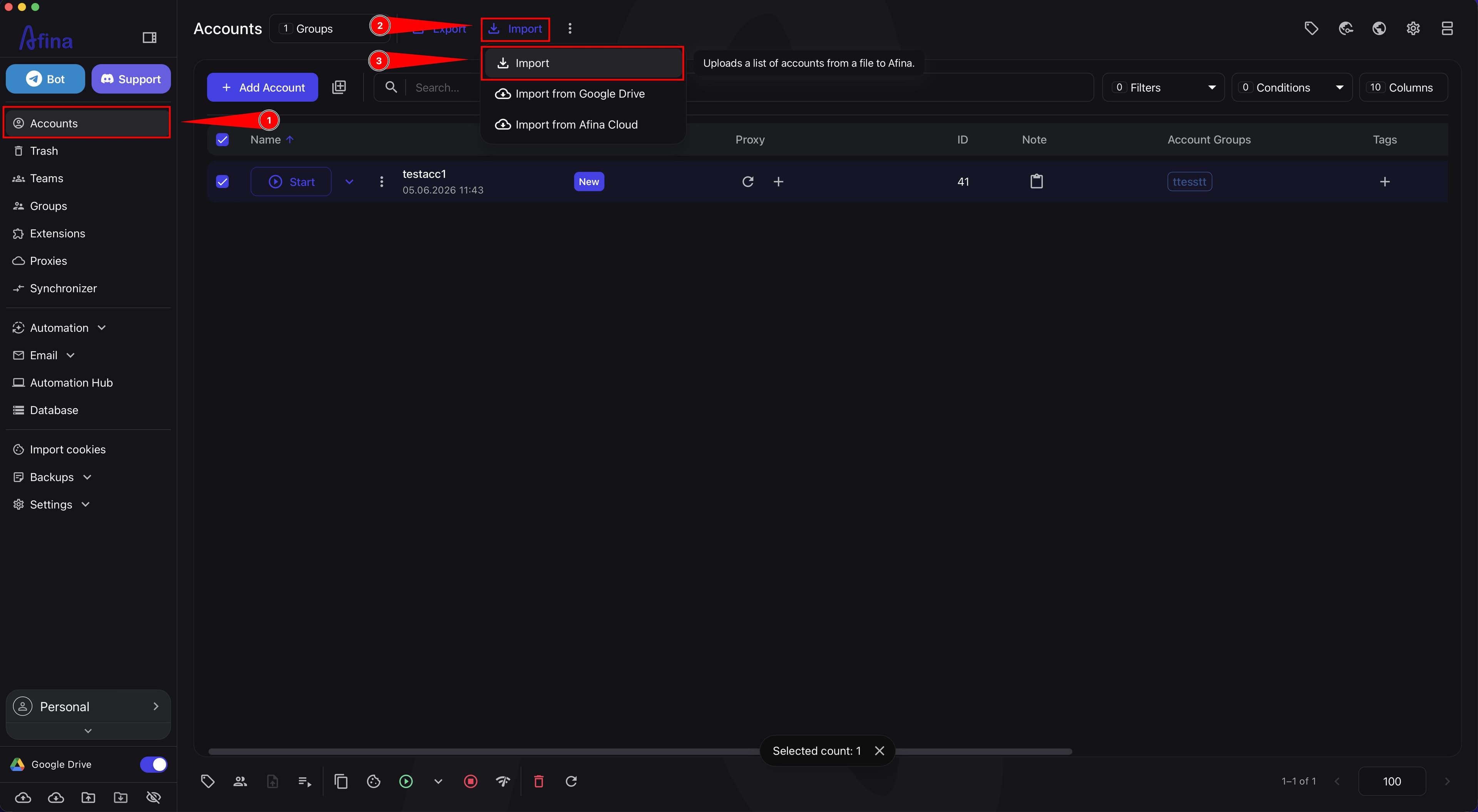
- Click Import.
- In the dropdown menu, select Import.
The screenshot below shows the Import button menu for local restoration of account archives.
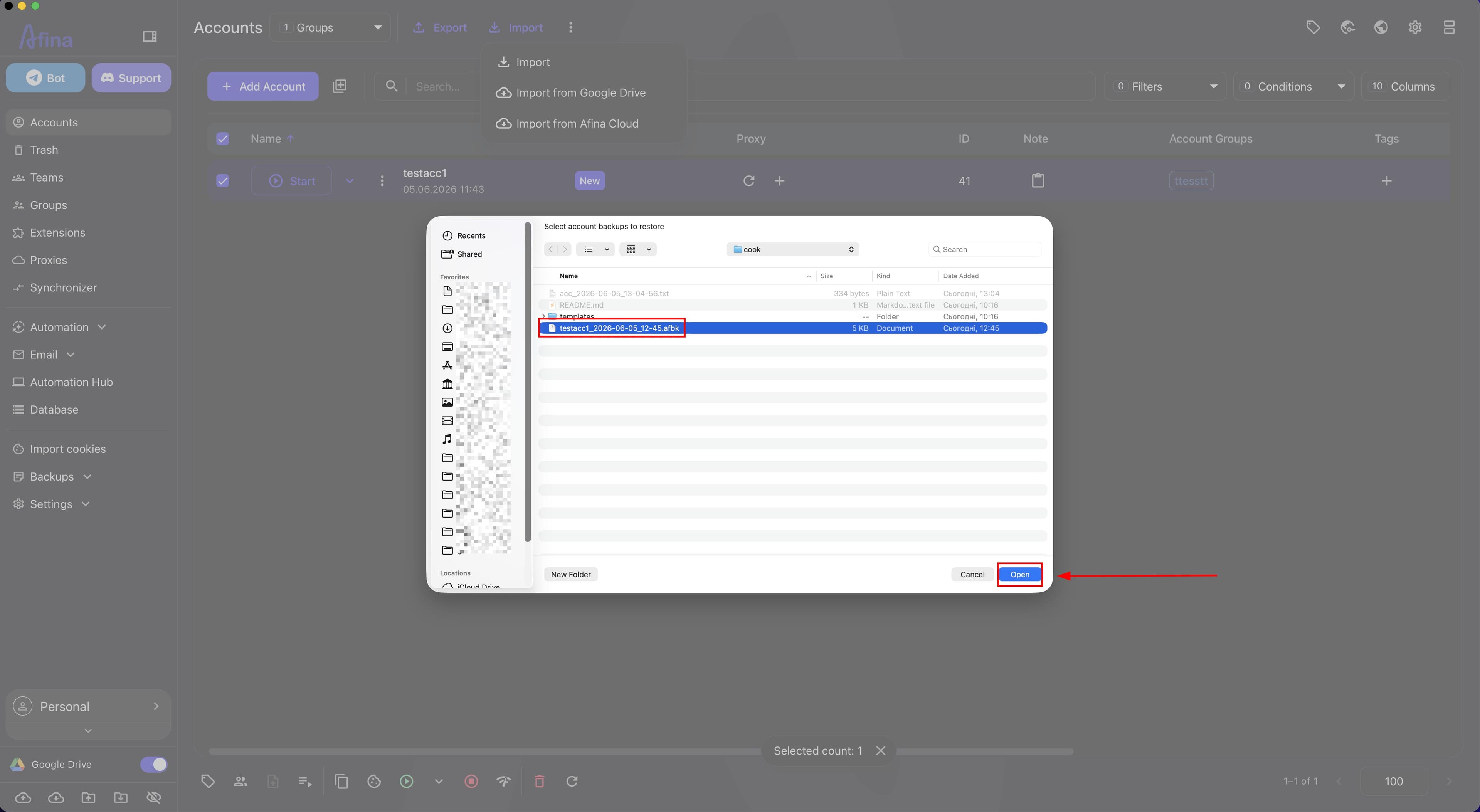
- In the system window "Select account archives to restore", select the
.afbkarchive files. - Confirm the import in the OS system window.
The next screenshot shows the "Select account archives to restore" system window, where you need to select the .afbk archive files.
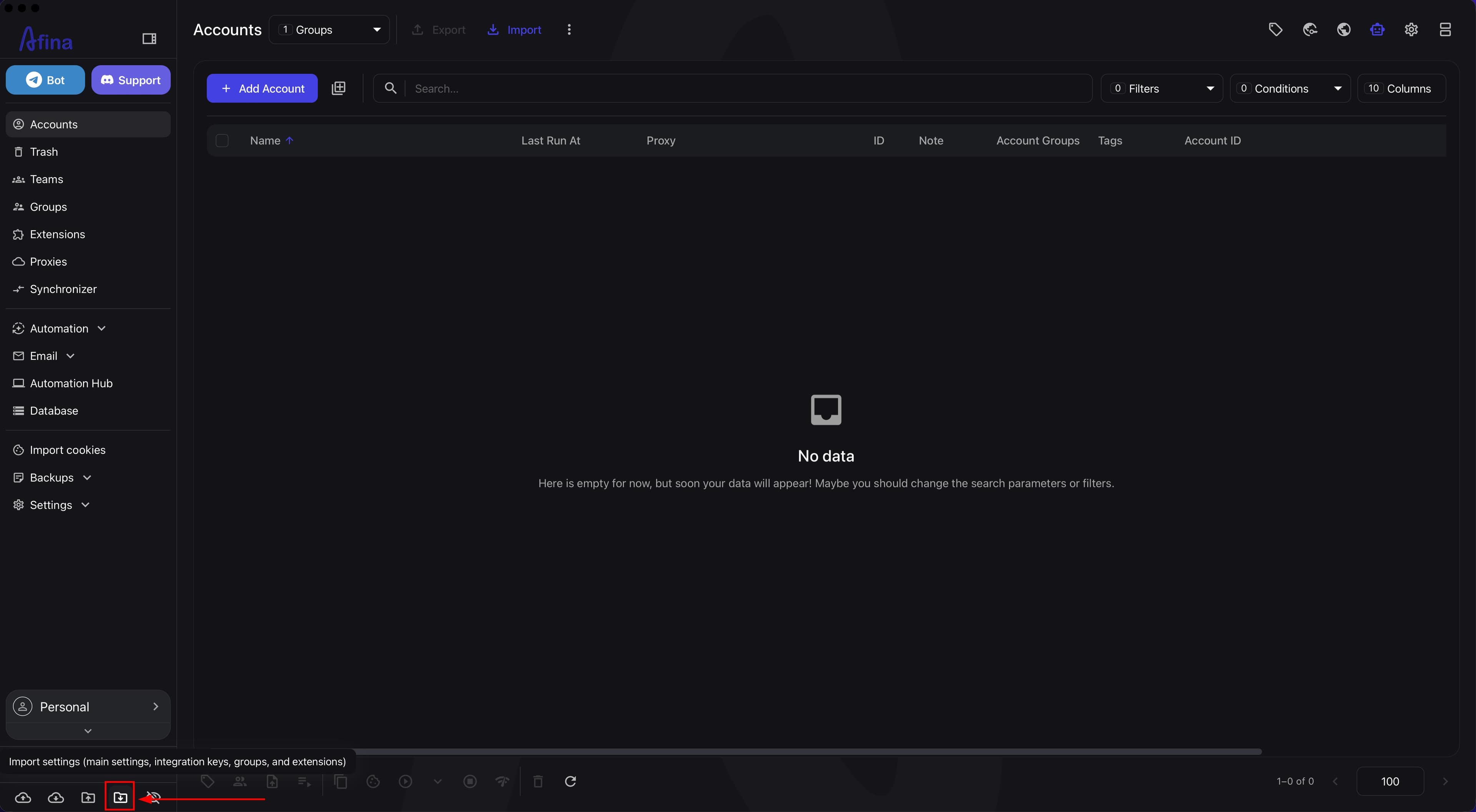
- On the bottom panel, click the Import settings icon.
- Select the previously saved configuration files.
- Confirm the settings import.
The screenshot below shows the Import settings icon on the bottom panel for loading configuration files locally.
After this, the selected accounts will be restored on the new PC, and the configuration file will be imported separately.
What to check after the transfer#
- Open
3-5different profiles on the new PC. - Check that proxies, cookies, and authorizations work correctly in the profiles.
- Check that main settings, Integration Keys, groups, and extensions have appeared if you transferred settings separately.
- Make sure the new data opens correctly and the working environment on the new PC is ready to use.
If the accounts do not open correctly after the transfer, first check whether the correct key file and correct master password were used on the new PC.
Important details#
Operating system compatibility Do not use profiles created on Windows on macOS, and vice versa. This transfer may cause technical errors in the local profile data.
OKX extension Due to OKX protection specifics, wallet seed phrases may not transfer automatically. You may need to enter them again on the new device.
Storing the key file Store the key file and master password separately from cloud services, for example on a physical USB drive or in another secure storage location.
What exactly to transfer
If you only need separate accounts, use Google Drive or local .afbk archives. If you also need to transfer main settings, Integration Keys, groups, and extensions, transfer settings together with the accounts.
If you lose the key file and master password, access to encrypted data cannot be restored.
Result#
After completing these steps, you will be able to transfer accounts and Afina settings to another PC in two ways: via Google Drive or via local .afbk archives. If the same key file and the same master password are used on the new device, the encrypted data will open correctly.